
Lesson 0: Setting Up Your Development Environment with GitHub Codespaces

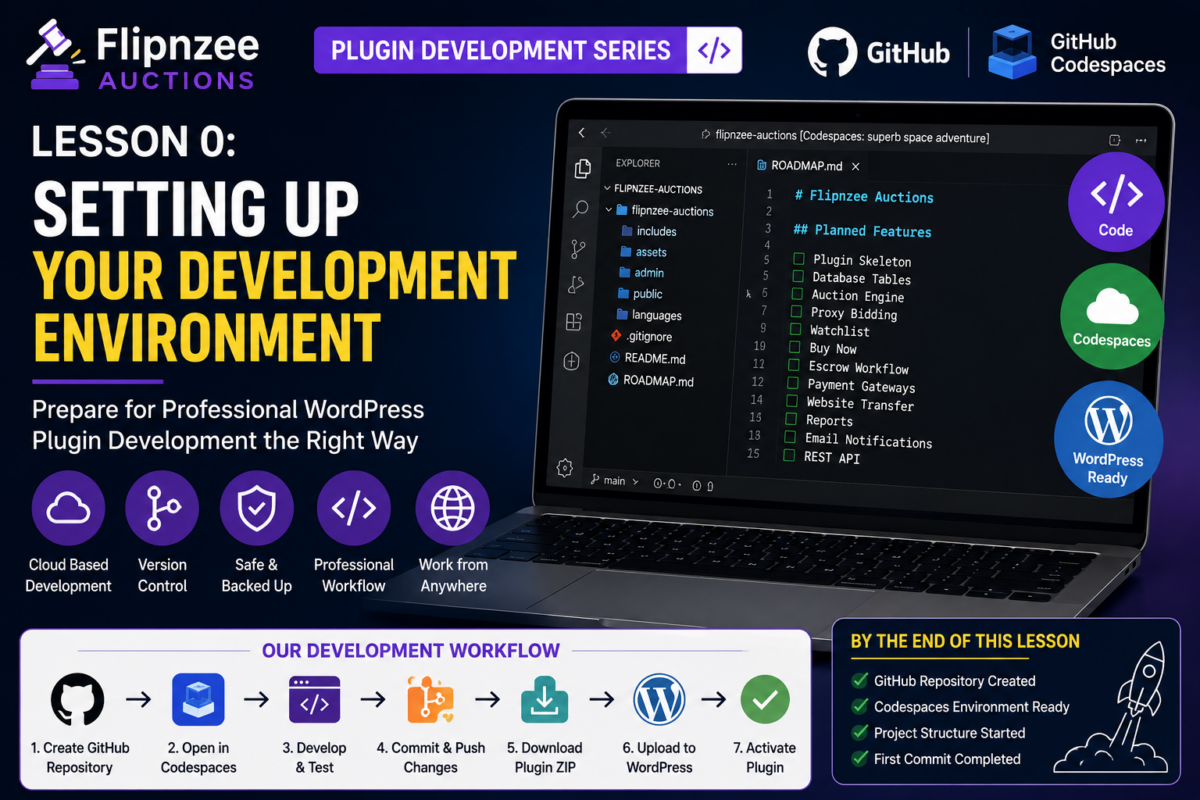
Welcome to Lesson 0 of the Building Flipnzee Auctions series.
Before writing a single line of PHP, let’s prepare our development environment.
Many WordPress tutorials begin by creating a folder inside wp-content/plugins and editing files directly on the server. While that approach works, it doesn’t scale well and doesn’t teach the workflow used by most professional developers.
Throughout this series, we’ll use GitHub Codespaces as our development environment. This means you can build your plugin entirely in your web browser, keep your code safely backed up in GitHub, and deploy it to any WordPress website by simply uploading a ZIP file.
Even if you’ve never used Git or GitHub before, don’t worry. We’ll learn everything step by step.
Why Use GitHub Codespaces?
GitHub Codespaces provides a complete Visual Studio Code development environment in your browser.
There is no need to install:
- PHP
- Apache
- MySQL
- Visual Studio Code
- Git
Everything runs in the cloud.
Some of the benefits include:
- Develop from any computer
- Automatic backups with Git
- Professional development workflow
- Easy collaboration
- No risk of accidentally breaking your live website
- Perfect for open-source projects
By the end of this series, your entire plugin will be stored in a GitHub repository that you can continue improving for years.
Our Development Workflow
Every lesson in this series will follow the same workflow.
GitHub Repository
        │
        ▼
GitHub Codespaces
        │
        ▼
Develop & Test
        │
        ▼
Commit Changes
        │
        ▼
Push to GitHub
        │
        ▼
Download Plugin ZIP
        │
        ▼
WordPress Dashboard
        │
        ▼
Plugins → Add New
        │
        ▼
Upload Plugin
        │
        ▼
Activate Plugin
This is a modern workflow that combines version control with WordPress development.
Step 1: Create a GitHub Account
If you don’t already have one, create a free GitHub account.
Once your account is ready, sign in.
Step 2: Create a New Repository

Click the New Repository button.
Repository Name:
flipnzee-auctions
Choose:
- Public (recommended for learning)
- Add a README file
- Add a .gitignore (choose None for now)
- License: GPL-3.0 (or leave blank—we’ll add one later)
Click Create Repository.
Congratulations! You’ve just created the home of your plugin.
Step 3: Launch GitHub Codespaces
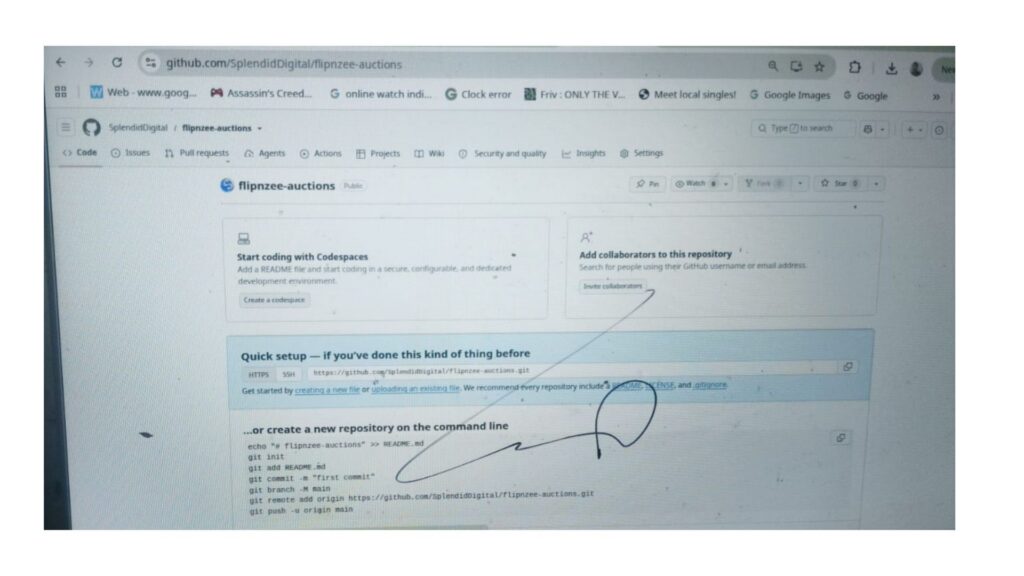
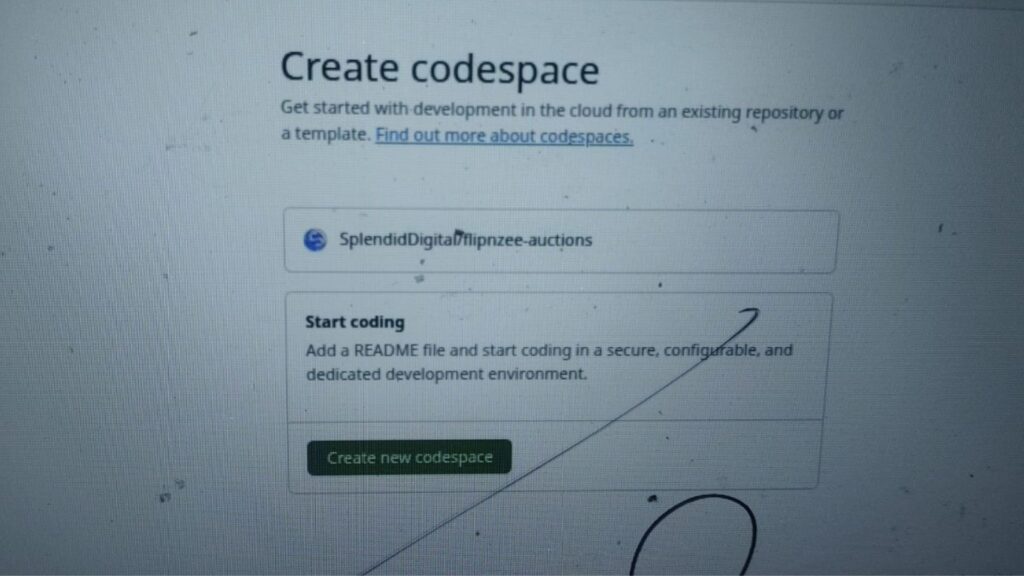
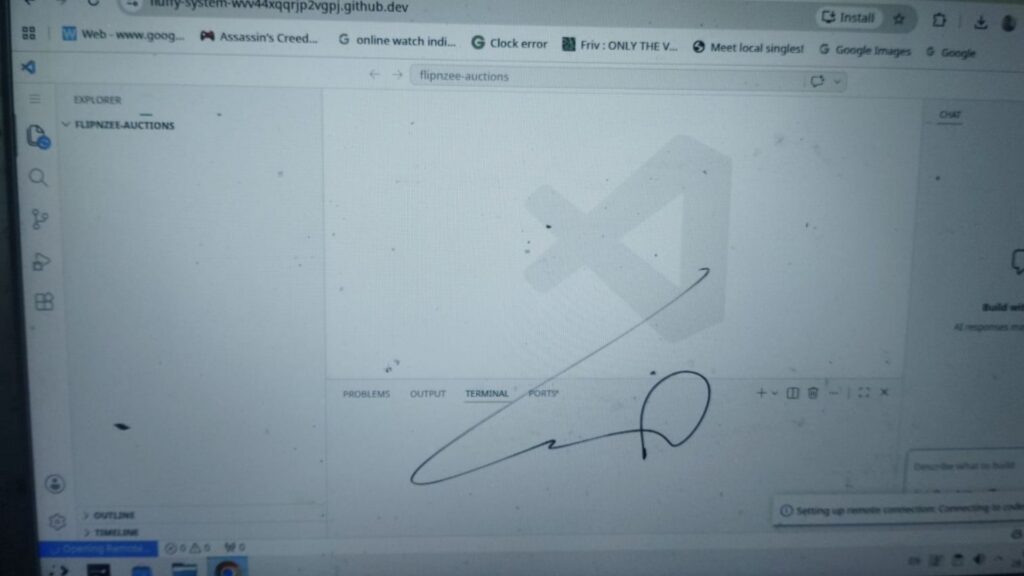
Inside your repository:
- Click the green Code button.
- Select the Codespaces tab.
- Click Create Codespace on main.
GitHub will prepare your development environment.
The first launch may take a minute or two.
When it finishes, you’ll see a browser-based version of Visual Studio Code.
Step 4: Explore the Interface
Spend a few minutes becoming familiar with the layout.
You’ll see:
- Explorer (your project files)
- Search
- Source Control (Git)
- Run & Debug
- Extensions
- Terminal
Don’t worry if some of these seem unfamiliar. We’ll use them throughout the series.
Step 5: Create the Plugin Folder
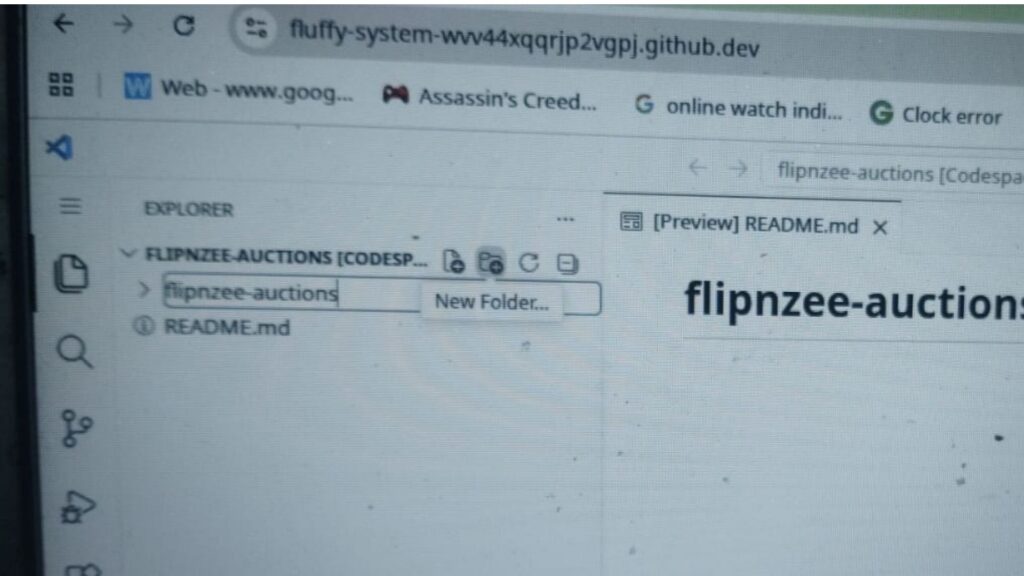
In the Explorer, create a new folder named:
flipnzee-auctions
This folder will eventually become the ZIP file that we’ll upload to WordPress.
Step 6: Open the Integrated Terminal
From the menu:
Terminal → New Terminal
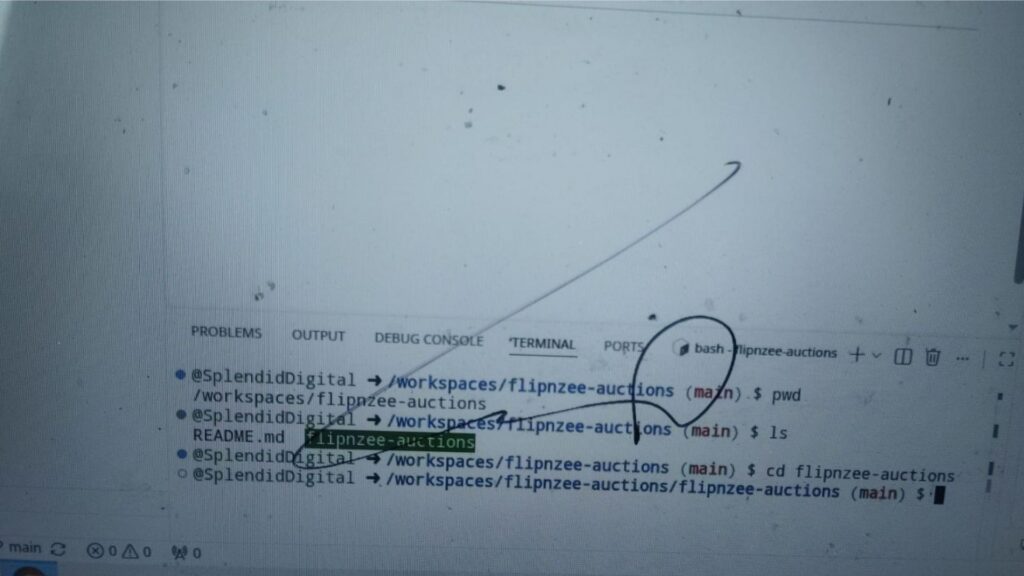
pwd
Displays your current location.
ls
Lists files and folders.
Navigate into your plugin folder:
cd flipnzee-auctions
Confirm your location:
pwd
Learning a few terminal commands now will make development much easier later.
Step 7: Organize Your Repository
Before we start writing plugin code, let’s organize our GitHub repository like a professional software project.
It’s important to understand that a GitHub repository and a WordPress plugin are not exactly the same thing.
Think of the repository as the home for your entire project. Besides the plugin itself, it also contains documentation, licenses, changelogs, and other files that help you manage and distribute the project.
By the end of this step, your repository should look like this:
flipnzee-auctions/                 ← GitHub Repository

│
├── README.md
├── ROADMAP.md
├── LICENSE
├── CHANGELOG.md
│
└── flipnzee-auctions/             ← WordPress Plugin Folder
Notice that there are two folders named flipnzee-auctions.
The outer one is your GitHub repository, while the inner one will become the actual WordPress plugin.
When we eventually upload our plugin to WordPress, we’ll package only the inner folder into a ZIP file.
Step 8: Create the ROADMAP.md File
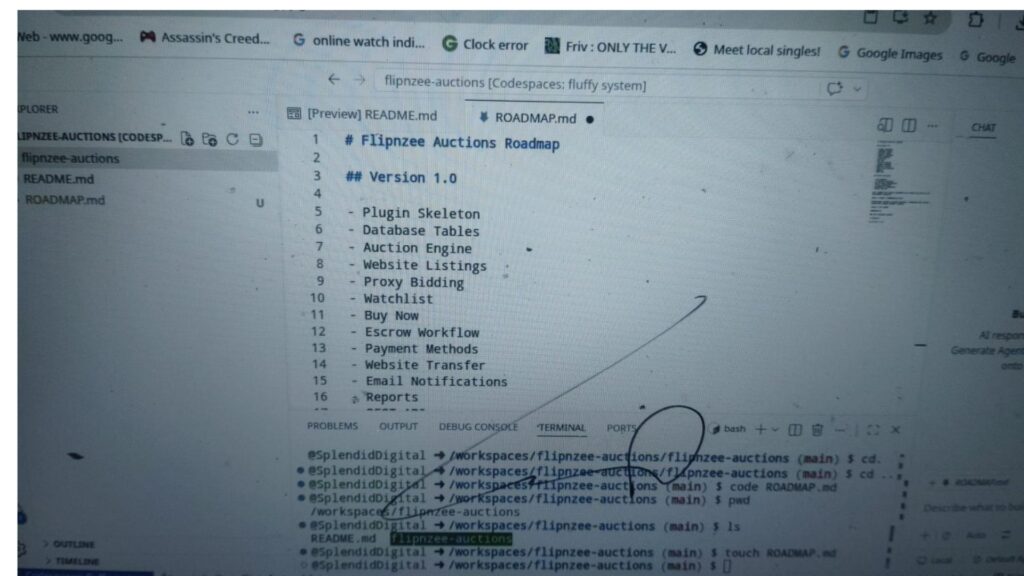
In the root of your GitHub repository (not inside the plugin folder), create a file named:
ROADMAP.md
Add the following content:
# Flipnzee Auctions Roadmap

## Version 1.0

- Plugin Skeleton
- Database Tables
- Auction Engine
- Website Listings
- Proxy Bidding
- Watchlist
- Buy Now
- Escrow Workflow
- Payment Methods
- Website Transfer
- Email Notifications
- Reports
- REST API

## Future Versions

- Live Bidding
- AI Website Valuation
- Multi-vendor Marketplace
- Stripe Integration
- WooCommerce Integration
- Mobile App API
This roadmap will evolve throughout the project and serve as our development checklist.
A Note About README.md
You may have noticed that your repository already contains a file named README.md.
That’s perfectly normal.
If you created your repository with the “Add a README file” option enabled, GitHub automatically generated this file for you. This is standard practice and gives every repository a landing page describing the project.
We’ll continue updating this README.md throughout the series as our plugin evolves. By the time we release Flipnzee Auctions v1.0, it will contain installation instructions, feature highlights, requirements, screenshots, and developer documentation.
For now, there’s nothing you need to change in README.md. We’ll focus on creating the remaining project files.
Step 9: Create a CHANGELOG.md File
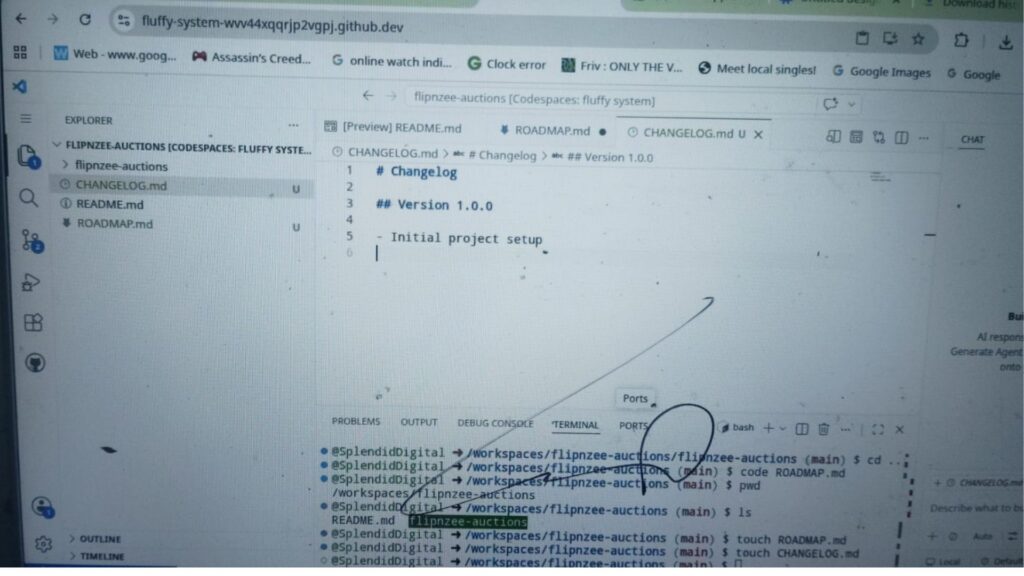
Professional software projects maintain a changelog that records significant changes between releases.
Create a file named:
CHANGELOG.md
Add the following content:
# Changelog

## Version 1.0.0

- Initial project setup
As we complete each lesson, we’ll update this file with new features and improvements.
Step 10: Review the Repository Structure
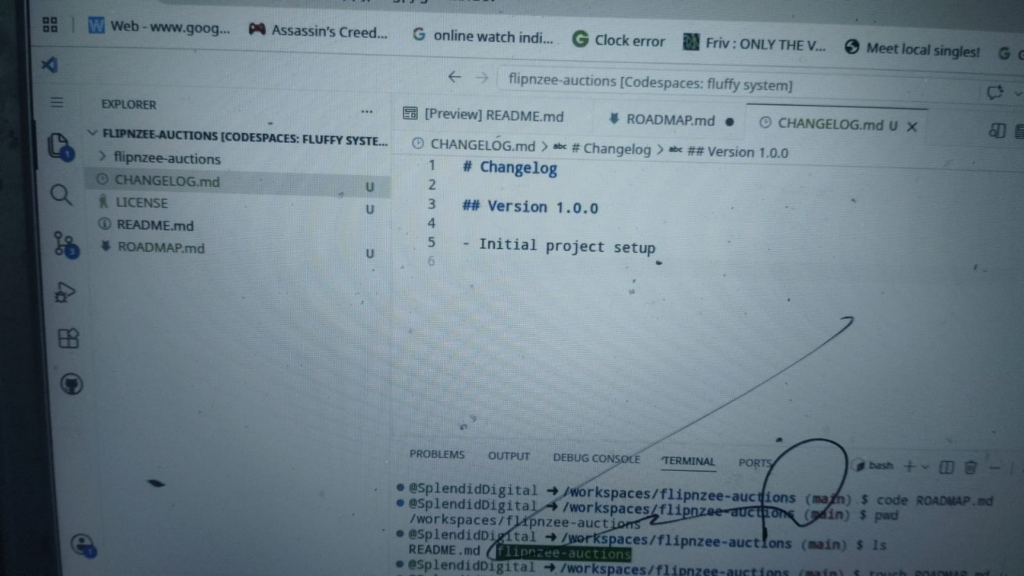
Your repository should now look similar to this:
flipnzee-auctions/
│
├── README.md
├── ROADMAP.md
├── CHANGELOG.md
├── LICENSE
│
└── flipnzee-auctions/
At this stage, the inner flipnzee-auctions folder is intentionally empty.
In the next lesson, we’ll begin transforming it into a real WordPress plugin by creating our first PHP file and adding the plugin header.
Step 11: Commit Your Changes


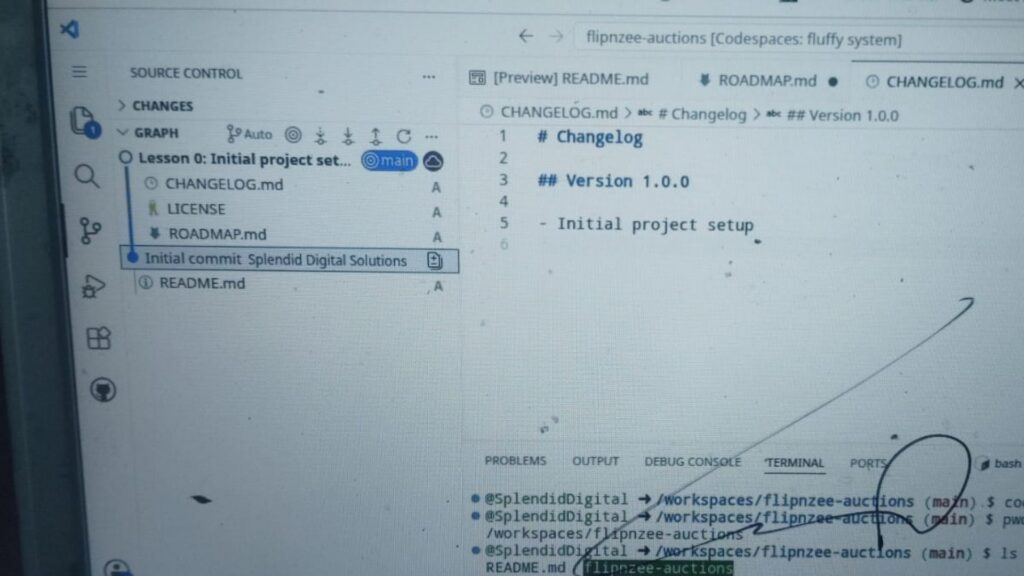
Now that the repository is organized, it’s time to save your progress.
Open the Source Control panel in GitHub Codespaces.
You’ll see the newly created files waiting to be committed.
Use the following commit message:
Lesson 0: Initial project setup
If you prefer using the terminal, run:
git add .
git commit -m "Lesson 0: Initial project setup"
git push
This creates the first milestone in your project’s history and safely stores your work in GitHub.
Summary
Congratulations!
Although we haven’t written any PHP yet, you’ve already adopted a professional development workflow.
Your project now includes:
- A GitHub repository
- GitHub Codespaces as your development environment
- A project roadmap
- A changelog
- A clean repository structure ready for development
In Lesson 1, we’ll move into the flipnzee-auctions plugin folder and create the first PHP file that WordPress recognizes as a plugin.