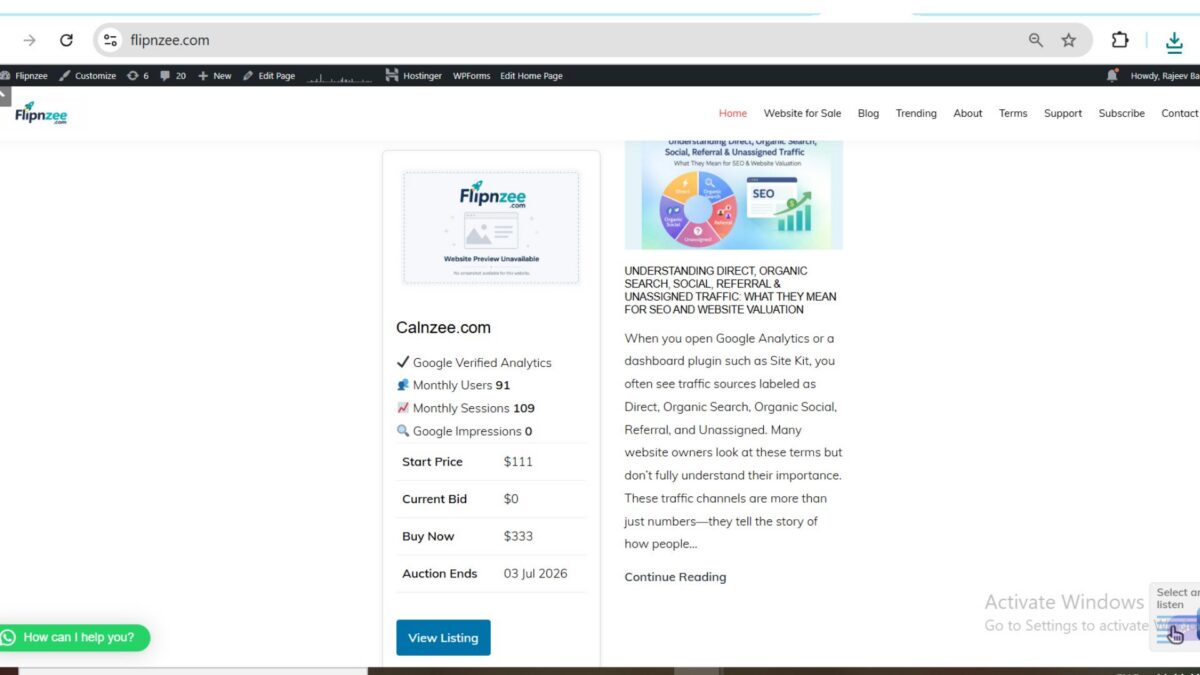
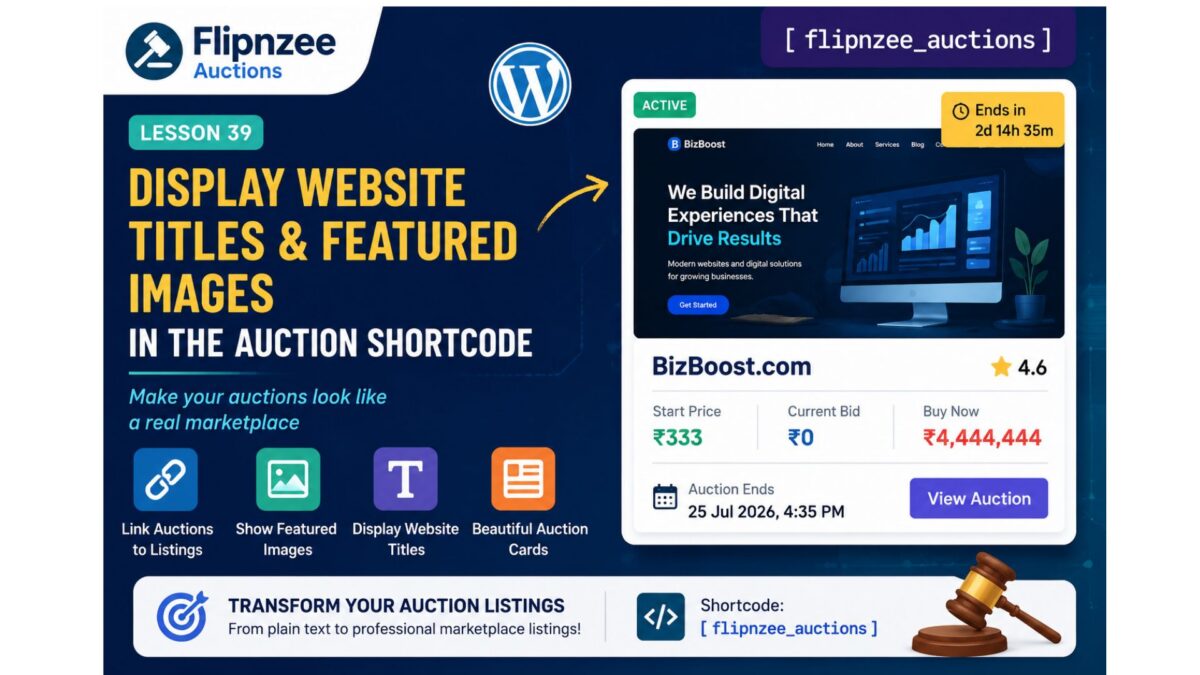
Lesson 39: Display Website Titles and Featured Images in the Auction Shortcode

After successfully displaying active auctions on the frontend in Lesson 38, our auction listings are still very plain. Visitors only see the Listing ID and auction details, which isn’t how a professional marketplace should look.

In this lesson, we’ll connect each auction to its corresponding WordPress Listing post and display the website’s title and featured image. This is an important milestone because our auction page will begin to resemble a real website marketplace instead of a simple database report.


What You’ll Learn

By the end of this lesson, you’ll know how to:

  • Retrieve the Listing post associated with an auction.
  • Display the website title instead of the Listing ID.
  • Show the Listing’s featured image.
  • Handle missing images gracefully.
  • Improve the overall appearance of the auction listing.

Why This Matters

Currently, visitors see something like:

Listing #2222

Start Price: ₹333

Current Bid: ₹0

Buy Now: ₹4,444,444

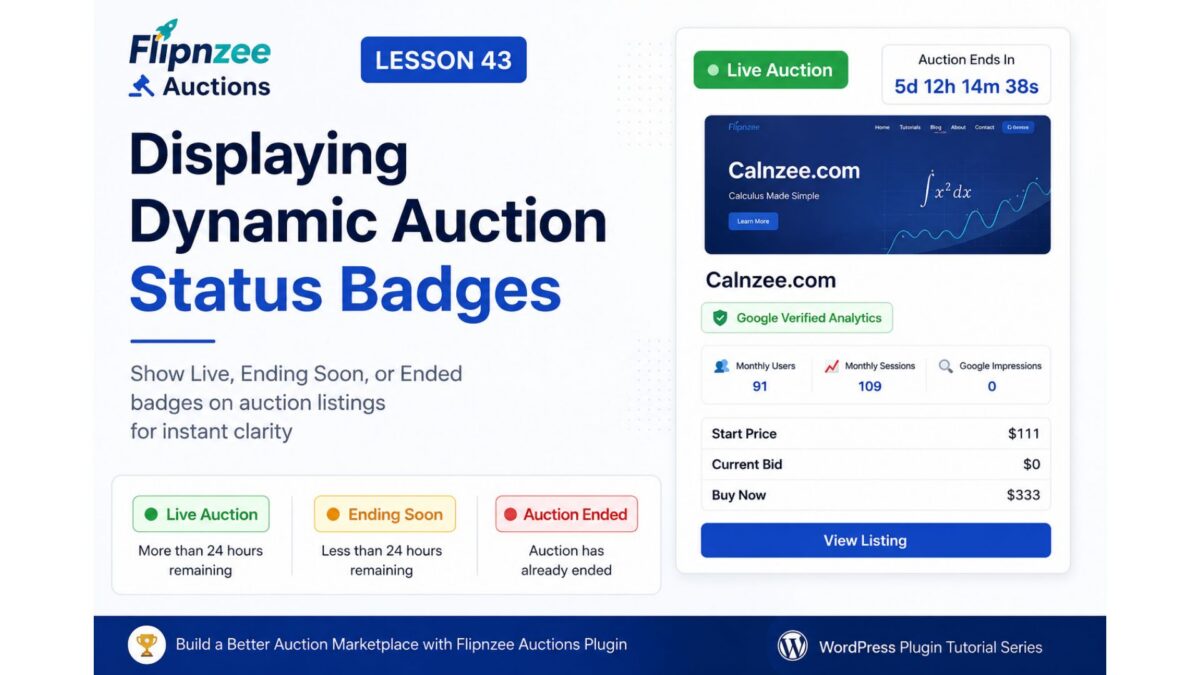
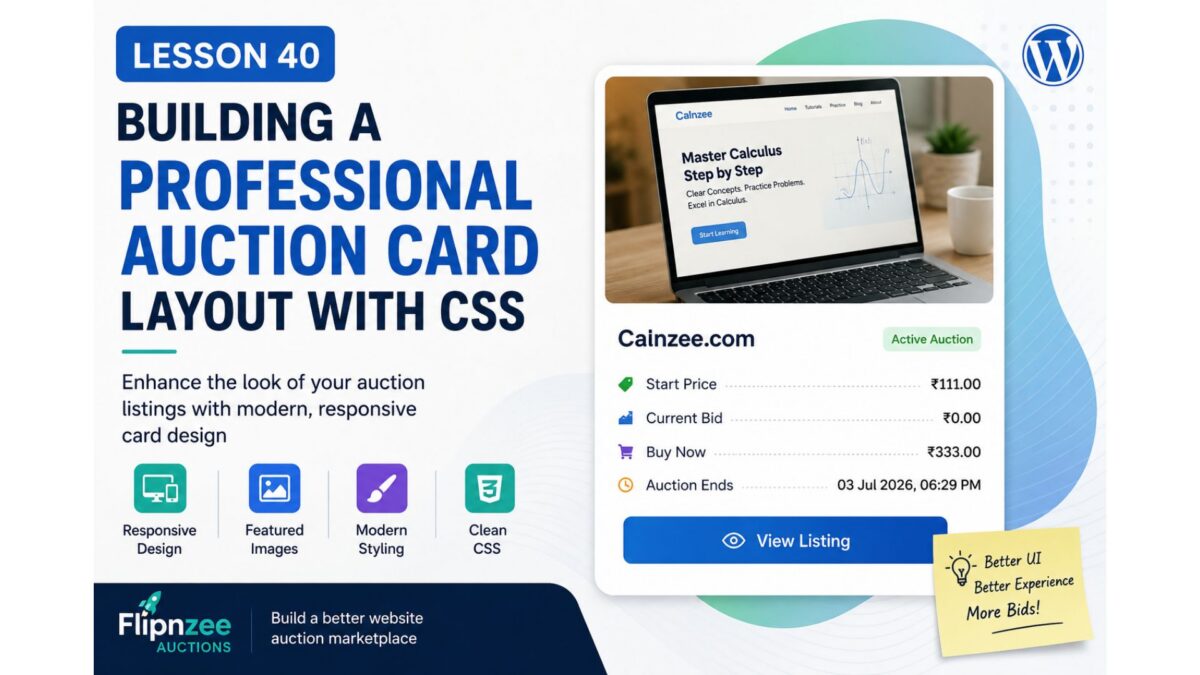
A professional marketplace should instead display something like:

+-------------------------------------------+
| [Featured Image]                          |
|                                           |
| MyBusinessSite.com                        |
|                                           |
| Start Price: ₹333                         |
| Current Bid: ₹0                           |
| Buy Now: ₹4,444,444                       |
| Auction Ends: 25 Jul 2026                 |
+-------------------------------------------+

This makes the auction much easier to browse.


Concepts Covered

In this lesson we’ll learn about:

  • get_post()
  • get_the_title()
  • has_post_thumbnail()
  • get_the_post_thumbnail()
  • Escaping output
  • Building reusable HTML

Implementation Steps

We will implement the lesson step by step:

  1. Retrieve the Listing post using listing_id.
  2. Verify the Listing exists.
  3. Display the website title.
  4. Display the featured image.
  5. Keep auction information below the image.
  6. Add basic HTML structure.
  7. Test the shortcode.

Expected Output

Instead of this:

Listing #2222
Start Price: 333
Current Bid: 0

Visitors will see something like:

[ Website Screenshot ]

MyBusinessSite.com

Start Price: ₹333
Current Bid: ₹0
Buy Now: ₹4,444,444
Auction Ends: 25 Jul 2026

Files We’ll Modify

  • includes/class-shortcodes.php

No database changes are required in this lesson.


Difficulty Level

Intermediate

This lesson introduces interaction between custom database tables and native WordPress posts, a common pattern in WordPress plugin development.


What You’ll Gain

By completing this lesson, you’ll move beyond simply displaying raw auction data. Your shortcode will start presenting auctions as attractive website listings, laying the foundation for future enhancements such as bidding buttons, countdown timers, reserve price indicators, seller information, and responsive auction cards.

In the next implementation, we’ll enhance the frontend so each auction begins to look like a polished marketplace listing rather than a collection of database fields.

Implementing Lesson 38: Creating Your First Frontend Auction Shortcode in the Flipnzee Auctions Plugin

After completing the backend auction management features in previous lessons, it was time to make our auction data visible to website visitors. In this lesson, we created our first frontend shortcode that retrieves active auctions from the database and displays them on any WordPress page or post.

Although the first version is intentionally simple, it establishes the foundation for building a professional auction marketplace.


What We Built

At the end of this lesson, visitors can insert the following shortcode into any page or post:

[flipnzee_auctions]

When the page is viewed, the plugin automatically retrieves all active auctions and displays information such as:

  • Listing ID
  • Start Price
  • Current Bid
  • Buy Now Price
  • Auction Status
  • Auction End Time

Step 1: Create a Shortcodes Class

Instead of placing shortcode logic inside the main plugin file, we created a dedicated class.

File created:

includes/class-shortcodes.php

This keeps the plugin organized and makes future shortcode development much easier.


Step 2: Register the Shortcode

Inside the class constructor we registered our shortcode.

add_shortcode(
    'flipnzee_auctions',
    array( $this, 'auction_list_shortcode' )
);

Now WordPress knows which function to execute whenever it encounters:

[flipnzee_auctions]

Step 3: Load the Shortcodes Class

Next, we loaded the new class from the main plugin file.

require_once FLIPNZEE_AUCTION_PATH . 'includes/class-shortcodes.php';

Then initialized it.

new Flipnzee_Shortcodes();

Without these two steps, WordPress would never register the shortcode.


Step 4: Retrieve Active Auctions

Inside the shortcode callback, we called the Auction Manager.

$auctions = Flipnzee_Auction_Manager::get_active_auctions();

This keeps all database operations inside the Auction Manager instead of mixing SQL with presentation logic.

Keeping responsibilities separate makes the plugin much easier to maintain.


Step 5: Handle Empty Results

If no active auctions exist, the shortcode returns a friendly message.

if ( empty( $auctions ) ) {

    return '<p>No active auctions found.</p>';
}

This provides a much better user experience than displaying an empty page.


Step 6: Loop Through Auctions

The shortcode loops through every active auction.

Example:

foreach ( $auctions as $auction ) {

    // Display auction details.
}

For each auction we displayed several fields stored in the database.


Step 7: Display Auction Information

The first version displays:

  • Listing ID
  • Start Price
  • Current Bid
  • Buy Now Price
  • Status
  • Auction End Date

Although simple, it proves that our shortcode successfully retrieves data from the database.


Step 8: Test the Shortcode

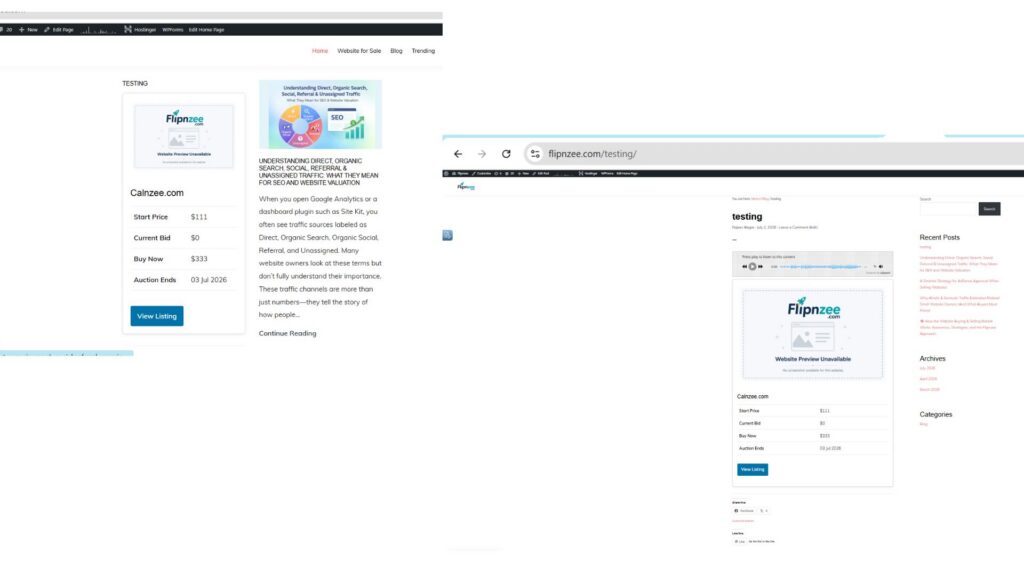
We created a temporary WordPress post named:

testing

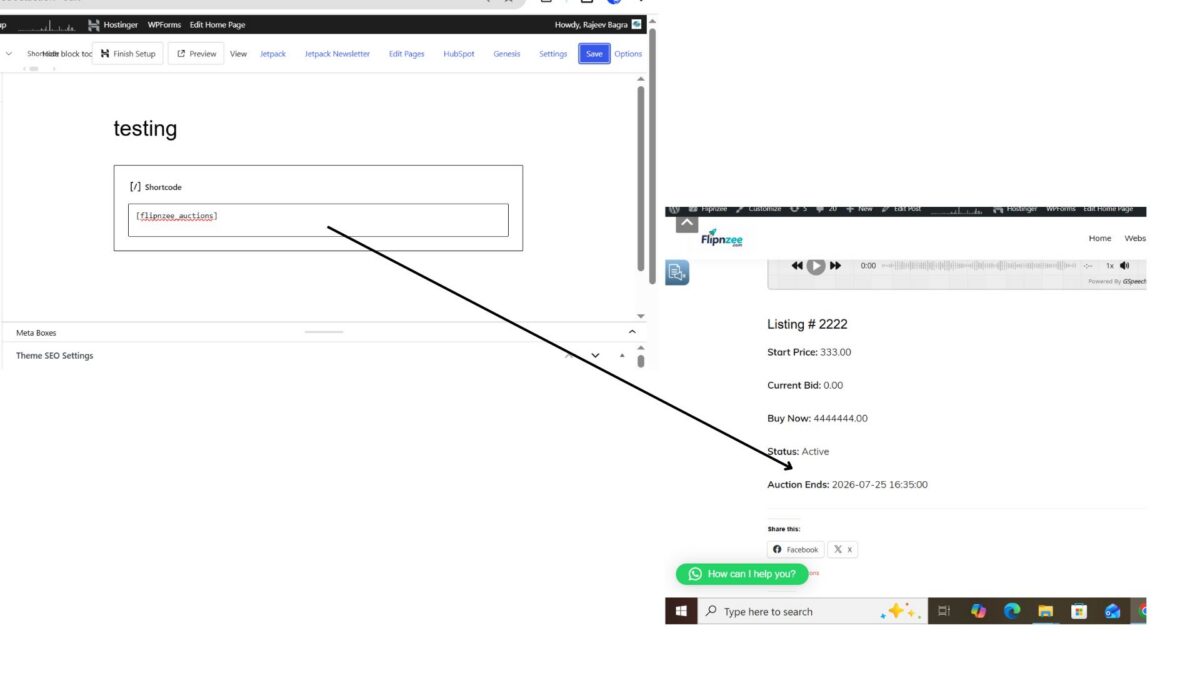
Inside the post we inserted:

[flipnzee_auctions]

Initially the page displayed:

No active auctions found.

This was expected because every auction in the database still had the status:

draft

Step 9: Activate an Auction

For testing purposes, we manually changed one auction in phpMyAdmin.

status

draft
↓

active

After refreshing the page, the shortcode immediately displayed the auction.

This confirmed that:

  • the shortcode was registered correctly,
  • the database query worked,
  • the Auction Manager returned the correct records,
  • and the frontend output functioned as expected.

Final Result

The completed shortcode successfully displayed information similar to:

Listing #2222

Start Price: 333.00

Current Bid: 0.00

Buy Now: 4444444.00

Status: Active

Auction Ends:
2026-07-25 16:35:00

This marks the first working frontend feature of the Flipnzee Auctions plugin.


Lessons Learned

During this implementation, several important WordPress concepts became clearer:

  • Create dedicated classes for related functionality.
  • Register shortcodes using add_shortcode().
  • Keep database queries inside manager classes.
  • Separate business logic from presentation.
  • Always handle empty results gracefully.
  • Test shortcodes with real database records.

Tips for Beginners

  • Always build the simplest working version before focusing on appearance.
  • Test with actual database records rather than assuming the code is wrong.
  • If a shortcode displays “No active auctions found,” first verify the database contains records with status = 'active'.
  • Keeping your code modular now will make future features much easier to add.

Download Source Code

Download the starting version of the plugin before the lesson:

⬇ Download Plugin (After Lesson 37) (2 downloads )

Download the completed version after this lesson:

⬇ Download Plugin (After Lesson 38) (1 download )

What’s Next?

Our shortcode works, but it still displays plain text. In the next lesson, we’ll start transforming this output into attractive auction cards by showing website titles, featured images, and better formatting so the frontend begins to resemble a real website marketplace.

Every professional marketplace starts with a simple data listing. By completing this lesson, you’ve built the foundation on which all future frontend auction features will be added.

Lesson 38: Display Live Auctions on the Frontend Using a WordPress Shortcode


So far, every feature we’ve built has been available only to WordPress administrators.

In a real auction marketplace, however, the most important audience is not the administrator—it’s the buyers.

Visitors need a simple way to browse active auctions directly from the website.

In this lesson, we’ll create our first frontend auction shortcode.


What You’ll Build

By the end of this lesson, you’ll have a shortcode like:

[flipnzee_auctions]

that displays all active auctions on any WordPress page.


What Visitors Will See

Each auction will display:

  • Listing ID
  • Starting Price
  • Current Bid
  • Buy Now Price
  • Auction Status
  • Auction End Date
  • View Auction button

Example:

---------------------------------------
Listing #105

Current Bid
₹52,000

Buy Now
₹75,000

Ends
12 Jul 2026

Status
Active

[ View Auction ]
---------------------------------------

Why Use a Shortcode?

Shortcodes are one of the simplest ways to expose plugin functionality on the frontend.

Advantages include:

  • Works with Gutenberg
  • Works with Classic Editor
  • Works with Genesis
  • Can be inserted anywhere
  • Easy to extend later

Our First Frontend Query

Instead of retrieving every auction, we’ll display only:

Status = Active

This keeps the marketplace clean and prevents visitors from seeing:

  • Draft auctions
  • Closed auctions

Architecture

Visitor
      │
      ▼
Shortcode
      │
      ▼
Auction Manager
      │
      ▼
Database
      │
      ▼
Active Auctions
      │
      ▼
HTML Output

Notice how we’re reusing our Auction Manager instead of writing SQL directly inside the shortcode.


Files We’ll Modify

includes/class-auction-manager.php
includes/class-shortcodes.php

(new file)

flipnzee-auctions.php

New Shortcode

We’ll register:

[flipnzee_auctions]

Later we’ll extend it with parameters like:

[flipnzee_auctions limit="12"]
[flipnzee_auctions status=”active”]

[flipnzee_auctions order=”ending”]


Design Goals

Initially we’ll keep the layout simple.

Each auction will appear inside a clean card showing:

  • Listing ID
  • Prices
  • Status
  • End Date

Styling will be improved in future lessons.


Production Benefits

Adding a frontend shortcode is an important milestone because it transforms the plugin from an administrative tool into a real auction platform.

For the first time:

  • Administrators create auctions.
  • Visitors can discover them.
  • The auction system becomes visible on the public website.

What You’ll Learn

In this lesson you’ll learn how to:

  • Register WordPress shortcodes
  • Retrieve database records for the frontend
  • Generate HTML safely
  • Escape output correctly
  • Separate business logic from presentation
  • Prepare your plugin for bidding functionality

What’s Next?

In the next lesson, we’ll build the Single Auction View, where visitors can click View Auction to see detailed information, a live countdown timer, bid history, and eventually place bids.

This will be the foundation for the public-facing bidding experience and the future Escrow.com transaction workflow.