
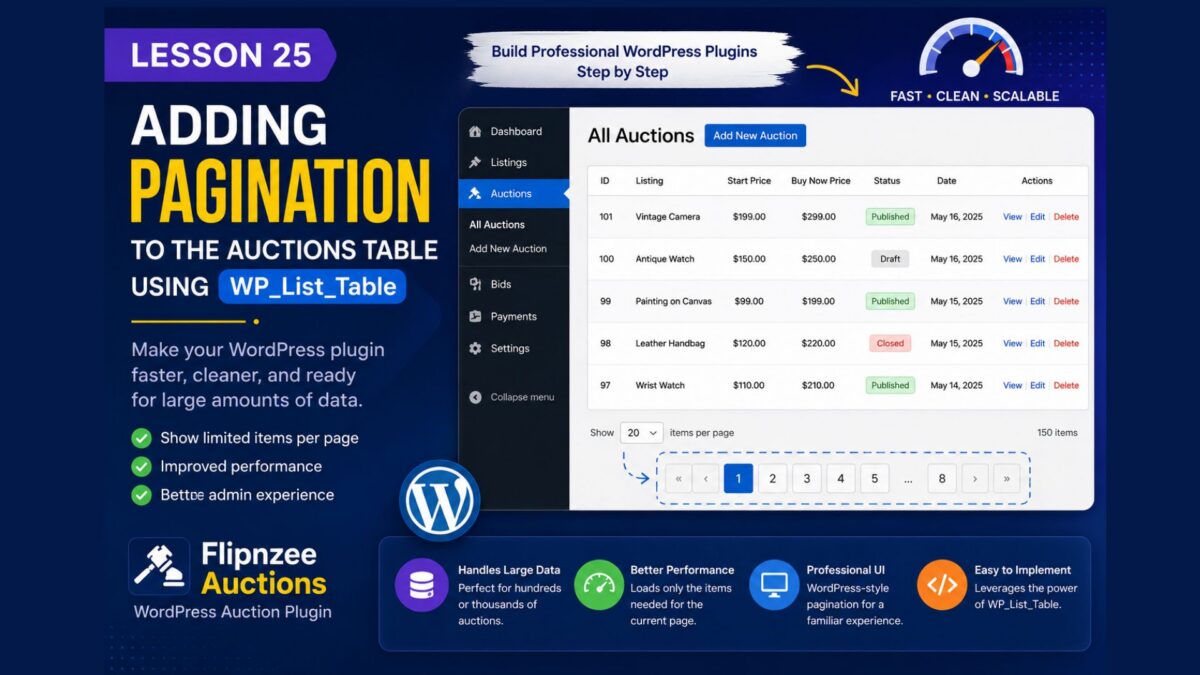
Lesson 25 — Adding Pagination to the Auctions Table Using WP_List_Table

By Lesson 24, our Flipnzee Auctions plugin already supports:
- Creating auctions
- Viewing all auctions
- Editing auctions
- Deleting auctions
- Displaying professional success/error notices
However, there is still one major limitation.
If your marketplace eventually contains hundreds or even thousands of auctions, displaying every auction on a single page becomes slow and difficult to use.
WordPress solves this problem with pagination, and since we’re already using WP_List_Table, adding it is surprisingly straightforward.
In this lesson, we’ll make our Auctions page production-ready by adding pagination.
Why Pagination Matters
Imagine your marketplace has:
- 500 active auctions
- 2,000 completed auctions
- 15,000 historical auctions
Loading every record at once would:
- increase page load time
- consume unnecessary memory
- make scrolling frustrating
- reduce the overall admin experience
Instead, WordPress displays only a limited number of records per page.
Example:
Showing 20 auctions per page

Page 1
Page 2
Page 3
...
Page 150
This is how professional WordPress plugins behave.
How WP_List_Table Supports Pagination
The class already provides pagination support.
We only need to tell WordPress:
- how many total items exist
- how many items to display per page
- which page the user is currently viewing
WordPress automatically creates:
- Previous button
- Next button
- Page numbers
- Current page indicator
Current Problem
Our current prepare_items() method probably looks similar to this:
$this->items = Flipnzee_Auction_Manager::get_all_auctions();
This loads every auction.
Instead, we should only load the current page.
Step 1 — Count Total Auctions
First, determine how many auctions exist.
Example:
$total_items =
	Flipnzee_Auction_Manager::count_auctions();
Step 2 — Decide Items Per Page
Choose how many auctions should appear on each page.
Example:
$per_page = 20;
Twenty items per page is a common default in WordPress.
Step 3 — Determine the Current Page
WordPress passes the current page automatically.
Example:
$current_page = $this->get_pagenum();
If the user clicks Page 4,
$current_page = 4
Step 4 — Calculate Database Offset
SQL needs to know where to begin.
Formula:
Offset =
(Current Page − 1)
×
Items Per Page
Example:
Page 1
Offset = 0
Page 2
Offset = 20
Page 3
Offset = 40
Only the required rows are retrieved.
Step 5 — Retrieve Only the Required Auctions
Instead of fetching everything:
SELECT *
FROM auctions
retrieve only the current page.
Example SQL:
SELECT *
FROM auctions
LIMIT 20 OFFSET 40
This loads only the records needed for the current page.
Step 6 — Configure Pagination
Finally, tell WP_List_Table how many pages exist.
Example:
$this->set_pagination_args(
	array(
		'total_items' => $total_items,
		'per_page'    => $per_page,
	)
);
WordPress calculates the number of pages automatically.
The Result
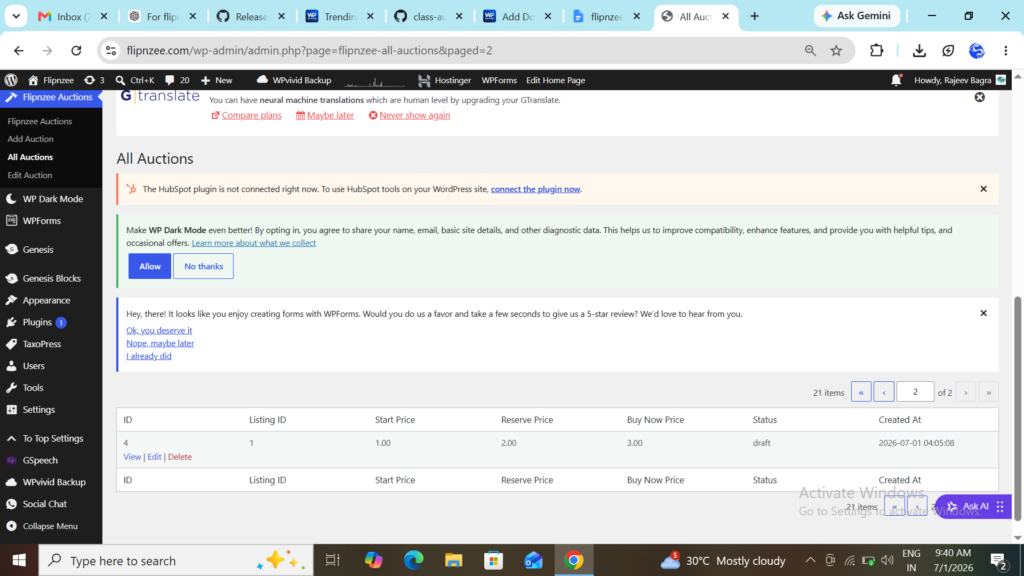
Instead of one endlessly long table:
Auction 1
Auction 2
Auction 3
...
Auction 2000
your users will see:
Auction 1
Auction 2
...
Auction 20

← Previous

1 2 3 4 5

Next →
This provides a cleaner and faster administration experience.
Why This Matters
Pagination is not just about convenience.
It also:
- Improves performance
- Reduces memory usage
- Speeds up database queries
- Makes large datasets manageable
- Follows WordPress admin standards
- Prepares your plugin for production use
What You’ll Learn Next
In Lesson 26, we’ll add sortable columns to the Auctions table so administrators can sort auctions by:
- Auction ID
- Listing ID
- Start Price
- Buy Now Price
- Status
- Creation Date
Sorting and pagination together make your auction management screen feel like a professional WordPress plugin rather than a basic prototype.
Lesson 25 Implementation Guide — Adding Pagination to the Auctions Table