
GUI vs Terminal: Which Should You Use for WordPress Plugin Development?

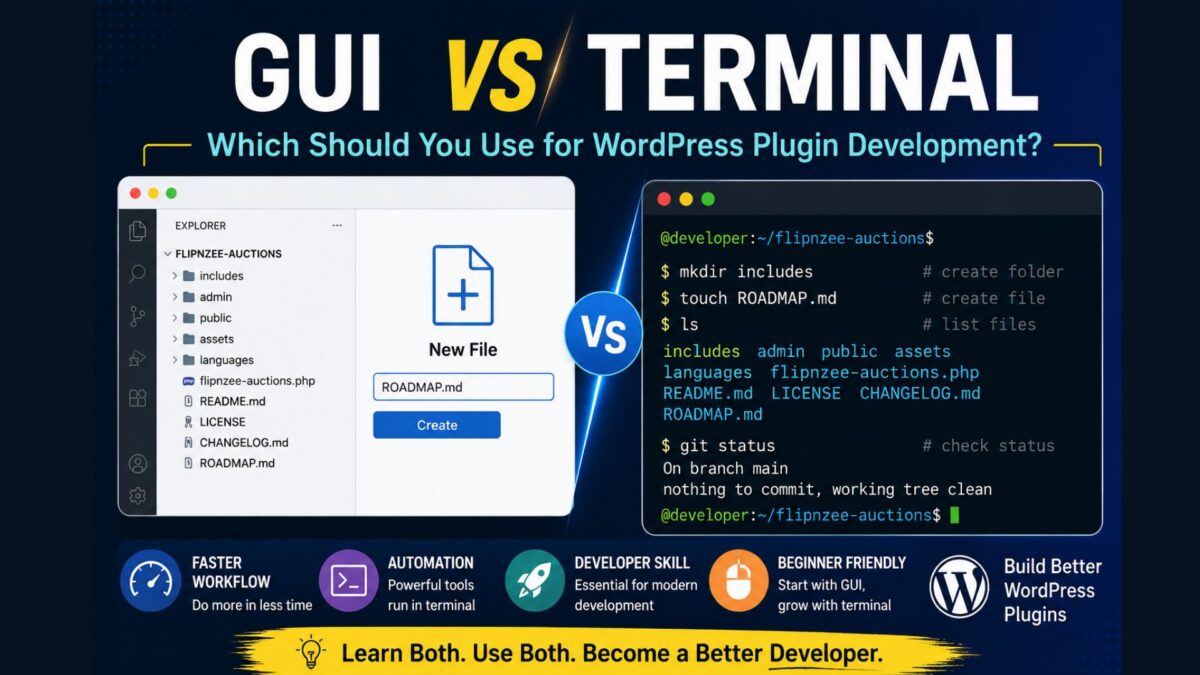
If you’re just starting your journey into WordPress plugin development, one of the first things you’ll notice is that experienced developers often use the terminal (command line), while beginners usually prefer the graphical user interface (GUI).
Should you force yourself to learn the terminal immediately? Or is it perfectly acceptable to rely on the GUI?
The answer is simpler than you might think.
What Is a GUI?
A Graphical User Interface (GUI) lets you interact with your computer using windows, buttons, icons, and menus.
Examples include:
- Windows File Explorer
- macOS Finder
- GitHub Codespaces Explorer
- Visual Studio Code Explorer
- WordPress Dashboard
Instead of typing commands, you simply click your way through folders and files.
For example, creating a new file in GitHub Codespaces can be as simple as:
- Click the New File button
- Type
ROADMAP.md - Press Enter
No commands required.
What Is a Terminal?
A terminal is a text-based interface where you type commands instead of clicking buttons.
For example, instead of creating a file using the mouse, you could type:
touch ROADMAP.md
Instead of opening a folder, you might type:
cd flipnzee-auctions
Instead of listing files, you would type:
ls
The terminal may seem intimidating at first, but it is simply another way of communicating with your computer.
GUI vs Terminal
| Task | GUI | Terminal |
|---|---|---|
| Create a file | Click New File | touch filename |
| Create a folder | Click New Folder | mkdir foldername |
| Rename a file | Right-click → Rename | mv oldname newname |
| Delete a file | Right-click → Delete | rm filename |
| Open a file | Double-click | code filename |
| View files | Explorer | ls |
| Change folders | Click folders | cd foldername |
Both approaches accomplish the same goal.
Why Do Professional Developers Use the Terminal?
There are several reasons.
Speed
Typing one command is often faster than clicking through multiple menus.
For example:
mkdir includes admin public assets languages
creates five folders instantly.
Automation
Many development tools only work from the command line.
Examples include:
git status
composer install
npm install
phpunit
As your projects grow, these tools become increasingly valuable.
Universal Skills
Whether you’re working with WordPress, Laravel, Django, Node.js, or Linux servers, terminal knowledge transfers across technologies.
Learning a handful of commands today will continue to benefit you for years.
Does That Mean Beginners Should Avoid the GUI?
Absolutely not.
In fact, beginners often learn more effectively by combining both approaches.
Suppose you create a file using the Explorer. Later, you learn the equivalent terminal command:
touch ROADMAP.md
Now you’ve learned two different ways to accomplish the same task.
Over time, you’ll naturally begin using whichever method feels more efficient.
Our Approach in This Tutorial Series
Throughout the Building Flipnzee Auctions series, we’ll demonstrate both methods whenever practical.
For example, if we create a new folder, you’ll learn:
GUI Method
- Click New Folder
- Enter the folder name
- Press Enter
Terminal Method
mkdir includes
This dual approach allows every reader to progress comfortably, regardless of prior experience.
There’s No “Right” Way
Some developers spend nearly their entire day inside Visual Studio Code without touching the terminal.
Others rarely use the mouse.
Both groups build excellent software.
The goal isn’t to replace one with the other. Instead, it’s to understand that both interfaces are simply different tools for interacting with the same files.
As your confidence grows, you’ll likely find yourself using the GUI for visual tasks and the terminal for repetitive or automated work.
Final Thoughts
Don’t feel pressured to master the terminal overnight.
Start with the GUI if it makes you comfortable. Learn one or two terminal commands each week. Before long, commands like cd, ls, pwd, git status, and touch will become second nature.
Remember, great developers aren’t defined by whether they use a mouse or a keyboard. They’re defined by their ability to solve problems, write clean code, and continue learning.
Every expert was once a beginner who typed their first command.