
Lesson 1: Creating Your First WordPress Plugin

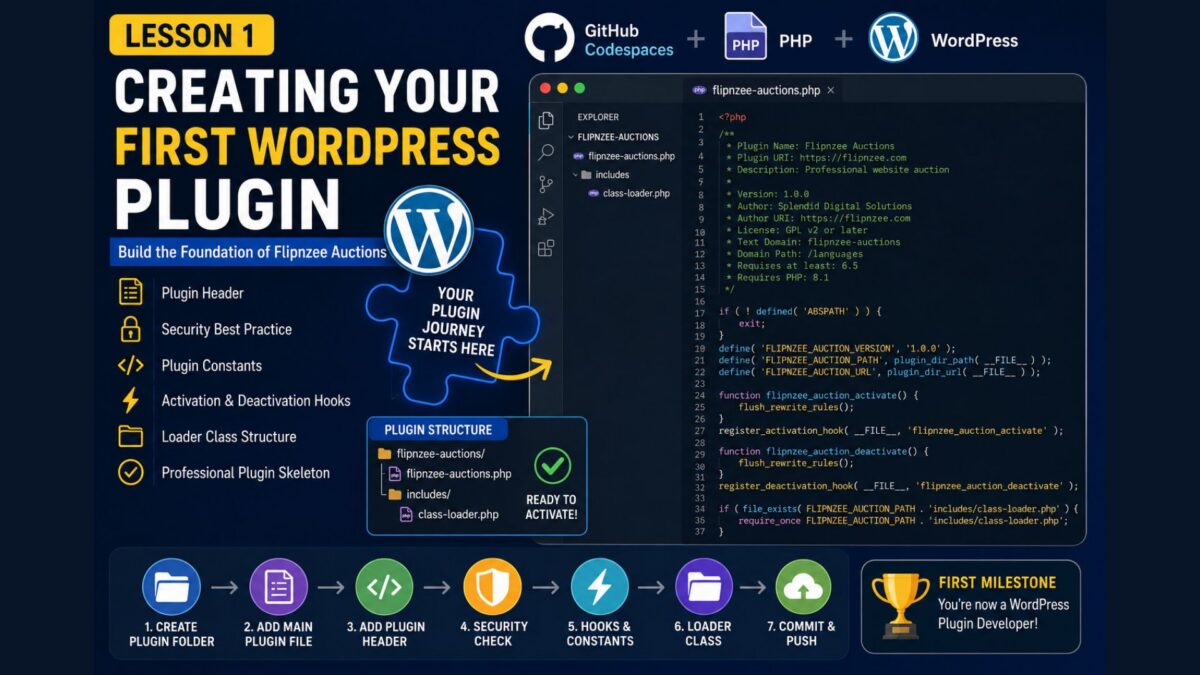
Welcome to Lesson 1 of the Building Flipnzee Auctions series.
In the previous lesson, we created our GitHub repository, launched GitHub Codespaces, organized our project, and learned the basics of version control.
Now it’s time to write our first PHP code.
By the end of this lesson, you’ll have a WordPress plugin that appears in the Plugins page of your WordPress website and can be activated just like any other plugin.
Although the plugin won’t do anything yet, this is an exciting milestone because we’re laying the foundation for everything that follows.
What You’ll Learn
In this lesson you’ll learn how to:
- Create the WordPress plugin folder
- Create the main plugin file
- Understand the plugin header
- Protect your plugin from direct access
- Define reusable plugin constants
- Register activation and deactivation hooks
- Create a simple loader class
- Commit your changes to GitHub
Step 1: Enter the Plugin Folder

Open the integrated terminal in GitHub Codespaces.
Navigate into the plugin folder:
cd flipnzee-auctions
Confirm your location:
pwd
You should see something similar to:
/workspaces/flipnzee-auctions/flipnzee-auctions
From now on, everything we create belongs inside this folder.
Step 2: Create the Main Plugin File

Create the plugin’s main PHP file.
GUI Method
Click New File in the Explorer.
Create:
flipnzee-auctions.php
Terminal Method
touch flipnzee-auctions.php
Open it:
code flipnzee-auctions.php
Step 3: Add the Plugin Header
Copy the following code into the file.
<?php
/**
 * Plugin Name: Flipnzee Auctions
 * Plugin URI: https://flipnzee.com
 * Description: Professional website auction platform for Flipnzee.
 * Version: 1.0.0
 * Author: Splendid Digital Solutions
 * Author URI: https://flipnzee.com
 * License: GPL v2 or later
 * Text Domain: flipnzee-auctions
 * Domain Path: /languages
 * Requires at least: 6.5
 * Requires PHP: 8.1
 */

if (!defined('ABSPATH')) {
    exit;
}
Save the file.
Congratulations!
You’ve just created the smallest possible WordPress plugin.
Understanding the Plugin Header
Everything inside the comment block is called the Plugin Header.
When WordPress scans the plugins directory, it looks for these special comments.
Let’s understand each line.
Plugin Name
Plugin Name: Flipnzee Auctions
This is the name displayed on the Installed Plugins page.
Plugin URI
Plugin URI: https://flipnzee.com
This points users to the official plugin website.
Description
Description: Professional website auction platform for Flipnzee.
A short explanation shown beneath the plugin name.
Version
Version: 1.0.0
Every release should have a version number.
Later we’ll learn about semantic versioning.
Author
Author: Splendid Digital Solutions
Displays the plugin developer.
Author URI
Author URI: https://flipnzee.com
Links to your website.
Text Domain
Used for translating the plugin into different languages.
Requires PHP
Requires PHP: 8.1
Prevents installation on servers running older PHP versions.
Step 4: Protect Against Direct Access
Immediately below the plugin header we added:
if (!defined('ABSPATH')) {
    exit;
}
Why?
Imagine someone tries to visit:
https://example.com/wp-content/plugins/flipnzee-auctions/flipnzee-auctions.php
directly in their browser.
Without this check, PHP would execute the file outside of WordPress.
By checking whether ABSPATH exists, we ensure the file only runs when WordPress has already been loaded.
This is one of the simplest and most important WordPress security practices.
Step 5: Define Plugin Constants
Below the security check add:
define('FLIPNZEE_AUCTION_VERSION', '1.0.0');

define('FLIPNZEE_AUCTION_PATH', plugin_dir_path(__FILE__));

define('FLIPNZEE_AUCTION_URL', plugin_dir_url(__FILE__));
Constants allow us to define values once and reuse them throughout the plugin.
For example:
FLIPNZEE_AUCTION_PATH
is much cleaner than repeatedly writing:
plugin_dir_path(__FILE__)
Step 6: Register the Activation Hook
Add:
function flipnzee_auction_activate() {

    flush_rewrite_rules();

}

register_activation_hook(__FILE__, 'flipnzee_auction_activate');
This function runs automatically when the plugin is activated.
Today it only refreshes WordPress rewrite rules.
Later it will also create our database tables.
Step 7: Register the Deactivation Hook
Add:
function flipnzee_auction_deactivate() {

    flush_rewrite_rules();

}

register_deactivation_hook(__FILE__, 'flipnzee_auction_deactivate');
This runs whenever the plugin is deactivated.
Step 8: Create the Includes Folder
Professional plugins avoid placing thousands of lines inside one file.
Create a folder named:
includes
Inside it, create a new file:
class-loader.php
Step 9: Load the Loader Class
Back in flipnzee-auctions.php, add:
if (file_exists(FLIPNZEE_AUCTION_PATH . 'includes/class-loader.php')) {
    require_once FLIPNZEE_AUCTION_PATH . 'includes/class-loader.php';
}
This prepares the plugin for modular development.
Step 10: Create the Loader Class
Open:
includes/class-loader.php
Add:
<?php

if (!defined('ABSPATH')) {
    exit;
}

class Flipnzee_Auction_Loader
{

    public function __construct()
    {

    }

}

new Flipnzee_Auction_Loader();
Although the class is currently empty, it will eventually load every component of our plugin, including auctions, bids, payments, reports, APIs, and notifications.
Folder Structure After Lesson 1
flipnzee-auctions/

│
├── flipnzee-auctions.php
│
└── includes/
      └── class-loader.php
Commit Your Changes
Open Source Control.
Use the commit message:
Lesson 1: Create plugin skeleton
Commit your changes.
Then click Sync Changes.
Your plugin skeleton is now safely stored in GitHub.
Summary
Congratulations!
You’ve officially written your first WordPress plugin.
Although it doesn’t yet contain any auction functionality, you’ve created the foundation that every future lesson will build upon.
Lesson Summary
In this lesson, we built the foundation of the Flipnzee Auctions plugin using GitHub Codespaces. We created the main plugin file, added the WordPress plugin header, protected the plugin from direct access, defined reusable constants, registered activation and deactivation hooks, and introduced a loader class to prepare for a modular architecture.
Although the plugin is still in its early stages, we’ve established a professional project structure that will allow us to add features in a clean and maintainable manner as the series progresses.
Key Takeaways
- ✓ Every WordPress plugin begins with a properly formatted plugin header.
- ✓ WordPress automatically discovers plugins by reading their headers.
- ✓ The
ABSPATHcheck prevents direct access to plugin files. - ✓ Plugin constants reduce repetition and improve maintainability.
- ✓ Activation and deactivation hooks allow WordPress to execute code at important points in the plugin lifecycle.
- ✓ A loader class helps organize larger plugins into smaller, reusable components.
Common Mistakes
When completing this lesson, beginners often encounter one or more of the following issues:
- Creating files in the GitHub repository root instead of the
flipnzee-auctionsplugin folder. - Forgetting to save files before committing changes.
- Omitting the opening
<?phptag. - Misspelling one of the required plugin header fields.
- Creating the
includesfolder in the wrong location. - Forgetting to commit and sync changes to GitHub.
If your plugin does not appear in the WordPress Plugins page, review each of these items before moving on.
Git Commands Used
During this lesson, we used the following Git and terminal commands:
cd flipnzee-auctions

touch flipnzee-auctions.php

mkdir includes

touch includes/class-loader.php

git add .

git commit -m "Lesson 1: Create plugin skeleton"

git push
Project Status
✅ Development environment ready

✅ GitHub repository created

✅ GitHub Codespaces configured

✅ Plugin skeleton completed

⬜ Database installation

⬜ Auction engine

⬜ Bidding system

⬜ Escrow workflow

⬜ Payment gateways

⬜ Website transfer

⬜ Reports & Analytics

⬜ REST API

⬜ Version 1.0 Release
Source Code
The complete source code for this project is maintained in the official GitHub repository.
Rather than embedding the full source code in every lesson, the GitHub repository serves as the single source of truth and always contains the latest version of the project. This allows the tutorial series to focus on explaining concepts and design decisions while ensuring readers have access to the most up-to-date implementation.
(Insert your GitHub repository link here.)
Developer’s Notebook
One of the biggest mistakes new developers make is trying to build an entire application before creating a solid foundation.
Professional software projects evolve incrementally. We start with a minimal but well-structured plugin, verify that it works, and then add one feature at a time. This approach makes debugging easier, keeps the codebase organized, and reduces the likelihood of introducing difficult-to-find bugs.
Throughout this series, you’ll see the Flipnzee Auctions plugin grow from a simple plugin skeleton into a fully featured website auction platform. By following this step-by-step approach, you’ll not only build a working plugin but also gain insight into how experienced WordPress developers approach large software projects.
Looking Ahead
In Lesson 2, we’ll package our plugin into a ZIP file, install it on a WordPress website, activate it, and verify that WordPress recognizes it as a valid plugin. This will be the first time we see the Flipnzee Auctions plugin running inside WordPress.