
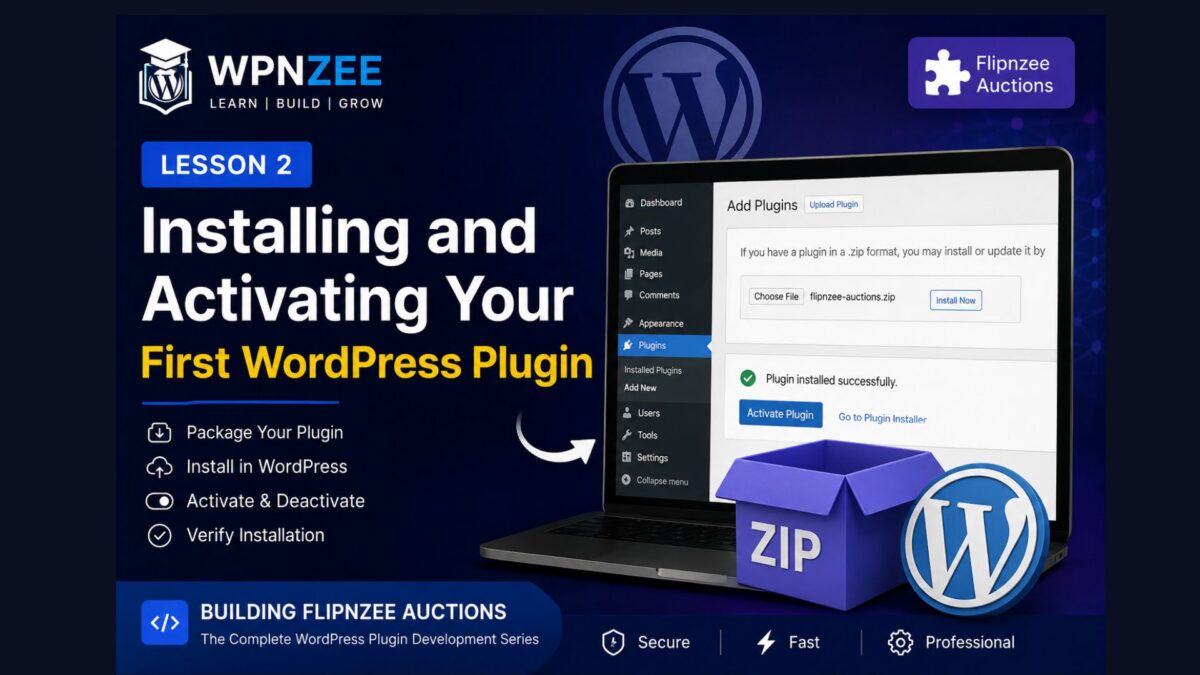
Lesson 2: Installing and Activating Your First WordPress Plugin

Learning Objectives
By the end of this lesson, you’ll be able to:
- Package your plugin for WordPress.
- Install a plugin using the WordPress Dashboard.
- Activate and deactivate a plugin.
- Verify that WordPress recognizes your plugin correctly.
- Understand what happens during plugin activation.
- Troubleshoot common installation problems.
Why Test Early?
One of the most valuable habits in software development is testing small changes frequently.
Rather than writing thousands of lines of code and testing everything at the end, professional developers test after every significant milestone.
Since we’ve completed the plugin skeleton, now is the perfect time to verify that WordPress recognizes it as a valid plugin.
If everything works at this stage, we can confidently build additional features knowing that our foundation is solid.
Prerequisites
Before continuing, ensure that:
- GitHub repository has been created.
- GitHub Codespaces is working.
- Lesson 1 has been completed.
- Your changes have been committed and pushed to GitHub.
Step 1: Verify Your Project Structure
Your repository should look similar to this:
flipnzee-auctions/
│
├── README.md
├── ROADMAP.md
├── CHANGELOG.md
├── LICENSE
│
└── flipnzee-auctions/
    │
    ├── flipnzee-auctions.php
    └── includes/
        └── class-loader.php
Notice that only the inner flipnzee-auctions folder will become the WordPress plugin.
Step 2: Create the Plugin ZIP

WordPress installs plugins as ZIP archives.
Open GitHub Codespaces and make sure you’re in the repository root.
pwd
Expected output:
/workspaces/flipnzee-auctions
Now compress only the plugin folder.
Using the terminal:
zip -r flipnzee-auctions.zip flipnzee-auctions
Verify that the ZIP file was created:
ls
You should now see:
CHANGELOG.md
LICENSE
README.md
ROADMAP.md
flipnzee-auctions
flipnzee-auctions.zip
Step 3: Download the ZIP File
In GitHub Codespaces Explorer:
- Locate
flipnzee-auctions.zip - Right-click the file.
- Select Download.
Save it to your computer.
Step 4: Install the Plugin

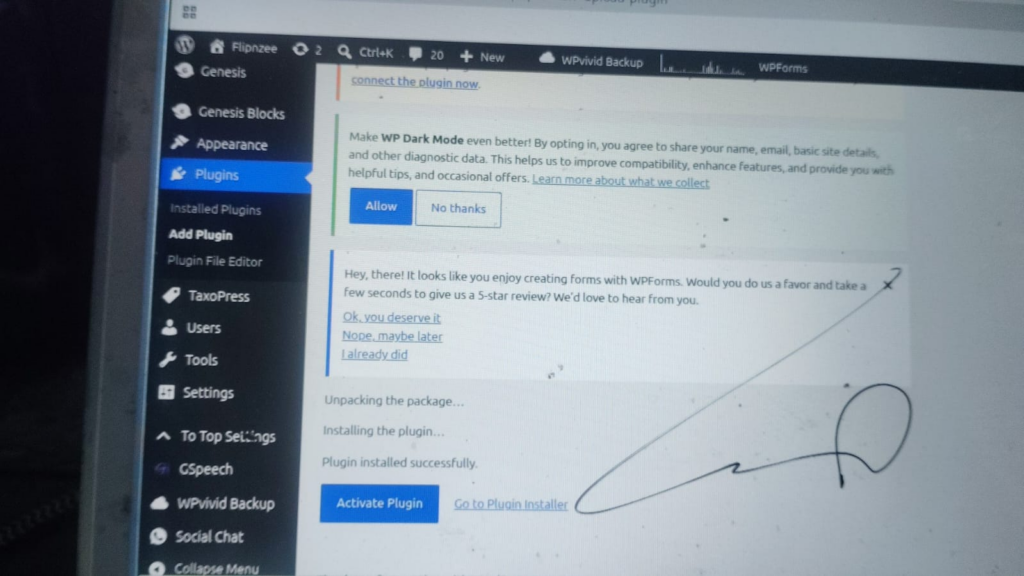

Log in to your WordPress website.
Navigate to:
Plugins → Add New Plugin
Click:
Upload Plugin
Select:
flipnzee-auctions.zip
Click:
Install Now
If everything is correct, WordPress will display a success message.
Step 5: Activate the Plugin
Click:
Activate Plugin
Navigate to:
Plugins → Installed Plugins
You should now see:
Flipnzee Auctions

Version 1.0.0

By Splendid Digital Solutions
Congratulations! WordPress now recognizes your plugin.
Although it doesn’t yet contain any auction functionality, it has officially become a valid WordPress plugin.
Step 6: Test Activation and Deactivation
Deactivate the plugin.
Activate it again.
Nothing visible should happen—and that’s perfectly normal.
Behind the scenes, WordPress executes the activation and deactivation hooks that we created in Lesson 1.
At the moment they simply refresh the rewrite rules.
In future lessons, those same hooks will create database tables, initialize settings, and perform other setup tasks.
Understanding What Just Happened
When WordPress activated your plugin, it performed several tasks automatically:
- Read the plugin header.
- Loaded
flipnzee-auctions.php. - Checked the
ABSPATHsecurity condition. - Defined the plugin constants.
- Registered the activation hook.
- Loaded the
Flipnzee_Auction_Loaderclass.
Even though your plugin currently has no visible features, WordPress has already built the execution environment that will support everything we add later.
Common Installation Problems
“Plugin could not be activated.”
Usually caused by:
- PHP syntax errors
- Missing semicolons
- Incorrect file names
Plugin Doesn’t Appear
Usually caused by:
- Plugin header missing
- Main PHP file inside the wrong folder
- Incorrect ZIP structure
White Screen
Usually caused by a PHP fatal error.
Enable debugging by adding the following to wp-config.php:
define('WP_DEBUG', true);
define('WP_DEBUG_LOG', true);
Then check:
wp-content/debug.log
Lesson Summary
In this lesson, we packaged our plugin, installed it on a WordPress website, activated it, and confirmed that WordPress recognizes it as a valid plugin. This milestone is important because it proves that our project structure and plugin header are correct before we begin adding more complex functionality.
Key Takeaways
- WordPress installs plugins from ZIP files.
- Only the plugin folder—not the entire repository—should be packaged.
- Testing early helps identify problems before they become difficult to debug.
- Activation hooks execute every time the plugin is activated.
Common Mistakes
- Zipping the entire GitHub repository instead of the plugin folder.
- Uploading the wrong ZIP file.
- Forgetting to save changes before creating the ZIP.
- Ignoring PHP errors during activation.
Git Commands Used
zip -r flipnzee-auctions.zip flipnzee-auctions

git add .

git commit -m "Lesson 2: Install plugin in WordPress"

git push
Project Status
✅ Development environment ready

✅ GitHub repository created

✅ Plugin skeleton completed

✅ Plugin installed successfully

⬜ Database installation

⬜ Auction engine

⬜ Bidding system

⬜ Escrow workflow

⬜ Payment gateways

⬜ Website transfer

⬜ Reports

⬜ REST API

⬜ Version 1.0 Release
Developer’s Notebook
Professional developers validate their work continuously. A plugin that installs and activates successfully gives you confidence that the project’s structure is sound. As we continue adding features, we’ll continue testing after each major milestone, making problems easier to isolate and fix.
As the Flipnzee ecosystem grows, this plugin will work alongside other Flipnzee plugins. For example, Flipnzee Analytics is responsible for collecting and displaying verified website metrics, while Flipnzee Auctions focuses on the buying, bidding, payment, and transfer process. Keeping these responsibilities separate makes each plugin easier to maintain and extend.
Looking Ahead
In Lesson 3, we’ll explore the WordPress Plugin Lifecycle. You’ll learn exactly what happens from the moment WordPress loads your plugin until your code is executed. Understanding this lifecycle is essential for writing efficient, secure, and maintainable plugins, and it will prepare us for creating our first database tables in the lessons that follow.