Lesson 24 – Displaying Professional Admin Success and Error Notices in Your WordPress Plugin

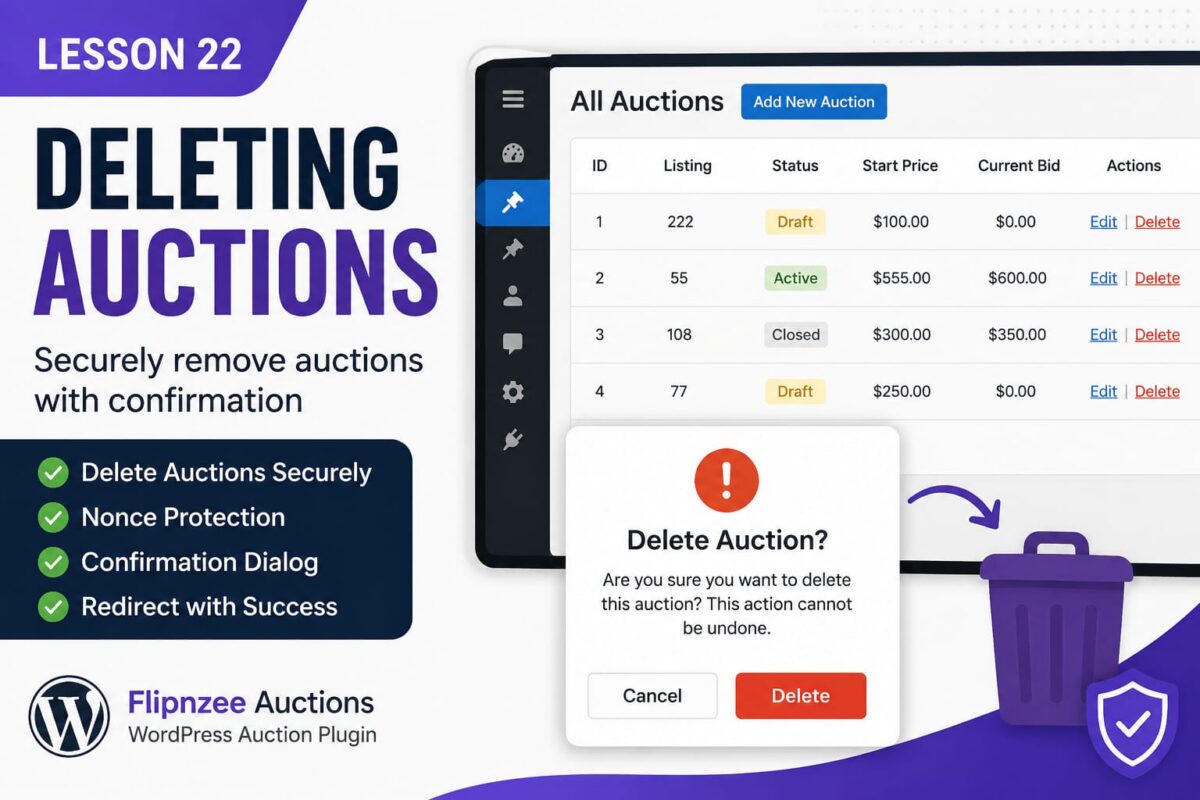
In the previous lesson, we successfully implemented the ability to delete auctions from the Flipnzee Auctions plugin. The feature works correctly, but from a user’s perspective there is one thing missing—feedback.
Imagine clicking Delete and returning to the auction list with no indication whether the deletion actually succeeded. Users may wonder whether the auction was removed or if something went wrong.
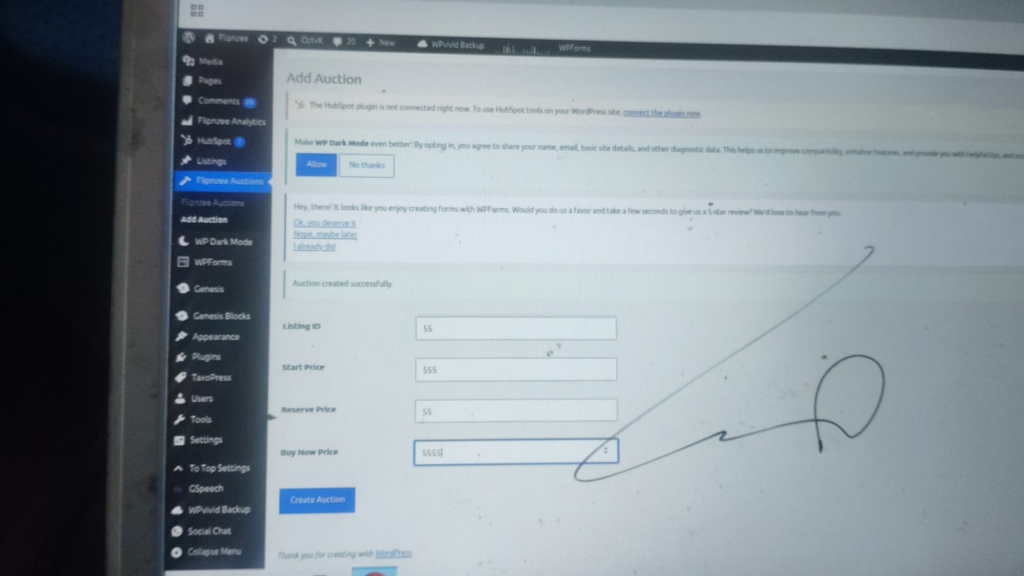
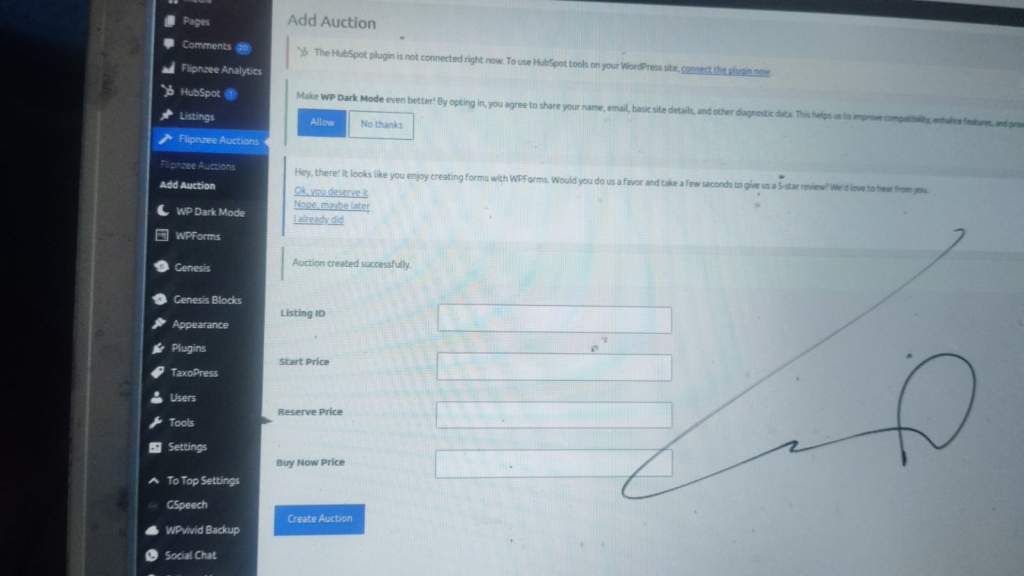
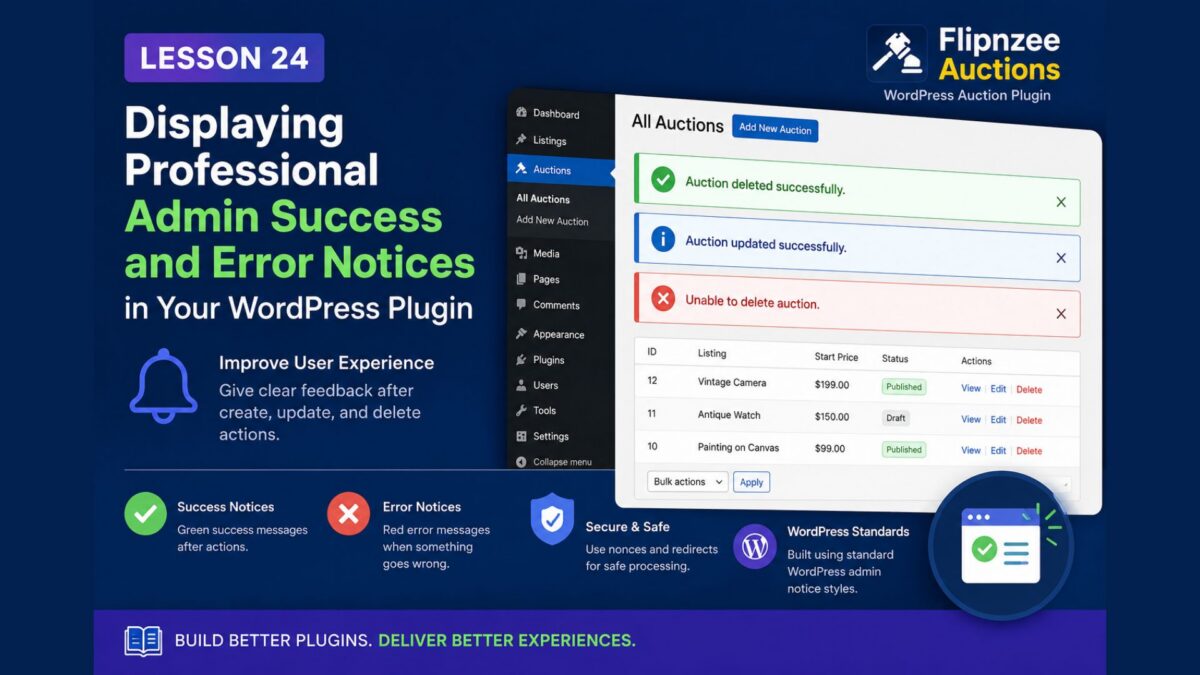
In this lesson, we’ll improve the user experience by displaying professional WordPress admin notices after important actions such as creating, updating, and deleting auctions.
Why Admin Notices Matter
WordPress itself uses admin notices throughout the dashboard.
For example:
- Post published.
- Settings saved.
- Plugin activated.
- Theme installed.
Users have become accustomed to seeing these messages. Your plugin should follow the same design pattern.
What We’ll Build
By the end of this lesson, the plugin will display messages such as:
- Auction created successfully.
- Auction updated successfully.
- Auction deleted successfully.
- Unable to delete auction.
- Unable to update auction.
Each message will use the standard WordPress notice styles.
Passing Messages Between Pages
After an action is completed, the user is redirected back to an admin page.
For example:
wp_safe_redirect(
	admin_url(
		'admin.php?page=flipnzee-all-auctions&message=deleted'
	)
);
Notice the query parameter:
message=deleted
This allows the next page to know what happened.
Reading the Message
Inside the destination page we retrieve the message safely.
$message = isset( $_GET['message'] )
	? sanitize_text_field(
		wp_unslash( $_GET['message'] )
	)
	: '';
This ensures that only sanitized input is used.
Displaying a Success Notice
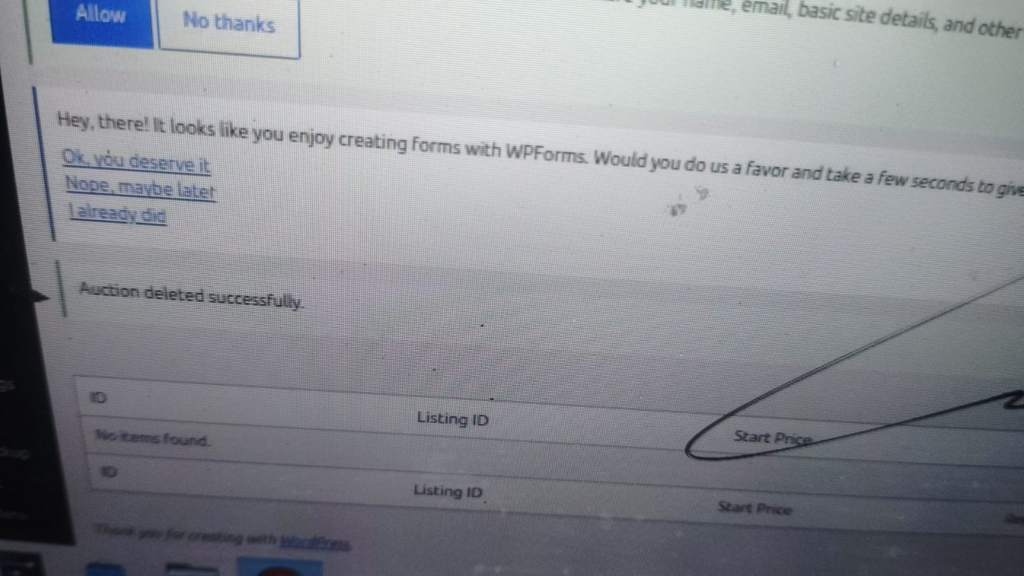
If the message equals deleted, we display a success notice.
if ( 'deleted' === $message ) :
?>

<div class="notice notice-success is-dismissible">
	<p>Auction deleted successfully.</p>
</div>

<?php endif; ?>
The classes are provided by WordPress.
- notice
- notice-success
- is-dismissible
No custom CSS is required.
Displaying an Error Notice
If something goes wrong, we display an error.
<?php if ( 'error' === $message ) : ?>

<div class="notice notice-error is-dismissible">
	<p>Unable to delete auction.</p>
</div>

<?php endif; ?>
WordPress automatically styles it using the familiar red error notice.
Why Redirect Instead of Printing Messages?
Suppose we deleted the record and immediately echoed:
Auction deleted.
The user would remain on the processing page.
Instead, WordPress plugins usually:
- Perform the action.
- Redirect.
- Display a message.
This pattern avoids duplicate submissions when the browser is refreshed.
Benefits of This Approach
Our plugin now provides:
- Clear feedback to administrators.
- Consistent WordPress user experience.
- Cleaner navigation.
- Better security through redirects.
- Professional appearance.
Best Practices Learned
Throughout this lesson we reinforced several WordPress development practices:
- Use
wp_safe_redirect()after processing forms. - Pass status information using query parameters.
- Sanitize all incoming data.
- Use WordPress admin notice classes.
- Keep users informed after every important action.
What We’ve Achieved So Far
At this point, the Flipnzee Auctions plugin supports:
- Plugin activation
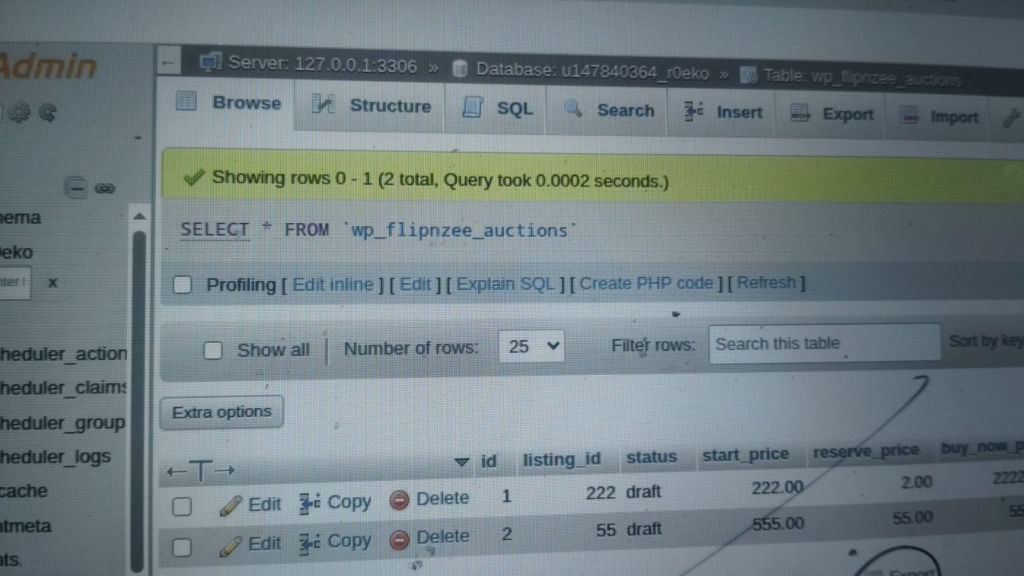
- Database creation
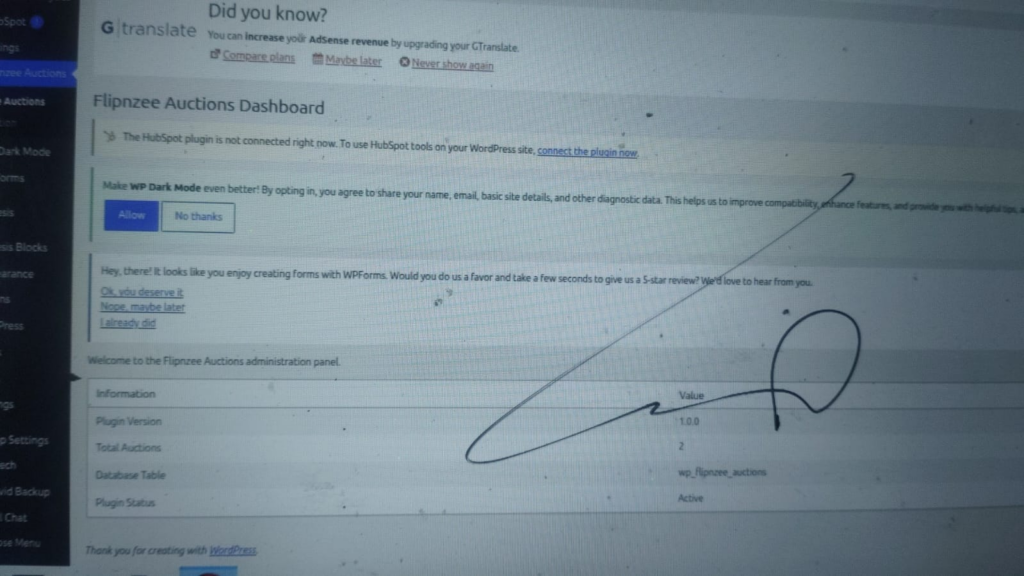
- Admin dashboard
- Add Auction
- View Auctions
- Edit Auction
- Delete Auction
- Admin notices
- Secure nonces
- CRUD operations
The plugin is beginning to feel like a real production-ready WordPress application rather than a simple demonstration project.
Coming Up Next
In Lesson 25, we’ll make the auction management screen even more powerful by adding Bulk Actions, allowing administrators to delete multiple auctions at once, just like the built-in WordPress Posts and Pages screens.