
Lesson 19: Creating the Edit Auction Page

Introduction
In the previous lesson, we enhanced our auction list by adding View, Edit, and Delete row actions beneath each Auction ID. Although these links improved the user interface, they were only placeholders.
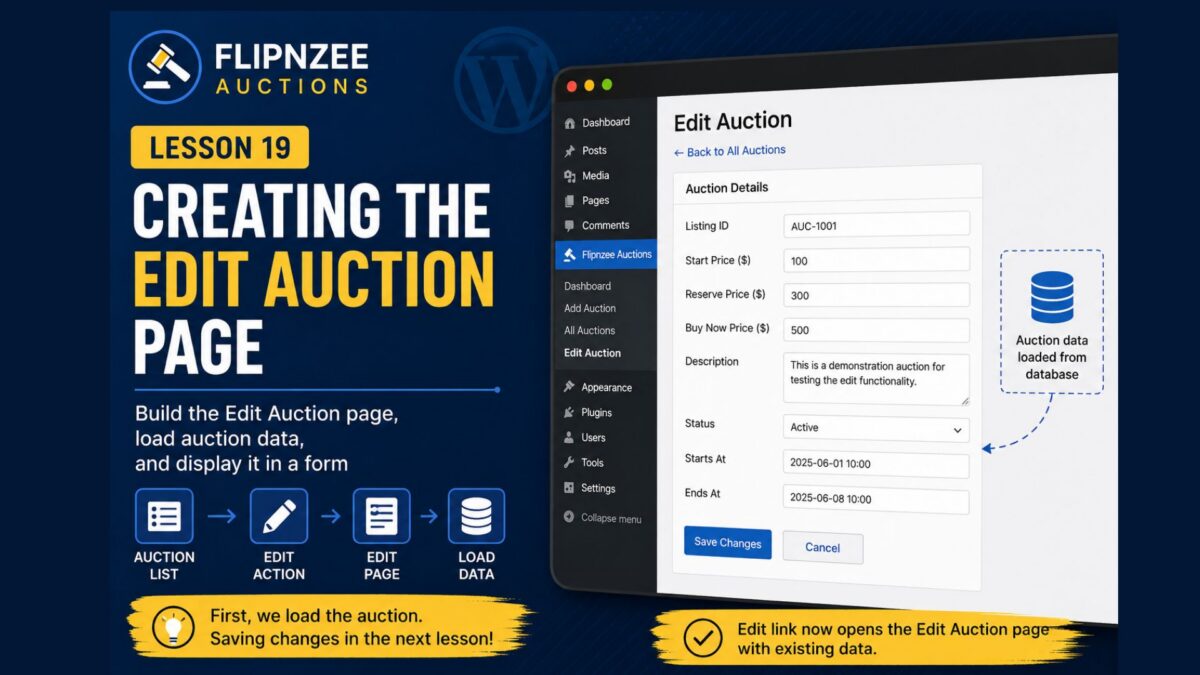
In this lesson, we’ll make the Edit action functional by creating a dedicated Edit Auction page inside the WordPress administration area. Initially, this page will retrieve an auction from the database and display its existing information in a form. We’ll save the changes in the next lesson.
Breaking the workflow into two lessons makes it easier to understand and follows the same incremental approach we’ve used throughout this series.
Learning Objectives
By the end of this lesson, you’ll be able to:
- Build an Edit Auction administration page.
- Pass an auction ID through a URL.
- Retrieve a single auction from the database.
- Populate a form with existing values.
- Understand how editing workflows begin in WordPress plugins.
How the Workflow Changes
Our administration flow now becomes:
All Auctions
      ↓
Click Edit
      ↓
Edit Auction Page
      ↓
Retrieve Auction
      ↓
Display Existing Values
Notice that we’re still not saving changes yet. Today’s goal is to display the current data.
Step 1 – Update the Edit Row Action
Open:
admin/class-auctions-table.php
Locate the column_id() method.
Replace the Edit action with:
'edit' => sprintf(
	'<a href="%s">Edit</a>',
	admin_url(
		'admin.php?page=flipnzee-edit-auction&auction_id=' . absint( $item->id )
	)
),
Now every Edit link will open the correct auction.
Step 2 – Register a New Submenu
Open:
admin/class-admin.php
Inside register_menu(), add another submenu:
add_submenu_page(
	'flipnzee-auctions',
	'Edit Auction',
	'Edit Auction',
	'manage_options',
	'flipnzee-edit-auction',
	array( $this, 'edit_auction_page' )
);
This page won’t normally appear in the menu because administrators will access it through the Edit link.
Step 3 – Create the Edit Page
Inside class-admin.php, create:
public function edit_auction_page() {

	$auction_id = isset( $_GET['auction_id'] )
		? absint( $_GET['auction_id'] )
		: 0;

	$auction = Flipnzee_Auction_Manager::get_auction(
		$auction_id
	);

	if ( ! $auction ) {

		echo '<div class="notice notice-error"><p>Auction not found.</p></div>';

		return;
	}

	?>

	<div class="wrap">

		<h1>Edit Auction</h1>

		<p>The auction was loaded successfully.</p>

	</div>

	<?php
}
At this stage, we’re simply verifying that the selected auction can be retrieved.
Step 4 – Test the Plugin
Create a fresh ZIP.
Upload the plugin.
Navigate to:
Flipnzee Auctions → All Auctions
Click Edit beneath any auction.
If everything is working correctly, you’ll see:
Edit Auction

The auction was loaded successfully.
This confirms that:
- The row action works.
- The auction ID is passed correctly.
- The Auction Manager retrieves the correct record.
- The administration page loads successfully.
Why Stop Here?
Many beginners try to retrieve, display, validate, and save data in a single lesson.
Breaking the process into smaller steps makes debugging much easier.
Today we verify that the correct auction is loaded.
In the next lesson, we’ll build the complete editing form.
Lesson Summary
In this lesson, we transformed the placeholder Edit link into a working navigation path.
Administrators can now select an auction from the list, open an Edit Auction page, and retrieve the corresponding record from the database.
Although editing isn’t complete yet, we’ve successfully implemented the first half of the editing workflow.
Key Takeaways
- ✓ Row actions can pass record IDs through URLs.
- ✓ Retrieve individual records using the Auction Manager.
- ✓ Separate retrieval from saving.
- ✓ Build editing workflows incrementally.
Common Mistakes
- Forgetting to sanitize the auction ID.
- Accessing the database directly instead of using the Auction Manager.
- Assuming every ID exists.
- Trying to save changes before displaying the existing values.
Git Commands Used
git add .

git commit -m "Lesson 19: Create Edit Auction page"

git push
Testing Checklist
Before continuing:
- ✅ Plugin activates successfully.
- ✅ All Auctions page still loads.
- ✅ Every Edit link opens a new page.
- ✅ Correct auction ID is passed.
- ✅ Auction record is retrieved successfully.
- ✅ “Auction not found” appears only for invalid IDs.
Project Status
✅ Dashboard

✅ Add Auction

✅ Save Auctions

✅ View Auctions

✅ WP_List_Table

✅ Row Actions

✅ Edit Auction Page

⬜ Edit Auction Form

⬜ Save Edited Auction

⬜ Delete Auction

⬜ Bid Engine

⬜ Escrow Workflow
Project Evolution
With the introduction of the Edit Auction page, Flipnzee Auctions now supports navigation from a list of records to an individual record. This pattern is common in many WordPress plugins and content management systems. By retrieving a single auction before attempting to modify it, we’ve established a clean editing workflow that can be expanded safely in future lessons.
Developer’s Notebook
Professional applications rarely perform retrieval, validation, and persistence in one step. Separating these responsibilities improves readability, simplifies testing, and makes future enhancements much easier. Today’s lesson focuses entirely on retrieving the correct record, allowing the next lesson to concentrate solely on editing and saving changes.