
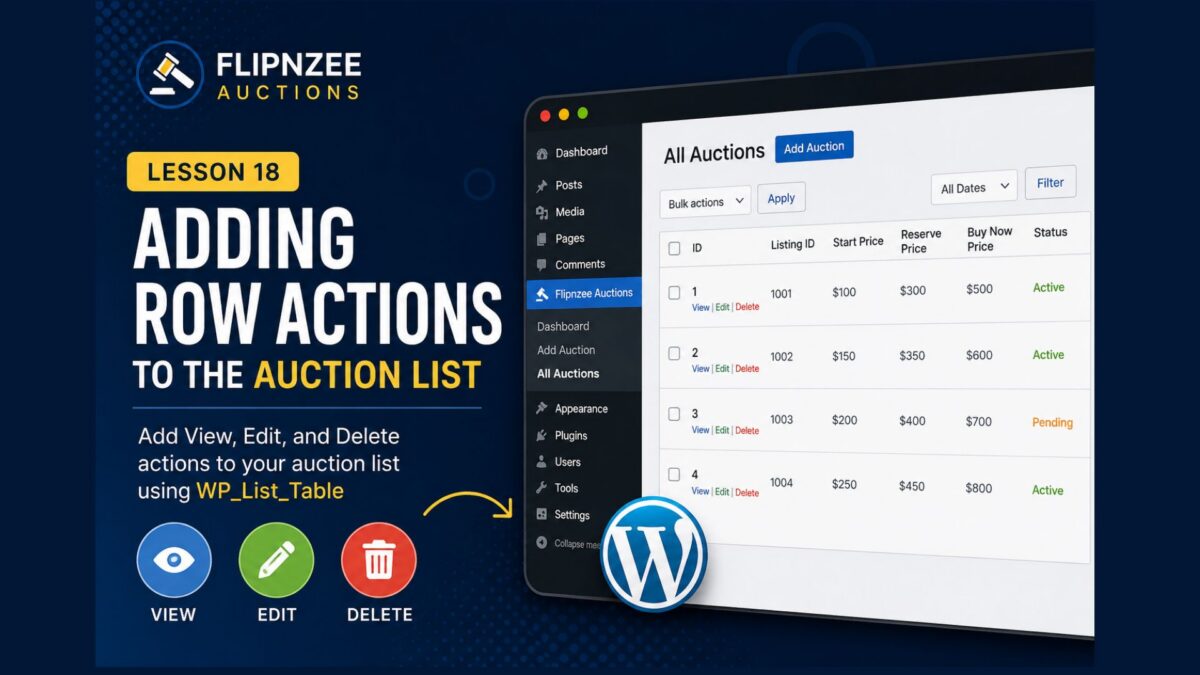
Lesson 18: Adding Row Actions to the Auction List

Introduction
In the previous lesson, we migrated our auction list to WordPress’s WP_List_Table framework.
Although the table now uses WordPress’s native administration interface, each row is still read-only.
Professional WordPress plugins allow administrators to perform actions directly from the list table. Common actions include viewing details, editing records, deleting items, or changing their status.
In this lesson, we’ll add our first row actions to the auction list, preparing the plugin for editing and deleting auctions in the next lessons.
Learning Objectives
By the end of this lesson, you’ll be able to:
- Understand row actions in
WP_List_Table. - Override the
column_id()method. - Add custom row actions.
- Build administrator-friendly interfaces.
- Prepare the plugin for editing and deleting auctions.
What Are Row Actions?
When you open the Posts page in WordPress, each post displays actions such as:
Edit | Quick Edit | Trash | View
These are called row actions.
Instead of placing buttons in separate columns, WordPress displays contextual links directly beneath the primary column.
We’ll adopt the same approach.
Step 1 – Choose the Primary Column
For our plugin, the Auction ID will become the primary column.
Every action related to an auction will appear beneath its ID.
Step 2 – Add a Custom Column Method
Open:
admin/class-auctions-table.php
Add the following method inside the class.
public function column_id( $item ) {

	$actions = array(

		'view' => sprintf(
			'<a href="#">View</a>'
		),

		'edit' => sprintf(
			'<a href="#">Edit</a>'
		),

		'delete' => sprintf(
			'<a href="#">Delete</a>'
		),

	);

	return sprintf(
		'%1$s %2$s',
		$item->id,
		$this->row_actions( $actions )
	);
}
Understanding row_actions()
The WordPress base class automatically formats our links into the familiar style used throughout the administration area.
Instead of manually creating HTML, we simply pass an array of actions.
WordPress handles the rest.
Step 3 – Test the Table
Create a fresh ZIP.
Upload the plugin.
Open:
Flipnzee Auctions → All Auctions
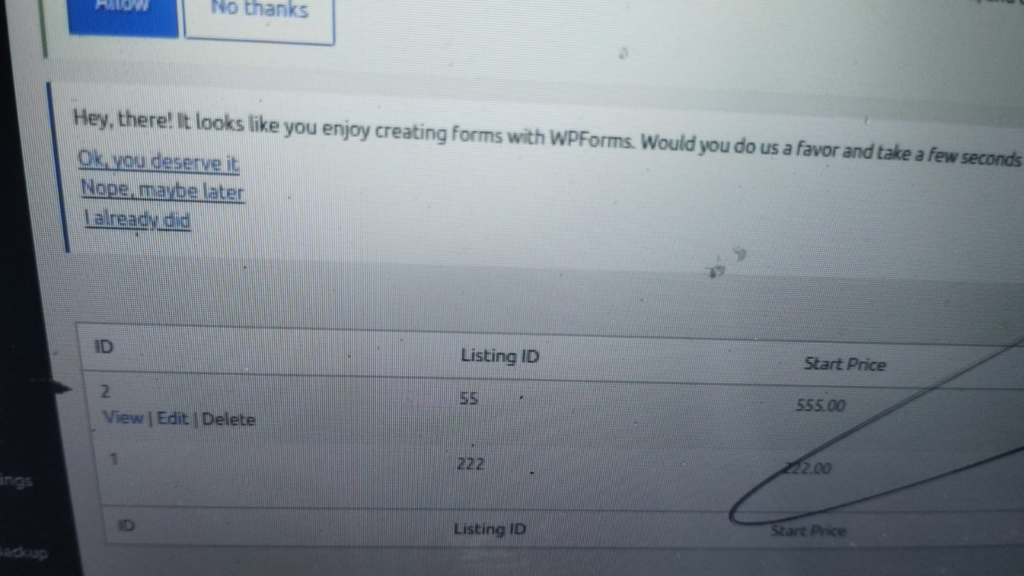
Each auction should now display:
1

View | Edit | Delete
directly beneath the Auction ID.
Although these links don’t perform any actions yet, they establish the navigation we’ll build upon in future lessons.
Why Placeholder Links?
You might wonder why the links currently point to #.
This allows us to focus on one concept at a time.
Today’s goal is to understand how row actions are rendered.
In the next lessons, we’ll replace each placeholder with working functionality.
Lesson Summary
In this lesson, we enhanced the auction list by introducing row actions through the column_id() method.
The auction table now follows the same interaction model used throughout the WordPress administration area, giving users familiar controls while preparing the plugin for more advanced features.
Key Takeaways
- ✓ Row actions belong beneath the primary column.
- ✓ Override
column_id()to customize the first column. - ✓ Use
row_actions()instead of manually building links. - ✓ Keep one lesson focused on one new concept.
Common Mistakes
- Forgetting to create the
column_id()method. - Returning only the ID without row actions.
- Placing action links inside separate columns.
- Trying to implement edit and delete functionality before creating the row actions.
Git Commands Used
git add .

git commit -m "Lesson 18: Add row actions to auction list"

git push
Testing Checklist
Before moving to the next lesson, verify:
- ✅ Plugin activates successfully.
- ✅ Dashboard still loads.
- ✅ Add Auction still works.
- ✅ All Auctions page loads correctly.
- ✅ Every auction displays its ID.
- ✅ View, Edit, and Delete appear beneath each Auction ID.
- ✅ No PHP warnings or fatal errors.
Project Status
✅ Dashboard

✅ Add Auction

✅ Save Auctions

✅ View Auctions

✅ WP_List_Table

✅ Row Actions

⬜ View Auction

⬜ Edit Auction

⬜ Delete Auction

⬜ Bid Engine

⬜ Escrow Workflow
Project Evolution
Our administration interface is becoming increasingly similar to native WordPress screens. Instead of treating auctions as static records, administrators can now see contextual actions associated with each auction. While the actions are placeholders today, the underlying structure is now in place. Future lessons will simply connect these links to real functionality without redesigning the interface.
Developer’s Notebook
One of the strengths of WP_List_Table is that it encourages consistency across the WordPress administration area. By adopting row actions rather than adding separate action columns, our plugin immediately feels more familiar to WordPress users. This small architectural decision improves usability while reducing unnecessary visual clutter.
Looking Ahead
In Lesson 19, we’ll replace the placeholder Edit link with a fully functional auction editing page. Administrators will be able to modify auction details directly from the dashboard, making Flipnzee Auctions feel even more like a native WordPress application.