
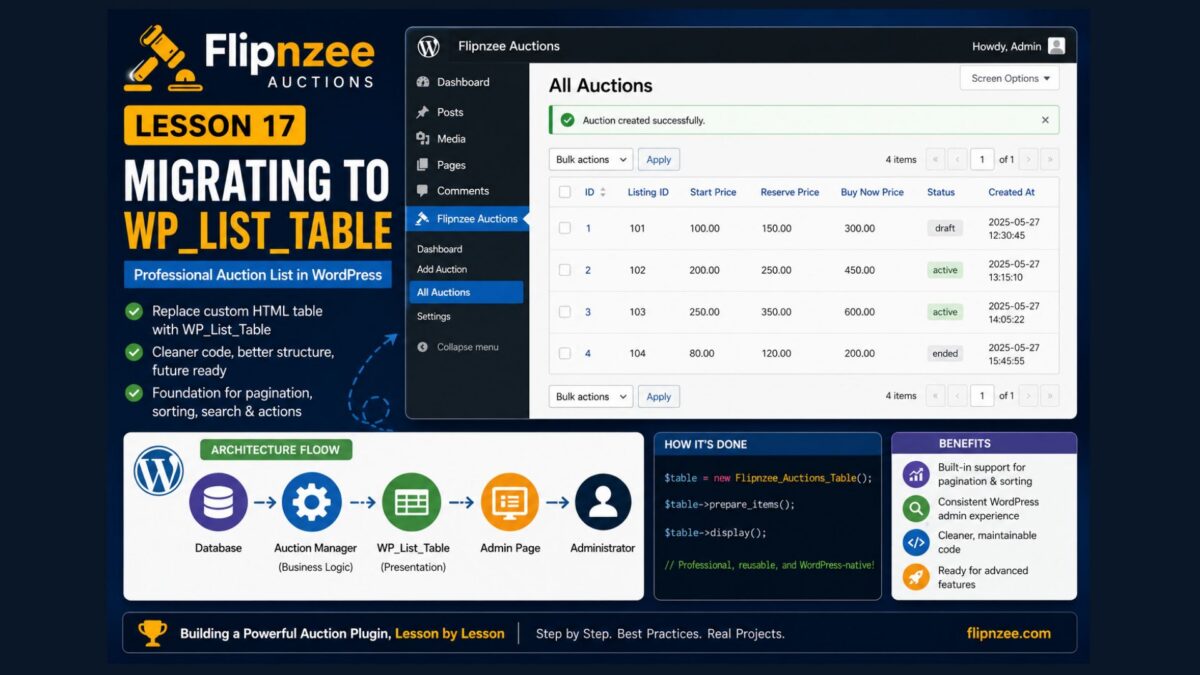
Lesson 17: Migrating the Auction List to WP_List_Table

Introduction
In the previous lesson, we learned what WP_List_Table is and why professional WordPress plugins use it instead of manually building HTML tables.
In this lesson, we’ll complete the migration by creating our own WP_List_Table class, loading it into the plugin, and updating the All Auctions page to use it.
Although the table will initially display the same information as before, the underlying architecture will be much more scalable and will prepare us for pagination, sorting, searching, and row actions in future lessons.
Learning Objectives
By the end of this lesson, you’ll be able to:
- Create a custom
WP_List_Table. - Load the new table class into your plugin.
- Replace a manually created HTML table.
- Display auction records using WordPress’s native administration framework.
Step 1 – Create the Table Class
Create a new file:
admin/class-auctions-table.php
Copy the complete code from this lesson into the file.
This class extends WordPress’s WP_List_Table and is responsible for displaying auction records.
Step 2 – Load the Table Class
Open:
flipnzee-auctions.php
Immediately below the section that loads the Admin Posts Class, add:
/**
 * Load Auctions Table Class
 */
if ( file_exists( FLIPNZEE_AUCTION_PATH . 'admin/class-auctions-table.php' ) ) {
	require_once FLIPNZEE_AUCTION_PATH . 'admin/class-auctions-table.php';
}
Your loading order should now be:
- Loader
- Database
- Auction Manager
- Admin Class
- Admin Posts Class
- Auctions Table Class
Keeping related classes grouped together makes the plugin easier to maintain.
Step 3 – Update the Admin Page
Open:
admin/class-admin.php
Locate the all_auctions_page() method.
Replace the existing HTML table with:
$table = new Flipnzee_Auctions_Table();

$table->prepare_items();

$table->display();
Your page now becomes responsible only for displaying the page header and calling the table class.
Step 4 – Test the Plugin
Create a fresh ZIP.
Upload it to your WordPress website.
Activate the plugin.
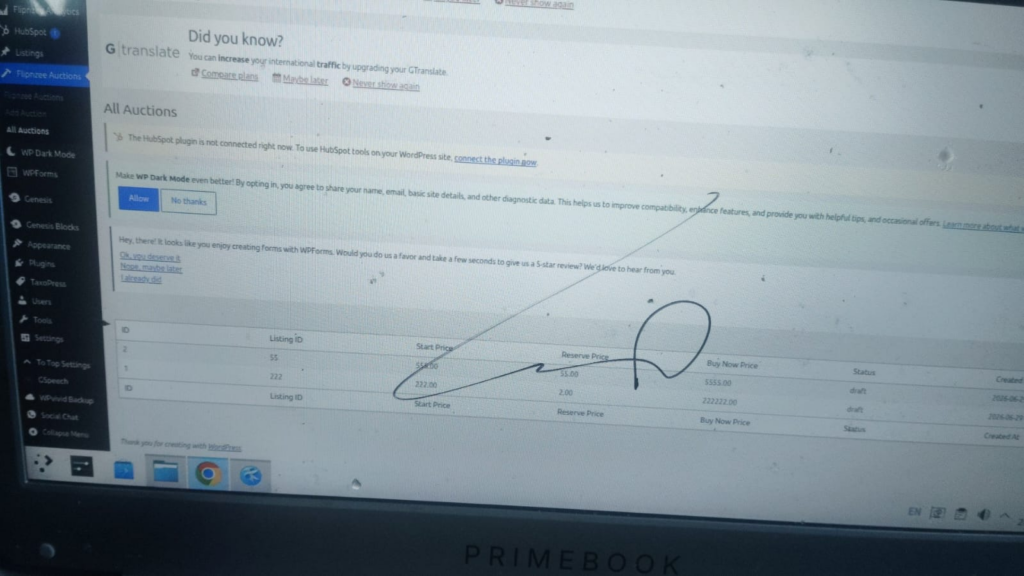
Navigate to:
Flipnzee Auctions → All Auctions
If everything has been configured correctly, your auctions should now be displayed using your custom WP_List_Table.
Understanding the New Architecture
Our plugin now follows this flow:
Database
      ↓
Auction Manager
      ↓
WP_List_Table
      ↓
Admin Page
      ↓
Administrator
Notice that the Admin page no longer knows how to build the table.
Instead, it delegates that responsibility to Flipnzee_Auctions_Table.
Why This Is Better
Compared to our previous implementation:
- The admin page contains much less code.
- Table rendering is reusable.
- Future enhancements become much easier.
- The plugin follows WordPress conventions more closely.
This architecture will allow us to add pagination, searching, sorting, bulk actions, and row actions without redesigning the administration page.
Lesson Summary
In this lesson, we completed the migration from a manually constructed HTML table to WordPress’s WP_List_Table framework.
Although the interface appears familiar, the plugin now uses a more professional architecture that separates presentation from business logic and prepares the administration area for future enhancements.
Key Takeaways
- ✓ Create a dedicated
WP_List_Tableclass. - ✓ Load the class in
flipnzee-auctions.php. - ✓ Replace the manual HTML table.
- ✓ Keep presentation separate from business logic.
- ✓ Build on WordPress’s native administration framework.
Common Mistakes
- Forgetting to load
class-auctions-table.php. - Calling
$table->display()without first callingprepare_items(). - Leaving the old HTML table in
class-admin.php. - Writing SQL inside the table class.
Git Commands Used
git add .

git commit -m "Lesson 17: Migrate auction list to WP_List_Table"

git push
Project Status
✅ Dashboard

✅ Add Auction

✅ Save Auction

✅ View Auctions

✅ Migrate to WP_List_Table

⬜ Pagination

⬜ Search

⬜ Sorting

⬜ Row Actions

⬜ Edit Auction

⬜ Delete Auction

⬜ Bid Engine

⬜ Escrow Workflow
Developer’s Notebook
One of the advantages of building on WordPress’s native components is that your plugin becomes easier for other WordPress developers to understand. By moving table rendering into a dedicated WP_List_Table class, we’ve reduced the responsibilities of the admin page and laid the foundation for advanced features without changing the overall architecture again.