
Lesson 12: Processing WordPress Admin Forms the Professional Way

Introduction
In the previous lesson, we created our first Add Auction page inside the WordPress Dashboard. Although administrators can now fill in auction details, the form doesn’t yet save any information.
There are several ways to process WordPress forms. For small plugins, it’s common to process the submitted data inside the same function that displays the form. While this works, it mixes presentation with business logic.
In this lesson, we’ll adopt a more professional approach by using WordPress’s Admin Post API. This separates form processing from page rendering and produces cleaner, more maintainable code.
By the end of this lesson, administrators will be able to submit an auction through the dashboard, and the Auction Manager will store it in the database.
Learning Objectives
By the end of this lesson, you’ll be able to:
- Understand the WordPress Admin Post API.
- Protect forms with WordPress nonces.
- Process form submissions in a dedicated handler.
- Validate and sanitize submitted data.
- Call the Auction Manager to save data.
- Redirect users safely after processing.
Why Change Our Architecture?
A common beginner approach looks like this:
Display Form
      │
      ▼
Read $_POST
      │
      ▼
Save Database
This mixes multiple responsibilities inside one function.
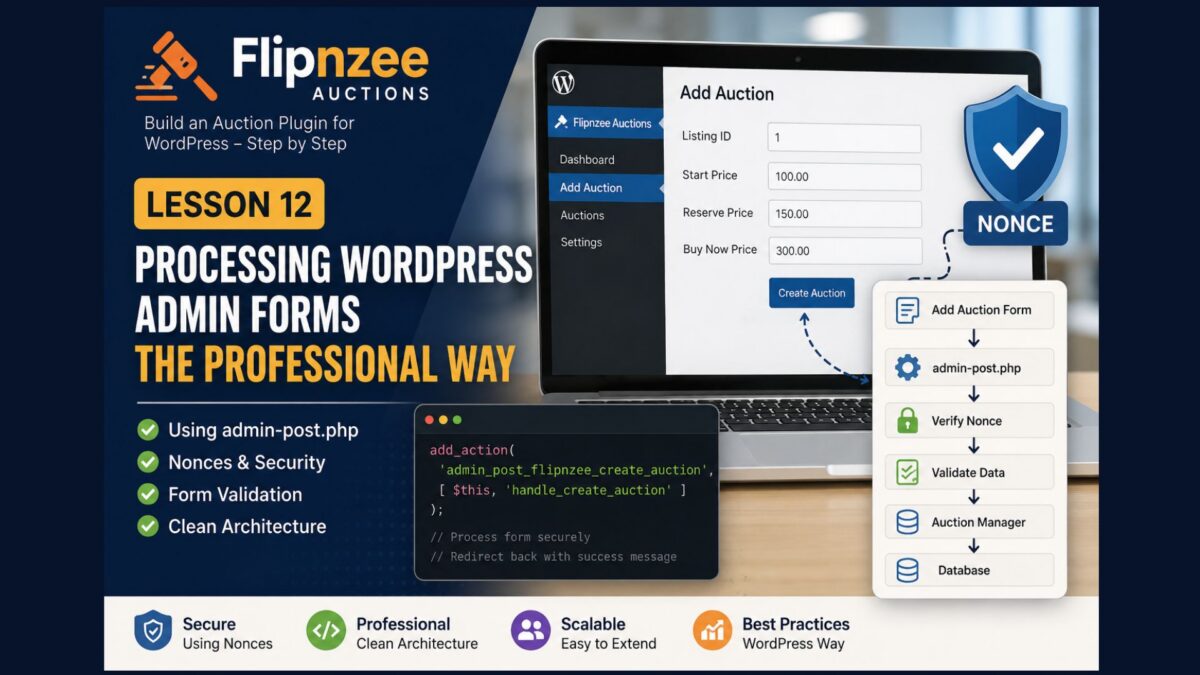
Instead, we’ll use:
Display Form
      │
      ▼
admin-post.php
      │
      ▼
Form Handler
      │
      ▼
Auction Manager
      │
      ▼
Database
Each component now has one clearly defined responsibility.
What We’ll Build
Our plugin will now consist of:
- Admin Class – Registers menus and displays pages.
- Auction Manager – Handles auction business logic.
- Form Handler – Processes submitted forms.
- Database Class – Creates and manages database tables.
This separation makes the plugin easier to maintain as it grows.
Step 1 – Add a Nonce to the Form
Every administrative form should include a nonce.
Immediately before the submit button, add:
<?php wp_nonce_field(
	'flipnzee_create_auction',
	'flipnzee_nonce'
); ?>
This generates a hidden security token that WordPress verifies when the form is submitted.
Step 2 – Submit to admin-post.php
Instead of submitting the form back to the same page, we’ll submit it to WordPress.
Our form will eventually look like this:
<form method="post" action="<?php echo esc_url( admin_url( 'admin-post.php' ) ); ?>">
We’ll also include a hidden field named:
<input
	type="hidden"
	name="action"
	value="flipnzee_create_auction">
The value of this field tells WordPress which handler should process the request.
Step 3 – Create a Form Handler
Rather than placing processing code inside the page-rendering method, we’ll create a dedicated handler class.
This handler will:
- Verify the nonce.
- Validate the submitted data.
- Call the Auction Manager.
- Redirect back to the dashboard.
This keeps the user interface completely separate from the business logic.
Step 4 – Validate and Sanitize Input
Before saving anything, we’ll clean the submitted data.
Examples include:
absint()for IDs.(float)for prices.sanitize_text_field()for text values.wp_unslash()when appropriate.
Never trust raw $_POST values.
Step 5 – Save the Auction
Once the data has been validated, we’ll call:
Flipnzee_Auction_Manager::create_auction();
Notice that the form handler doesn’t execute SQL directly.
The Auction Manager remains responsible for interacting with the database.
Step 6 – Redirect Back
After processing the form, the handler redirects the administrator back to the Add Auction page.
This prevents duplicate submissions if the page is refreshed and follows the standard WordPress Post/Redirect/Get pattern.
Why This Is Better
Separating page rendering from form processing provides several advantages:
- Cleaner code.
- Easier debugging.
- Better security.
- Easier testing.
- Simpler future enhancements.
As the plugin grows, we’ll reuse this same architecture for editing auctions, deleting auctions, placing bids, and updating settings.
Lesson Summary
In this lesson, we redesigned the way our plugin handles administration forms.
Rather than processing submitted data inside the page-rendering method, we adopted the WordPress Admin Post API. This keeps the user interface, form processing, and business logic separated into dedicated components.
Although this approach requires a little more setup, it scales much better as the plugin becomes more sophisticated.
Key Takeaways
- ✓ Use WordPress nonces for every administration form.
- ✓ Process forms through
admin-post.php. - ✓ Keep HTML separate from business logic.
- ✓ Validate and sanitize all user input.
- ✓ Let the Auction Manager handle database operations.
Common Mistakes
- Processing
$_POSTdirectly inside the view. - Forgetting nonce verification.
- Trusting user input without validation.
- Mixing SQL with HTML.
Git Commands Used
git add .

git commit -m "Lesson 12: Process admin forms using Admin Post API"

git push
Project Status
✅ Plugin dashboard

✅ Add Auction page

✅ Secure form architecture

⬜ Form handler

⬜ Save auction

⬜ Auction listing

⬜ Edit auction

⬜ Bid engine

⬜ Escrow workflow
Project Evolution
Earlier in this series, our focus was simply getting a working plugin. As the project has matured, we’ve begun adopting architectural patterns used in production-quality WordPress plugins.
Introducing the Admin Post API is one such refinement. Although it requires slightly more code, it provides a cleaner separation of responsibilities and lays the foundation for a plugin that will remain maintainable as features such as bidding, escrow integration, and website transfers are added.