
Lesson 11: Creating Your First Auction from the WordPress Dashboard

Introduction
In the previous lesson, we created the first administration dashboard for Flipnzee Auctions. Although the dashboard displays useful plugin information, administrators still cannot create auctions.
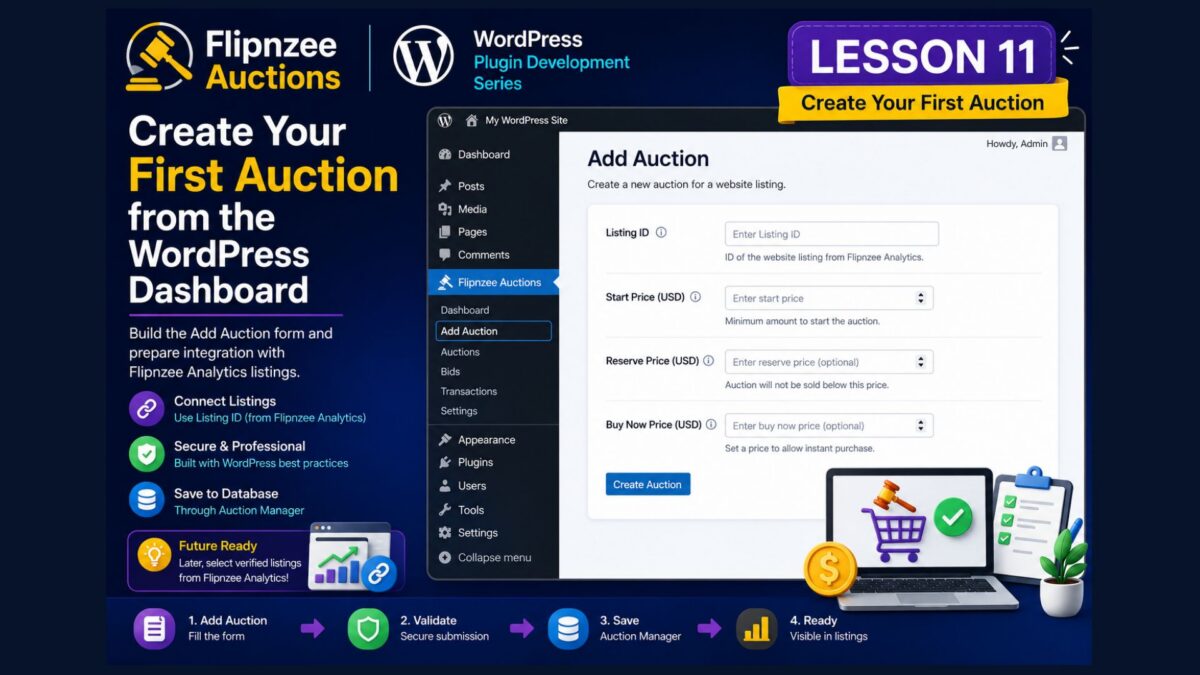
In this lesson, we’ll build our first administration form.
Instead of inserting records directly into the database, administrators will be able to create auctions using the familiar WordPress Dashboard.
This marks an important milestone in the project because it connects our user interface to the database through the Auction Manager class.
Learning Objectives
By the end of this lesson, you’ll be able to:
- Create your first administration form.
- Submit form data securely.
- Insert auction records into the database.
- Use the Auction Manager class from the administration interface.
- Understand why business logic should remain separate from the user interface.
Our Architecture
Remember the design we’ve adopted throughout this project.
Administrator

        │

        ▼

Admin Form

        │

        ▼

Auction Manager

        │

        ▼

Database
Notice that the form never communicates directly with the database.
Instead, it delegates the work to the Auction Manager.
Why Not Use SQL Here?
Imagine writing SQL inside every administration page.
Soon your project would become difficult to maintain.
Instead:
- Forms collect information.
- Auction Manager performs the work.
- Database stores the results.
Each component has one responsibility.
Step 1 – Create a New Menu
Open:
admin/class-admin.php
Inside the register_menu() method, immediately below add_menu_page(), add:
add_submenu_page(
	'flipnzee-auctions',
	'Add Auction',
	'Add Auction',
	'manage_options',
	'flipnzee-add-auction',
	array( $this, 'add_auction_page' )
);
Step 2 – Create the Add Auction Page
Inside the class, add the following method.
public function add_auction_page() {

	?>

	<div class="wrap">

		<h1>Add Auction</h1>

		<form method="post">

			<table class="form-table">

				<tr>

					<th>Listing ID</th>

					<td>

						<input
							type="number"
							name="listing_id"
							min="1"
							required
						>

					</td>

				</tr>

				<tr>

					<th>Start Price</th>

					<td>

						<input
							type="number"
							step="0.01"
							name="start_price"
							required
						>

					</td>

				</tr>

				<tr>

					<th>Reserve Price</th>

					<td>

						<input
							type="number"
							step="0.01"
							name="reserve_price"
						>

					</td>

				</tr>

				<tr>

					<th>Buy Now Price</th>

					<td>

						<input
							type="number"
							step="0.01"
							name="buy_now_price"
						>

					</td>

				</tr>

			</table>

			<?php submit_button( 'Create Auction' ); ?>

		</form>

	</div>

	<?php
}
Step 3 – Why Listing ID?
Some readers may wonder why we’re asking for a Listing ID instead of a website title.
The answer is simple.
Website listings already belong to the Flipnzee Analytics plugin.
Rather than storing duplicate information, Flipnzee Auctions simply references the existing listing.
For now, we’ll enter the Listing ID manually.
Later in this series, we’ll replace this field with a dropdown that automatically displays verified listings from Flipnzee Analytics.
Step 4 – Upload the Plugin

Create a new ZIP.
Upload it.
Activate the plugin.
Open:
Flipnzee Auctions

↓

Add Auction
You should now see your first administration form.
Although the form doesn’t yet save data, we’ve successfully built the user interface.
We’ll connect it to the Auction Manager in the next lesson.
Lesson Summary
In this lesson, we created our first administration form for Flipnzee Auctions.
Rather than inserting data directly into the database, we focused on building a clean user interface that will soon communicate with the Auction Manager.
This layered approach keeps the plugin organized and prepares us for more advanced functionality.
Key Takeaways
- ✓ WordPress administration pages use standard HTML forms.
- ✓ Keep forms separate from database logic.
- ✓ Prepare for future integrations instead of duplicating data.
- ✓ Build one layer at a time.
Common Mistakes
- Writing SQL directly inside administration pages.
- Mixing business logic with HTML.
- Duplicating listing information.
- Building complicated forms before the backend is ready.
Git Commands Used
git add .

git commit -m "Lesson 11: Add Auction form"

git push
Project Status
✅ Development environment

✅ Plugin skeleton

✅ Plugin installation

✅ Plugin lifecycle

✅ .gitignore

✅ Data architecture

✅ Database table

✅ Auction Manager

✅ Retrieve auction records

✅ WordPress admin menu

✅ Plugin dashboard

✅ Add Auction page

⬜ Save auction

⬜ List auctions

⬜ Edit auctions

⬜ Bid engine

⬜ Escrow workflow

⬜ Website transfer

⬜ Version 1.0
Project Evolution
When we first planned this plugin, we considered storing all website information inside Flipnzee Auctions.
As the project evolved, we recognized that Flipnzee Analytics already provides verified website listings. Rather than duplicating that data, the auction plugin now references listings through a listing_id.
This architectural refinement keeps both plugins modular and easier to maintain while allowing them to work together as part of the broader Flipnzee ecosystem.
Developer’s Notebook
One of the biggest advantages of separating the user interface from the business logic is flexibility. Today we’re creating a simple administration form, but tomorrow the same Auction Manager methods could be called from REST APIs, AJAX requests, WP-CLI commands, or even another plugin. By keeping responsibilities separate, we avoid rewriting the core logic every time a new interface is introduced.
Looking Ahead
In Lesson 12, we’ll connect this form to the Auction Manager so that submitting it actually creates a new auction in the database. We’ll also introduce WordPress nonces to protect the form against unauthorized submissions, an essential security practice for professional plugin development.