
Lesson 22: Deleting Auctions Securely with Confirmation in WordPress

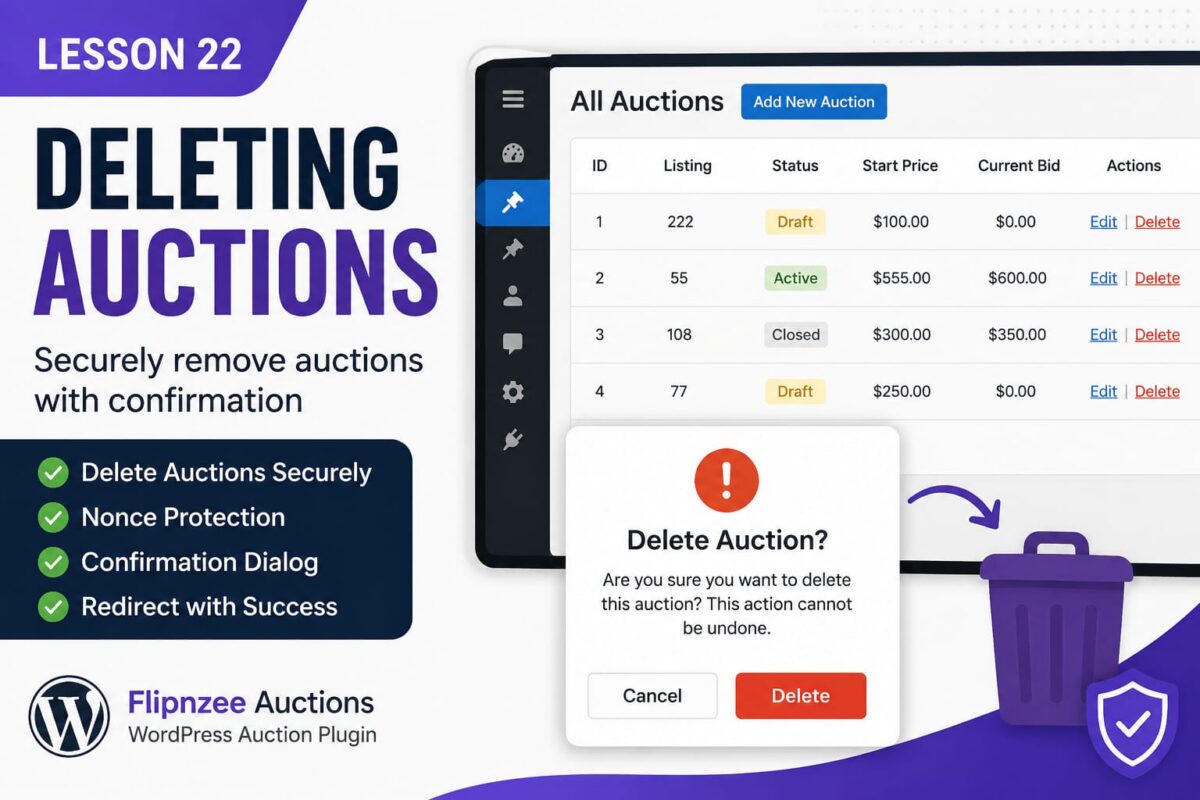
In the previous lessons, we successfully built the ability to create, view, and edit auctions from the WordPress admin panel. The final piece of the basic CRUD (Create, Read, Update, Delete) functionality is allowing administrators to safely delete auctions.
Deleting records is a destructive operation, so it must be implemented carefully. A poorly designed delete feature could allow accidental deletions or even expose your plugin to security vulnerabilities. In this lesson, we’ll build a secure delete system using WordPress best practices.
Why Deleting Requires Special Attention
Unlike creating or editing records, deleting permanently removes data from the database. This means we should always:
- Verify the user’s permissions.
- Protect against CSRF attacks using WordPress nonces.
- Ask the administrator for confirmation.
- Delete only the intended auction.
- Redirect back with a success or error message.
Fortunately, WordPress provides built-in tools that make implementing secure deletion straightforward.
What We’ll Build
By the end of this lesson, every auction listed in the All Auctions page will include a Delete link.
The workflow will look like this:
- Administrator clicks Delete.
- A confirmation dialog appears.
- Clicking Cancel stops the process.
- Clicking OK sends a secure request.
- The selected auction is removed from the database.
- The administrator is redirected back to the auction list with a success message.
Step 1 — Create a Delete Method in the Auction Manager
Inside:
includes/class-auction-manager.php
we’ll add a new method named:
delete_auction( $auction_id )
This method will use WordPress’s $wpdb->delete() function to remove a single auction based on its ID.
Keeping database operations inside the Auction Manager keeps our plugin organized and follows the same architecture we’ve used for creating and updating auctions.
Step 2 — Handle Delete Requests
Next, we’ll open:
admin/class-admin-posts.php
and register another admin action.
Instead of processing form submissions, this action will process delete requests coming from the auction list.
The handler will:
- verify the nonce
- validate the auction ID
- call
delete_auction() - redirect back to the auction list
Separating request handling from database logic keeps the code easier to maintain.
Step 3 — Add Delete Links to the Auction Table
Our WP_List_Table currently displays an Edit action for every auction.
We’ll modify the Actions column so that every row displays:
Edit | Delete
The Delete link will include:
- auction ID
- WordPress nonce
- delete action
This allows WordPress to verify that the request genuinely originated from an authorized administrator.
Step 4 — Display a Confirmation Dialog

Even administrators sometimes click the wrong link.
To prevent accidental deletions, we’ll attach a simple JavaScript confirmation dialog.
When the administrator clicks Delete, WordPress will ask:
Are you sure you want to delete this auction?
Selecting Cancel aborts the request.
Selecting OK continues with the deletion.
This small addition greatly improves the user experience while reducing accidental mistakes.
Why WordPress Uses Nonces for Delete Operations
Imagine an administrator is logged into WordPress and unknowingly visits a malicious website.
Without nonce protection, that website could secretly trigger requests that delete auctions from your plugin.
A WordPress nonce ensures that delete requests originate from your own plugin and are intentionally initiated by the administrator.
Although nonces are not passwords or encryption keys, they provide an important layer of protection against Cross-Site Request Forgery (CSRF) attacks.
Expected Result
Once this lesson is complete, the All Auctions page will look similar to this:
| Auction ID | Listing | Status | Actions |
|---|---|---|---|
| 1 | 222 | Draft | Edit | Delete |
| 2 | 55 | Active | Edit | Delete |
| 3 | 108 | Closed | Edit | Delete |
Clicking Delete will display a confirmation dialog before permanently removing the auction.
What You’ll Learn
By completing this lesson, you’ll understand:
- How to delete database records using
$wpdb->delete() - How WordPress processes admin actions
- Why delete operations require nonces
- How to generate secure action links
- How to redirect after completing an operation
- How to improve usability with confirmation dialogs
Coming Up Next
In Lesson 23, we’ll make the auction management screen much more powerful by adding search, sorting, filtering, and pagination to our custom WP_List_Table. These features become essential as the number of auctions grows, helping administrators quickly locate and manage specific records.
Conclusion
With the addition of secure deletion, our auction plugin will support the complete set of CRUD operations—Create, Read, Update, and Delete. More importantly, we’ll implement this functionality using WordPress coding standards and security best practices, laying the foundation for a robust and production-ready auction management system.