
Lesson 21: Updating Auctions in the Database

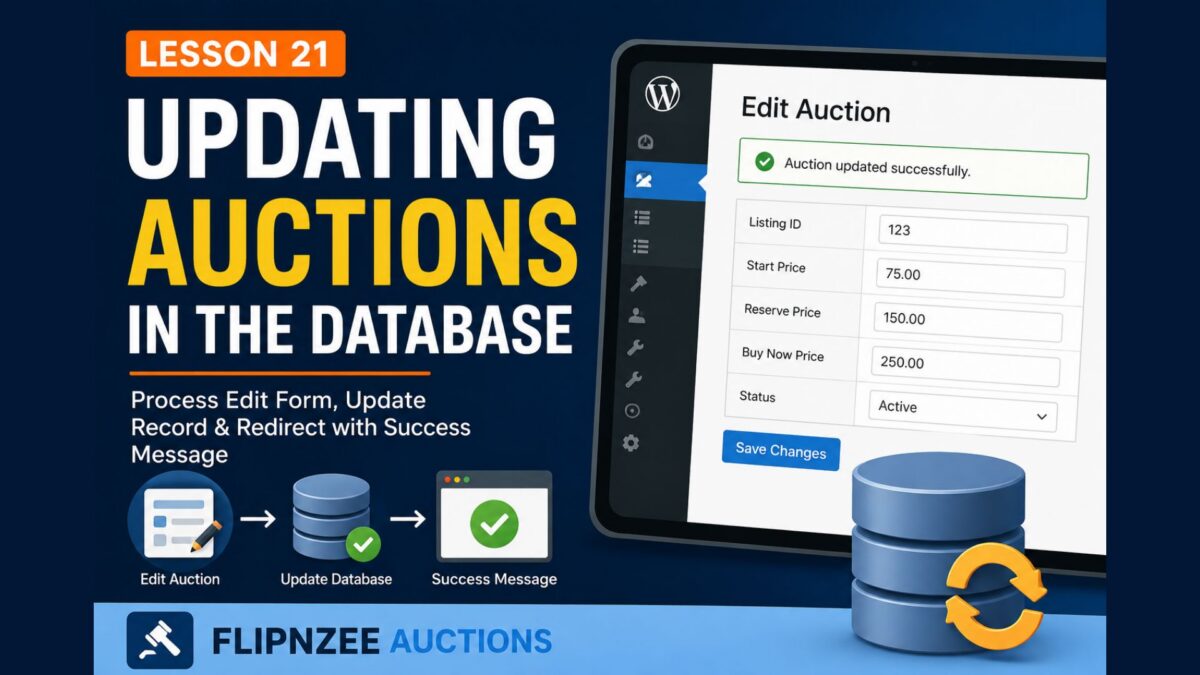
In the previous lesson, we transformed our Edit Auction page into a fully editable form. Administrators can now modify auction values such as the listing ID, prices, and status.
However, clicking Save Changes currently results in a blank page because our plugin does not yet know how to process the submitted form.
In this lesson, we’ll complete the editing workflow by processing the form submission, updating the database, and redirecting the administrator back to the Edit Auction page with a success message.
Learning Objectives
By the end of this lesson you will be able to:
- Register a new WordPress
admin_postaction. - Process an Edit Auction form securely.
- Verify nonces before updating the database.
- Sanitize user input.
- Update an existing database record using
$wpdb->update(). - Redirect back to the Edit page with a success message.
Current Workflow
At the moment our workflow looks like this:
Edit Auction
      ↓
Modify Fields
      ↓
Click Save Changes
      ↓
Blank Screen
After this lesson it will become:
Edit Auction
      ↓
Modify Fields
      ↓
Click Save Changes
      ↓
Update Database
      ↓
Redirect Back
      ↓
Success Message
Step 1 – Register a New Admin Action
Open:
admin/class-admin-posts.php
Inside the constructor, add another action:
add_action(
	'admin_post_flipnzee_update_auction',
	array( $this, 'handle_update_auction' )
);
Your constructor should now contain both actions:
public function __construct() {

	add_action(
		'admin_post_flipnzee_create_auction',
		array( $this, 'handle_create_auction' )
	);

	add_action(
		'admin_post_flipnzee_update_auction',
		array( $this, 'handle_update_auction' )
	);
}
Step 2 – Create the Update Handler
Inside the same class, add:
public function handle_update_auction() {

	check_admin_referer(
		'flipnzee_update_auction',
		'flipnzee_nonce'
	);

	$auction_id = absint( $_POST['auction_id'] );

	$listing_id = absint( $_POST['listing_id'] );

	$start_price = floatval( $_POST['start_price'] );

	$reserve_price = floatval( $_POST['reserve_price'] );

	$buy_now_price = floatval( $_POST['buy_now_price'] );

	$status = sanitize_text_field(
		wp_unslash( $_POST['status'] )
	);

	$updated = Flipnzee_Auction_Manager::update_auction(
		$auction_id,
		$listing_id,
		$start_price,
		$reserve_price,
		$buy_now_price,
		$status
	);

	$message = $updated
		? 'updated'
		: 'error';

	wp_safe_redirect(

		admin_url(

			'admin.php?page=flipnzee-edit-auction&auction_id=' .
			$auction_id .
			'&message=' .
			$message
		)

	);

	exit;
}
Notice how every value is sanitized before being passed to the Auction Manager.
Step 3 – Add the Update Method
Open:
includes/class-auction-manager.php
Add the following method beneath create_auction():
public static function update_auction(
	$auction_id,
	$listing_id,
	$start_price,
	$reserve_price,
	$buy_now_price,
	$status
) {

	global $wpdb;

	$table = $wpdb->prefix . 'flipnzee_auctions';

	$result = $wpdb->update(

		$table,

		array(

			'listing_id'    => $listing_id,
			'start_price'   => $start_price,
			'reserve_price' => $reserve_price,
			'buy_now_price' => $buy_now_price,
			'status'        => $status,

		),

		array(
			'id' => $auction_id,
		),

		array(
			'%d',
			'%f',
			'%f',
			'%f',
			'%s',
		),

		array(
			'%d',
		)

	);

	return false !== $result;
}
This method updates only the selected auction.
Step 4 – Display a Success Message
Open:
admin/class-admin.php
Inside edit_auction_page(), immediately after the <h1> heading, add:
<?php

$message = isset( $_GET['message'] )
	? sanitize_text_field(
		wp_unslash( $_GET['message'] )
	)
	: '';

if ( 'updated' === $message ) :
?>

	<div class="notice notice-success is-dismissible">
		<p>Auction updated successfully.</p>
	</div>

<?php elseif ( 'error' === $message ) : ?>

	<div class="notice notice-error is-dismissible">
		<p>Unable to update auction.</p>
	</div>

<?php endif; ?>
Now the administrator receives immediate feedback after saving changes.
Step 5 – Test the Plugin
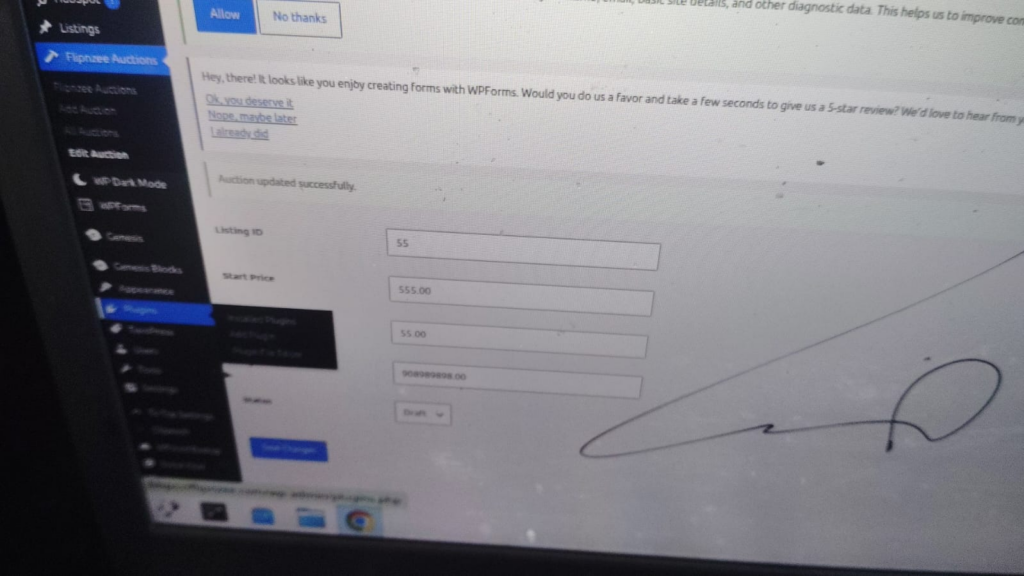
Create a fresh ZIP and upload the updated plugin.
Go to:
Flipnzee Auctions → All Auctions
Click Edit.
Change one or more values.
Click Save Changes.
You should now:
- Return to the Edit page.
- See a success message.
- See the updated values displayed in the form.
Why Redirect Instead of Printing a Message?
Professional WordPress plugins generally follow the POST → Redirect → GET pattern.
Instead of displaying output immediately after processing a form, they redirect back to the appropriate page.
Benefits include:
- Preventing duplicate form submissions.
- Cleaner browser history.
- Easier refresh behaviour.
- Better user experience.
Lesson Summary
In this lesson we completed the Edit Auction workflow.
The plugin now processes form submissions securely, validates the nonce, sanitizes user input, updates the database, and redirects the administrator back to the Edit Auction page with an appropriate success or error message.
This represents another major milestone because the plugin now supports both creating and updating auction records.
Key Takeaways
- Register a dedicated
admin_postaction for each form. - Always verify nonces before processing requests.
- Sanitize every submitted value.
- Use
$wpdb->update()to modify existing database rows. - Redirect after processing forms.
Common Mistakes
- Forgetting to register the new
admin_postaction. - Omitting nonce verification.
- Forgetting to sanitize submitted values.
- Redirecting before calling
exit. - Returning output instead of redirecting.
Git Commands Used
git add .

git commit -m "Lesson 21: Update auctions"

git push
Testing Checklist
Before moving to the next lesson, verify that:
- ✅ Edit page opens correctly.
- ✅ Auction values can be modified.
- ✅ Clicking Save Changes updates the database.
- ✅ Success message appears.
- ✅ Refreshing the page does not resubmit the form.
- ✅ No PHP warnings or notices appear.
Project Status
✅ Dashboard

✅ Add Auction

✅ Save Auction

✅ View Auctions

✅ WP_List_Table

✅ Row Actions

✅ Edit Auction Form

✅ Update Auction

⬜ Delete Auction

⬜ Auction Scheduling

⬜ Bid Engine

⬜ Escrow Workflow
Developer’s Notebook
WordPress encourages developers to separate the user interface from business logic. In this lesson, the form is responsible only for collecting user input, while the admin_post handler processes and validates the request before delegating the database update to the Auction Manager. This separation of responsibilities makes the plugin easier to test, maintain, and extend in future lessons.