
Lesson 14: Completing Your First End-to-End WordPress Plugin Workflow

Introduction
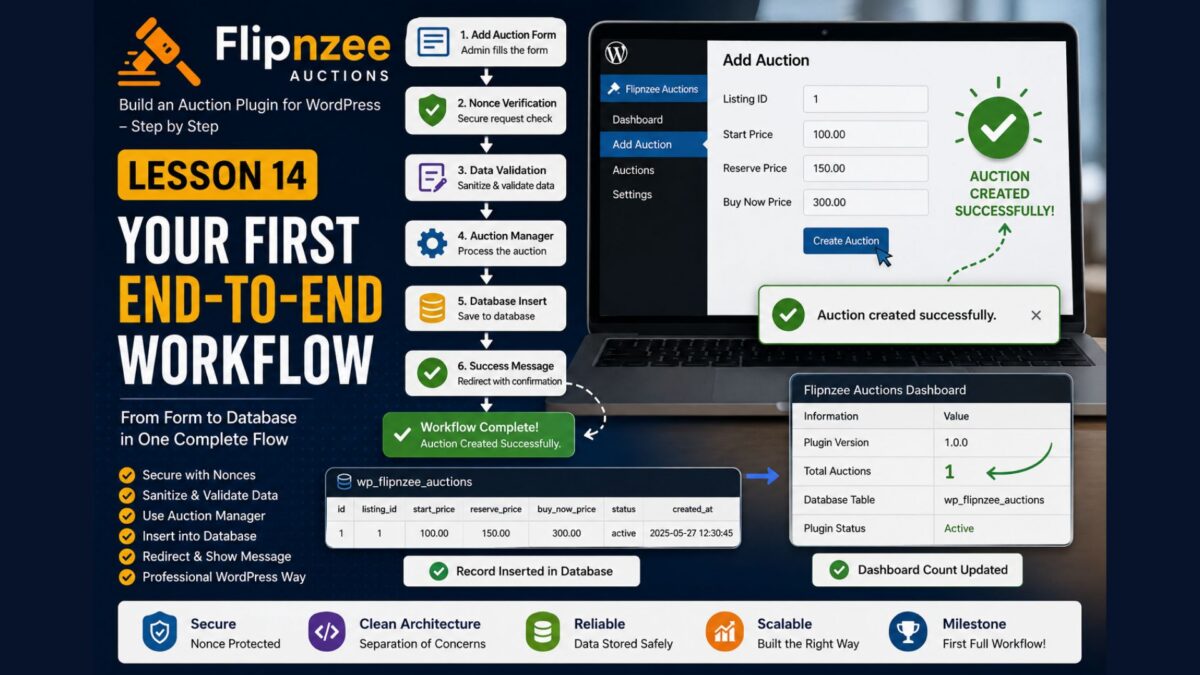
In the previous lesson, we created a dedicated form handler using the WordPress Admin Post API. The form was successfully submitted, the nonce was verified, and WordPress redirected the administrator back to the Add Auction page.
However, no auction was actually created.
In this lesson, we’ll complete the workflow by validating the submitted data, calling the Auction Manager, inserting the auction into the database, and displaying a confirmation message.
This is the first time every layer of our plugin works together.
Learning Objectives
By the end of this lesson, you’ll be able to:
- Sanitize submitted data.
- Call the Auction Manager from the form handler.
- Insert records into the database.
- Redirect users with status messages.
- Display confirmation notices.
- Complete your first end-to-end plugin workflow.
Our Complete Workflow
Administrator

↓

Add Auction Form

↓

admin-post.php

↓

Nonce Verification

↓

Data Validation

↓

Auction Manager

↓

Database

↓

Redirect

↓

Success Message
Every component now has a clearly defined responsibility.
Step 1 – Process Submitted Data
Open:
admin/class-admin-posts.php
Replace the comment:
/*
 * Form processing will be added
 * in Lesson 14.
 */
with:
$listing_id = absint( $_POST['listing_id'] );

$start_price = (float) $_POST['start_price'];

$reserve_price = (float) $_POST['reserve_price'];

$buy_now_price = (float) $_POST['buy_now_price'];
Step 2 – Create the Auction
Immediately below the previous code, add:
$auction_id = Flipnzee_Auction_Manager::create_auction(
	$listing_id,
	$start_price,
	$reserve_price,
	$buy_now_price
);
The Form Handler doesn’t communicate directly with the database.
Instead, it delegates that responsibility to the Auction Manager.
Step 3 – Redirect with Status
Replace:
wp_safe_redirect(
	admin_url( 'admin.php?page=flipnzee-add-auction' )
);
with:
if ( $auction_id ) {

	wp_safe_redirect(
		admin_url(
			'admin.php?page=flipnzee-add-auction&message=success'
		)
	);

} else {

	wp_safe_redirect(
		admin_url(
			'admin.php?page=flipnzee-add-auction&message=error'
		)
	);

}

exit;
Step 4 – Display the Message
Open:
admin/class-admin.php
Inside add_auction_page(), immediately before:
<div class="wrap">
add:
if ( isset( $_GET['message'] ) ) {

	if ( 'success' === $_GET['message'] ) {

		echo '<div class="notice notice-success is-dismissible"><p>Auction created successfully.</p></div>';

	}

	if ( 'error' === $_GET['message'] ) {

		echo '<div class="notice notice-error is-dismissible"><p>Unable to create auction.</p></div>';

	}
}
Step 5 – Test the Plugin
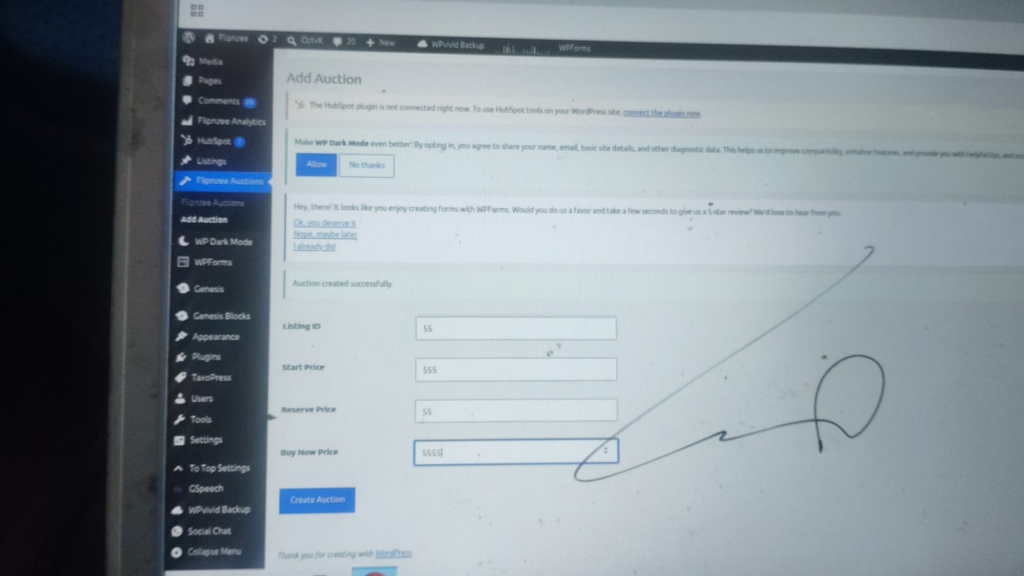
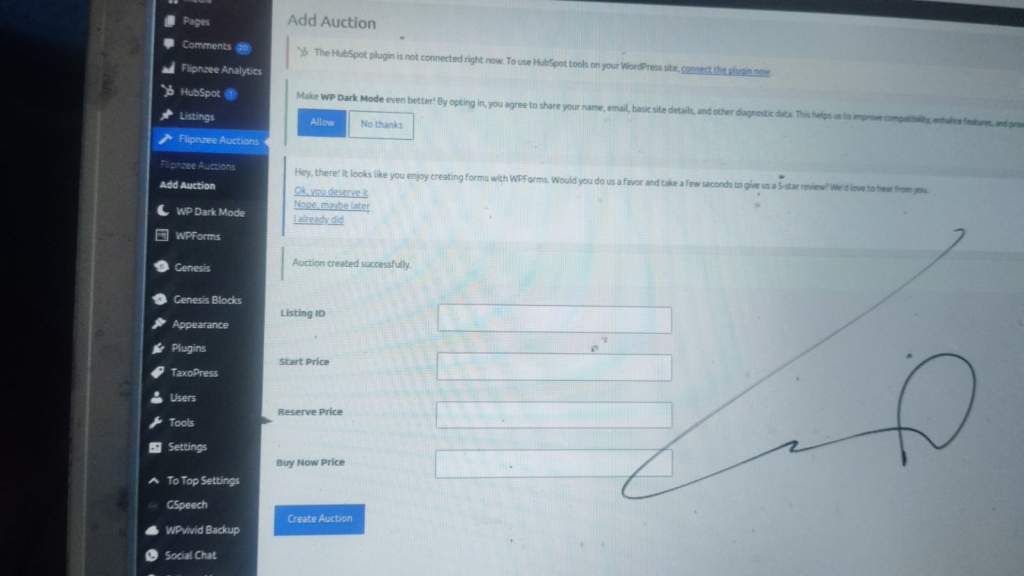
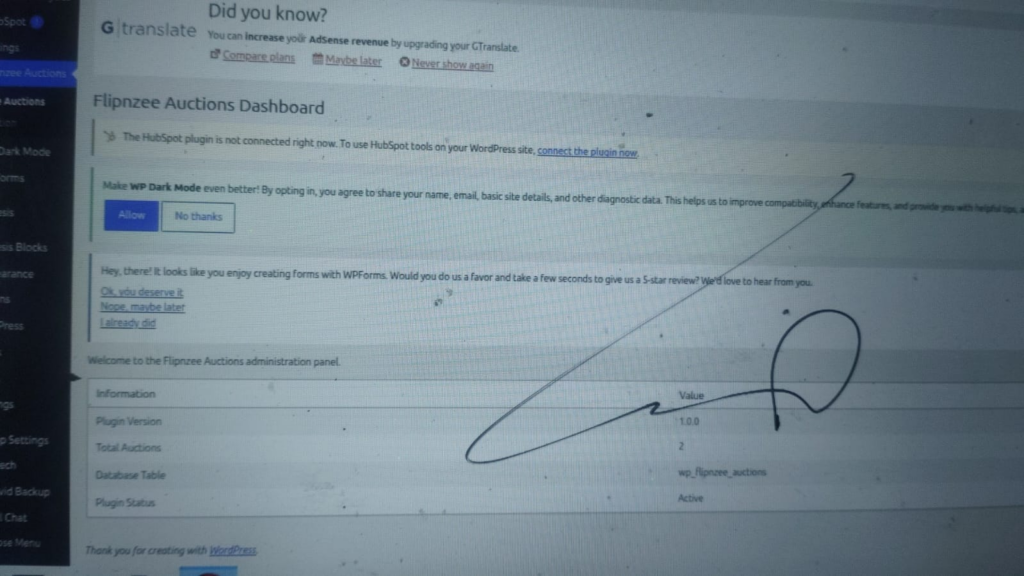
Create a fresh ZIP.
Upload the plugin.
Open:
Flipnzee Auctions → Add Auction
Enter:
- Listing ID: 1
- Start Price: 100
- Reserve Price: 150
- Buy Now Price: 300
Click:
Create Auction
You should now see:
Auction created successfully.
Step 6 – Verify the Database


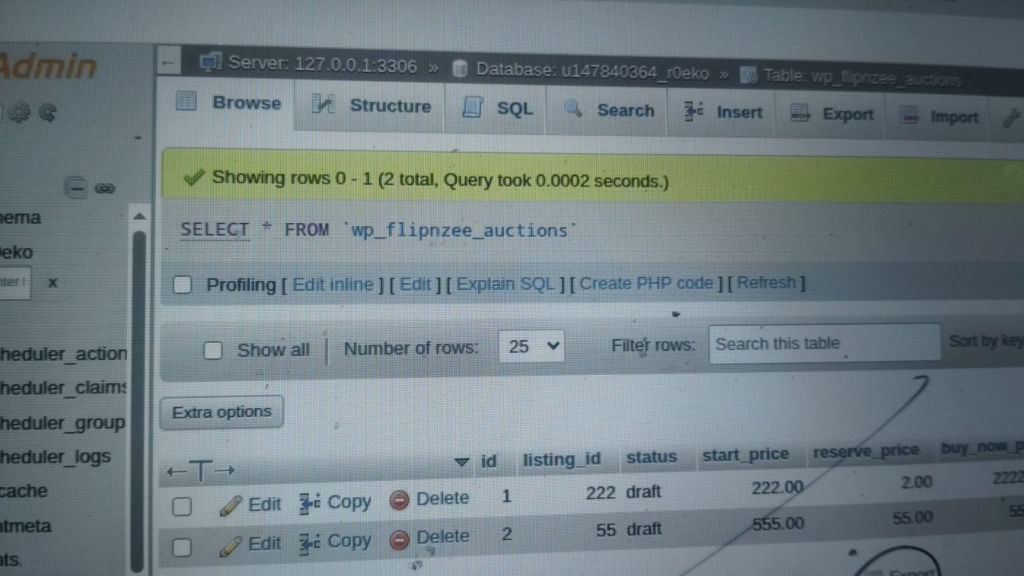
Open phpMyAdmin.
Browse:
wp_flipnzee_auctions
Instead of zero rows, you should now see your first auction record.
Return to the plugin dashboard.
The Total Auctions counter should now display:
1
Congratulations! Your plugin has completed its first full workflow.
Lesson Summary
In this lesson, we completed the first end-to-end workflow of Flipnzee Auctions.
Administrators can now submit auction information through the WordPress Dashboard. The request is securely processed, validated, passed to the Auction Manager, stored in the database, and confirmed with a success message.
This marks the point where the plugin becomes genuinely functional.
Key Takeaways
- ✓ Separate form processing from page rendering.
- ✓ Sanitize submitted data.
- ✓ Let the Auction Manager handle database operations.
- ✓ Redirect after processing.
- ✓ Display administrator-friendly status messages.
Common Mistakes
- Accessing
$_POSTwithout validation. - Writing SQL inside the form handler.
- Forgetting to redirect after processing.
- Displaying raw database errors to users.
Git Commands Used
git add .

git commit -m "Lesson 14: Complete first end-to-end workflow"

git push
Project Status
✅ Development environment

✅ Plugin skeleton

✅ Plugin installation

✅ Plugin lifecycle

✅ .gitignore

✅ Data architecture

✅ Database table

✅ Auction Manager

✅ Retrieve auction records

✅ WordPress admin menu

✅ Plugin dashboard

✅ Add Auction page

✅ Secure form architecture

✅ Admin Post handler

✅ First end-to-end workflow

⬜ Display all auctions

⬜ Edit auctions

⬜ Delete auctions

⬜ Bid engine

⬜ Escrow workflow

⬜ Version 1.0
Project Evolution
Earlier lessons focused on building the plugin’s foundation. This lesson connects those individual pieces into a complete workflow. The administrator no longer interacts directly with the database; instead, each layer performs a specific role, resulting in a cleaner and more maintainable architecture.
This same pattern will be reused for editing auctions, deleting auctions, managing bids, and handling Escrow.com transactions.
Developer’s Notebook
One of the best indicators of a well-designed application is the separation of responsibilities. In Flipnzee Auctions, the form collects information, the Form Handler processes requests, the Auction Manager performs business logic, and the Database class manages storage. Because these responsibilities are clearly separated, the plugin can continue to grow without becoming difficult to understand or maintain.
Looking Ahead
In Lesson 15, we’ll display all saved auctions inside the WordPress Dashboard using a professional table layout. Instead of checking phpMyAdmin, administrators will be able to browse, review, and eventually edit auction records directly from the plugin interface.