
Lesson 15: Displaying All Auctions in the WordPress Dashboard

Introduction
In the previous lesson, we completed our first end-to-end workflow by allowing administrators to create auctions directly from the WordPress Dashboard.
Although the auction is successfully stored in the database, administrators still need phpMyAdmin to verify the record.
Professional plugins display data inside the WordPress Dashboard instead of requiring direct database access.
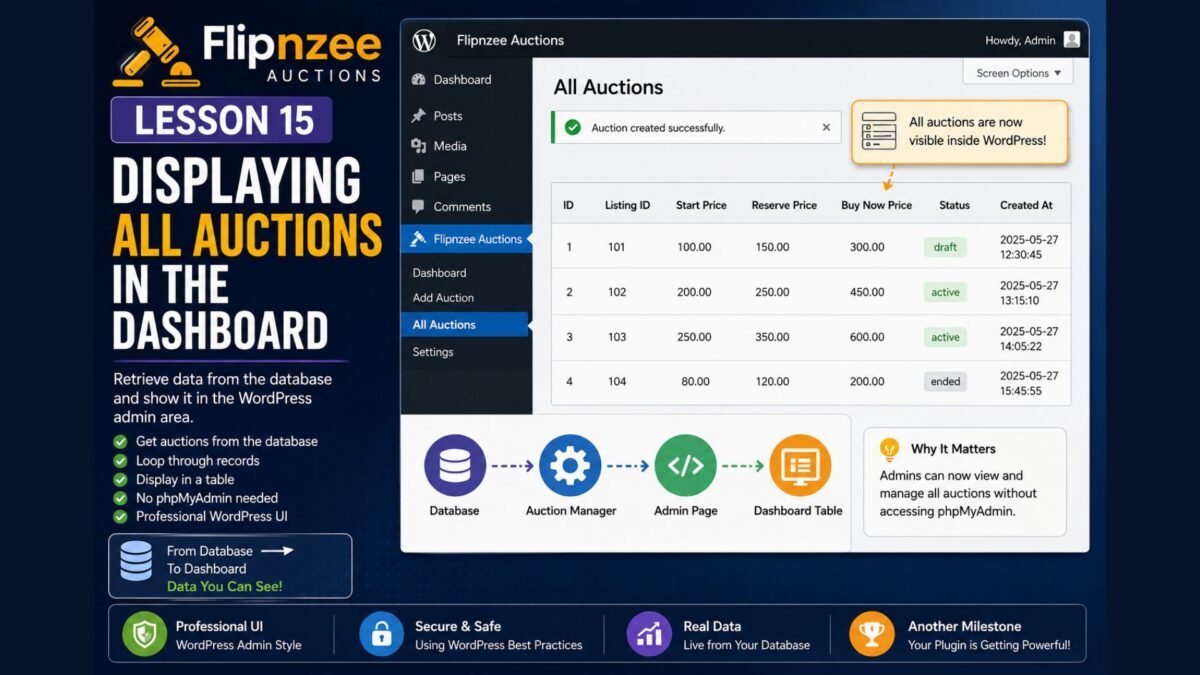
In this lesson, we’ll create our first Auction List page that retrieves every auction from the database and displays it in a clean WordPress table.
Learning Objectives
By the end of this lesson, you’ll be able to:
- Create another WordPress admin page.
- Display data retrieved from the database.
- Loop through auction records.
- Build an HTML table using WordPress admin styling.
- Understand how data flows from the database to the user interface.
What We’ll Build
Our admin menu will now become:
Flipnzee Auctions
│
├── Dashboard
├── Add Auction
└── All Auctions
Instead of checking phpMyAdmin, administrators will browse auctions directly inside WordPress.
Why Create an Auction List?
Applications rarely interact directly with databases.
Instead:
Database

↓

Auction Manager

↓

Admin Page

↓

Administrator
The Auction Manager retrieves the data.
The Admin page displays it.
Each component performs one responsibility.
Step 1 – Add a New Submenu
Open:
admin/class-admin.php
Inside register_menu() add another submenu:
add_submenu_page(
	'flipnzee-auctions',
	'All Auctions',
	'All Auctions',
	'manage_options',
	'flipnzee-all-auctions',
	array( $this, 'all_auctions_page' )
);
Step 2 – Create the Page
Inside the class add:
public function all_auctions_page() {

	$auctions = Flipnzee_Auction_Manager::get_all_auctions();

	?>

	<div class="wrap">

		<h1>All Auctions</h1>

		<table class="widefat striped">

			<thead>

				<tr>

					<th>ID</th>
					<th>Listing</th>
					<th>Start Price</th>
					<th>Reserve</th>
					<th>Buy Now</th>
					<th>Status</th>

				</tr>

			</thead>

			<tbody>

			<?php if ( ! empty( $auctions ) ) : ?>

				<?php foreach ( $auctions as $auction ) : ?>

					<tr>

						<td><?php echo esc_html( $auction->id ); ?></td>

						<td><?php echo esc_html( $auction->listing_id ); ?></td>

						<td><?php echo esc_html( $auction->start_price ); ?></td>

						<td><?php echo esc_html( $auction->reserve_price ); ?></td>

						<td><?php echo esc_html( $auction->buy_now_price ); ?></td>

						<td><?php echo esc_html( ucfirst( $auction->status ) ); ?></td>

					</tr>

				<?php endforeach; ?>

			<?php else : ?>

				<tr>

					<td colspan="6">

						No auctions found.

					</td>

				</tr>

			<?php endif; ?>

			</tbody>

		</table>

	</div>

	<?php
}
Step 3 – Test the Plugin
Create another auction.
Open:
Flipnzee Auctions → All Auctions
You should now see every auction displayed in a professional WordPress table.
You no longer need phpMyAdmin to verify your data.
Understanding the Flow
The page never communicates directly with SQL.
Instead:
Database

↓

Auction Manager

↓

PHP Array

↓

foreach()

↓

HTML Table
This separation keeps the code organized and maintainable.
Lesson Summary
In this lesson, we created our first data listing page.
Administrators can now browse auctions directly inside the WordPress Dashboard without using phpMyAdmin.
This marks another important milestone because the plugin now supports both creating and viewing auctions.
Key Takeaways
- ✓ Retrieve data through the Auction Manager.
- ✓ Display records using
foreach. - ✓ Escape all output with
esc_html(). - ✓ Use WordPress admin table styling.
- ✓ Keep presentation separate from business logic.
Common Mistakes
- Writing SQL inside the admin page.
- Forgetting to escape output.
- Not handling an empty database.
- Mixing HTML with business logic unnecessarily.
Git Commands Used
git add .

git commit -m "Lesson 15: Display all auctions"

git push
Project Status
✅ Plugin dashboard

✅ Add Auction

✅ Secure form processing

✅ Save auction

✅ Display all auctions

⬜ View auction details

⬜ Edit auction

⬜ Delete auction

⬜ Bid engine

⬜ Escrow workflow

⬜ Version 1.0
Project Evolution
Our plugin has now reached the point where administrators can both create and browse auction records entirely within the WordPress Dashboard.
As the project continues, we’ll build on this interface by adding actions such as editing, deleting, filtering, sorting, and eventually managing bids and escrow transactions. Each new feature will reuse the architecture we’ve established, making the application easier to maintain and extend.
Developer’s Notebook
Although the HTML table works well for learning purposes, many professional plugins eventually migrate to WordPress’s WP_List_Table class. We’ll continue with a simple table for now because it clearly demonstrates how data is retrieved and displayed. Once the plugin becomes more advanced, we’ll refactor the interface to use WP_List_Table for features such as pagination, bulk actions, sorting, and searching.