
Lesson 100 – Admin Transfer Manager (Transaction Workflow Management)

Objective

In Lesson 99, we created a professional Buyer Purchase Details page. However, the transfer timeline and checklist are still driven by static arrays. In this lesson, we will make the transfer process administrator-controlled, allowing the Flipnzee admin to update website transfer progress directly from the Transaction Details page.

Although Flipnzee.com currently sells only its own in-house websites, this architecture is intentionally designed so that developers using the open-source Flipnzee Auctions plugin can later extend it into a full multi-vendor marketplace.


Why This Lesson?

A completed payment does not mean the transaction is finished.

Website sales typically involve multiple stages:

  • Payment received
  • Website files shared
  • Database delivered
  • Domain transfer initiated
  • Buyer verification
  • Transaction completed

These stages should be manageable from the admin panel rather than being hard-coded.


Objectives

By the end of this lesson we will:

  • Add a Transfer Manager section to Transaction Details.
  • Allow administrators to update transfer progress.
  • Save transfer progress securely.
  • Automatically update the Buyer Purchase Details page.
  • Prepare the plugin for future notifications and email updates.

Current Workflow

Auction Ends
        │
        ▼
Transaction Created
        │
        ▼
Buyer Purchase Page
        │
        ▼
Static Timeline

New Workflow

Auction Ends
        │
        ▼
Transaction Created
        │
        ▼
Admin Transfer Manager
        │
        ▼
Transfer Progress Saved
        │
        ▼
Buyer Purchase Details
        │
        ▼
Dynamic Timeline

Database Strategy

Rather than adding numerous columns to the transactions table, we will use WordPress transaction meta (or a dedicated metadata layer in future lessons).

Each transaction will eventually store values such as:

payment_confirmed

website_files_delivered

database_delivered

domain_transfer_completed

buyer_verified

purchase_completed

This keeps the system extensible without modifying the main transaction table whenever new workflow steps are introduced.


Admin Interface

Inside:

Flipnzee Auctions → Transactions → Transaction Details

we will introduce a new card:

Transfer Manager

☑ Payment Confirmed

☐ Website Files Delivered

☐ Database Delivered

☐ Domain Transfer Completed

☐ Buyer Verified

☐ Purchase Completed

[ Save Progress ]

Only administrators will have permission to modify these values.


Buyer Experience

The buyer page will automatically reflect the saved progress.

Instead of displaying a static checklist, buyers will see:

✓ Payment Confirmed

✓ Website Files Delivered

✓ Database Delivered

○ Domain Transfer Pending

○ Buyer Verification

○ Completed

No manual edits to frontend templates will be required.


Security

This lesson introduces several important security practices:

  • Administrator capability checks
  • Nonce verification
  • Sanitization
  • Validation of transaction IDs
  • Secure saving of transfer data

Only authorized administrators will be able to update transfer progress.


Why This Fits Flipnzee

Because Flipnzee currently sells only its own websites, the transfer workflow is managed entirely by the site administrator.

Typical workflow:

Auction Won
      │
Payment Received
      │
Website ZIP Sent
      │
Database Sent
      │
Domain Transfer
      │
Buyer Confirms
      │
Completed

This closely matches how professional website acquisitions are handled.


Benefits for Marketplace Developers

Developers using the open-source Flipnzee Auctions plugin can later replace the administrator with individual sellers.

The exact same workflow can become:

Seller uploads files

↓

Buyer downloads files

↓

Seller starts domain transfer

↓

Buyer verifies

↓

Transaction completed

No redesign of the buyer interface will be necessary.


Files Planned for Modification

This lesson will primarily work with:

includes/class-transaction-manager.php

includes/class-my-purchase-details.php

includes/class-loader.php

assets/css/admin.css

Additional helper methods may be introduced if required.


Skills Covered

  • WordPress admin forms
  • Secure POST handling
  • Nonce verification
  • Capability checks
  • Updating transaction metadata
  • Dynamic frontend rendering
  • Admin workflow design
  • Separation of presentation and business logic

Expected Outcome

By the end of Lesson 100, administrators will have a dedicated Transfer Manager that controls the progress of every website sale. Buyers will immediately see real-time updates to their purchase page, replacing the static checklist introduced in Lesson 99.

This lesson marks an important transition in the Flipnzee Auctions plugin—from presenting purchase information to actively managing the post-sale website transfer process. It establishes the foundation for future enhancements such as automated notifications, secure file delivery, domain transfer tracking, and Escrow.com integration while remaining fully compatible with Flipnzee’s current in-house sales model and future marketplace implementations.
Lesson 99 Implementation – Buyer Purchase Details Page & Purchase Journey

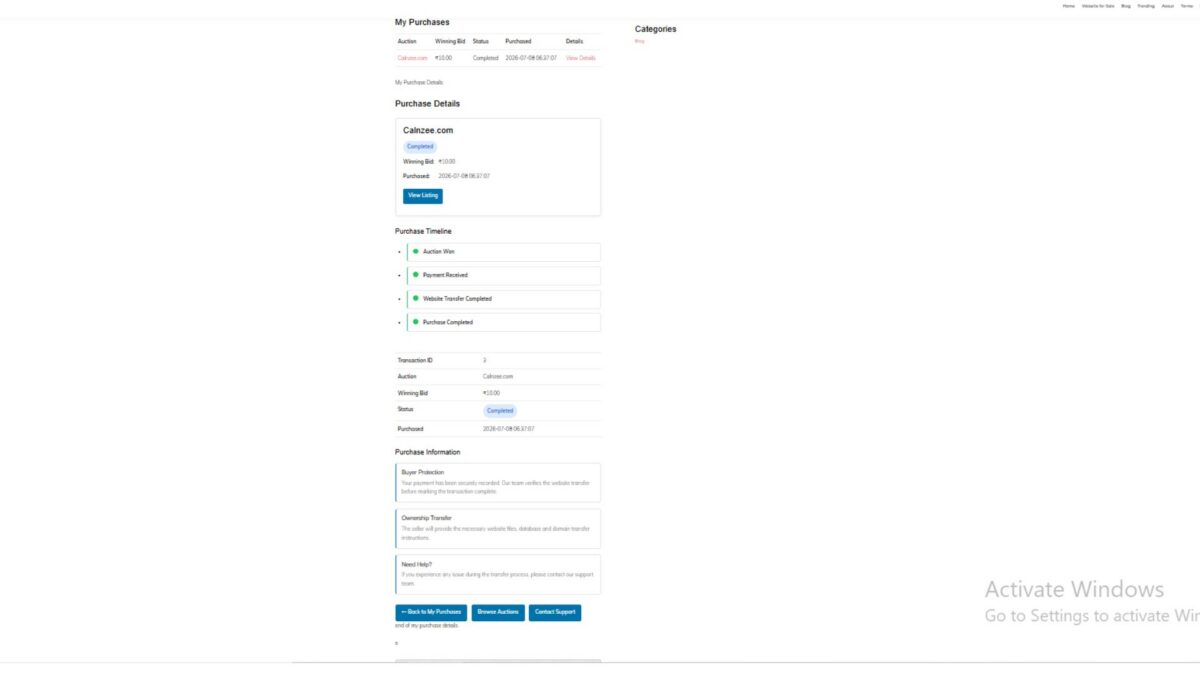
After completing the Buyer Dashboard in Lesson 98, the next logical step was to provide buyers with a dedicated page where they could review every aspect of a completed purchase. Simply listing purchased websites is not sufficient for a professional auction platform. Buyers need a central place to verify transaction information, monitor transfer progress, understand the next steps, and quickly access important resources.

Lesson 99 focused on designing and implementing a comprehensive Buyer Purchase Details page within the Flipnzee Auctions plugin. The implementation lays the foundation for a transparent website transfer workflow while remaining flexible enough for both Flipnzee’s own business model and future marketplace implementations by other developers.


Objectives

The primary goals of this lesson were:

  • Create a dedicated Purchase Details shortcode.
  • Securely display transaction information only to the purchasing user.
  • Build a professional purchase summary card.
  • Display transaction metadata in an organized table.
  • Introduce a visual purchase timeline.
  • Add buyer guidance and protection information.
  • Present transfer instructions and recommended next steps.
  • Improve overall user experience through frontend styling.

1. Secure Transaction Validation

The Purchase Details page begins by ensuring that only authenticated buyers can access purchase information.

The implementation validates:

  • Logged-in user
  • Transaction ID from the URL
  • Ownership of the transaction
  • Existence of the transaction record

Example:

$transaction_id = isset( $_GET['transaction_id'] )
	? absint( $_GET['transaction_id'] )
	: 0;

if ( ! $transaction_id ) {

	return '<p>No purchase selected.</p>';
}

The database query also confirms that the transaction belongs to the current user before displaying any information.


2. Purchase Summary Card

Instead of immediately showing raw transaction data, the page now opens with a visually appealing purchase summary card containing:

  • Website title
  • Featured image
  • Purchase status badge
  • Winning bid
  • Purchase date
  • Quick “View Listing” button

This provides buyers with an immediate overview of their purchase.


3. Transaction Reference

A unique purchase reference is generated for every completed transaction.

Example:

FLIP-2026-000003

The reference helps buyers and administrators identify transactions during support conversations without relying solely on numeric IDs.


4. Transaction Metadata

Additional metadata was added to make the page feel more professional.

Displayed information includes:

  • Transaction ID
  • Purchase Reference
  • Purchase Date
  • Purchase Time
  • Payment Method
  • Auction Title
  • Winning Bid
  • Purchase Status
  • Original Purchase Timestamp

Dates and times are displayed using WordPress localization functions.


5. Purchase Timeline

A simple timeline visually communicates the major milestones of the purchase process.

Current implementation includes:

  • Auction Won
  • Payment Received
  • Website Transfer Completed
  • Purchase Completed

The timeline prepares the plugin for future workflow automation.


6. Purchase Information Cards

To improve buyer confidence, several informational cards were introduced.

These explain topics such as:

Buyer Protection

Explains that payment has been securely recorded and that the transfer process is monitored.

Ownership Transfer

Provides an overview of the expected transfer of website files, database, and domain ownership.

Need Help?

Directs buyers toward support if they encounter problems during the transfer process.


7. Transfer Checklist

A dedicated “Next Steps” section guides buyers through the website acquisition process.

The current checklist includes items such as:

  • Payment confirmed
  • Receive website files
  • Receive database
  • Domain transfer
  • Verify website
  • Change passwords
  • Confirm successful transfer

Although currently driven by a static array, the structure is intentionally designed so future lessons can connect it to dynamic transaction data managed by administrators.


8. Purchase Action Buttons

Quick navigation buttons were added to improve usability.

Buyers can easily:

  • Return to My Purchases
  • Browse additional auctions
  • Contact Support

This reduces unnecessary navigation and provides convenient access to common actions.


9. Status Badges

Purchase status is displayed using colored badges instead of plain text.

Examples include:

  • Completed
  • Pending
  • Processing

The CSS implementation allows additional statuses to be introduced later without modifying the page layout.


10. Frontend Styling

Several reusable frontend components were added, including:

  • Purchase summary card
  • Timeline styling
  • Information cards
  • Success badges
  • Action buttons
  • Transfer checklist
  • Responsive spacing and typography

The page now matches the overall design language of the Buyer Dashboard introduced in Lesson 98.


Testing Performed

The implementation was tested using completed auction transactions.

The following functionality was verified:

  • Buyer authentication
  • Transaction ownership validation
  • Transaction lookup
  • Purchase summary display
  • Reference generation
  • Timeline rendering
  • Purchase information cards
  • Action buttons
  • Responsive frontend layout
  • URL-based transaction loading

Challenges Encountered

Several development issues were resolved during implementation:

  • Missing shortcode registration
  • Transaction ID validation
  • URL parameter handling
  • Purchase ownership verification
  • PHP syntax errors caused by mixed PHP and HTML
  • Duplicate HTML table elements
  • Status badge styling
  • Responsive layout adjustments
  • Frontend CSS refinements

These debugging sessions significantly improved the overall code quality and reinforced the importance of validating PHP syntax throughout development.


Lessons Learned

Lesson 99 demonstrated that a successful website auction platform requires much more than simply recording completed transactions.

A dedicated Purchase Details page:

  • improves buyer confidence,
  • provides transparency during ownership transfer,
  • reduces support requests,
  • prepares the system for future automation,
  • and creates a professional post-purchase experience comparable to commercial digital asset marketplaces.

The lesson also highlighted the value of separating presentation from future business logic by designing components that can later be connected to dynamic transaction metadata.

Download Source Code

Download the starting version of the plugin before the lesson:

Download the completed version after this lesson:


Looking Ahead

While the Purchase Details page is now functionally complete, several opportunities remain for future enhancements.

Planned improvements include:

  • Dynamic transfer progress managed by administrators
  • Buyer notifications
  • Secure file delivery
  • Domain transfer tracking
  • Private buyer-admin messaging
  • Escrow workflow integration
  • Downloadable purchase documents

These features will gradually transform the Purchase Details page into a complete digital asset transfer portal.


Conclusion

Lesson 99 represents a major milestone in the Flipnzee Auctions plugin. Buyers now have a centralized location where they can review completed purchases, understand the transfer process, and access important transaction information.

Although Flipnzee.com currently sells only in-house websites, the implementation has been designed with extensibility in mind. Developers who adopt the open-source Flipnzee Auctions plugin for marketplace scenarios will be able to build upon this foundation, replacing static workflow elements with dynamic seller-managed processes while retaining the same user experience.

The result is a significantly more polished, trustworthy, and scalable post-purchase system that strengthens both the current Flipnzee platform and the plugin’s long-term roadmap.

Lesson 98 Implementation: Building the Buyer Dashboard

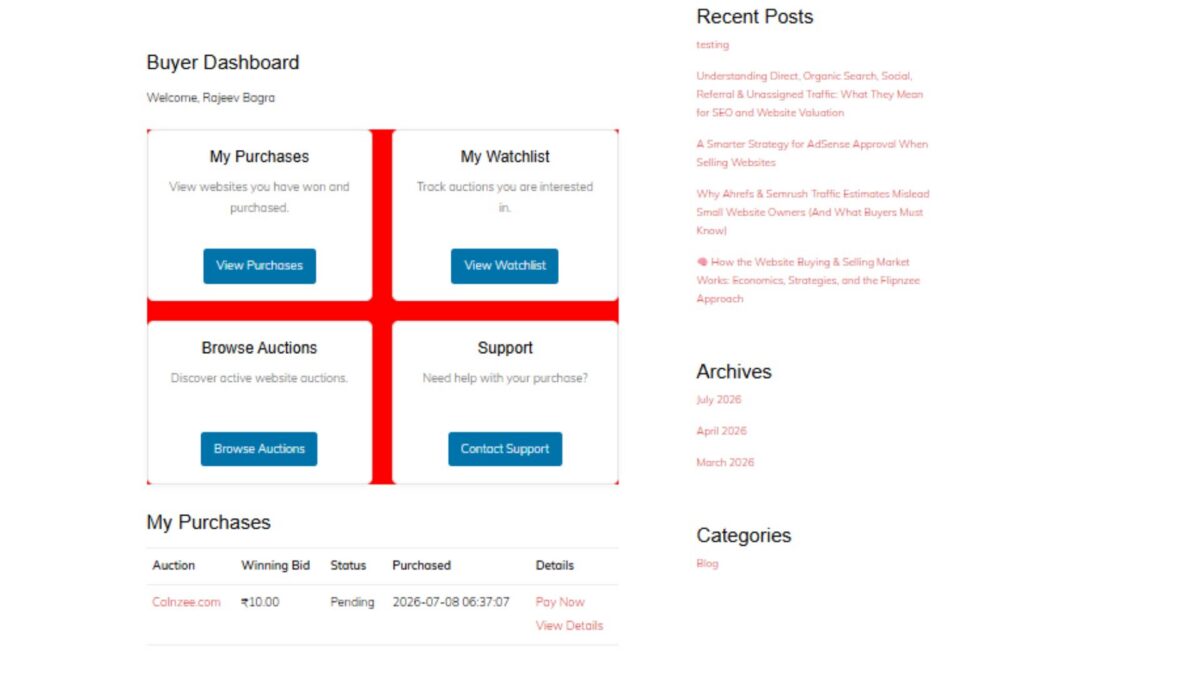
In this lesson, we introduced the Buyer Dashboard, an important milestone in the Flipnzee Auctions plugin. While the earlier lessons focused on auctions, bidding, payments, and watchlists, this lesson begins building the buyer’s personal workspace after logging into the marketplace.

The Buyer Dashboard serves as the central navigation hub for buyers, allowing them to quickly access their purchases, watchlist, active auctions, and support resources.


Why a Buyer Dashboard?

As Flipnzee grows into a specialized marketplace for buying and selling websites, buyers need a dedicated area where they can manage their activity without navigating through multiple pages.

The dashboard is designed to provide:

  • Quick access to purchased websites
  • Easy navigation to the watchlist
  • Direct access to current auctions
  • Support resources
  • A foundation for future buyer features

This dashboard will continue to evolve in upcoming lessons as more buyer functionality is introduced.


Registering a Dedicated Shortcode

A new shortcode was created for the dashboard:

[flipnzee_buyer_dashboard]

This shortcode allows the dashboard to be embedded on any WordPress page while keeping the implementation modular and reusable.

The dashboard class registers the shortcode during construction using WordPress’ Shortcode API.


Login Protection

Since the dashboard contains user-specific information, it is only available to authenticated users.

If a visitor is not logged in, the shortcode displays a friendly message requesting authentication before accessing buyer features.

This keeps buyer information private while following WordPress best practices.


Personalized Welcome Section

The dashboard greets the logged-in buyer using their WordPress display name.

Example:

Buyer Dashboard

Welcome, Rajeev Bagra

Personalization creates a much more user-friendly experience and prepares the dashboard for future account-specific information.


Dashboard Cards

Instead of displaying long navigation menus, the dashboard uses clean responsive cards.

Four primary navigation cards were introduced:

My Purchases

Provides access to websites that the buyer has successfully won and purchased.

Future lessons will display:

  • Purchase history
  • Pending transfers
  • Completed transfers
  • Payment status

My Watchlist

Allows buyers to quickly revisit auctions they are monitoring.

This integrates directly with the Watchlist system developed in previous lessons.


Browse Auctions

Provides a shortcut back to the marketplace so buyers can continue exploring active website auctions.


Support

Offers direct access to marketplace support resources whenever assistance is required during the buying process.


Responsive CSS Grid

A responsive CSS Grid layout was implemented to display the dashboard cards.

Benefits include:

  • Responsive across desktop, tablet, and mobile devices
  • Equal spacing between cards
  • Professional appearance
  • Easy future expansion

Each card includes:

  • Title
  • Description
  • Action button
  • Hover animation
  • Subtle shadows
  • Rounded corners

Modern User Interface

Several interface improvements were added:

  • Soft shadows
  • Rounded card design
  • Smooth hover animations
  • Consistent Flipnzee button styling
  • Responsive spacing
  • Clean typography

The result is a dashboard that feels modern while remaining lightweight.


Reusing Existing Marketplace Pages

Each dashboard card links to an existing or upcoming marketplace page.

Current destinations include:

  • /my-purchases/
  • /watchlist/
  • /listings/
  • /support/

This keeps navigation centralized and reduces unnecessary menu complexity.


Debugging Journey

An interesting challenge during this lesson involved the dashboard layout initially rendering as a vertical list instead of the intended responsive grid.

The issue was systematically investigated by verifying:

  • Shortcode registration
  • HTML structure
  • CSS loading
  • Browser Developer Tools
  • Network requests
  • Stylesheet versions
  • CSS Grid rules

A temporary diagnostic background color confirmed that the correct stylesheet was being loaded, allowing the issue to be isolated and resolved successfully.

This debugging process reinforced the importance of methodical troubleshooting rather than assuming the problem originates in PHP or HTML.


Foundation for Future Lessons

Although the dashboard currently serves as a navigation hub, it lays the groundwork for significantly richer buyer functionality.

Upcoming enhancements will include:

  • Live purchase summaries
  • Recent bidding activity
  • Pending payments
  • Escrow transaction status
  • Website transfer progress
  • Buyer notifications
  • Personalized marketplace insights

The dashboard is intentionally designed to grow alongside the Flipnzee marketplace.

Download Source Code

Download the starting version of the plugin before the lesson:

Download the completed version after this lesson:


Final Thoughts

Lesson 97 marks the beginning of the buyer experience within Flipnzee Auctions. By introducing a dedicated Buyer Dashboard, the plugin now offers a centralized, user-friendly starting point for every buyer after login.

Rather than overwhelming users with scattered pages and menus, the dashboard provides a clean, responsive interface that will gradually evolve into a comprehensive buyer control panel as future lessons expand payment workflows, purchase management, and ownership transfers.

The Buyer Dashboard represents another important step toward transforming Flipnzee Auctions into a professional marketplace specifically built for buying and selling websites and digital assets.