
Loading CSS and JavaScript Properly in WordPress

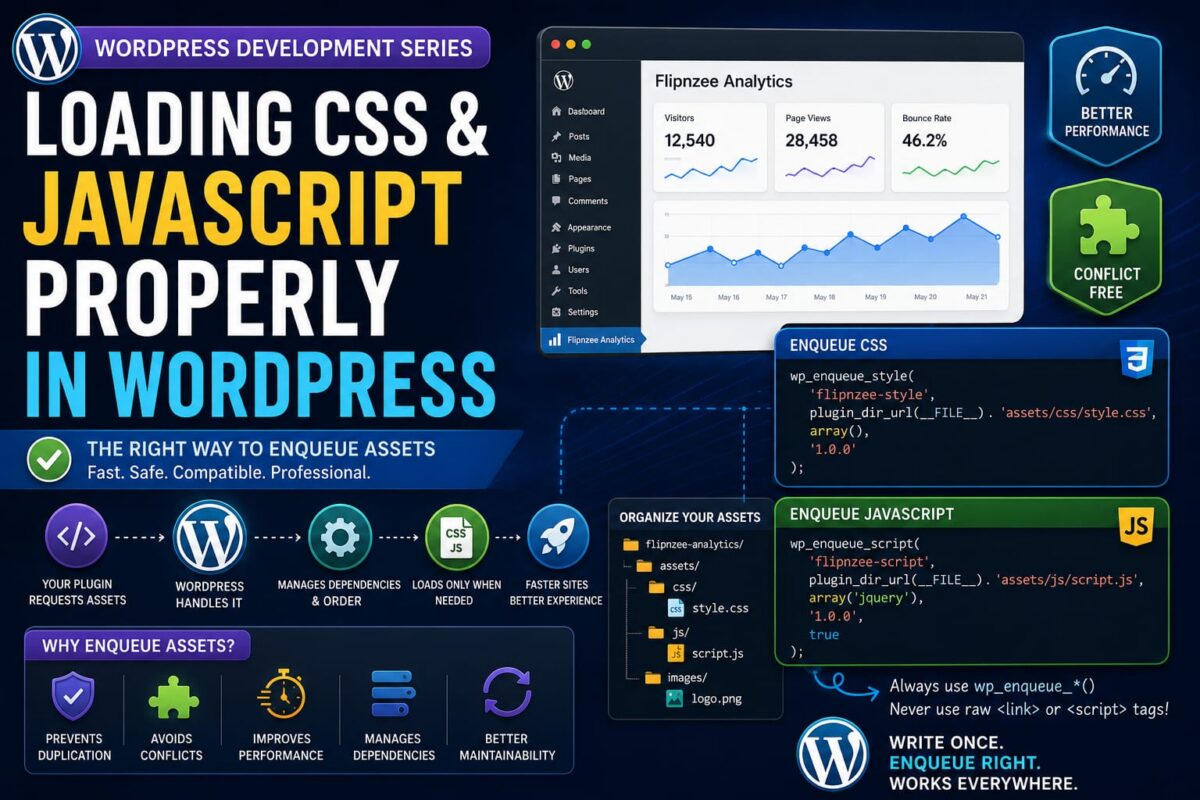
Series: WordPress Development From Scratch
Level: Beginner to Intermediate
Project Reference: Flipnzee Analytics
Introduction
Almost every WordPress plugin eventually needs CSS and JavaScript.
You may want to:
- Style an analytics dashboard
- Create interactive charts
- Add buttons and forms
- Display notifications
- Build modern user interfaces
Many beginners make the mistake of inserting raw HTML like:
<link rel="stylesheet" href="style.css">
<script src="script.js"></script>
directly into plugin files.
While this may seem to work, it ignores WordPress’s asset management system and can cause conflicts with themes and other plugins.
In this tutorial you’ll learn:
- Why WordPress uses an asset loading system
- What “enqueueing” means
- How to load CSS files properly
- How to load JavaScript files properly
- How to load assets only when needed
- Admin vs Frontend assets
- How professional plugins manage assets
- How Flipnzee Analytics organizes its CSS and JavaScript
By the end, you’ll know how professional WordPress plugins load styles and scripts safely and efficiently.
What Does “Enqueue” Mean?
In WordPress, assets are loaded using a queue system.
Instead of directly printing HTML tags, you tell WordPress:
“Please load this file when appropriate.”
WordPress then handles:
- Correct ordering
- Dependency management
- Duplicate prevention
- Compatibility
This process is called enqueueing.
Why Not Use Raw HTML?
Avoid:
echo '<link rel="stylesheet" href="style.css">';
and:
echo '<script src="script.js"></script>';
Problems include:
- Duplicate loading
- Incorrect ordering
- Theme conflicts
- Performance issues
Instead, use WordPress functions.
Plugin Folder Structure
A common structure looks like:
my-plugin
├── assets
│   ├── css
│   │   └── style.css
│   └── js
│       └── script.js
└── my-plugin.php
This keeps assets organized.
Loading CSS Properly
Create:
assets/css/style.css
Example:
.wpnzee-box {
    background: #f5f5f5;
    padding: 20px;
}
Now load it using:
function wpnzee_enqueue_styles() {

    wp_enqueue_style(
        'wpnzee-style',
        plugin_dir_url(__FILE__) . 'assets/css/style.css',
        array(),
        '1.0.0'
    );

}

add_action(
    'wp_enqueue_scripts',
    'wpnzee_enqueue_styles'
);
WordPress will automatically add the stylesheet to the page.
Understanding wp_enqueue_style()
The function:
wp_enqueue_style()
contains four important parts.
Example:
wp_enqueue_style(
    'wpnzee-style',
    plugin_dir_url(__FILE__) . 'assets/css/style.css',
    array(),
    '1.0.0'
);
Handle
'wpnzee-style'
Unique identifier.
File URL
plugin_dir_url(__FILE__)
Generates the plugin path.
Dependencies
array()
Files that must load first.
Version
'1.0.0'
Helps browsers refresh cached files.
Loading JavaScript Properly
Create:
assets/js/script.js
Example:
console.log("WPNzee Plugin Loaded");
Now enqueue it:
function wpnzee_enqueue_scripts() {

    wp_enqueue_script(
        'wpnzee-script',
        plugin_dir_url(__FILE__) . 'assets/js/script.js',
        array(),
        '1.0.0',
        true
    );

}

add_action(
    'wp_enqueue_scripts',
    'wpnzee_enqueue_scripts'
);
Understanding wp_enqueue_script()
Example:
wp_enqueue_script(
    'wpnzee-script',
    plugin_dir_url(__FILE__) . 'assets/js/script.js',
    array(),
    '1.0.0',
    true
);
The last parameter:
true
loads the script in the footer.
Benefits:
- Faster page rendering
- Better performance
Loading Both CSS and JavaScript
Many developers combine assets:
function wpnzee_enqueue_assets() {

    wp_enqueue_style(
        'wpnzee-style',
        plugin_dir_url(__FILE__) . 'assets/css/style.css'
    );

    wp_enqueue_script(
        'wpnzee-script',
        plugin_dir_url(__FILE__) . 'assets/js/script.js',
        array(),
        '1.0.0',
        true
    );

}

add_action(
    'wp_enqueue_scripts',
    'wpnzee_enqueue_assets'
);
This keeps asset management organized.
Frontend vs Admin Assets
Not every file should load everywhere.
WordPress provides separate hooks.
Frontend
add_action(
    'wp_enqueue_scripts',
    'wpnzee_enqueue_assets'
);
Loads assets on public pages.
Admin Dashboard
add_action(
    'admin_enqueue_scripts',
    'wpnzee_admin_assets'
);
Loads assets inside wp-admin.
Example:
function wpnzee_admin_assets() {

    wp_enqueue_style(
        'wpnzee-admin',
        plugin_dir_url(__FILE__) . 'assets/css/admin.css'
    );

}
Loading Assets Only When Needed
Professional plugins avoid loading files everywhere.
Bad:
Load analytics CSS on every page
Good:
Load analytics CSS only on analytics pages
Example:
if (is_page('analytics')) {

    wp_enqueue_style(
        'analytics-style'
    );

}
This improves performance.
Asset Dependencies
Sometimes JavaScript requires another library.
Example:
wp_enqueue_script(
    'custom-chart',
    plugin_dir_url(__FILE__) . 'assets/js/chart.js',
    array('jquery'),
    '1.0',
    true
);
WordPress ensures jQuery loads first.
Real Example: Flipnzee Analytics
The Flipnzee Analytics plugin uses assets for:
- Analytics dashboard styling
- Reports
- Admin interfaces
- Frontend widgets
- User experience improvements
Its structure follows a professional approach:
assets
├── css
├── js
└── images
instead of mixing styles directly into PHP files.
This makes maintenance much easier.
Why Professional Plugins Use Asset Folders
Benefits include:
Better Organization
CSS → css/
JS → js/
Images → images/
Easier Maintenance
Developers instantly know where files belong.
Improved Scalability
As features grow, organization remains manageable.
Better Performance
Assets can be loaded conditionally.
Common Beginner Mistakes
Using Raw HTML Tags
Avoid:
<link>
<script>
Use enqueue functions instead.
Loading Assets Everywhere
Only load files when needed.
Forgetting Version Numbers
Versioning helps prevent browser caching issues.
Not Using Dependencies
Always declare required libraries.
Mixing CSS Inside PHP
Avoid large inline styles.
Store CSS in dedicated files.
What You’ve Learned
In this tutorial you learned:
✓ What enqueueing means
✓ Why WordPress uses an asset system
✓ How wp_enqueue_style() works
✓ How wp_enqueue_script() works
✓ Frontend vs admin assets
✓ Dependency management
✓ Asset versioning
✓ How Flipnzee Analytics organizes its assets
Key Takeaway
WordPress provides a powerful asset management system that ensures CSS and JavaScript are loaded safely and efficiently.
Professional plugins never hardcode script or stylesheet tags.
Instead, they use enqueue functions to maintain compatibility, improve performance, and create scalable plugin architectures.
Mastering asset loading is a major step toward becoming a professional WordPress plugin developer.
Next Lesson
In the next tutorial we’ll explore:
Creating Custom Admin Menus in WordPress
You’ll learn how plugins add new dashboard pages, how menu permissions work, and how the Flipnzee Analytics plugin creates its own administrative interface inside WordPress.