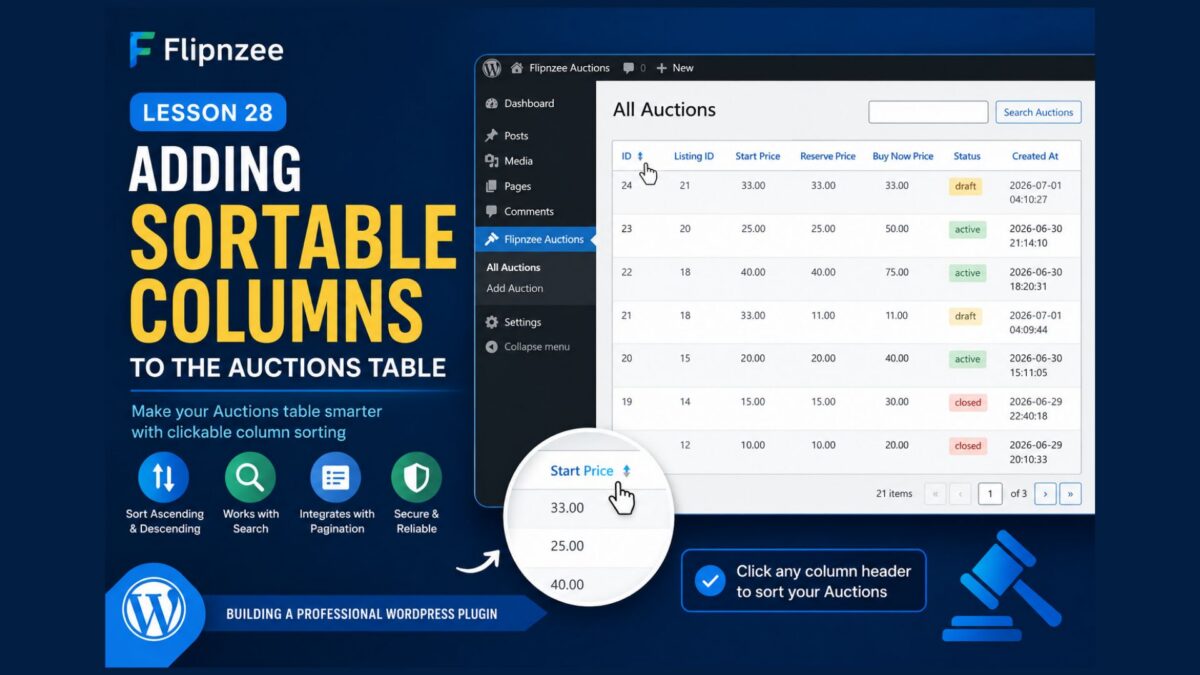
Lesson 28 — Adding Sortable Columns to the Auctions Table Using WP_List_Table

Series: Building the Flipnzee Auctions WordPress Plugin
Lesson: 28
Difficulty: Intermediate


Introduction

In the previous lessons, we transformed our Auctions table into a professional management interface by adding pagination and functional search.

However, one important feature is still missing.

When managing many auctions, administrators often want to sort records by clicking column headings, just like they can on the WordPress Posts, Pages, Users, and Comments screens.

In this lesson, we’ll add sortable columns to our custom WP_List_Table, allowing administrators to sort auctions with a single click.


What You’ll Learn

By the end of this lesson, you’ll know how to:

  • Register sortable columns in WP_List_Table
  • Detect the selected sort column
  • Detect ascending and descending order
  • Build secure dynamic SQL queries
  • Keep sorting compatible with pagination and search
  • Create a much more professional admin interface

Why Sortable Columns Matter

Imagine managing hundreds of auctions.

Sometimes you may want to:

  • View the newest auctions first
  • Sort by Listing ID
  • Find the highest Buy Now price
  • Group auctions by Status
  • Review the lowest Start Price

Without sortable columns, administrators must manually search through multiple pages.

Sorting makes large datasets much easier to manage.


How WordPress Sorting Works

When a column header is clicked, WordPress automatically appends two URL parameters.

Example:

admin.php?page=flipnzee-all-auctions&orderby=start_price&order=asc

or

admin.php?page=flipnzee-all-auctions&orderby=status&order=desc

Your plugin simply needs to read these values and use them safely.


Step 1 — Register Sortable Columns

Inside your table class, implement:

public function get_sortable_columns() {

	return array(
		'id'            => array( 'id', true ),
		'listing_id'    => array( 'listing_id', false ),
		'start_price'   => array( 'start_price', false ),
		'reserve_price' => array( 'reserve_price', false ),
		'buy_now_price' => array( 'buy_now_price', false ),
		'status'        => array( 'status', false ),
		'created_at'    => array( 'created_at', false ),
	);
}

This tells WordPress which columns are sortable.


Step 2 — Read Sorting Parameters

Inside prepare_items(), retrieve the selected column:

$orderby = isset( $_GET['orderby'] )
	? sanitize_key( $_GET['orderby'] )
	: 'created_at';

Next, retrieve the direction:

$order = isset( $_GET['order'] )
	? strtoupper(
		sanitize_text_field(
			wp_unslash( $_GET['order'] )
		)
	)
	: 'DESC';

Step 3 — Whitelist Allowed Columns

Never trust user input directly.

Instead, create an allowed list:

$allowed = array(
	'id',
	'listing_id',
	'start_price',
	'reserve_price',
	'buy_now_price',
	'status',
	'created_at',
);

If an invalid column is supplied, fall back to:

created_at

This prevents SQL injection.


Step 4 — Update the Database Query

Modify the Auction Manager so get_all_auctions() also accepts:

$orderby

and

$order

The SQL becomes:

ORDER BY created_at DESC

or

ORDER BY start_price ASC

depending on the administrator’s selection.


Step 5 — Keep Search and Pagination Working

Sorting should work together with:

  • Search
  • Pagination

All three features should operate simultaneously.

For example:

  • Search for draft
  • Sort by Start Price
  • Navigate to Page 2

Everything should continue working correctly.


Step 6 — Test Every Column

Click each heading:

  • ID
  • Listing ID
  • Start Price
  • Reserve Price
  • Buy Now Price
  • Status
  • Created At

Verify that clicking once sorts ascending.

Clicking again sorts descending.


Security Considerations

Because column names cannot be parameterized using $wpdb->prepare(), always whitelist allowed columns before inserting them into SQL.

Never allow arbitrary column names supplied by users.

Continue sanitizing all URL parameters using:

  • sanitize_key()
  • sanitize_text_field()
  • wp_unslash()

This keeps the plugin secure while supporting dynamic sorting.


Expected Result
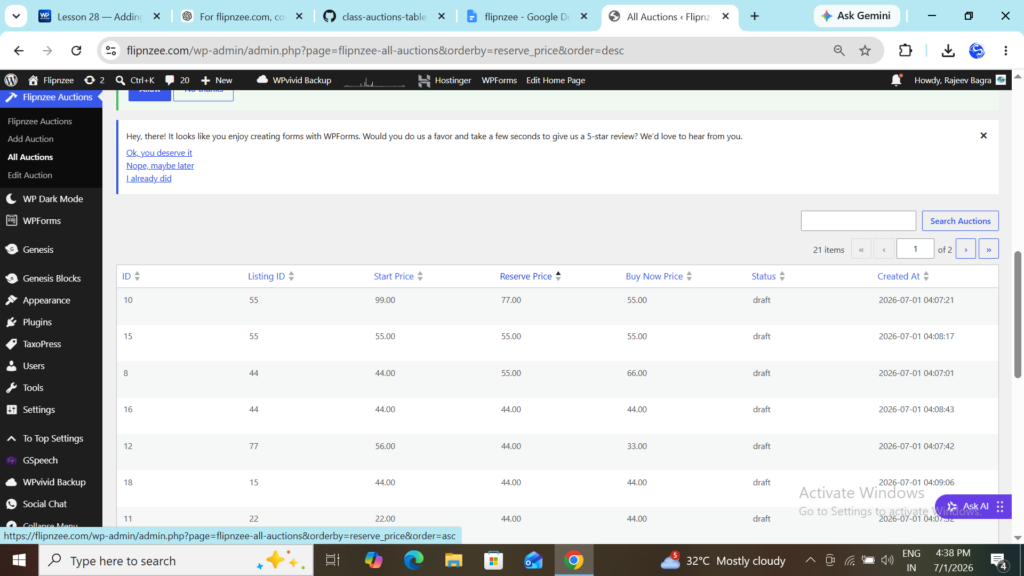
After completing this lesson, administrators will be able to:

  • ✅ Click any supported column heading
  • ✅ Sort ascending or descending
  • ✅ Combine sorting with searching
  • ✅ Combine sorting with pagination
  • ✅ Manage auctions much more efficiently

The Auctions page will now behave almost identically to the native WordPress administration tables.


Conclusion

Adding sortable columns is another significant milestone in the development of the Flipnzee Auctions plugin.

Together with pagination and search, this feature creates a much richer administration experience and brings the plugin closer to production quality.

At this stage, the Auctions table supports the three most important data management features expected in professional WordPress plugins.


In the Next Lesson

We’ll implement bulk actions, allowing administrators to select multiple auctions using checkboxes and perform operations such as:

  • Delete Selected Auctions
  • Activate Multiple Auctions
  • Close Multiple Auctions

Bulk actions are one of the final major features needed before the Auctions management screen reaches enterprise-level usability.
Lesson 27 Implementation — Adding Functional Search to the Flipnzee Auctions Table

Implementation Series: Building the Flipnzee Auctions Plugin Step by Step
Lesson: 27 (Implementation)
Prerequisites: Lessons 25 and 26 completed


Introduction

In Lesson 26, the Search Auctions box was added above the auctions table using WordPress’ built-in search_box() method. Although the interface looked complete, typing a keyword and clicking Search Auctions did not actually filter any records.

In this implementation lesson, the search box is connected to the database so administrators can quickly find auctions by Auction ID, Listing ID, or Status.

After completing this implementation, the search feature behaves much like the search functionality found on WordPress’ built-in Posts and Pages screens.


What Was Implemented

This lesson introduced the following improvements:

  • Added support for search keywords
  • Filtered database results using SQL
  • Used secure SQL queries with $wpdb->prepare()
  • Escaped wildcard characters using $wpdb->esc_like()
  • Updated pagination so it counts only matching results
  • Preserved the search keyword after searching

Step 1 — Update get_all_auctions()

Open:

includes/class-auction-manager.php

Locate the get_all_auctions() method.

Originally it accepted only pagination values:

public static function get_all_auctions(
	$per_page = 20,
	$offset = 0
)

Add a third parameter:

public static function get_all_auctions(
	$per_page = 20,
	$offset = 0,
	$search = ''
)

This parameter will receive the administrator’s search keyword.


Step 2 — Modify the SQL Query

Previously, every auction was returned regardless of the search box.

The method was updated to check whether a search keyword exists.

If a keyword is present:

  • Create a safe LIKE pattern using $wpdb->esc_like()
  • Filter records using WHERE
  • Return only matching auctions

Otherwise, return all auctions exactly as before.

This keeps the plugin efficient while remaining secure.


Step 3 — Read the Search Keyword

Open:

admin/class-auctions-table.php

Inside prepare_items(), retrieve the keyword submitted by WordPress.

The search box automatically sends its value using:

$_REQUEST['s']

The keyword was safely sanitized using:

  • wp_unslash()
  • sanitize_text_field()

This protects the plugin from unsafe input.


Step 4 — Pass the Search Value

Previously, auctions were loaded like this:

Flipnzee_Auction_Manager::get_all_auctions(
	$per_page,
	$offset
);

The search variable was added as the third parameter:

Flipnzee_Auction_Manager::get_all_auctions(
	$per_page,
	$offset,
	$search
);

Now the database query knows what the administrator searched for.


Step 5 — Update Pagination

Searching introduced one small problem.

Although only matching auctions appeared, pagination still counted every auction in the database.

To solve this:

The count_auctions() method was updated to accept the same search keyword.

Instead of counting every record:

SELECT COUNT(*)

the query now counts only matching auctions whenever a search is active.

This keeps pagination accurate.


Step 6 — Update the Table

The table’s total item count was changed from:

Flipnzee_Auction_Manager::count_auctions();

to:

Flipnzee_Auction_Manager::count_auctions(
	$search
);

This small change synchronizes the search results with the page numbers.


Step 7 — Test the Feature

Several searches were performed during implementation.

Examples included:

  • Auction ID
  • Listing ID
  • Auction Status

The table correctly displayed only the matching auctions.

Pagination also updated automatically.

For example:

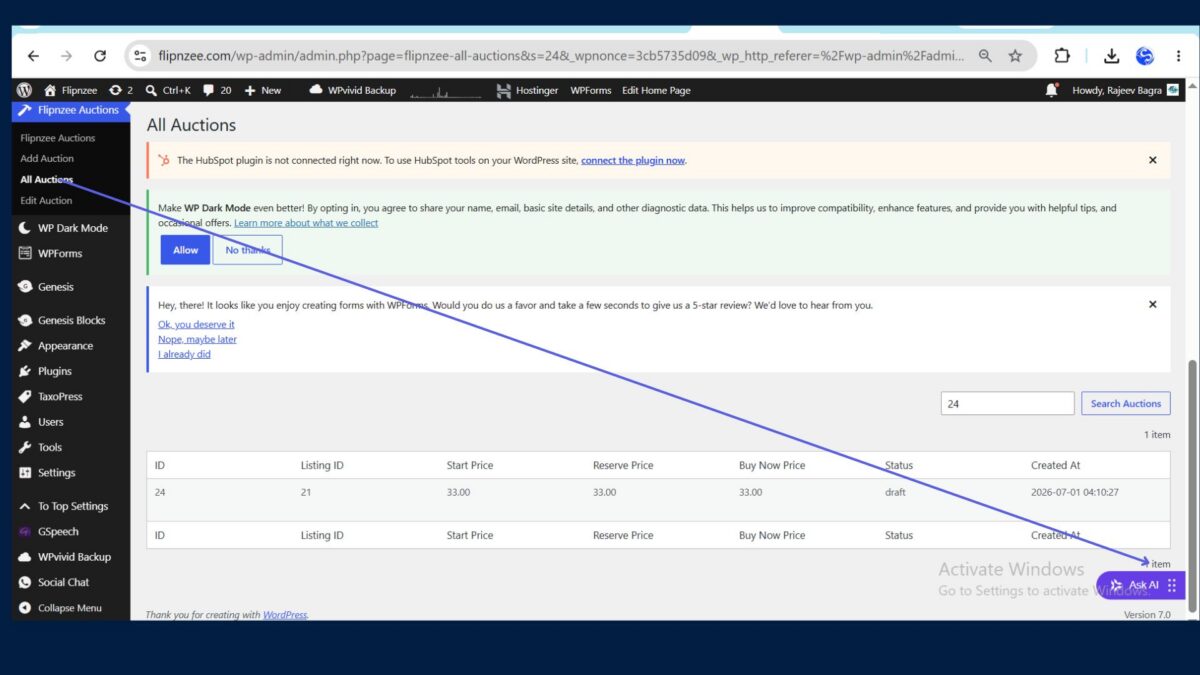
Searching for:

24

displayed:

  • 1 matching auction
  • 1 item
  • No additional pages

This confirmed that both searching and pagination were working together correctly.


Security Improvements

Several WordPress security functions were used throughout this lesson.

These included:

  • sanitize_text_field()
  • wp_unslash()
  • $wpdb->prepare()
  • $wpdb->esc_like()

Using these functions helps protect the plugin against SQL injection and unsafe user input.


Troubleshooting

During implementation, one issue appeared.

The search results filtered correctly, but pagination still showed the total number of auctions.

The cause was simple.

The table was still calling:

count_auctions();

instead of:

count_auctions( $search );

After updating this single line, pagination immediately displayed the correct number of matching results.


Result

At the end of this lesson, the Flipnzee Auctions plugin now supports:

  • ✅ Professional search box
  • ✅ Secure database searching
  • ✅ Pagination integrated with search
  • ✅ Accurate item counts
  • ✅ WordPress coding standards

The Auctions screen now behaves much more like WordPress’ own administration pages.


Conclusion

This implementation transformed the search box from a simple interface element into a fully functional administrative tool.

Combined with pagination from the previous lesson, administrators can now quickly locate auctions even when the database grows significantly.

The Flipnzee Auctions plugin continues to evolve from a learning project into a production-ready WordPress plugin.


Download Files

The source code for this lesson is available below:

  • Starting Project: Download the plugin before implementing Lesson 27.
⬇ Download Plugin (After Lesson 26) (7 downloads )
  • Completed Project: Download the updated plugin after implementing the functional search feature and compare your changes if needed.
⬇ Download Plugin (After Lesson 27) (6 downloads )

In the next implementation lesson, we’ll add sortable columns, allowing administrators to click table headers such as ID, Listing ID, Status, and Created Date to sort auction records just like the native WordPress admin screens.