Lesson 99 Implementation – Buyer Purchase Details Page & Purchase Journey

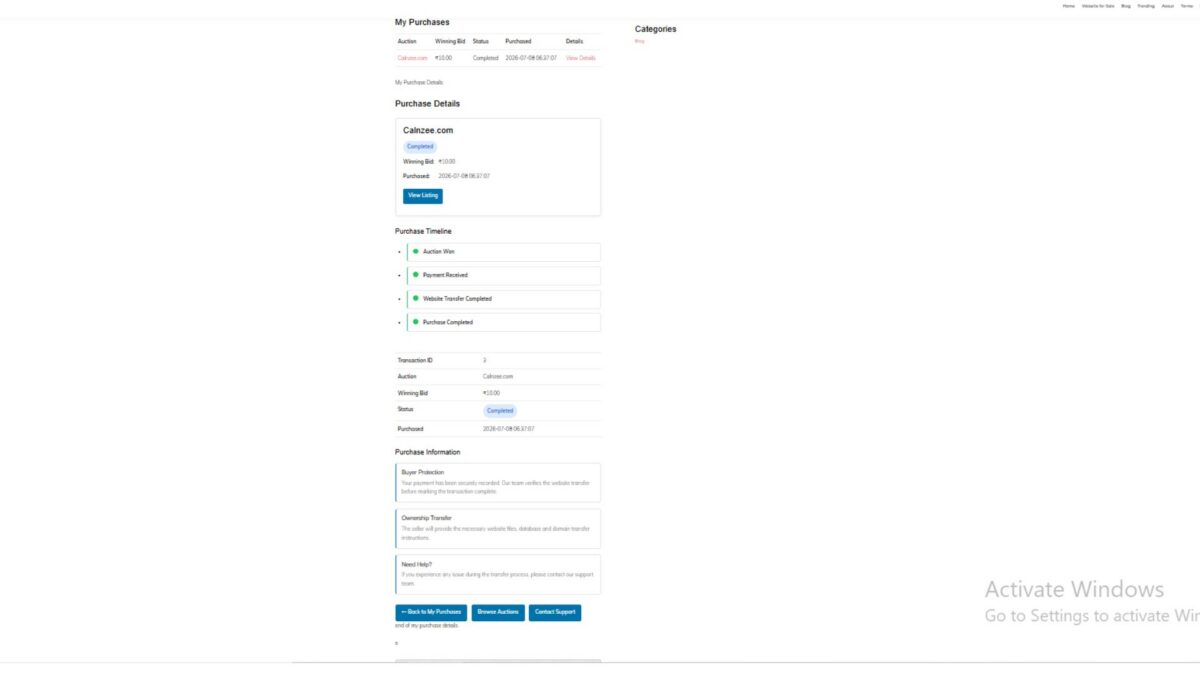
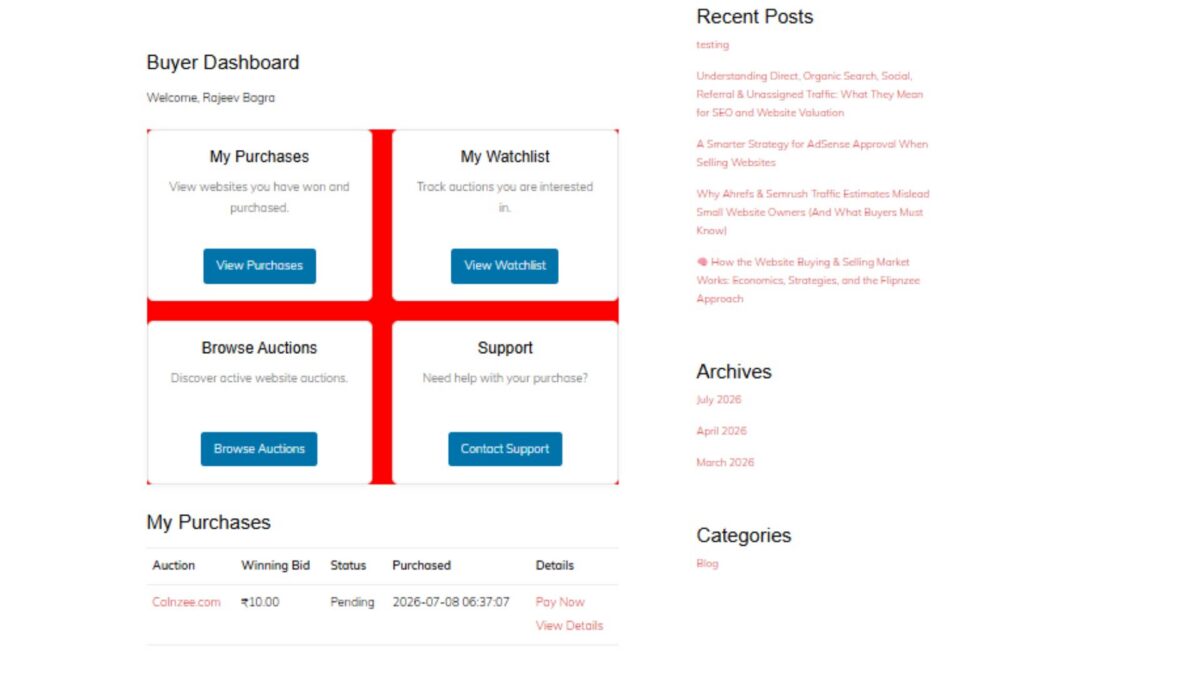
After completing the Buyer Dashboard in Lesson 98, the next logical step was to provide buyers with a dedicated page where they could review every aspect of a completed purchase. Simply listing purchased websites is not sufficient for a professional auction platform. Buyers need a central place to verify transaction information, monitor transfer progress, understand the next steps, and quickly access important resources.
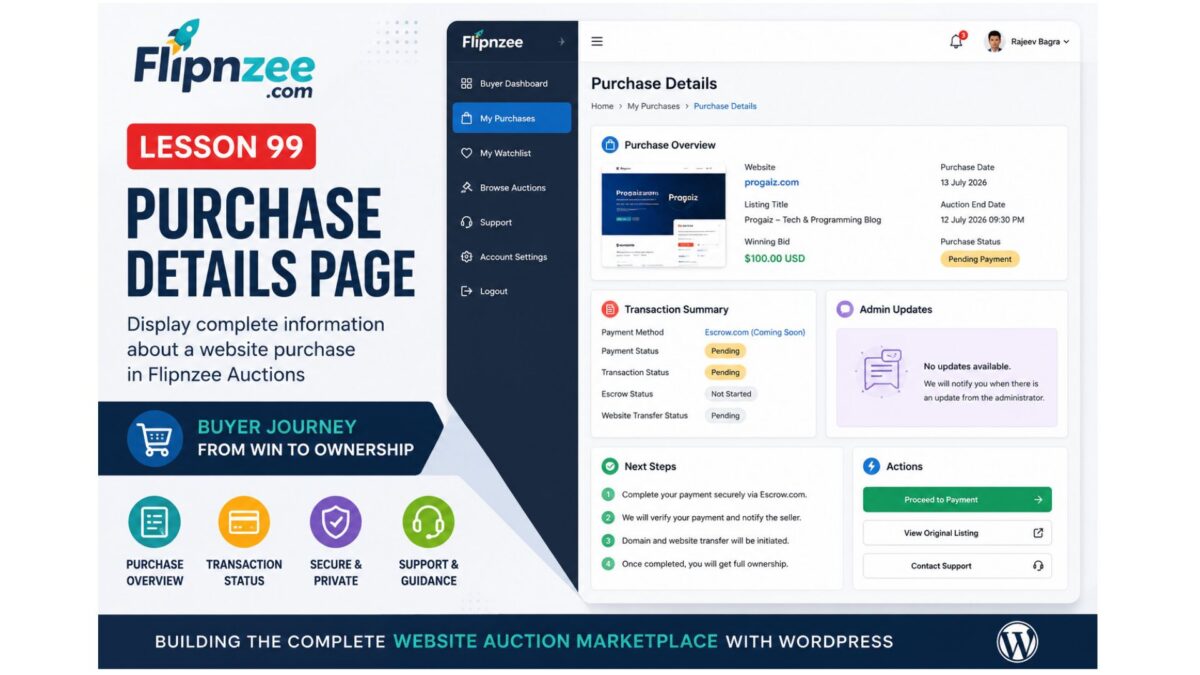
Lesson 99 focused on designing and implementing a comprehensive Buyer Purchase Details page within the Flipnzee Auctions plugin. The implementation lays the foundation for a transparent website transfer workflow while remaining flexible enough for both Flipnzee’s own business model and future marketplace implementations by other developers.
Objectives
The primary goals of this lesson were:
- Create a dedicated Purchase Details shortcode.
- Securely display transaction information only to the purchasing user.
- Build a professional purchase summary card.
- Display transaction metadata in an organized table.
- Introduce a visual purchase timeline.
- Add buyer guidance and protection information.
- Present transfer instructions and recommended next steps.
- Improve overall user experience through frontend styling.
1. Secure Transaction Validation
The Purchase Details page begins by ensuring that only authenticated buyers can access purchase information.
The implementation validates:
- Logged-in user
- Transaction ID from the URL
- Ownership of the transaction
- Existence of the transaction record
Example:
$transaction_id = isset( $_GET['transaction_id'] )
	? absint( $_GET['transaction_id'] )
	: 0;

if ( ! $transaction_id ) {

	return '<p>No purchase selected.</p>';
}
The database query also confirms that the transaction belongs to the current user before displaying any information.
2. Purchase Summary Card
Instead of immediately showing raw transaction data, the page now opens with a visually appealing purchase summary card containing:
- Website title
- Featured image
- Purchase status badge
- Winning bid
- Purchase date
- Quick “View Listing” button
This provides buyers with an immediate overview of their purchase.
3. Transaction Reference
A unique purchase reference is generated for every completed transaction.
Example:
FLIP-2026-000003
The reference helps buyers and administrators identify transactions during support conversations without relying solely on numeric IDs.
4. Transaction Metadata
Additional metadata was added to make the page feel more professional.
Displayed information includes:
- Transaction ID
- Purchase Reference
- Purchase Date
- Purchase Time
- Payment Method
- Auction Title
- Winning Bid
- Purchase Status
- Original Purchase Timestamp
Dates and times are displayed using WordPress localization functions.
5. Purchase Timeline
A simple timeline visually communicates the major milestones of the purchase process.
Current implementation includes:
- Auction Won
- Payment Received
- Website Transfer Completed
- Purchase Completed
The timeline prepares the plugin for future workflow automation.
6. Purchase Information Cards
To improve buyer confidence, several informational cards were introduced.
These explain topics such as:
Buyer Protection
Explains that payment has been securely recorded and that the transfer process is monitored.
Ownership Transfer
Provides an overview of the expected transfer of website files, database, and domain ownership.
Need Help?
Directs buyers toward support if they encounter problems during the transfer process.
7. Transfer Checklist
A dedicated “Next Steps” section guides buyers through the website acquisition process.
The current checklist includes items such as:
- Payment confirmed
- Receive website files
- Receive database
- Domain transfer
- Verify website
- Change passwords
- Confirm successful transfer
Although currently driven by a static array, the structure is intentionally designed so future lessons can connect it to dynamic transaction data managed by administrators.
8. Purchase Action Buttons
Quick navigation buttons were added to improve usability.
Buyers can easily:
- Return to My Purchases
- Browse additional auctions
- Contact Support
This reduces unnecessary navigation and provides convenient access to common actions.
9. Status Badges
Purchase status is displayed using colored badges instead of plain text.
Examples include:
- Completed
- Pending
- Processing
The CSS implementation allows additional statuses to be introduced later without modifying the page layout.
10. Frontend Styling
Several reusable frontend components were added, including:
- Purchase summary card
- Timeline styling
- Information cards
- Success badges
- Action buttons
- Transfer checklist
- Responsive spacing and typography
The page now matches the overall design language of the Buyer Dashboard introduced in Lesson 98.
Testing Performed
The implementation was tested using completed auction transactions.
The following functionality was verified:
- Buyer authentication
- Transaction ownership validation
- Transaction lookup
- Purchase summary display
- Reference generation
- Timeline rendering
- Purchase information cards
- Action buttons
- Responsive frontend layout
- URL-based transaction loading
Challenges Encountered
Several development issues were resolved during implementation:
- Missing shortcode registration
- Transaction ID validation
- URL parameter handling
- Purchase ownership verification
- PHP syntax errors caused by mixed PHP and HTML
- Duplicate HTML table elements
- Status badge styling
- Responsive layout adjustments
- Frontend CSS refinements
These debugging sessions significantly improved the overall code quality and reinforced the importance of validating PHP syntax throughout development.
Lessons Learned
Lesson 99 demonstrated that a successful website auction platform requires much more than simply recording completed transactions.
A dedicated Purchase Details page:
- improves buyer confidence,
- provides transparency during ownership transfer,
- reduces support requests,
- prepares the system for future automation,
- and creates a professional post-purchase experience comparable to commercial digital asset marketplaces.
The lesson also highlighted the value of separating presentation from future business logic by designing components that can later be connected to dynamic transaction metadata.
Download Source Code
Download the starting version of the plugin before the lesson:
Download the completed version after this lesson:
Looking Ahead
While the Purchase Details page is now functionally complete, several opportunities remain for future enhancements.
Planned improvements include:
- Dynamic transfer progress managed by administrators
- Buyer notifications
- Secure file delivery
- Domain transfer tracking
- Private buyer-admin messaging
- Escrow workflow integration
- Downloadable purchase documents
These features will gradually transform the Purchase Details page into a complete digital asset transfer portal.
Conclusion
Lesson 99 represents a major milestone in the Flipnzee Auctions plugin. Buyers now have a centralized location where they can review completed purchases, understand the transfer process, and access important transaction information.
Although Flipnzee.com currently sells only in-house websites, the implementation has been designed with extensibility in mind. Developers who adopt the open-source Flipnzee Auctions plugin for marketplace scenarios will be able to build upon this foundation, replacing static workflow elements with dynamic seller-managed processes while retaining the same user experience.
The result is a significantly more polished, trustworthy, and scalable post-purchase system that strengthens both the current Flipnzee platform and the plugin’s long-term roadmap.