
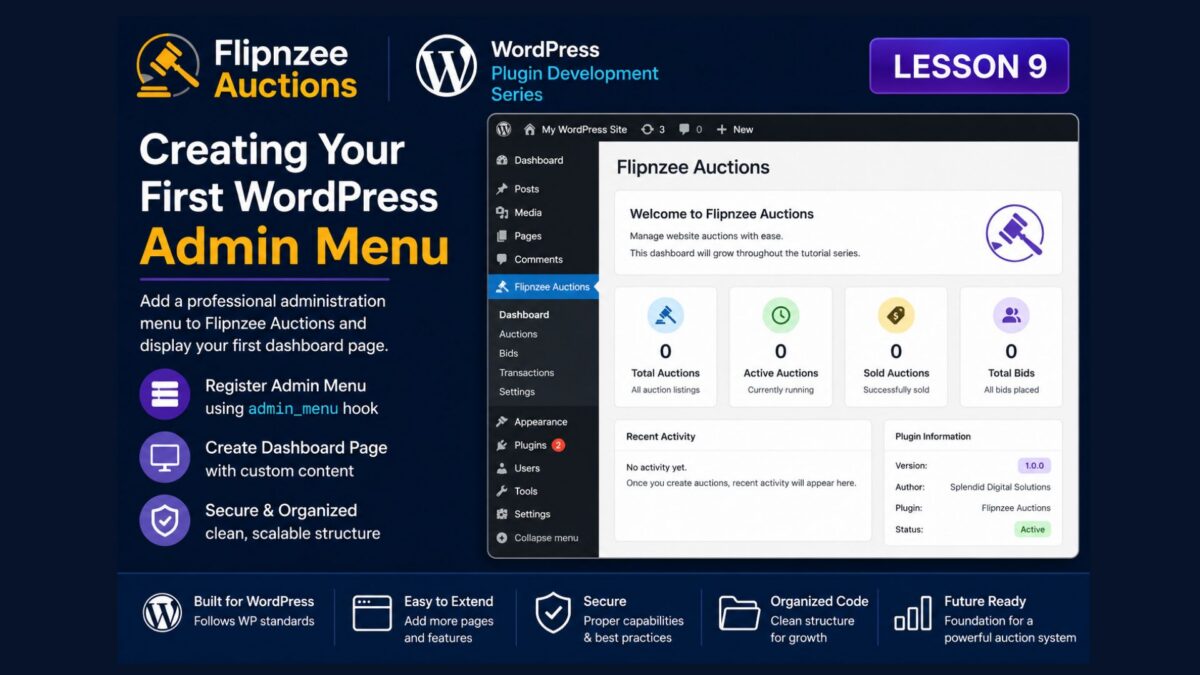
Lesson 9: Creating Your First WordPress Admin Menu

Introduction
In the previous lessons, we’ve built a solid backend for our plugin.
We have:
- A professional plugin structure.
- A custom database table.
- An Auction Manager class.
- Methods for creating and retrieving auction records.
However, everything is still happening behind the scenes.
Professional WordPress plugins provide an administration interface where site owners can manage data without editing code. In this lesson, we’ll create our first administration menu for Flipnzee Auctions.
Although the page will initially contain only placeholder content, it establishes the foundation upon which we’ll build auction management, bidding, transaction workflows, and plugin settings.
Learning Objectives
By the end of this lesson, you’ll be able to:
- Understand how WordPress admin menus work.
- Create your first top-level administration menu.
- Display a custom administration page.
- Learn about the
admin_menuhook. - Organize admin-related code into its own class.
Why Use an Admin Class?
As our plugin grows, we’ll eventually have multiple administration pages:
- Dashboard
- Auctions
- Bids
- Transactions
- Settings
- Reports
Rather than placing all this code inside flipnzee-auctions.php, we’ll keep everything related to the administration area inside its own class.
This makes the plugin easier to maintain.
Step 1 – Create the Admin Folder
Inside your plugin folder, create a new directory:
admin
Your structure now becomes:
flipnzee-auctions/
│
├── admin/
├── includes/
├── flipnzee-auctions.php
Step 2 – Create the Admin Class
Inside the admin folder create:
class-admin.php
Step 3 – Add the Admin Class
Copy the following code into the file.
<?php

if ( ! defined( 'ABSPATH' ) ) {
	exit;
}

class Flipnzee_Auction_Admin {

	public function __construct() {

		add_action( 'admin_menu', array( $this, 'register_menu' ) );
	}

	/**
	 * Register the admin menu.
	 */
	public function register_menu() {

		add_menu_page(
			'Flipnzee Auctions',
			'Flipnzee Auctions',
			'manage_options',
			'flipnzee-auctions',
			array( $this, 'dashboard_page' ),
			'dashicons-hammer',
			26
		);
	}

	/**
	 * Dashboard page.
	 */
	public function dashboard_page() {

		echo '<div class="wrap">';
		echo '<h1>Flipnzee Auctions</h1>';
		echo '<p>Welcome to the Flipnzee Auctions plugin.</p>';
		echo '<p>This dashboard will gradually grow throughout this tutorial series.</p>';
		echo '</div>';
	}
}

new Flipnzee_Auction_Admin();
Understanding add_menu_page()
The function receives several arguments.
add_menu_page(
    Page Title,
    Menu Title,
    Capability,
    Menu Slug,
    Callback Function,
    Icon,
    Position
);
Let’s briefly look at each one.
Page Title
Appears at the top of the browser window.
Menu Title
The text displayed in the WordPress sidebar.
Capability
manage_options
Only administrators can access the page.
Menu Slug
A unique identifier used internally by WordPress.
Callback Function
The function responsible for displaying the page.
Icon
We’re using:
dashicons-hammer
WordPress includes hundreds of built-in Dashicons that can be used for plugin menus.
Position
The menu position in the WordPress sidebar.
Step 4 – Load the Admin Class
Open:
flipnzee-auctions.php
Add the following code immediately after loading the Auction Manager.
/**
 * Load Admin Class
 */
if ( file_exists( FLIPNZEE_AUCTION_PATH . 'admin/class-admin.php' ) ) {
	require_once FLIPNZEE_AUCTION_PATH . 'admin/class-admin.php';
}
Step 5 – Upload the Updated Plugin
Delete the previous ZIP.
Create a new ZIP.
Upload it to WordPress.
Activate the plugin if necessary.
Step 6 – Visit the Dashboard
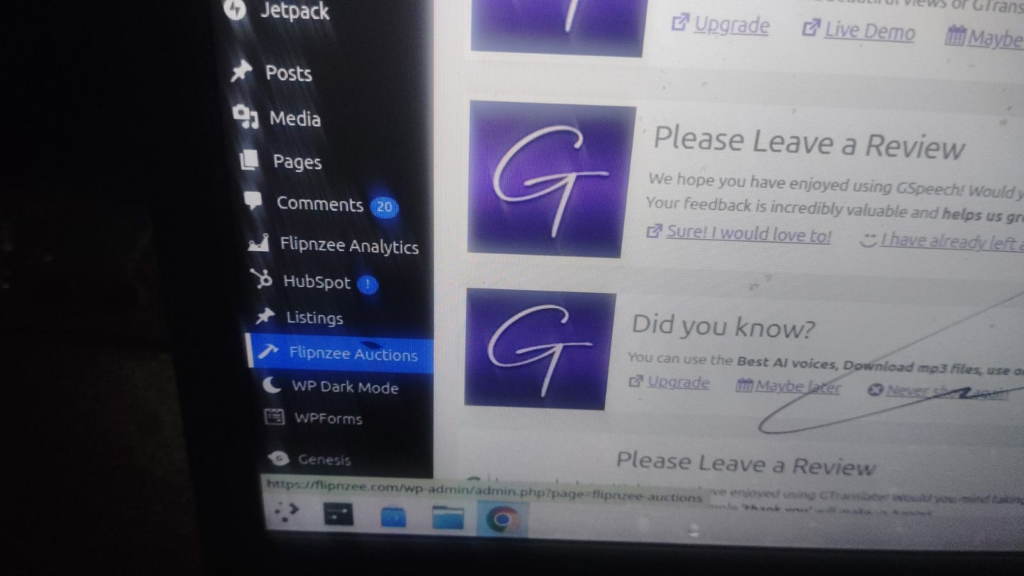
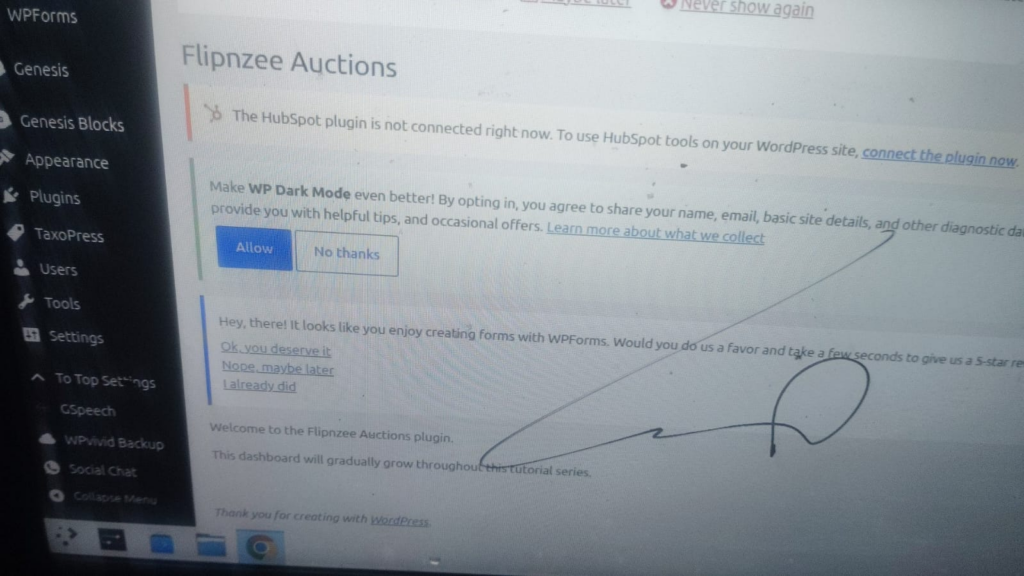
Open the WordPress administration area.
You should now see a new menu item:
Flipnzee Auctions
Clicking it should display your first plugin dashboard.
Congratulations! Your plugin now has its own administration interface.
Lesson Summary
In this lesson, we created the first administration page for Flipnzee Auctions. Rather than mixing administration code with plugin initialization, we introduced a dedicated Admin class responsible for registering the plugin’s menu and displaying its dashboard.
Although the page currently contains only simple placeholder content, it provides the framework for all future administration features.
Key Takeaways
- ✓ Use
admin_menuto register administration pages. - ✓ Keep administration code in a separate class.
- ✓ Use
add_menu_page()to create top-level menus. - ✓ Build the user interface gradually.
- ✓ Maintain a clean project structure.
Common Mistakes
- Putting administration code inside the main plugin file.
- Forgetting to instantiate the Admin class.
- Using an incorrect capability.
- Loading the Admin class after trying to use it.
Git Commands Used
git add .

git commit -m "Lesson 9: Create WordPress admin menu"

git push
Project Status
✅ Development environment

✅ Plugin skeleton

✅ Plugin installation

✅ Plugin lifecycle

✅ .gitignore

✅ Data architecture

✅ Database table

✅ Auction Manager

✅ Retrieve auction records

✅ WordPress admin menu

⬜ Dashboard widgets

⬜ Create auctions

⬜ Bid engine

⬜ Escrow workflow

⬜ Website transfer

⬜ Notifications

⬜ Version 1.0
Project Evolution
Earlier in the series, our focus was entirely on the backend architecture. Now that the foundation is in place, we’re beginning to build the user interface. This reflects a common professional development workflow: first establish the application’s core logic, then expose that functionality through a clean and intuitive interface.
As always, the GitHub repository contains the latest implementation, while these lessons explain the reasoning behind each architectural decision.
Developer’s Notebook
One of the strengths of WordPress is its consistent administration interface. Rather than inventing our own dashboard, we integrate seamlessly with the existing WordPress admin area. Users already understand how the Dashboard works, so following WordPress conventions makes the plugin feel familiar and professional from the very beginning.
Looking Ahead
In Lesson 10, we’ll enhance the dashboard by displaying useful information such as the total number of auctions, database status, plugin version, and recent activity. This will transform our placeholder page into the first functional administration dashboard for Flipnzee Auctions.