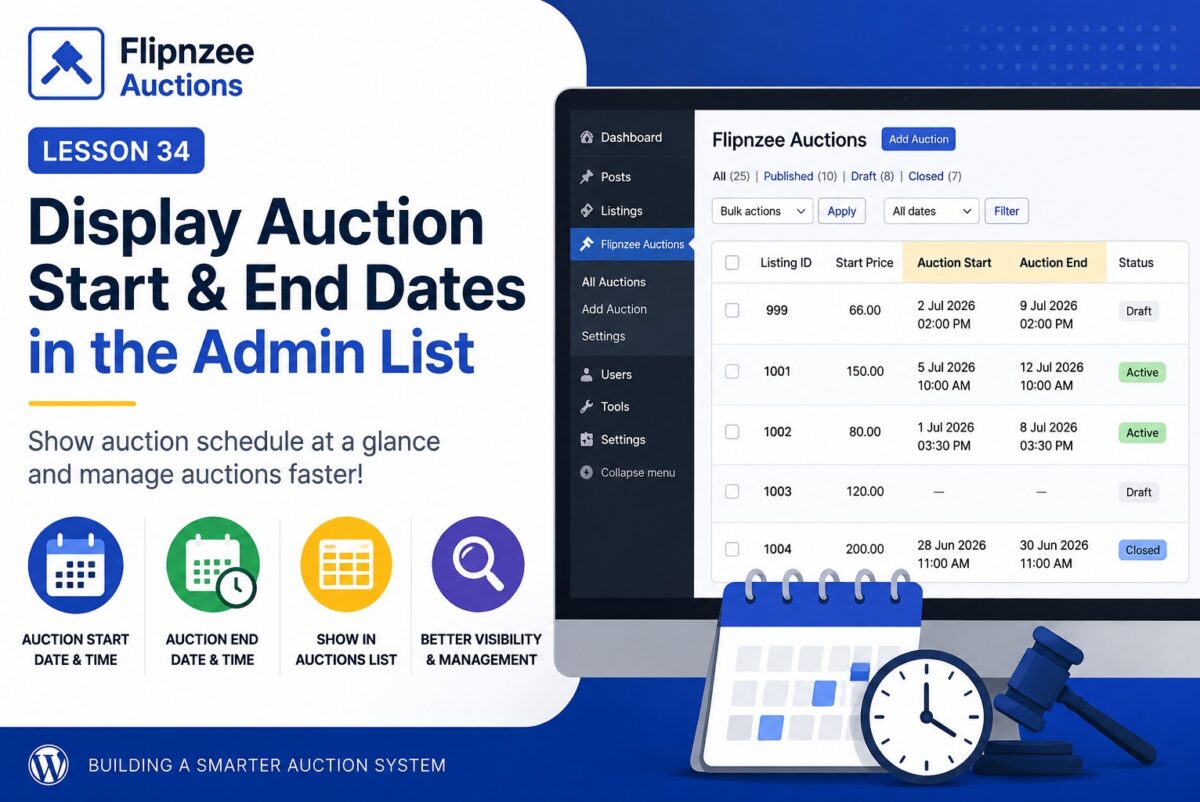
Lesson 34 – Display Auction Schedule in the Admin List


Objective

In the previous lesson, we added support for scheduling auctions. However, administrators still need to open each auction to see when it starts or ends.

In this lesson, we’ll improve the All Auctions page by displaying the auction schedule directly in the table.

By the end of this lesson, administrators will be able to see:

  • Auction Start
  • Auction End

for every auction without opening the edit screen.


What You’ll Learn

During this lesson you’ll learn how to:

  • Add new columns to a WP_List_Table
  • Display custom database fields
  • Format date and time values
  • Improve the usability of an admin interface

Why This Matters

Imagine having hundreds of auctions.

Without these columns you would need to:

  • Open Auction 1
  • Check its dates
  • Return
  • Open Auction 2
  • Check its dates
  • Repeat…

Displaying the schedule directly in the list makes auction management much faster.


Final Result

The All Auctions page will look similar to:

ListingStart PriceAuction StartAuction EndStatus
99966.002 Jul 2026 2:00 PM9 Jul 2026 2:00 PMDraft
1001150.005 Jul 2026 10:00 AM12 Jul 2026 10:00 AMActive

Implementation Plan

Step 1

Add two new columns to the auction table:

  • Auction Start
  • Auction End

Step 2

Populate both columns with values from the database.


Step 3

Format empty values nicely.

Instead of showing:

0000-00-00 00:00:00

or a blank SQL value,

display something more user-friendly:

or

Not Scheduled

Step 4

Format the dates for administrators.

Instead of displaying:

2026-07-02 14:30:00

display:

2 Jul 2026
2:30 PM

This is much easier to scan.


Step 5

Test sorting, searching and filtering to ensure the new columns don’t affect the existing functionality.


What You’ll Gain

After this lesson, your plugin will support:

  • ✅ Creating auctions
  • ✅ Editing auctions
  • ✅ Scheduling auctions
  • ✅ Viewing schedules directly from the auction list

This is another important step toward a production-ready auction system.

Implementation Lesson 34: Display Auction Start and End Dates in the Auctions Table


Looking Ahead

After Lesson 34, the next logical milestone is Lesson 35: Automatic Auction Lifecycle, where we’ll begin implementing the logic that automatically changes auction statuses based on the current date and time (for example, moving a scheduled auction from draft to active when its start time arrives, and from active to closed when its end time passes). This will move the plugin beyond simply storing dates and into actually using them to control auction behavior.
Lesson 29 Implementation: Bulk Actions with WP_List_Table

Implementation Walkthrough

In this lesson, the goal was to allow administrators to select multiple auctions at once using checkboxes and prepare the table for bulk operations such as deleting multiple auctions simultaneously. WordPress provides built-in support for bulk actions in WP_List_Table, making this feature straightforward to implement.

Step 1: Add a Checkbox Column

The first step was to add a new checkbox column to the table.

Inside the get_columns() method of admin/class-auctions-table.php, a new column named cb was added as the first column.

public function get_columns() {

	return array(
		'cb'             => '<input type="checkbox" />',
		'id'             => 'ID',
		'listing_id'     => 'Listing ID',
		'start_price'    => 'Start Price',
		'reserve_price'  => 'Reserve Price',
		'buy_now_price'  => 'Buy Now Price',
		'status'         => 'Status',
		'created_at'     => 'Created At',
	);
}

The header checkbox allows administrators to quickly select or deselect every row displayed on the current page.


Step 2: Register the Bulk Actions

Next, the available bulk actions were registered by creating the get_bulk_actions() method.

public function get_bulk_actions() {

	return array(
		'delete' => 'Delete',
	);
}

At this stage only one action—Delete—was added, but additional actions such as Activate, Close Auction, or Export could easily be added later.


Step 3: Display a Checkbox for Every Auction

After registering the bulk actions, a new column_cb() method was added.

public function column_cb( $item ) {

	return sprintf(
		'<input type="checkbox" name="auction_ids[]" value="%d" />',
		absint( $item->id )
	);
}

This method tells WP_List_Table how to render the checkbox for each auction row.

Each checkbox stores the auction’s database ID, making it available when the administrator submits the bulk action form.


Step 4: Verify the Table Still Works

Before uploading the plugin, the PHP syntax was checked.

php -l admin/class-auctions-table.php

The output confirmed that no syntax errors existed.


Step 5: Upload the Updated Plugin

The plugin ZIP was rebuilt and uploaded to WordPress.

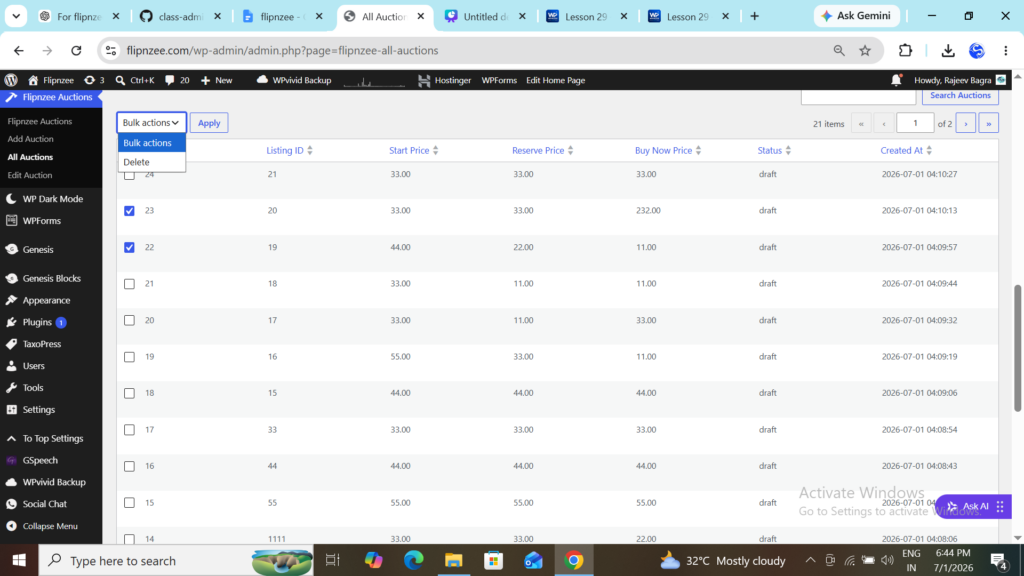
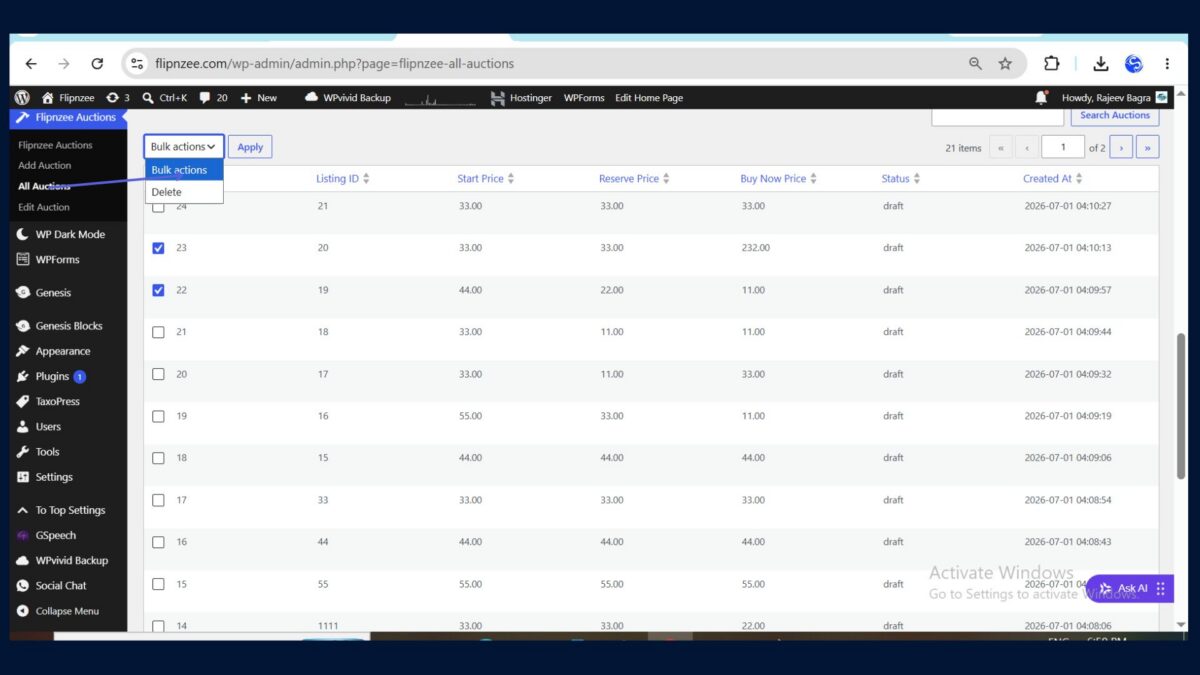
After activation, the All Auctions page immediately displayed:

  • A checkbox beside every auction
  • A “Select All” checkbox in the table header
  • A Bulk Actions dropdown
  • An Apply button

At this stage the Delete action did not yet perform any operation—it simply prepared the interface for the next lesson.


Result

The auction management screen now behaves much more like WordPress’ built-in Posts, Pages, and Media screens.

Administrators can:

  • Select one auction
  • Select multiple auctions
  • Select all auctions on the current page
  • Choose a bulk action from the dropdown
  • Prepare to process multiple records with a single click

Although the Delete option is not functional yet, the user interface is now fully prepared for implementing bulk deletion in the next lesson.


What We Learned

By completing this lesson, we learned how to:

  • Add a checkbox column to a WP_List_Table
  • Register custom bulk actions
  • Create row checkboxes with column_cb()
  • Integrate WordPress’ built-in Bulk Actions dropdown
  • Prepare an admin table for processing multiple records efficiently

With this foundation in place, the next lesson will focus on processing the selected auctions and implementing a secure Bulk Delete feature using WordPress nonces and best practices.

Download Source Code

Download the starting version of the plugin before the lesson:

⬇ Download Plugin (After Lesson 28) (13 downloads )

Download the completed version after this lesson:

⬇ Download Plugin (After Lesson 29) (15 downloads )

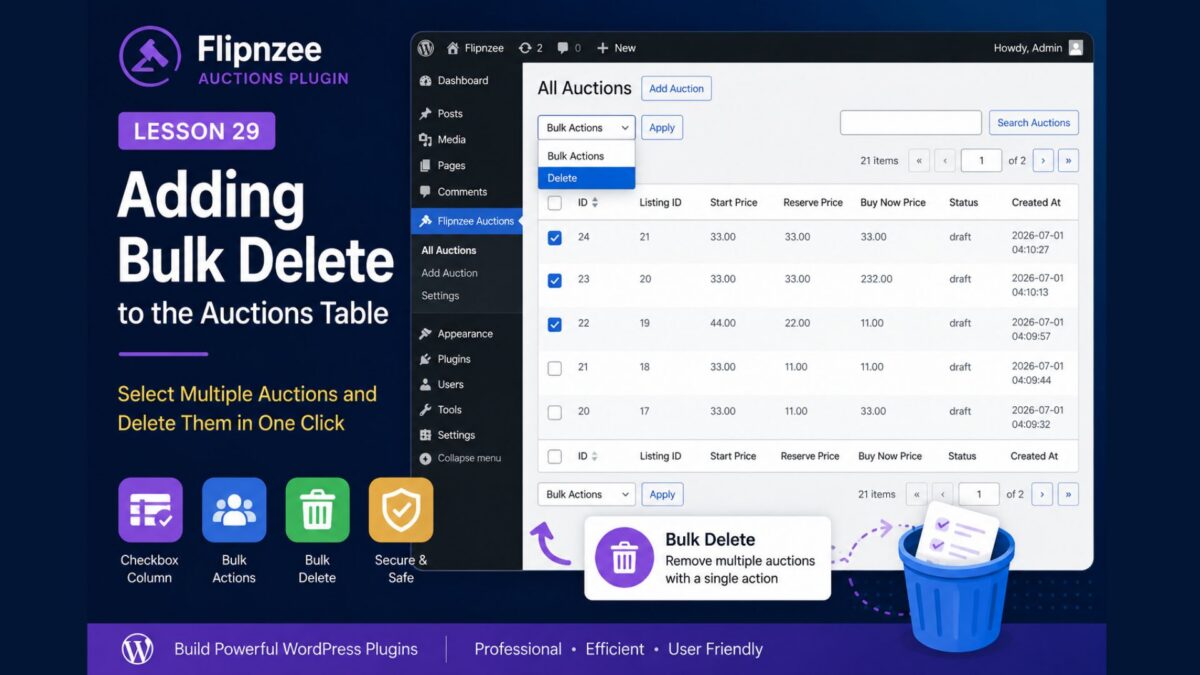
Lesson 29 — Adding Bulk Delete to the Auctions Table Using WP_List_Table


Introduction

As the number of auctions grows, deleting them one at a time becomes inefficient. WordPress solves this problem by allowing administrators to select multiple rows and perform an action on all of them simultaneously.

In this lesson, we’ll add Bulk Delete to our custom WP_List_Table. Administrators will be able to select multiple auctions using checkboxes and delete them all with a single action, just like on the Posts or Pages screens.

By the end of this lesson, your Auctions table will feel even more like a native WordPress admin screen.


What You Will Learn

In this lesson, you will learn how to:

  • Add a checkbox column to WP_List_Table
  • Display a checkbox for each auction
  • Register bulk actions
  • Detect which bulk action the user selected
  • Process multiple selected auctions
  • Secure the operation using WordPress nonces
  • Display a success message after bulk deletion

Why Bulk Actions Matter

Imagine managing hundreds of auctions.

Deleting them individually would require:

  • Click Delete
  • Confirm deletion
  • Wait for the page to reload
  • Repeat the process dozens of times

Bulk actions allow administrators to remove many auctions in a single operation, improving productivity and creating a much better user experience.


Files We Will Modify

During this lesson, we will update:

admin/class-auctions-table.php

and

admin/class-admin-posts.php

We will also make a small update to:

admin/class-admin.php

to display an appropriate success notice after the bulk action completes.


New WordPress Concepts

This lesson introduces several important WP_List_Table methods:

  • column_cb()
  • get_bulk_actions()
  • process_bulk_action()
  • current_action()

These methods are used by many WordPress core administration screens.


Expected Result

After completing this lesson, the Auctions table will include:

  • A checkbox beside every auction
  • A “Select All” checkbox in the table header
  • A Bulk Actions dropdown
  • A Delete option
  • A single-click way to delete multiple auctions

The feature will closely resemble the familiar bulk actions available on the WordPress Posts screen.


Before You Start

Make sure your plugin already includes:

  • ✅ Working Add Auction page
  • ✅ Edit Auction page
  • ✅ Delete Auction action
  • ✅ Pagination
  • ✅ Search
  • ✅ Sortable columns

These features were implemented in the previous lessons and will be used throughout this exercise.


What Comes Next

In the implementation article, we’ll build this feature step by step by:

  1. Adding the checkbox column.
  2. Creating the Bulk Actions dropdown.
  3. Processing selected auctions.
  4. Deleting multiple records safely.
  5. Displaying a success message after completion.
  6. Testing the feature thoroughly.