
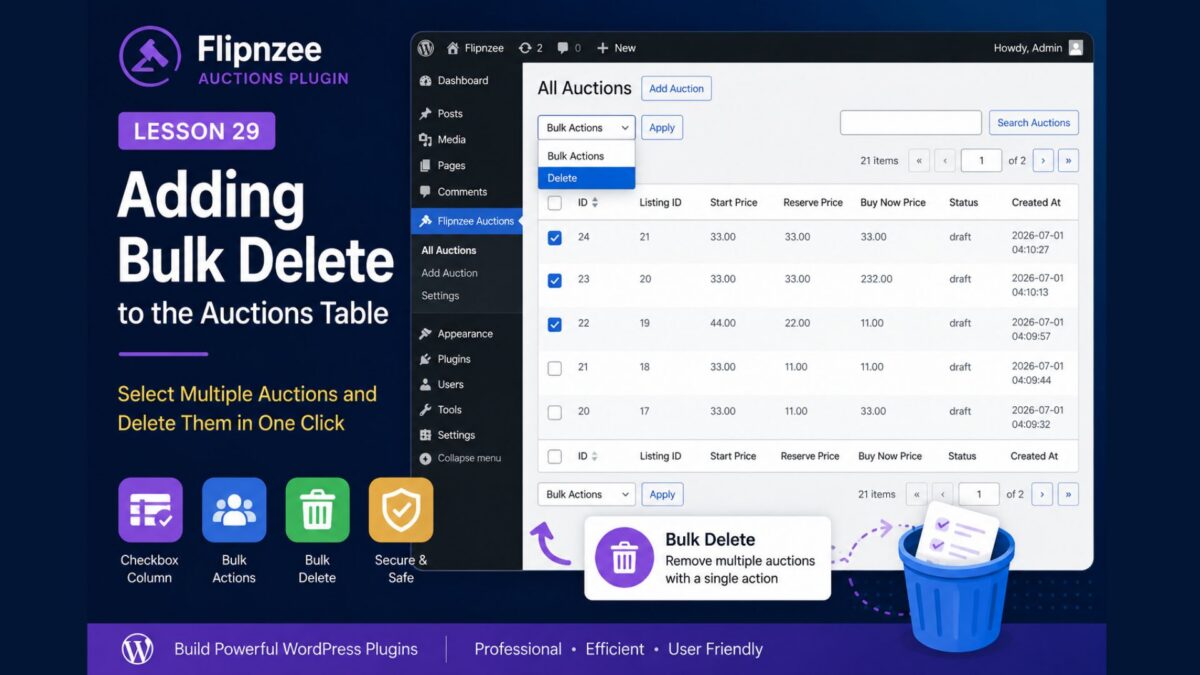
Lesson 29 — Adding Bulk Delete to the Auctions Table Using WP_List_Table

Introduction
As the number of auctions grows, deleting them one at a time becomes inefficient. WordPress solves this problem by allowing administrators to select multiple rows and perform an action on all of them simultaneously.
In this lesson, we’ll add Bulk Delete to our custom WP_List_Table. Administrators will be able to select multiple auctions using checkboxes and delete them all with a single action, just like on the Posts or Pages screens.
By the end of this lesson, your Auctions table will feel even more like a native WordPress admin screen.
What You Will Learn
In this lesson, you will learn how to:
- Add a checkbox column to
WP_List_Table - Display a checkbox for each auction
- Register bulk actions
- Detect which bulk action the user selected
- Process multiple selected auctions
- Secure the operation using WordPress nonces
- Display a success message after bulk deletion
Why Bulk Actions Matter
Imagine managing hundreds of auctions.
Deleting them individually would require:
- Click Delete
- Confirm deletion
- Wait for the page to reload
- Repeat the process dozens of times
Bulk actions allow administrators to remove many auctions in a single operation, improving productivity and creating a much better user experience.
Files We Will Modify
During this lesson, we will update:
admin/class-auctions-table.php
and
admin/class-admin-posts.php
We will also make a small update to:
admin/class-admin.php
to display an appropriate success notice after the bulk action completes.
New WordPress Concepts
This lesson introduces several important WP_List_Table methods:
column_cb()get_bulk_actions()process_bulk_action()current_action()
These methods are used by many WordPress core administration screens.
Expected Result
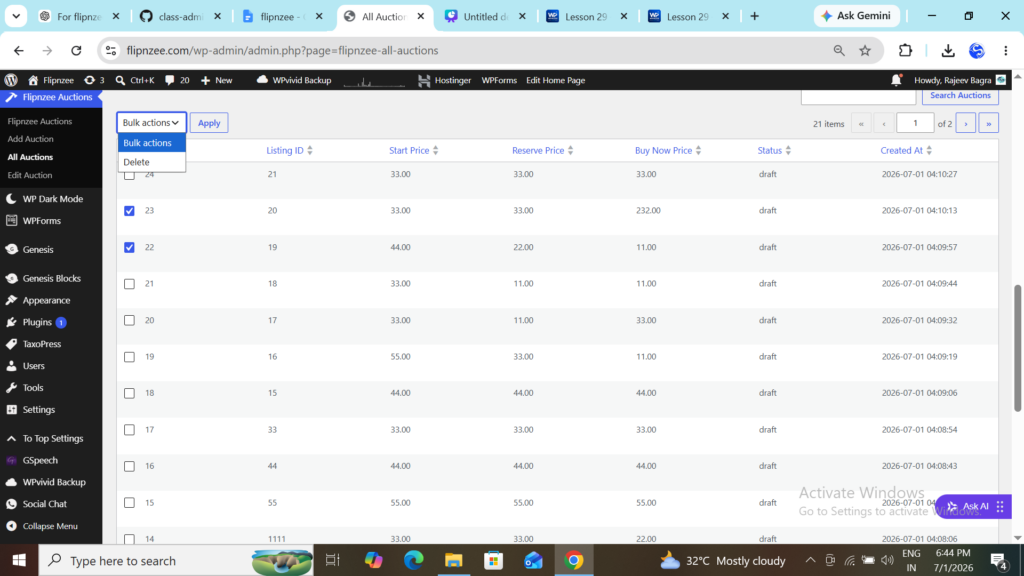
After completing this lesson, the Auctions table will include:
- A checkbox beside every auction
- A “Select All” checkbox in the table header
- A Bulk Actions dropdown
- A Delete option
- A single-click way to delete multiple auctions
The feature will closely resemble the familiar bulk actions available on the WordPress Posts screen.
Before You Start
Make sure your plugin already includes:
- ✅ Working Add Auction page
- ✅ Edit Auction page
- ✅ Delete Auction action
- ✅ Pagination
- ✅ Search
- ✅ Sortable columns
These features were implemented in the previous lessons and will be used throughout this exercise.
What Comes Next
In the implementation article, we’ll build this feature step by step by:
- Adding the checkbox column.
- Creating the Bulk Actions dropdown.
- Processing selected auctions.
- Deleting multiple records safely.
- Displaying a success message after completion.
- Testing the feature thoroughly.