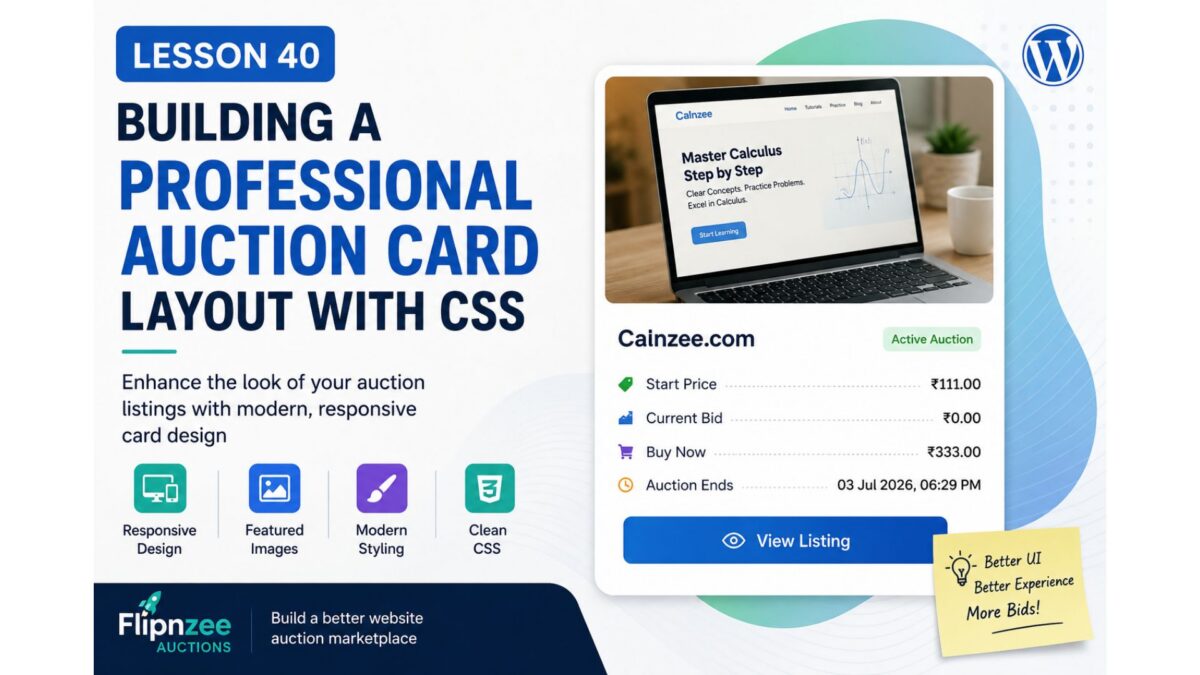
Lesson 40: Building a Professional Auction Card Layout with CSS

In the previous lesson, we transformed our auction listings from plain database records into meaningful website listings by displaying the Listing title, featured image, placeholder image, and a direct link to the Listing page.

Although the auction now contains all the essential information, its appearance is still fairly basic. The next logical step is to improve the user interface so visitors can browse auctions more comfortably and the marketplace begins to resemble a modern website sales platform.

In this lesson, we’ll focus entirely on presentation by styling our auction cards with CSS while keeping the underlying PHP logic unchanged.


What You’ll Learn

By the end of this lesson, you’ll know how to:

  • Style plugin output using a dedicated CSS file.
  • Improve the appearance of auction cards.
  • Make featured images responsive.
  • Add spacing and padding for better readability.
  • Create modern card layouts using borders, shadows, and rounded corners.
  • Improve typography and button styling.
  • Build a responsive layout that works well on desktops, tablets, and mobile devices.

Why This Matters

At the moment, an auction looks something like this:

+--------------------------------------+
| Screenshot                           |
|                                      |
| Calnzee.com                          |
|                                      |
| Start Price: ₹111                    |
| Current Bid: ₹0                      |
| Buy Now: ₹333                        |
| Status: Active                       |
| Auction Ends: 03 Jul 2026            |
|                                      |
| View Listing                         |
+--------------------------------------+

While functional, this still resembles a collection of HTML elements rather than a professional marketplace.

After completing this lesson, the goal is to achieve something closer to:

+--------------------------------------------------+
|               Website Screenshot                 |
|                                                  |
| Calnzee.com                                      |
|--------------------------------------------------|
| Start Price .............. ₹111                 |
| Current Bid .............. ₹0                   |
| Buy Now .................. ₹333                 |
| Auction Ends ............. 03 Jul 2026          |
|                                                  |
|            [ View Listing ]                      |
+--------------------------------------------------+

The cleaner presentation improves readability and creates a much stronger first impression for potential buyers.


Concepts Covered

During this lesson we’ll explore:

  • CSS organization for WordPress plugins
  • Responsive images
  • Card-based layouts
  • Padding and margins
  • Borders and border radius
  • Box shadows
  • Typography improvements
  • Button styling
  • Responsive design fundamentals

Implementation Steps

We’ll implement the lesson gradually:

  1. Style the auction card container.
  2. Make featured images responsive.
  3. Improve spacing between elements.
  4. Style headings and auction details.
  5. Enhance the “View Listing” button.
  6. Remove unnecessary visual clutter.
  7. Improve alignment of auction information.
  8. Add responsive styling for smaller screens.
  9. Test the layout on different devices.

Files We’ll Modify

assets/css/frontend.css

Only minor HTML adjustments may be made if required.

No database changes are required.


Difficulty Level

Intermediate

This lesson focuses primarily on frontend development and demonstrates how separating presentation from business logic leads to cleaner, more maintainable plugins.


Best Practices

Throughout this lesson we’ll continue following WordPress development best practices:

  • Keep PHP focused on generating HTML.
  • Place all presentation rules inside CSS.
  • Use reusable CSS classes.
  • Avoid inline styles.
  • Design with responsiveness in mind.
  • Improve the user experience without changing plugin functionality.

What You’ll Gain

After completing this lesson, your auction listings will no longer look like simple collections of database fields. Instead, they’ll resemble professional marketplace cards that are visually appealing, easier to browse, and ready for future enhancements such as countdown timers, bidding buttons, analytics badges, and seller information.

This lesson also establishes the visual foundation for future integration between the Flipnzee Auctions plugin and the Flipnzee Analytics plugin, allowing auction cards to evolve into rich previews of each website while keeping the detailed analytics available on the corresponding Listing page.

In the implementation that follows, we’ll enhance the stylesheet step by step and transform our auction cards into a polished marketplace interface without altering the underlying auction logic.
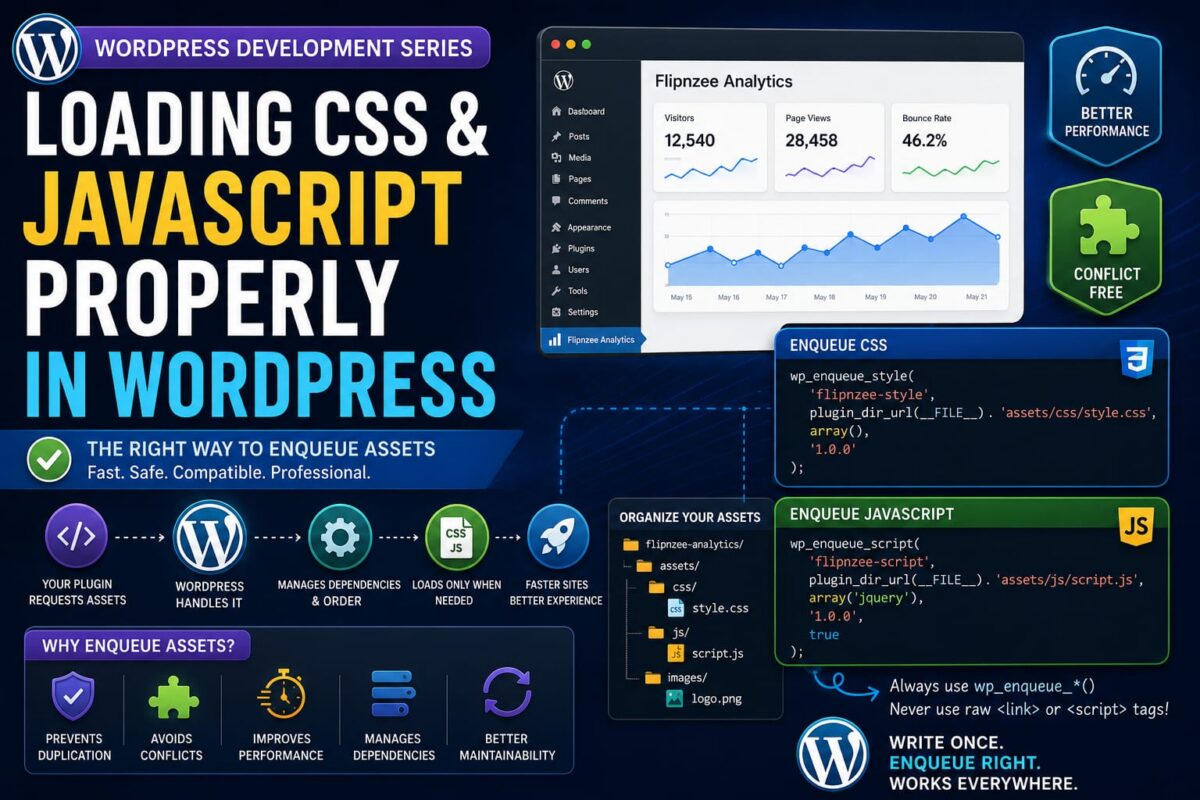
Loading CSS and JavaScript Properly in WordPress

Series: WordPress Development From Scratch
Level: Beginner to Intermediate
Project Reference: Flipnzee Analytics


Introduction

Almost every WordPress plugin eventually needs CSS and JavaScript.

You may want to:

  • Style an analytics dashboard
  • Create interactive charts
  • Add buttons and forms
  • Display notifications
  • Build modern user interfaces

Many beginners make the mistake of inserting raw HTML like:

<link rel="stylesheet" href="style.css">
<script src="script.js"></script>

directly into plugin files.

While this may seem to work, it ignores WordPress’s asset management system and can cause conflicts with themes and other plugins.

In this tutorial you’ll learn:

  • Why WordPress uses an asset loading system
  • What “enqueueing” means
  • How to load CSS files properly
  • How to load JavaScript files properly
  • How to load assets only when needed
  • Admin vs Frontend assets
  • How professional plugins manage assets
  • How Flipnzee Analytics organizes its CSS and JavaScript

By the end, you’ll know how professional WordPress plugins load styles and scripts safely and efficiently.


What Does “Enqueue” Mean?

In WordPress, assets are loaded using a queue system.

Instead of directly printing HTML tags, you tell WordPress:

“Please load this file when appropriate.”

WordPress then handles:

  • Correct ordering
  • Dependency management
  • Duplicate prevention
  • Compatibility

This process is called enqueueing.


Why Not Use Raw HTML?

Avoid:

echo '<link rel="stylesheet" href="style.css">';

and:

echo '<script src="script.js"></script>';

Problems include:

  • Duplicate loading
  • Incorrect ordering
  • Theme conflicts
  • Performance issues

Instead, use WordPress functions.


Plugin Folder Structure

A common structure looks like:

my-plugin
├── assets
│   ├── css
│   │   └── style.css
│   └── js
│       └── script.js
└── my-plugin.php

This keeps assets organized.


Loading CSS Properly

Create:

assets/css/style.css

Example:

.wpnzee-box {
    background: #f5f5f5;
    padding: 20px;
}

Now load it using:

function wpnzee_enqueue_styles() {

    wp_enqueue_style(
        'wpnzee-style',
        plugin_dir_url(__FILE__) . 'assets/css/style.css',
        array(),
        '1.0.0'
    );

}

add_action(
    'wp_enqueue_scripts',
    'wpnzee_enqueue_styles'
);

WordPress will automatically add the stylesheet to the page.


Understanding wp_enqueue_style()

The function:

wp_enqueue_style()

contains four important parts.

Example:

wp_enqueue_style(
    'wpnzee-style',
    plugin_dir_url(__FILE__) . 'assets/css/style.css',
    array(),
    '1.0.0'
);

Handle

'wpnzee-style'

Unique identifier.


File URL

plugin_dir_url(__FILE__)

Generates the plugin path.


Dependencies

array()

Files that must load first.


Version

'1.0.0'

Helps browsers refresh cached files.


Loading JavaScript Properly

Create:

assets/js/script.js

Example:

console.log("WPNzee Plugin Loaded");

Now enqueue it:

function wpnzee_enqueue_scripts() {

    wp_enqueue_script(
        'wpnzee-script',
        plugin_dir_url(__FILE__) . 'assets/js/script.js',
        array(),
        '1.0.0',
        true
    );

}

add_action(
    'wp_enqueue_scripts',
    'wpnzee_enqueue_scripts'
);

Understanding wp_enqueue_script()

Example:

wp_enqueue_script(
    'wpnzee-script',
    plugin_dir_url(__FILE__) . 'assets/js/script.js',
    array(),
    '1.0.0',
    true
);

The last parameter:

true

loads the script in the footer.

Benefits:

  • Faster page rendering
  • Better performance

Loading Both CSS and JavaScript

Many developers combine assets:

function wpnzee_enqueue_assets() {

    wp_enqueue_style(
        'wpnzee-style',
        plugin_dir_url(__FILE__) . 'assets/css/style.css'
    );

    wp_enqueue_script(
        'wpnzee-script',
        plugin_dir_url(__FILE__) . 'assets/js/script.js',
        array(),
        '1.0.0',
        true
    );

}

add_action(
    'wp_enqueue_scripts',
    'wpnzee_enqueue_assets'
);

This keeps asset management organized.


Frontend vs Admin Assets

Not every file should load everywhere.

WordPress provides separate hooks.


Frontend

add_action(
    'wp_enqueue_scripts',
    'wpnzee_enqueue_assets'
);

Loads assets on public pages.


Admin Dashboard

add_action(
    'admin_enqueue_scripts',
    'wpnzee_admin_assets'
);

Loads assets inside wp-admin.

Example:

function wpnzee_admin_assets() {

    wp_enqueue_style(
        'wpnzee-admin',
        plugin_dir_url(__FILE__) . 'assets/css/admin.css'
    );

}

Loading Assets Only When Needed

Professional plugins avoid loading files everywhere.

Bad:

Load analytics CSS on every page

Good:

Load analytics CSS only on analytics pages

Example:

if (is_page('analytics')) {

    wp_enqueue_style(
        'analytics-style'
    );

}

This improves performance.


Asset Dependencies

Sometimes JavaScript requires another library.

Example:

wp_enqueue_script(
    'custom-chart',
    plugin_dir_url(__FILE__) . 'assets/js/chart.js',
    array('jquery'),
    '1.0',
    true
);

WordPress ensures jQuery loads first.


Real Example: Flipnzee Analytics

The Flipnzee Analytics plugin uses assets for:

  • Analytics dashboard styling
  • Reports
  • Admin interfaces
  • Frontend widgets
  • User experience improvements

Its structure follows a professional approach:

assets
├── css
├── js
└── images

instead of mixing styles directly into PHP files.

This makes maintenance much easier.


Why Professional Plugins Use Asset Folders

Benefits include:

Better Organization

CSS → css/
JS → js/
Images → images/

Easier Maintenance

Developers instantly know where files belong.


Improved Scalability

As features grow, organization remains manageable.


Better Performance

Assets can be loaded conditionally.


Common Beginner Mistakes

Using Raw HTML Tags

Avoid:

<link>
<script>

Use enqueue functions instead.


Loading Assets Everywhere

Only load files when needed.


Forgetting Version Numbers

Versioning helps prevent browser caching issues.


Not Using Dependencies

Always declare required libraries.


Mixing CSS Inside PHP

Avoid large inline styles.

Store CSS in dedicated files.


What You’ve Learned

In this tutorial you learned:

✓ What enqueueing means

✓ Why WordPress uses an asset system

✓ How wp_enqueue_style() works

✓ How wp_enqueue_script() works

✓ Frontend vs admin assets

✓ Dependency management

✓ Asset versioning

✓ How Flipnzee Analytics organizes its assets


Key Takeaway

WordPress provides a powerful asset management system that ensures CSS and JavaScript are loaded safely and efficiently.

Professional plugins never hardcode script or stylesheet tags.

Instead, they use enqueue functions to maintain compatibility, improve performance, and create scalable plugin architectures.

Mastering asset loading is a major step toward becoming a professional WordPress plugin developer.


Next Lesson

In the next tutorial we’ll explore:

Creating Custom Admin Menus in WordPress

You’ll learn how plugins add new dashboard pages, how menu permissions work, and how the Flipnzee Analytics plugin creates its own administrative interface inside WordPress.