Lesson 15: Displaying All Auctions in the WordPress Dashboard

Introduction

In the previous lesson, we completed our first end-to-end workflow by allowing administrators to create auctions directly from the WordPress Dashboard.

Although the auction is successfully stored in the database, administrators still need phpMyAdmin to verify the record.

Professional plugins display data inside the WordPress Dashboard instead of requiring direct database access.

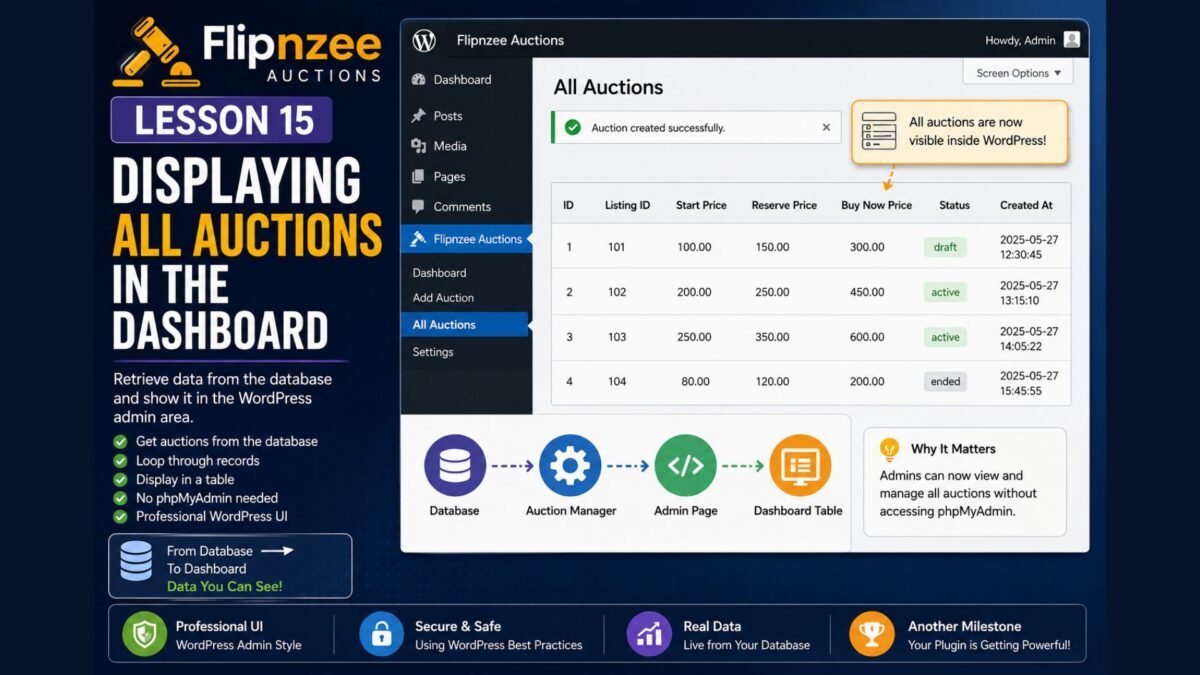
In this lesson, we’ll create our first Auction List page that retrieves every auction from the database and displays it in a clean WordPress table.


Learning Objectives

By the end of this lesson, you’ll be able to:

  • Create another WordPress admin page.
  • Display data retrieved from the database.
  • Loop through auction records.
  • Build an HTML table using WordPress admin styling.
  • Understand how data flows from the database to the user interface.

What We’ll Build

Our admin menu will now become:

Flipnzee Auctions
│
├── Dashboard
├── Add Auction
└── All Auctions

Instead of checking phpMyAdmin, administrators will browse auctions directly inside WordPress.


Why Create an Auction List?

Applications rarely interact directly with databases.

Instead:

Database

↓

Auction Manager

↓

Admin Page

↓

Administrator

The Auction Manager retrieves the data.

The Admin page displays it.

Each component performs one responsibility.


Step 1 – Add a New Submenu

Open:

admin/class-admin.php

Inside register_menu() add another submenu:

add_submenu_page(
	'flipnzee-auctions',
	'All Auctions',
	'All Auctions',
	'manage_options',
	'flipnzee-all-auctions',
	array( $this, 'all_auctions_page' )
);

Step 2 – Create the Page

Inside the class add:

public function all_auctions_page() {

	$auctions = Flipnzee_Auction_Manager::get_all_auctions();

	?>

	<div class="wrap">

		<h1>All Auctions</h1>

		<table class="widefat striped">

			<thead>

				<tr>

					<th>ID</th>
					<th>Listing</th>
					<th>Start Price</th>
					<th>Reserve</th>
					<th>Buy Now</th>
					<th>Status</th>

				</tr>

			</thead>

			<tbody>

			<?php if ( ! empty( $auctions ) ) : ?>

				<?php foreach ( $auctions as $auction ) : ?>

					<tr>

						<td><?php echo esc_html( $auction->id ); ?></td>

						<td><?php echo esc_html( $auction->listing_id ); ?></td>

						<td><?php echo esc_html( $auction->start_price ); ?></td>

						<td><?php echo esc_html( $auction->reserve_price ); ?></td>

						<td><?php echo esc_html( $auction->buy_now_price ); ?></td>

						<td><?php echo esc_html( ucfirst( $auction->status ) ); ?></td>

					</tr>

				<?php endforeach; ?>

			<?php else : ?>

				<tr>

					<td colspan="6">

						No auctions found.

					</td>

				</tr>

			<?php endif; ?>

			</tbody>

		</table>

	</div>

	<?php
}

Step 3 – Test the Plugin

Create another auction.

Open:

Flipnzee Auctions → All Auctions

You should now see every auction displayed in a professional WordPress table.

You no longer need phpMyAdmin to verify your data.


Understanding the Flow

The page never communicates directly with SQL.

Instead:

Database

↓

Auction Manager

↓

PHP Array

↓

foreach()

↓

HTML Table

This separation keeps the code organized and maintainable.


Lesson Summary

In this lesson, we created our first data listing page.

Administrators can now browse auctions directly inside the WordPress Dashboard without using phpMyAdmin.

This marks another important milestone because the plugin now supports both creating and viewing auctions.


Key Takeaways

  • ✓ Retrieve data through the Auction Manager.
  • ✓ Display records using foreach.
  • ✓ Escape all output with esc_html().
  • ✓ Use WordPress admin table styling.
  • ✓ Keep presentation separate from business logic.

Common Mistakes

  • Writing SQL inside the admin page.
  • Forgetting to escape output.
  • Not handling an empty database.
  • Mixing HTML with business logic unnecessarily.

Git Commands Used

git add .

git commit -m "Lesson 15: Display all auctions"

git push

Project Status

✅ Plugin dashboard

✅ Add Auction

✅ Secure form processing

✅ Save auction

✅ Display all auctions

⬜ View auction details

⬜ Edit auction

⬜ Delete auction

⬜ Bid engine

⬜ Escrow workflow

⬜ Version 1.0

Project Evolution

Our plugin has now reached the point where administrators can both create and browse auction records entirely within the WordPress Dashboard.

As the project continues, we’ll build on this interface by adding actions such as editing, deleting, filtering, sorting, and eventually managing bids and escrow transactions. Each new feature will reuse the architecture we’ve established, making the application easier to maintain and extend.


Developer’s Notebook

Although the HTML table works well for learning purposes, many professional plugins eventually migrate to WordPress’s WP_List_Table class. We’ll continue with a simple table for now because it clearly demonstrates how data is retrieved and displayed. Once the plugin becomes more advanced, we’ll refactor the interface to use WP_List_Table for features such as pagination, bulk actions, sorting, and searching.
Lesson 10: Building Your First Plugin Dashboard

Introduction

In the previous lesson, we created our first WordPress administration menu. Although our plugin now has its own dashboard page, the content is very simple.

Professional plugins do more than display a welcome message. They provide administrators with useful information at a glance, such as plugin status, database health, statistics, and recent activity.

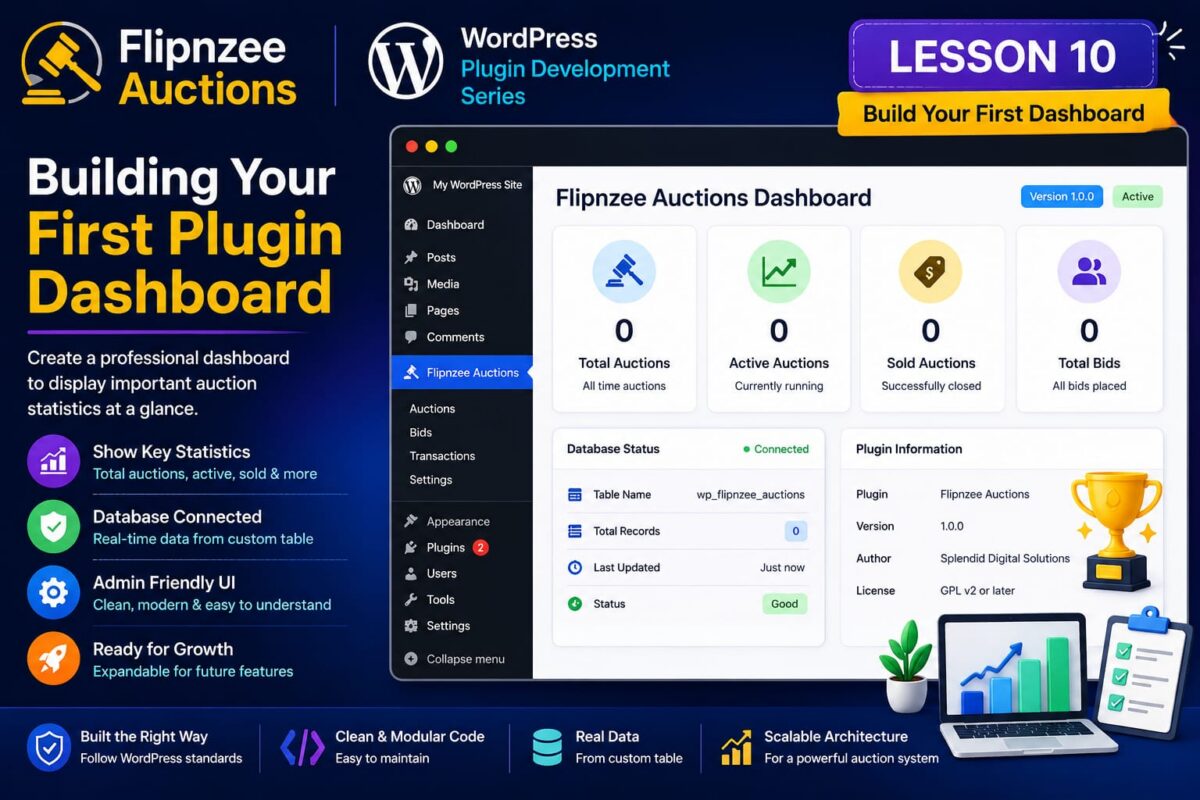
In this lesson, we’ll transform our basic dashboard into a professional-looking administration page by displaying several information cards.

Even though most of the values are placeholders for now, this dashboard establishes the layout we’ll continue enhancing throughout the project.


Learning Objectives

By the end of this lesson, you’ll be able to:

  • Build a professional WordPress dashboard page.
  • Display plugin information.
  • Count database records.
  • Use WordPress dashboard styling.
  • Prepare the interface for future features.

Why Build a Dashboard First?

As our plugin grows, administrators will need quick access to important information.

Instead of searching through multiple pages, they’ll be able to see everything from one central dashboard.

Later, this page will display:

  • Total Auctions
  • Active Auctions
  • Sold Auctions
  • Total Bids
  • Pending Transfers
  • Escrow Transactions
  • Plugin Version
  • Database Status

Today’s lesson lays the foundation for that dashboard.


Step 1 – Open the Admin Class

Open:

admin/class-admin.php

We’ll replace the simple welcome page with a more useful dashboard.


Step 2 – Replace dashboard_page()

Replace the existing dashboard_page() method with the following:

/**
 * Dashboard page.
 */
public function dashboard_page() {

	global $wpdb;

	$table = $wpdb->prefix . 'flipnzee_auctions';

	$total_auctions = (int) $wpdb->get_var(
		"SELECT COUNT(*) FROM {$table}"
	);

	?>

	<div class="wrap">

		<h1>Flipnzee Auctions Dashboard</h1>

		<p>Welcome to the Flipnzee Auctions administration panel.</p>

		<table class="widefat striped">

			<thead>
				<tr>
					<th>Information</th>
					<th>Value</th>
				</tr>
			</thead>

			<tbody>

				<tr>
					<td>Plugin Version</td>
					<td><?php echo esc_html( FLIPNZEE_AUCTION_VERSION ); ?></td>
				</tr>

				<tr>
					<td>Total Auctions</td>
					<td><?php echo esc_html( $total_auctions ); ?></td>
				</tr>

				<tr>
					<td>Database Table</td>
					<td><?php echo esc_html( $table ); ?></td>
				</tr>

				<tr>
					<td>Plugin Status</td>
					<td>Active</td>
				</tr>

			</tbody>

		</table>

	</div>

	<?php
}

Understanding the Code

The dashboard retrieves the total number of auctions using:

$wpdb->get_var()

Unlike get_row() or get_results(), this method returns only a single value.

In our case:

SELECT COUNT(*)

returns the number of auction records stored in the database.


Why Use COUNT(*)?

Imagine there are:

Auction 1

Auction 2

Auction 3

Instead of loading all three records, MySQL simply returns:

3

This is much faster and more efficient.


Step 3 – Upload the Plugin

Create a new ZIP.

Upload it.

Replace the existing plugin.

Refresh the Dashboard.


What You Should See

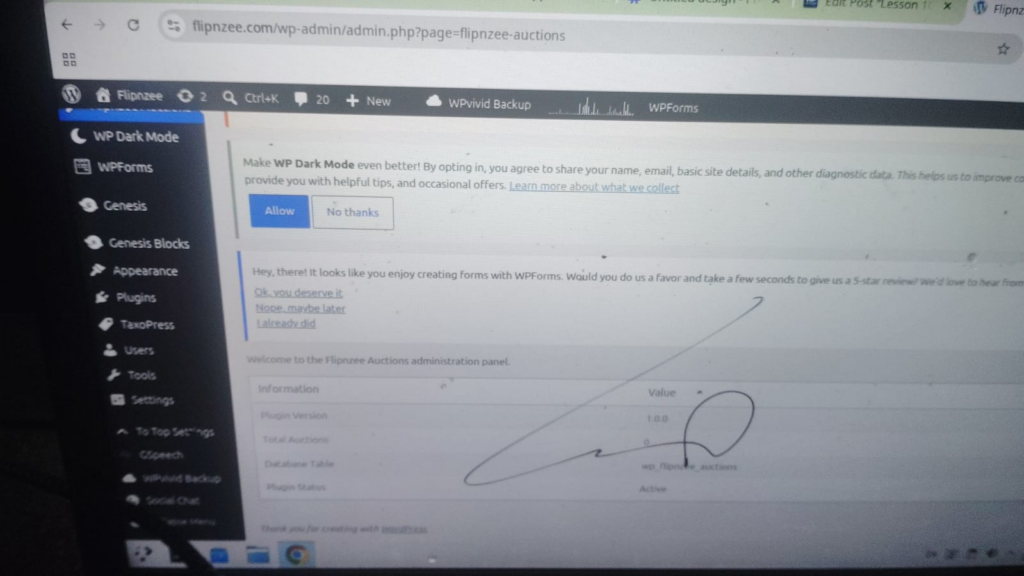
Your dashboard should now display something similar to:

Flipnzee Auctions Dashboard

Plugin Version      1.0.0

Total Auctions      0

Database Table      wp_flipnzee_auctions

Plugin Status       Active

Because we haven’t created any auctions yet, the total remains zero.

That’s exactly what we expect.


Lesson Summary

In this lesson, we transformed our simple administration page into a functional plugin dashboard.

Although the statistics are currently minimal, we’ve established a reusable layout that will gradually expand as more features are added.


Key Takeaways

  • ✓ Use $wpdb->get_var() to retrieve a single value.
  • COUNT(*) efficiently counts database records.
  • ✓ Dashboards provide administrators with useful information.
  • ✓ Build the user interface gradually.
  • ✓ Reuse WordPress styling whenever possible.

Common Mistakes

  • Loading unnecessary data when only a count is required.
  • Forgetting to escape output.
  • Mixing business logic with HTML.
  • Hardcoding plugin information.

Git Commands Used

git add .

git commit -m "Lesson 10: Build plugin dashboard"

git push

Project Status

✅ Development environment

✅ Plugin skeleton

✅ Plugin installation

✅ Plugin lifecycle

✅ .gitignore

✅ Data architecture

✅ Database table

✅ Auction Manager

✅ Retrieve auction records

✅ WordPress admin menu

✅ Plugin dashboard

⬜ Create first auction

⬜ Auction listing page

⬜ Bid engine

⬜ Escrow workflow

⬜ Website transfer

⬜ Notifications

⬜ Version 1.0

Project Evolution

Earlier in the series, our focus was on backend architecture. Now we’re beginning to expose that functionality through a professional administration interface.

As additional features are developed, this dashboard will evolve into the central control panel for the entire auction marketplace, giving administrators quick access to auctions, bids, transfers, and transaction status.

The GitHub repository will always contain the latest implementation, while these lessons explain the reasoning behind each architectural decision.


Developer’s Notebook

A dashboard is often the first screen administrators see when using a plugin. A clean, informative dashboard creates confidence and reduces the time needed to find important information. Even simple statistics such as plugin version, total records, and database status can be valuable during development and troubleshooting.


Looking Ahead

In Lesson 11, we’ll create our first Add New Auction page. Instead of working directly with database methods, administrators will begin creating auctions through a WordPress form, bringing the plugin one step closer to becoming a fully functional marketplace.