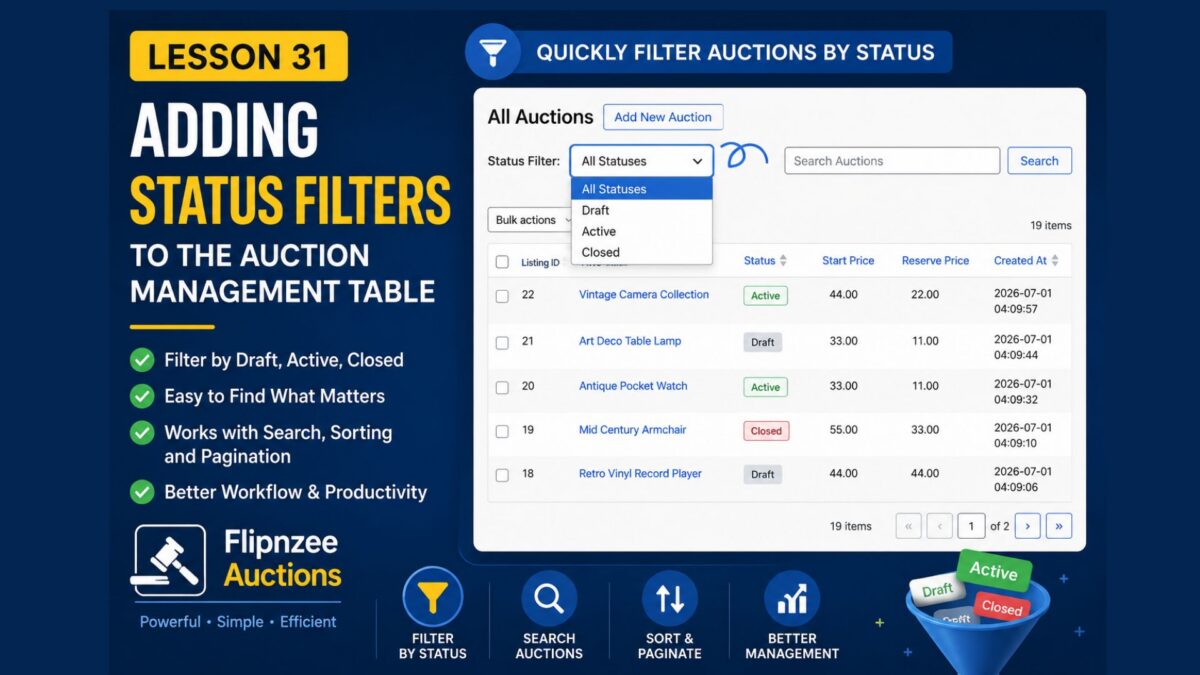
Lesson 32 — Implementing a Fully Functional Status Filter in the Auctions Table

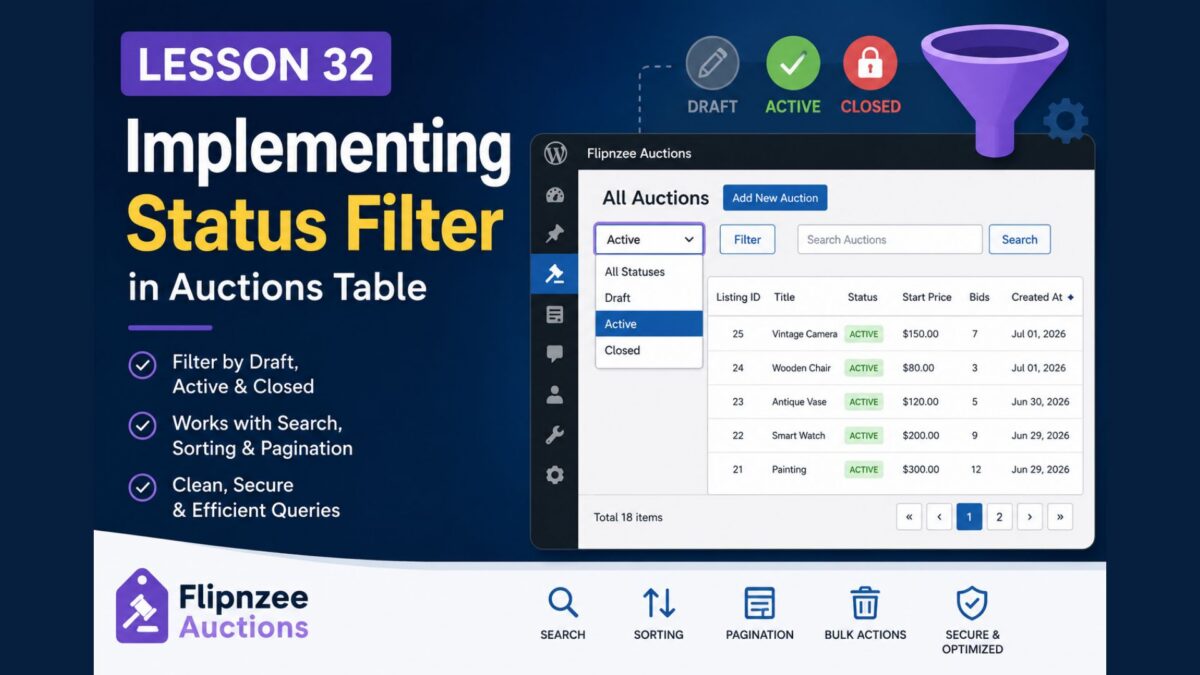
Series: Building the Flipnzee Auctions WordPress Plugin
Lesson: 32
Difficulty: Intermediate
Introduction
In the previous lesson, we added a Status dropdown above the Auctions table. The user interface was complete, but selecting a status did not yet change the displayed records.
In this lesson, we’ll connect the status filter to the database so that it becomes fully functional. Administrators will be able to display only Draft, Active, or Closed auctions while continuing to use searching, sorting, pagination, and bulk actions.
By the end of this lesson, the Status filter will work exactly as expected in a professional WordPress administration screen.
What You’ll Learn
After completing this lesson, you’ll know how to:
- Extend existing manager methods with additional filter parameters.
- Build dynamic SQL queries based on optional filters.
- Combine multiple filters within a single query.
- Keep pagination synchronized with filtered results.
- Preserve compatibility with searching, sorting, and bulk actions.
- Follow WordPress database best practices.
Why Finish the Status Filter?
The previous lesson introduced the user interface, but administrators still could not actually filter auction records.
A fully functional status filter allows administrators to quickly answer questions such as:
- Which auctions are currently active?
- Which auctions are still drafts?
- Which auctions have already closed?
Instead of manually browsing dozens or hundreds of records, administrators can focus on only the auctions they need.
Files We’ll Modify
During this lesson, we’ll update:
admin/class-auctions-table.php
includes/class-auction-manager.php
Implementation Overview
We’ll complete the feature in several small steps.
Step 1
Update get_all_auctions() to accept a new parameter:
$status
Step 2
Modify the SQL query so it supports four situations:
- No search + No status
- Search only
- Status only
- Search + Status
Step 3
Use prepared statements to safely build the SQL query.
Step 4
Update count_auctions() so pagination reflects only the filtered records.
Step 5
Ensure searching and status filtering work together.
Example:
Search:
Listing ID = 25
Status:
Draft
Expected result:
Only matching Draft auctions with Listing ID 25 should appear.
Step 6
Ensure sorting continues working.
After filtering:
- Click Start Price
- Click Created At
- Click Listing ID
The filtered records should still sort correctly.
Step 7
Verify pagination.
When a filter reduces the number of matching auctions:
- Page count should update automatically.
- Only matching records should be counted.
- Navigation should remain accurate.
Step 8
Test every possible combination.
Examples include:
| Search | Status | Expected Result |
|---|---|---|
| None | All | Every auction |
| None | Draft | Draft auctions only |
| None | Active | Active auctions only |
| None | Closed | Closed auctions only |
| Listing ID | All | Matching listing |
| Listing ID | Draft | Matching Draft listing |
| Listing ID | Active | Matching Active listing |
Security Considerations
Throughout this lesson we’ll continue using WordPress security best practices.
User input should always be sanitized before use.
The implementation should continue using:
sanitize_text_field()sanitize_key()wp_unslash()$wpdb->prepare()$wpdb->esc_like()
No SQL values should be inserted directly into queries.
Expected Result
After completing this lesson, administrators will be able to:
- View all auctions.
- Filter only Draft auctions.
- Filter only Active auctions.
- Filter only Closed auctions.
- Search within filtered results.
- Sort filtered results.
- Paginate filtered results.
- Continue using bulk actions.
The auction management screen will now provide a much more efficient way to work with large datasets.
Conclusion
Completing the Status filter transforms it from a simple user interface element into a fully functional management tool.
Together with pagination, searching, sortable columns, and bulk actions, the Flipnzee Auctions plugin now offers an administration experience that closely resembles the native WordPress dashboard.
This lesson also demonstrates an important software engineering principle: user interface elements are only valuable when they are correctly connected to the underlying application logic.
Lesson 31 Implementation: Adding Status Filters to the Flipnzee Auctions Plugin
In the Next Lesson
We’ll extend our auction system by adding Start Date/Time and End Date/Time fields. These scheduling options will become the foundation for many future features, including countdown timers, automatic activation, automatic closing, winner selection, and Escrow.com integration.