
Lesson 31 — Adding Status Filters to the Auction Management Table

Introduction
As the number of auctions grows, searching by keywords alone is often not enough. Administrators frequently need to view only auctions in a particular state, such as active auctions currently accepting bids or closed auctions that have already ended.
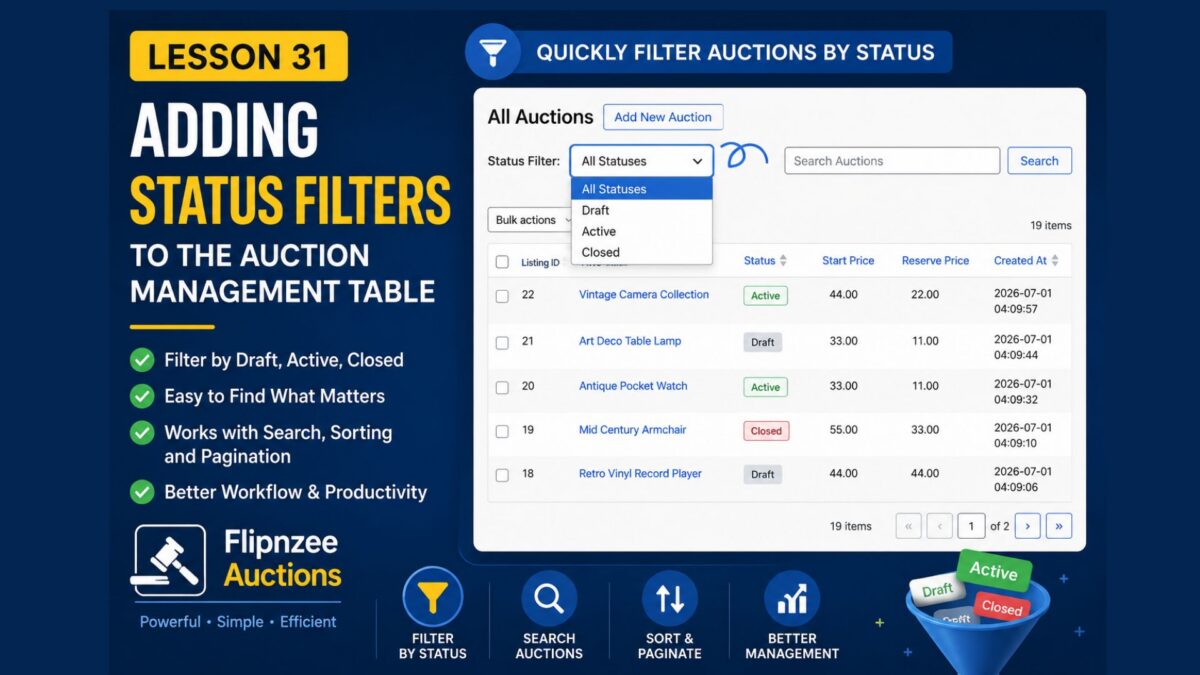
In this lesson, we’ll enhance the All Auctions page by adding status filters above the table. Administrators will be able to quickly filter the auction list by Draft, Active, or Closed without manually searching through every record.
By the end of this lesson, your auction management screen will feel even closer to the professional interfaces found throughout the WordPress admin area.
What You’ll Learn
After completing this lesson, you’ll know how to:
- Add custom filter controls to a
WP_List_Table - Read filter values from the URL
- Sanitize incoming request parameters
- Filter database queries dynamically
- Preserve filters during pagination and searching
- Display only matching auction records
Why Status Filters Matter
When managing a large number of auctions, administrators often need answers such as:
- Which auctions are currently active?
- Which auctions are still drafts?
- Which auctions have already closed?
Without filters, administrators must search manually or scroll through multiple pages.
Status filters provide several advantages:
- Faster administration
- Improved usability
- Cleaner workflow
- Reduced scrolling
- Better organization of auction records
Files We’ll Modify
During this lesson we’ll update the following files:
admin/class-auctions-table.php
admin/class-admin.php
includes/class-auction-manager.php
Implementation Overview
We’ll complete this feature in several small steps.
Step 1
Add a Status dropdown above the auction table.
Step 2
Read the selected status from the request.
Step 3
Modify the database query to filter results.
Step 4
Update the total record count for pagination.
Step 5
Preserve the selected filter when navigating between pages.
Step 6
Combine filtering with searching and sortable columns.
Expected Result
After completing this lesson, administrators will be able to:
- View all auctions
- View only Draft auctions
- View only Active auctions
- View only Closed auctions
- Combine status filtering with keyword searching
- Continue using pagination and sortable columns while filters remain active
Final Thoughts
Status filters are a common feature in professional WordPress plugins because they allow administrators to quickly focus on the records that matter most.
In this lesson, you’ll learn how to integrate custom filters into your existing WP_List_Table while preserving compatibility with searching, sorting, pagination, and bulk actions.
By the end of the lesson, the Flipnzee Auctions plugin will provide an even more polished and efficient administrative experience, making it easier to manage growing numbers of auction listings.