
Lesson 31 Implementation: Adding Status Filters to the Flipnzee Auctions Plugin

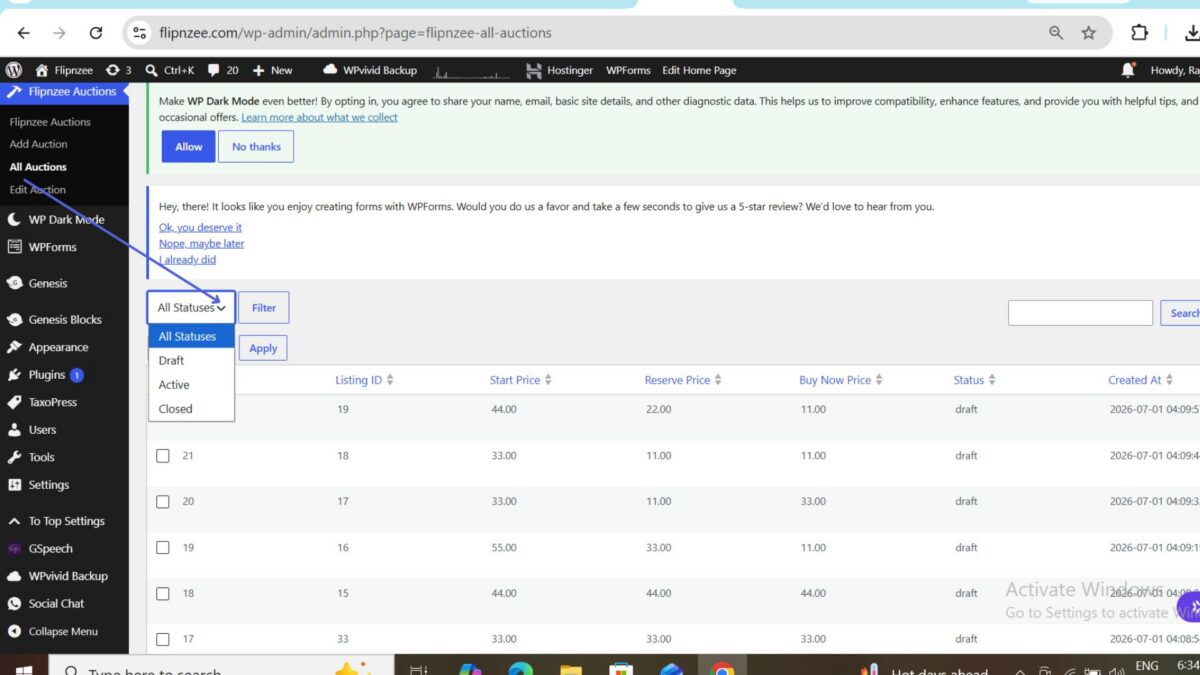
In the previous lessons, we enhanced the auction management table with searching, pagination, sortable columns, and bulk actions. As the number of auctions grows, administrators need an easier way to view only auctions in a particular state.
In this lesson, we’ll add a Status Filter that allows administrators to display only Draft, Active, or Closed auctions.
Step 1: Add a Status Filter Dropdown
The first step is to add a filter control above the auction table.
Open:
admin/class-admin.php
Locate the all_auctions_page() method and add a dropdown before the search box.
$status = isset( $_GET['status'] )
	? sanitize_text_field(
		wp_unslash( $_GET['status'] )
	)
	: '';
?>

<select name="status">

	<option value="">All Statuses</option>

	<option
		value="draft"
		<?php selected( $status, 'draft' ); ?>
	>
		Draft
	</option>

	<option
		value="active"
		<?php selected( $status, 'active' ); ?>
	>
		Active
	</option>

	<option
		value="closed"
		<?php selected( $status, 'closed' ); ?>
	>
		Closed
	</option>

</select>

<?php

submit_button(
	'Filter',
	'secondary',
	'',
	false
);
This creates a familiar WordPress-style filter that remembers the selected option after the page reloads.
Step 2: Read the Selected Status
Next, the selected status needs to be available while preparing the table data.
Open:
admin/class-auctions-table.php
Inside the prepare_items() method, read the selected status.
$status = isset( $_REQUEST['status'] )
	? sanitize_text_field(
		wp_unslash( $_REQUEST['status'] )
	)
	: '';
The filter value is sanitized before being used anywhere else in the plugin.
Step 3: Pass the Filter to the Manager Class
The manager class is responsible for retrieving auction records from the database.
Update the method calls inside prepare_items().
$total_items = Flipnzee_Auction_Manager::count_auctions(
	$search,
	$status
);
Likewise, update the method that retrieves the auction list.
$this->items = Flipnzee_Auction_Manager::get_all_auctions(
	$per_page,
	$offset,
	$search,
	$status,
	$orderby,
	$order
);
This allows the selected filter to travel from the user interface to the database layer.
Step 4: Update the Manager Method Signatures
Open:
includes/class-auction-manager.php
Update the method definitions to accept the new $status parameter.
public static function get_all_auctions(
	$per_page = 20,
	$offset = 0,
	$search = '',
	$status = '',
	$orderby = 'created_at',
	$order = 'DESC'
)
Similarly, update the counting method.
public static function count_auctions(
	$search = '',
	$status = ''
)
Step 5: Apply the Status Filter to Database Queries
Modify the SQL queries so that they include the selected status whenever a filter has been chosen.
For example, if the administrator selects Draft, only auctions whose status is draft should be returned.
If All Statuses is selected, the query should continue returning every auction.
This approach keeps the filtering logic entirely inside the manager class.
Step 6: Update the Pagination Count
Pagination should display the number of filtered results instead of the total number of auctions.
For example:
- 8 Draft auctions
- 5 Active auctions
- 12 Closed auctions
Each filtered view should have its own correct page count.
Step 7: Test the Feature
After uploading the updated plugin:
- Open Flipnzee Auctions → All Auctions.
- Select Draft from the Status dropdown.
- Click Filter.
- Confirm that only Draft auctions appear.
- Repeat the process for Active and Closed.
- Finally, choose All Statuses to display every auction again.
Also verify that:
- Searching continues to work.
- Sorting still functions correctly.
- Pagination remains accurate.
- Bulk actions continue working as expected.
Final Result
The auction management screen now includes a convenient Status filter that allows administrators to quickly narrow the list of auctions.
Instead of manually searching through every record, administrators can instantly display:
- Draft auctions
- Active auctions
- Closed auctions
- All auctions
This greatly improves usability, especially as the number of auction records grows.
What We Learned
In this lesson, we learned how to:
- Add a custom filter control to a WordPress admin page.
- Read filter values from user input safely.
- Pass filter values through different layers of the plugin.
- Update manager methods to support filtering.
- Modify database queries based on selected filters.
- Keep pagination accurate when filters are applied.
- Preserve compatibility with searching, sorting, and bulk actions.
The Flipnzee Auctions plugin now provides an even more professional administration experience by allowing auction records to be filtered by status with just a few clicks.
Download Source Code
Download the starting version of the plugin before the lesson:
Download the completed version after this lesson: