
Lesson 34 – Display Auction Schedule in the Admin List

Objective
In the previous lesson, we added support for scheduling auctions. However, administrators still need to open each auction to see when it starts or ends.
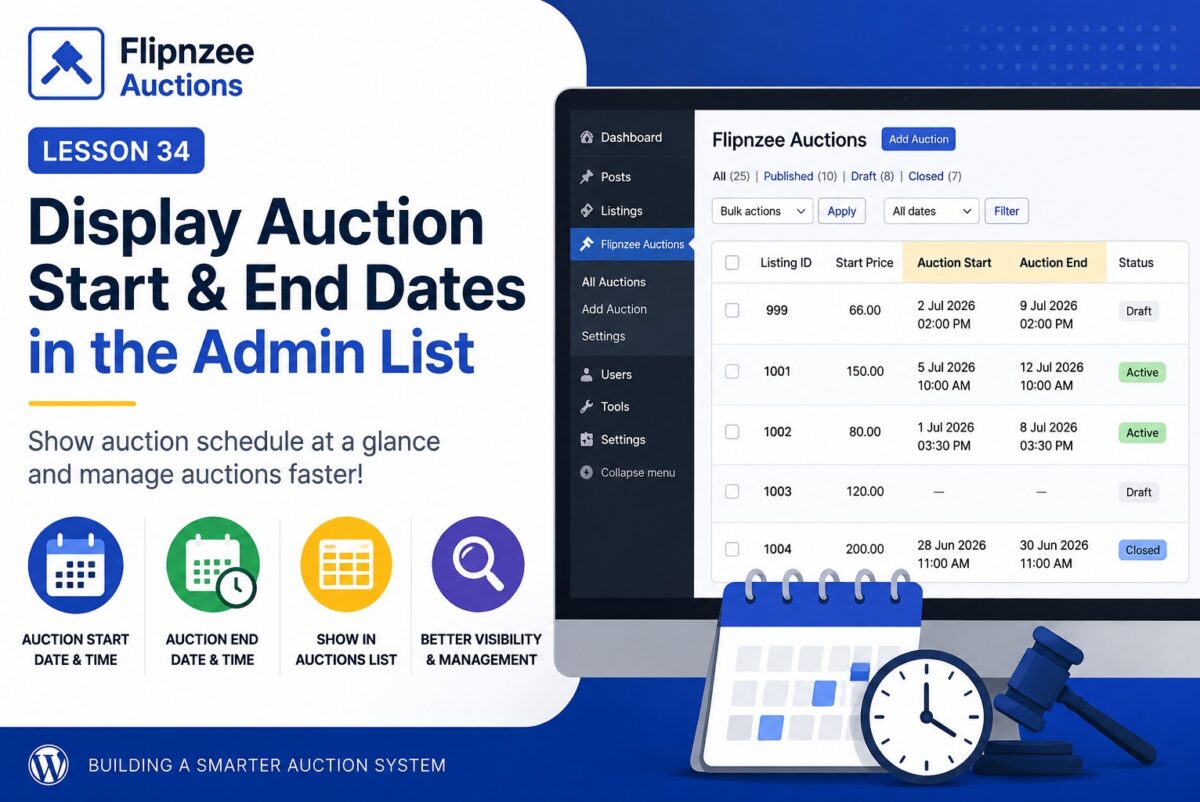
In this lesson, we’ll improve the All Auctions page by displaying the auction schedule directly in the table.
By the end of this lesson, administrators will be able to see:
- Auction Start
- Auction End
for every auction without opening the edit screen.
What You’ll Learn
During this lesson you’ll learn how to:
- Add new columns to a
WP_List_Table - Display custom database fields
- Format date and time values
- Improve the usability of an admin interface
Why This Matters
Imagine having hundreds of auctions.
Without these columns you would need to:
- Open Auction 1
- Check its dates
- Return
- Open Auction 2
- Check its dates
- Repeat…
Displaying the schedule directly in the list makes auction management much faster.
Final Result
The All Auctions page will look similar to:
| Listing | Start Price | Auction Start | Auction End | Status |
|---|---|---|---|---|
| 999 | 66.00 | 2 Jul 2026 2:00 PM | 9 Jul 2026 2:00 PM | Draft |
| 1001 | 150.00 | 5 Jul 2026 10:00 AM | 12 Jul 2026 10:00 AM | Active |
Implementation Plan
Step 1
Add two new columns to the auction table:
- Auction Start
- Auction End
Step 2
Populate both columns with values from the database.
Step 3
Format empty values nicely.
Instead of showing:
0000-00-00 00:00:00
or a blank SQL value,
display something more user-friendly:
—
or
Not Scheduled
Step 4
Format the dates for administrators.
Instead of displaying:
2026-07-02 14:30:00
display:
2 Jul 2026
2:30 PM
This is much easier to scan.
Step 5
Test sorting, searching and filtering to ensure the new columns don’t affect the existing functionality.
What You’ll Gain
After this lesson, your plugin will support:
- ✅ Creating auctions
- ✅ Editing auctions
- ✅ Scheduling auctions
- ✅ Viewing schedules directly from the auction list
This is another important step toward a production-ready auction system.
Implementation Lesson 34: Display Auction Start and End Dates in the Auctions Table
Looking Ahead
After Lesson 34, the next logical milestone is Lesson 35: Automatic Auction Lifecycle, where we’ll begin implementing the logic that automatically changes auction statuses based on the current date and time (for example, moving a scheduled auction from draft to active when its start time arrives, and from active to closed when its end time passes). This will move the plugin beyond simply storing dates and into actually using them to control auction behavior.