
Lesson 33 Implementation: Adding Auction Scheduling (Start & End Date/Time)

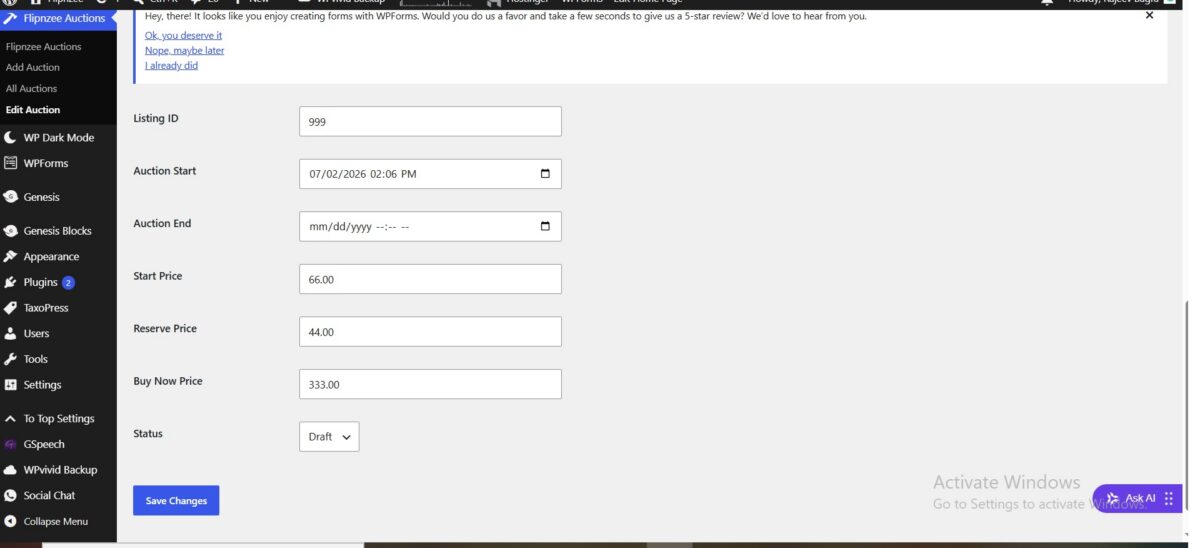
In Lesson 33, we transformed the Flipnzee Auctions plugin from a basic auction management system into one capable of supporting scheduled auctions.
Instead of auctions existing only in a draft, active, or closed state, administrators can now define exact start and end dates. This lays the foundation for future automation, where auctions will open and close automatically without manual intervention.
What We Implemented
During this lesson we added support for:
- Auction Start Date & Time
- Auction End Date & Time
- Saving schedule information while creating auctions
- Editing scheduled auctions
- Updating the schedule after creation
- Database support for scheduling
This is a major step toward building a production-ready auction platform.
Step 1 – Extend the Database
The first task was updating the auction table to store scheduling information.
Inside includes/class-database.php we added two new columns:
auction_start DATETIME NULL,
auction_end DATETIME NULL,
These fields allow every auction to have:
- Start date
- End date
Both fields are optional, making the feature flexible.
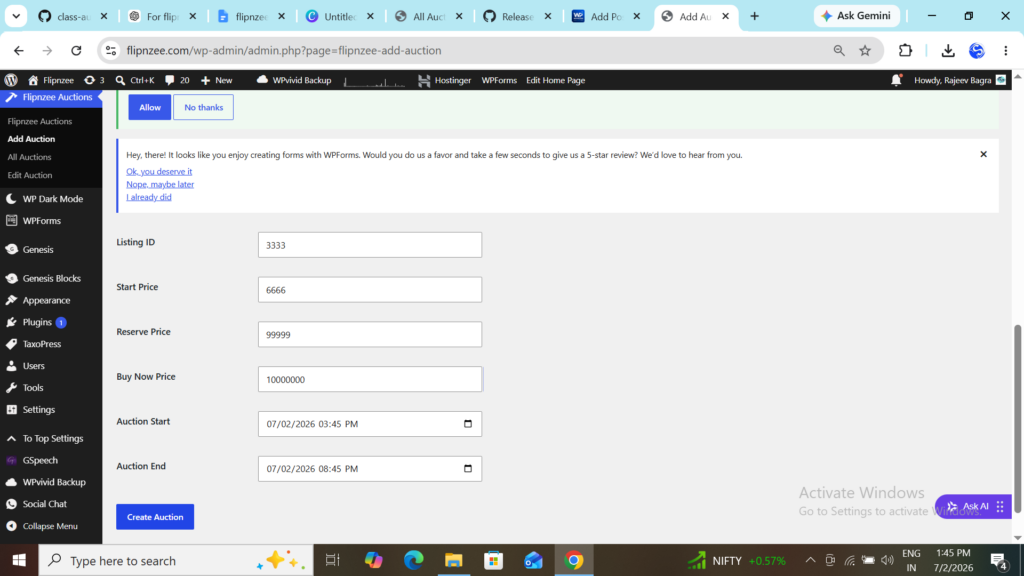
Step 2 – Update the Add Auction Form
Next we modified the Add Auction screen.
Two new fields were added:
- Auction Start
- Auction End
Both use HTML5’s built-in datetime picker.
<input type="datetime-local">
Benefits:
- Native browser calendar
- Native time selector
- No JavaScript library required
Step 3 – Save the Schedule
Adding form fields is not enough.
We also updated:
admin/class-admin-posts.php
to read:
$_POST['auction_start']
$_POST['auction_end']
The values are sanitized using:
sanitize_text_field()
before being sent to the Auction Manager.
Step 4 – Update create_auction()
The next task was modifying:
Flipnzee_Auction_Manager::create_auction()
Its function signature changed from:
create_auction(
    $listing_id,
    $start_price,
    $reserve_price,
    $buy_now_price
)
to:
create_auction(
    $listing_id,
    $start_price,
    $reserve_price,
    $buy_now_price,
    $auction_start,
    $auction_end
)
The SQL INSERT statement now stores:
'auction_start'
'auction_end'
alongside the other auction fields.
Step 5 – Update the Edit Auction Screen
Once scheduling could be saved, administrators also needed the ability to edit it.
Inside:
admin/class-admin.php
we added two additional form fields:
- Auction Start
- Auction End
The stored values are displayed using:
str_replace(
    ' ',
    'T',
    $auction->auction_start
)
This converts the MySQL format:
2026-07-02 14:30:00
into the format expected by HTML5:
2026-07-02T14:30
Without this conversion, the datetime picker would appear empty.
Step 6 – Update update_auction()
The update method also required changes.
Its function signature was expanded to accept:
$auction_start
$auction_end
The SQL UPDATE statement now saves:
'auction_start'
'auction_end'
along with:
- Listing ID
- Prices
- Status
This allows administrators to modify auction schedules after creation.
Step 7 – Verify Everything
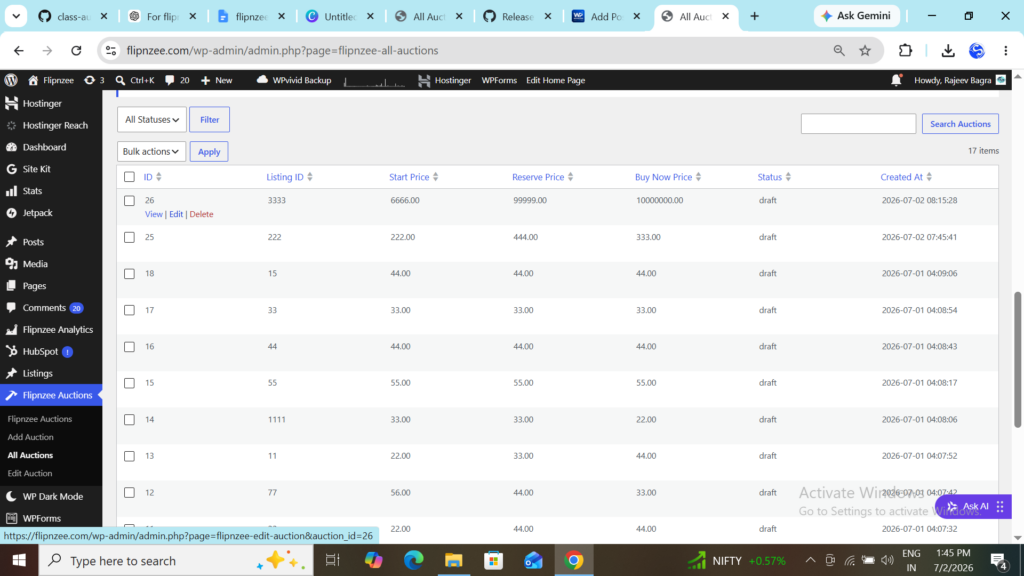
After completing the implementation we tested:
Creating Auctions
✔ Auction created successfully.
Editing Auctions
✔ Auction Start displayed correctly.
✔ Auction End displayed correctly.
Saving Changes
✔ Updated schedule persisted successfully.
No PHP syntax errors were reported during testing.
What We Learned
This lesson introduced several useful concepts:
- Extending existing database tables
- Working with HTML5 datetime inputs
- Handling date/time values safely
- Updating SQL INSERT statements
- Updating SQL UPDATE statements
- Passing additional parameters between classes
- Displaying MySQL datetime values inside HTML forms
Current Progress
The plugin now supports:
- Creating auctions
- Editing auctions
- Searching auctions
- Sorting auctions
- Status filtering
- Bulk deletion
- Auction scheduling
The scheduling functionality is now fully functional from an administrator’s perspective.
Download Source Code
Download the starting version of the plugin before the lesson:
Download the completed version after this lesson:
What’s Next?
In the next lesson, we’ll complete the scheduling feature by displaying Auction Start and Auction End directly in the All Auctions table. This will allow administrators to view an auction’s schedule at a glance without opening the edit screen.
After that, we’ll be ready to begin implementing automatic auction opening and closing, bringing the plugin one step closer to a production-ready auction platform.