
Lesson 29 Implementation: Bulk Actions with WP_List_Table

Implementation Walkthrough
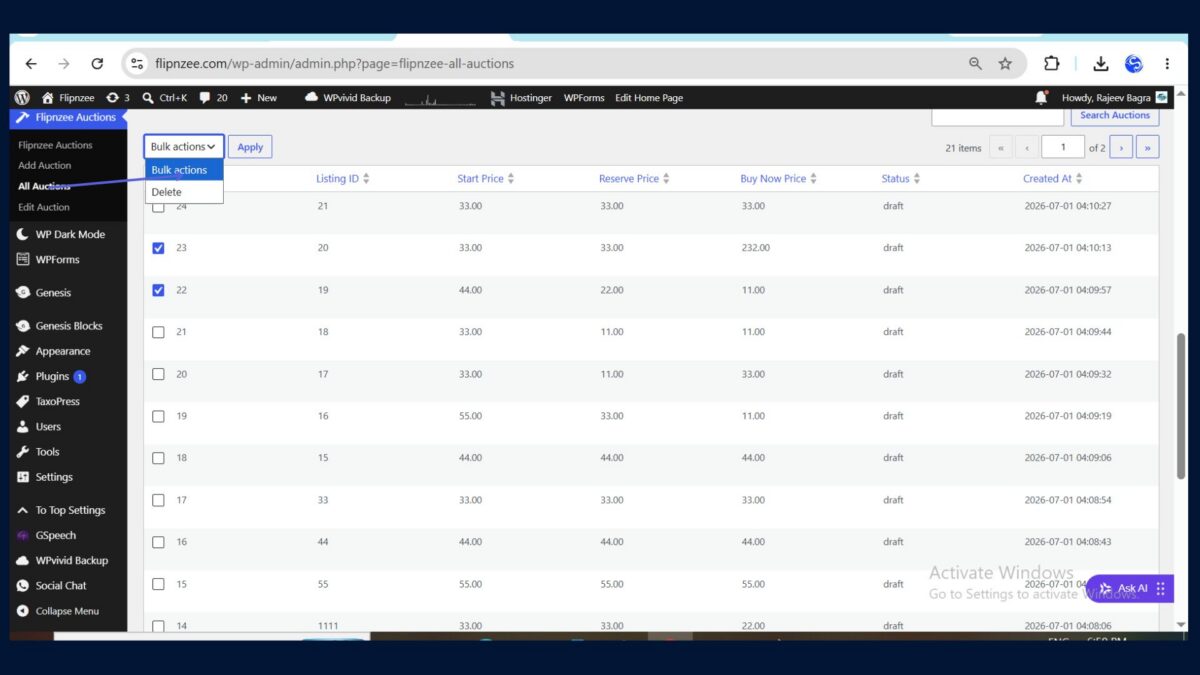
In this lesson, the goal was to allow administrators to select multiple auctions at once using checkboxes and prepare the table for bulk operations such as deleting multiple auctions simultaneously. WordPress provides built-in support for bulk actions in WP_List_Table, making this feature straightforward to implement.
Step 1: Add a Checkbox Column
The first step was to add a new checkbox column to the table.
Inside the get_columns() method of admin/class-auctions-table.php, a new column named cb was added as the first column.
public function get_columns() {

	return array(
		'cb'             => '<input type="checkbox" />',
		'id'             => 'ID',
		'listing_id'     => 'Listing ID',
		'start_price'    => 'Start Price',
		'reserve_price'  => 'Reserve Price',
		'buy_now_price'  => 'Buy Now Price',
		'status'         => 'Status',
		'created_at'     => 'Created At',
	);
}
The header checkbox allows administrators to quickly select or deselect every row displayed on the current page.
Step 2: Register the Bulk Actions
Next, the available bulk actions were registered by creating the get_bulk_actions() method.
public function get_bulk_actions() {

	return array(
		'delete' => 'Delete',
	);
}
At this stage only one action—Delete—was added, but additional actions such as Activate, Close Auction, or Export could easily be added later.
Step 3: Display a Checkbox for Every Auction
After registering the bulk actions, a new column_cb() method was added.
public function column_cb( $item ) {

	return sprintf(
		'<input type="checkbox" name="auction_ids[]" value="%d" />',
		absint( $item->id )
	);
}
This method tells WP_List_Table how to render the checkbox for each auction row.
Each checkbox stores the auction’s database ID, making it available when the administrator submits the bulk action form.
Step 4: Verify the Table Still Works
Before uploading the plugin, the PHP syntax was checked.
php -l admin/class-auctions-table.php
The output confirmed that no syntax errors existed.
Step 5: Upload the Updated Plugin
The plugin ZIP was rebuilt and uploaded to WordPress.
After activation, the All Auctions page immediately displayed:
- A checkbox beside every auction
- A “Select All” checkbox in the table header
- A Bulk Actions dropdown
- An Apply button
At this stage the Delete action did not yet perform any operation—it simply prepared the interface for the next lesson.
Result
The auction management screen now behaves much more like WordPress’ built-in Posts, Pages, and Media screens.
Administrators can:
- Select one auction
- Select multiple auctions
- Select all auctions on the current page
- Choose a bulk action from the dropdown
- Prepare to process multiple records with a single click
Although the Delete option is not functional yet, the user interface is now fully prepared for implementing bulk deletion in the next lesson.
What We Learned
By completing this lesson, we learned how to:
- Add a checkbox column to a
WP_List_Table - Register custom bulk actions
- Create row checkboxes with
column_cb() - Integrate WordPress’ built-in Bulk Actions dropdown
- Prepare an admin table for processing multiple records efficiently
With this foundation in place, the next lesson will focus on processing the selected auctions and implementing a secure Bulk Delete feature using WordPress nonces and best practices.
Download Source Code
Download the starting version of the plugin before the lesson:
Download the completed version after this lesson: