
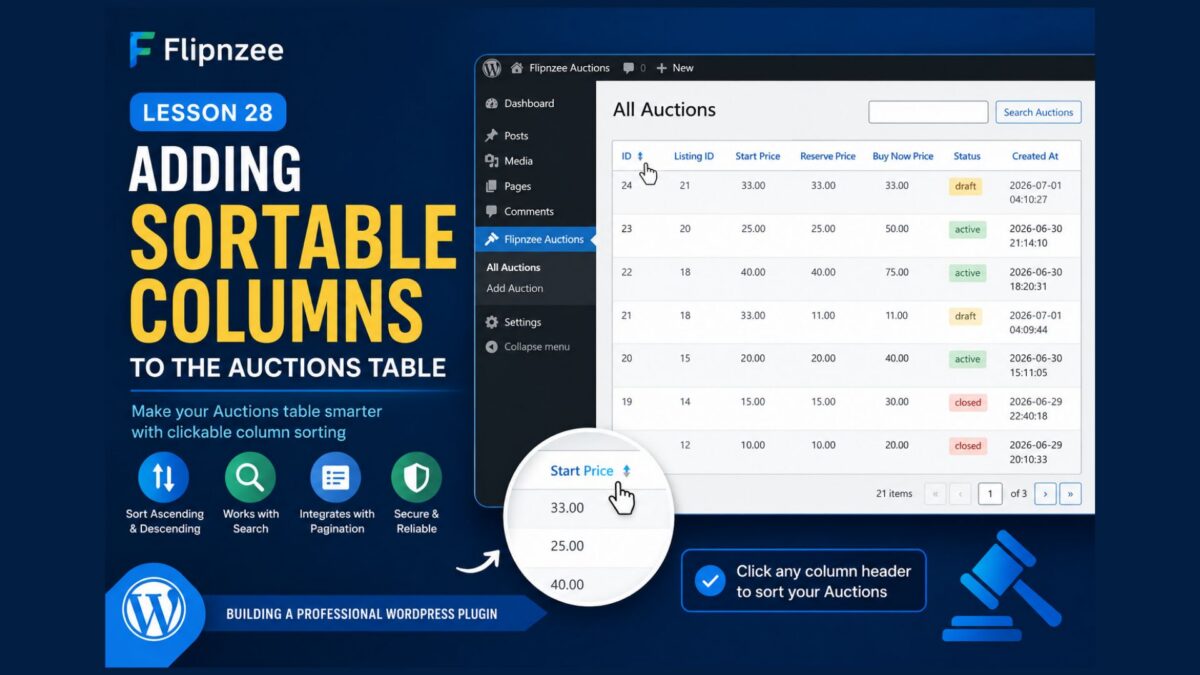
Lesson 28 — Adding Sortable Columns to the Auctions Table Using WP_List_Table

Series: Building the Flipnzee Auctions WordPress Plugin
Lesson: 28
Difficulty: Intermediate
Introduction
In the previous lessons, we transformed our Auctions table into a professional management interface by adding pagination and functional search.
However, one important feature is still missing.
When managing many auctions, administrators often want to sort records by clicking column headings, just like they can on the WordPress Posts, Pages, Users, and Comments screens.
In this lesson, we’ll add sortable columns to our custom WP_List_Table, allowing administrators to sort auctions with a single click.
What You’ll Learn
By the end of this lesson, you’ll know how to:
- Register sortable columns in
WP_List_Table - Detect the selected sort column
- Detect ascending and descending order
- Build secure dynamic SQL queries
- Keep sorting compatible with pagination and search
- Create a much more professional admin interface
Why Sortable Columns Matter
Imagine managing hundreds of auctions.
Sometimes you may want to:
- View the newest auctions first
- Sort by Listing ID
- Find the highest Buy Now price
- Group auctions by Status
- Review the lowest Start Price
Without sortable columns, administrators must manually search through multiple pages.
Sorting makes large datasets much easier to manage.
How WordPress Sorting Works
When a column header is clicked, WordPress automatically appends two URL parameters.
Example:
admin.php?page=flipnzee-all-auctions&orderby=start_price&order=asc
or
admin.php?page=flipnzee-all-auctions&orderby=status&order=desc
Your plugin simply needs to read these values and use them safely.
Step 1 — Register Sortable Columns
Inside your table class, implement:
public function get_sortable_columns() {

	return array(
		'id'            => array( 'id', true ),
		'listing_id'    => array( 'listing_id', false ),
		'start_price'   => array( 'start_price', false ),
		'reserve_price' => array( 'reserve_price', false ),
		'buy_now_price' => array( 'buy_now_price', false ),
		'status'        => array( 'status', false ),
		'created_at'    => array( 'created_at', false ),
	);
}
This tells WordPress which columns are sortable.
Step 2 — Read Sorting Parameters
Inside prepare_items(), retrieve the selected column:
$orderby = isset( $_GET['orderby'] )
	? sanitize_key( $_GET['orderby'] )
	: 'created_at';
Next, retrieve the direction:
$order = isset( $_GET['order'] )
	? strtoupper(
		sanitize_text_field(
			wp_unslash( $_GET['order'] )
		)
	)
	: 'DESC';
Step 3 — Whitelist Allowed Columns
Never trust user input directly.
Instead, create an allowed list:
$allowed = array(
	'id',
	'listing_id',
	'start_price',
	'reserve_price',
	'buy_now_price',
	'status',
	'created_at',
);
If an invalid column is supplied, fall back to:
created_at
This prevents SQL injection.
Step 4 — Update the Database Query
Modify the Auction Manager so get_all_auctions() also accepts:
$orderby
and
$order
The SQL becomes:
ORDER BY created_at DESC
or
ORDER BY start_price ASC
depending on the administrator’s selection.
Step 5 — Keep Search and Pagination Working
Sorting should work together with:
- Search
- Pagination
All three features should operate simultaneously.
For example:
- Search for draft
- Sort by Start Price
- Navigate to Page 2
Everything should continue working correctly.
Step 6 — Test Every Column
Click each heading:
- ID
- Listing ID
- Start Price
- Reserve Price
- Buy Now Price
- Status
- Created At
Verify that clicking once sorts ascending.
Clicking again sorts descending.
Security Considerations
Because column names cannot be parameterized using $wpdb->prepare(), always whitelist allowed columns before inserting them into SQL.
Never allow arbitrary column names supplied by users.
Continue sanitizing all URL parameters using:
sanitize_key()sanitize_text_field()wp_unslash()
This keeps the plugin secure while supporting dynamic sorting.
Expected Result
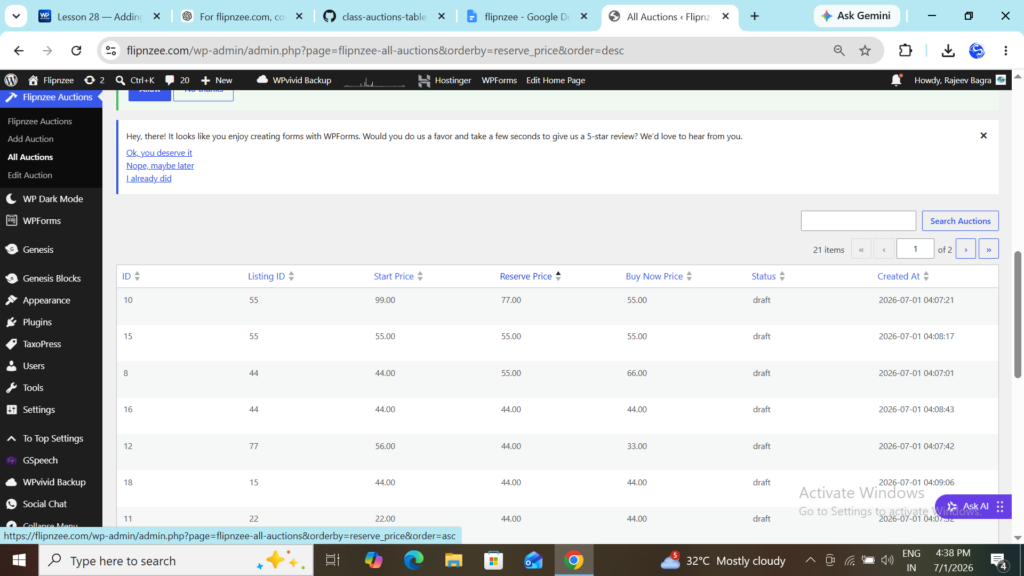
After completing this lesson, administrators will be able to:
- ✅ Click any supported column heading
- ✅ Sort ascending or descending
- ✅ Combine sorting with searching
- ✅ Combine sorting with pagination
- ✅ Manage auctions much more efficiently
The Auctions page will now behave almost identically to the native WordPress administration tables.
Conclusion
Adding sortable columns is another significant milestone in the development of the Flipnzee Auctions plugin.
Together with pagination and search, this feature creates a much richer administration experience and brings the plugin closer to production quality.
At this stage, the Auctions table supports the three most important data management features expected in professional WordPress plugins.
In the Next Lesson
We’ll implement bulk actions, allowing administrators to select multiple auctions using checkboxes and perform operations such as:
- Delete Selected Auctions
- Activate Multiple Auctions
- Close Multiple Auctions
Bulk actions are one of the final major features needed before the Auctions management screen reaches enterprise-level usability.