
Lesson 39 Implementation – Display Listing Titles, Featured Images, Placeholder Images & View Listing Button

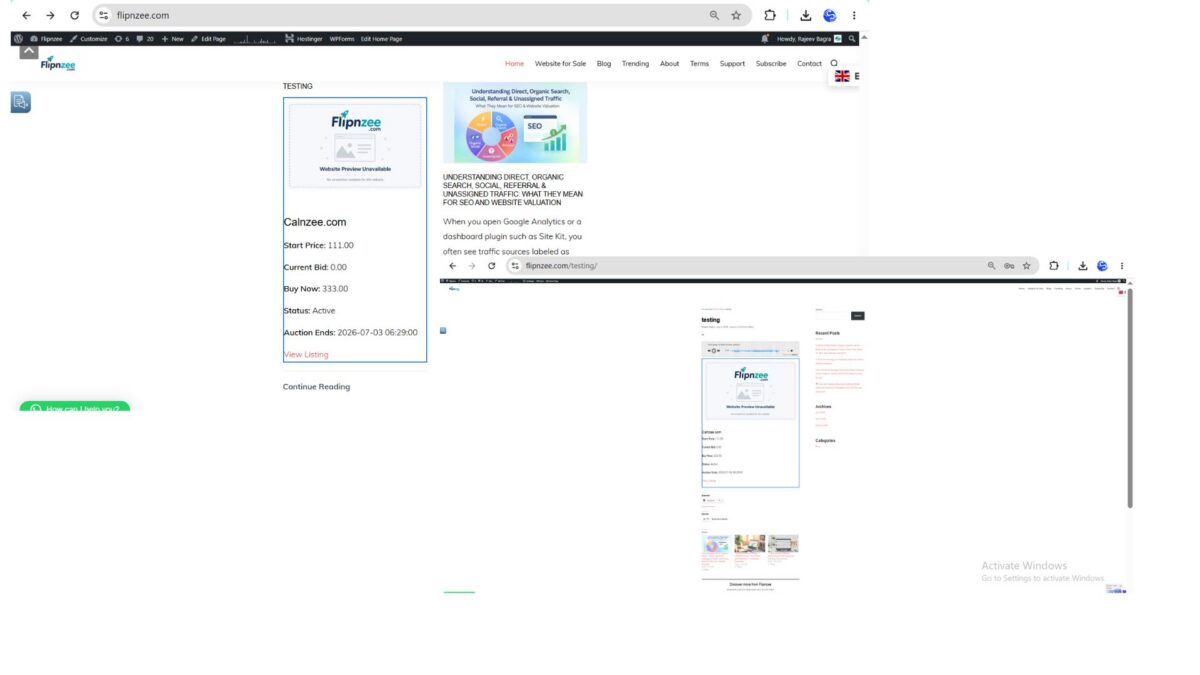
After creating the frontend auction shortcode in Lesson 38, visitors could finally see active auctions on the website. However, each auction was still presented as a simple list of database values. Instead of displaying a meaningful website title and image, the shortcode only showed the Listing ID, making the marketplace feel more like a database report than a professional auction platform.
In this implementation, we significantly improved the frontend by connecting our custom auction records with the existing Listing custom post type. This allows each auction to display the actual website title, featured image, and a direct link to its Listing page. We also laid the groundwork for future frontend styling by introducing a dedicated stylesheet and logical HTML structure.
What We Implemented
During this lesson we completed the following improvements:
- Retrieved the associated Listing post using
listing_id. - Verified the Listing exists before displaying it.
- Replaced the Listing ID with the Listing title.
- Displayed the Listing’s featured image.
- Added a branded placeholder image when no featured image exists.
- Created a dedicated
assets/imagesfolder. - Created a dedicated
assets/cssfolder. - Added a frontend stylesheet.
- Loaded the stylesheet using
wp_enqueue_style(). - Organized the HTML into thumbnail and content sections.
- Added a View Listing button linking to the Listing page.
Step 1 – Retrieve the Listing Post
Our auction table stores only the Listing ID. To display information about the website, we first retrieved the corresponding WordPress post.
$listing = get_post( $auction['listing_id'] );

if ( ! $listing ) {
	continue;
}
If the Listing no longer exists, the shortcode simply skips that auction instead of generating errors.
Step 2 – Display the Website Title
Previously the shortcode displayed something similar to:
Listing #2222
We replaced this with:
echo esc_html( get_the_title( $listing ) );
Visitors now see the actual website title, for example:
Calnzee.com
This immediately makes the auction easier to understand.
Step 3 – Display the Featured Image
Each Listing already supports WordPress featured images.
We used:
has_post_thumbnail()
and
get_the_post_thumbnail()
to display the website screenshot above the title.
This transforms the auction from plain text into a visual listing.
Step 4 – Add a Placeholder Image
Not every Listing has a featured image.
Instead of leaving an empty space, we created:
assets/
└── images/
    └── placeholder.png
Whenever no featured image exists, the shortcode now displays this branded placeholder.
This keeps every auction card visually consistent.
Step 5 – Organize the HTML
Rather than placing everything directly inside the auction card, we separated the content into logical sections.
Thumbnail section:
flipnzee-auction-thumbnail
Content section:
flipnzee-auction-content
Although visitors won’t immediately notice this change, it makes future styling much easier.
Step 6 – Create a Frontend Stylesheet
To keep presentation separate from functionality, we created:
assets/
└── css/
    └── frontend.css
Instead of mixing inline styles with PHP, all future frontend styling will now be maintained inside this stylesheet.
Step 7 – Enqueue the Stylesheet
Creating a CSS file alone isn’t enough.
We registered it using:
wp_enqueue_style()
inside the main plugin file.
Because we had already defined:
FLIPNZEE_AUCTION_URL
and
FLIPNZEE_AUCTION_VERSION
loading the stylesheet became straightforward while following WordPress best practices.
Step 8 – Add a View Listing Button
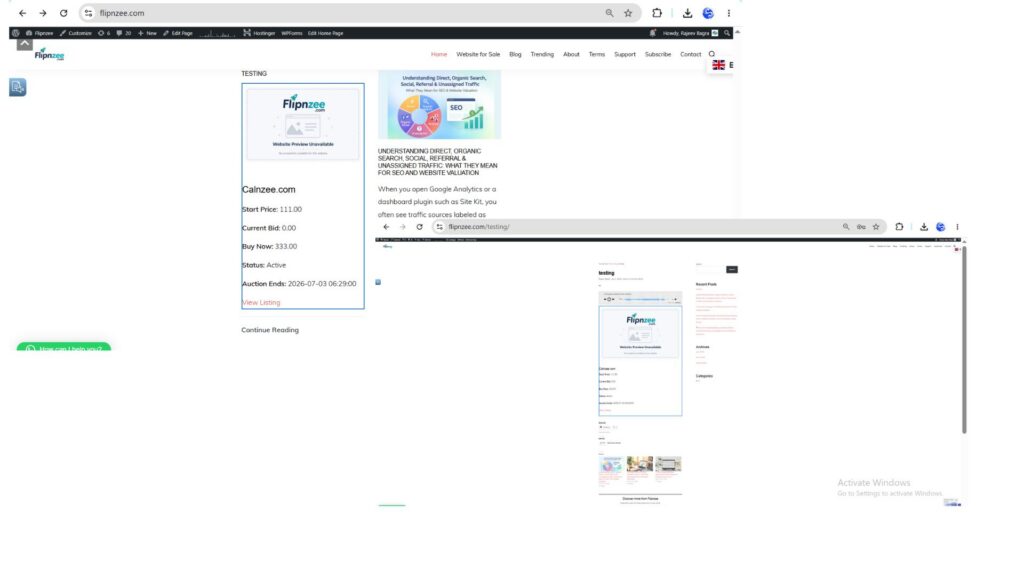
Finally, we connected the Auctions plugin with our Listing pages.
Using:
get_permalink( $listing )
we generated a link directly to the Listing.
Visitors can now move from the auction summary to the complete Listing page where they can view:
- Website description
- Screenshots
- Flipnzee Analytics dashboard
- Traffic statistics
- Additional website information
This creates a much smoother browsing experience.
Project Structure After This Lesson
Our plugin now contains the following frontend assets:
flipnzee-auctions/

assets/
│
├── css/
│   └── frontend.css
│
└── images/
    └── placeholder.png

includes/
└── class-shortcodes.php
This organization keeps the plugin scalable and easier to maintain.
Why This Implementation Matters
One of the biggest improvements in this lesson wasn’t simply displaying an image or title—it was establishing the relationship between two independent systems.
Our Auctions plugin stores only the Listing ID in its custom database table. Whenever the shortcode runs, it retrieves the corresponding WordPress Listing post to display additional information.
This approach avoids duplicating data and allows us to take advantage of WordPress features such as:
- Post titles
- Featured images
- Permalinks
- Future custom fields
By building on top of the Listing custom post type rather than storing duplicate information in the auction table, the plugin remains cleaner, more flexible, and easier to extend.
Tips & Best Practices
- Store only the Listing ID in the custom auction table.
- Always verify the Listing exists before displaying it.
- Escape all output using WordPress escaping functions.
- Keep images inside the plugin instead of relying on external placeholders.
- Separate HTML structure from CSS styling.
- Use WordPress constants for plugin paths and URLs.
- Organize frontend assets into dedicated
cssandimagesfolders.
What We Learned
This lesson demonstrated how a custom database table can work together with native WordPress posts.
Instead of treating auctions as isolated records, we linked each auction to its corresponding Listing, allowing us to reuse existing WordPress functionality while keeping the database simple.
The result is a much more professional-looking marketplace and a solid foundation for future enhancements.
Looking Ahead
In the next lesson, we’ll continue improving the frontend by transforming these functional auction cards into a polished marketplace interface. We’ll refine the layout, improve spacing and typography, make the cards responsive, and prepare the design for future features such as bidding buttons, countdown timers, and deeper integration with the Flipnzee Analytics plugin.