
Lesson 25 Implementation Guide — Adding Pagination to the Auctions Table

Prerequisites
Before starting this implementation:
- Lesson 25 has been completed.
- The Auctions table is already displaying data using
WP_List_Table. - Auctions can already be created, edited and deleted.
In this guide, we’ll implement pagination so the table can efficiently display a large number of auction records.
Step 1 — Modify get_all_auctions()
Open:
includes/class-auction-manager.php
Locate the existing method:
public static function get_all_auctions()
Replace it with a version that accepts two parameters:
$per_page$offset
The SQL query should use:
LIMIT
and
OFFSET
so only the required records are retrieved from the database.
Why?
Without pagination, WordPress loads every auction record into memory.
With pagination enabled, only the current page of results is loaded.
This becomes much faster as the number of auctions grows.
Step 2 — Add a Method to Count Auctions
Still inside:
includes/class-auction-manager.php
Create a new method:
count_auctions()
This method simply returns:
SELECT COUNT(*)
from the auctions table.
Why?
The table needs to know:
- total number of auctions
- number of pages
before WordPress can generate pagination links.
Step 3 — Update prepare_items()
Open:
admin/class-auctions-table.php
Locate:
prepare_items()
Instead of loading every auction:
Flipnzee_Auction_Manager::get_all_auctions();
calculate:
- current page
- records per page
- SQL offset
Then call:
Flipnzee_Auction_Manager::get_all_auctions(
    $per_page,
    $offset
);
Also configure:
set_pagination_args()
using the total auction count.
Step 4 — Upload the Updated Plugin
Compress the updated plugin.
Install it on the test website.
Visit:
Flipnzee Auctions
→ All Auctions
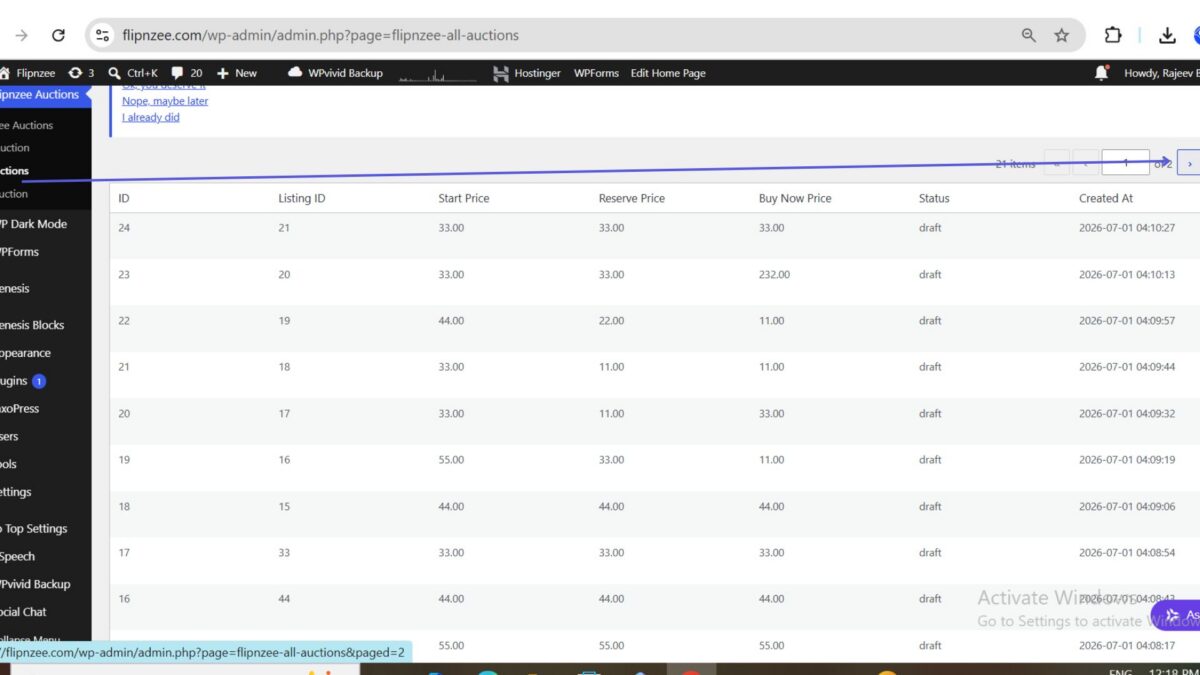
If enough auction records exist, pagination links should now appear beneath the table.
Step 5 — Test Pagination
Create multiple auction records.
Verify that:
- Page 1 loads correctly.
- Page 2 displays the next set of auctions.
- Previous and Next links work.
- Auctions remain sorted correctly.
- Edit and Delete continue to work on every page.
Result
After completing this implementation, the Auctions table behaves much more like a professional WordPress administration screen.
Instead of loading every record at once, the plugin displays a manageable number of auctions per page, improving performance and scalability as the number of auctions increases.
What We Learned
In this implementation, we learned how to:
- Modify database queries using
LIMITandOFFSET. - Count database records efficiently.
- Configure pagination using
WP_List_Table. - Calculate SQL offsets based on the current page.
- Display paginated auction records in the WordPress admin area.
Download Source Code
Next Implementation Guide: Lesson 26 — Adding Auction Search Functionality to the Admin Table