
Lesson 26 — Adding Search Functionality to the Auctions Table Using WP_List_Table

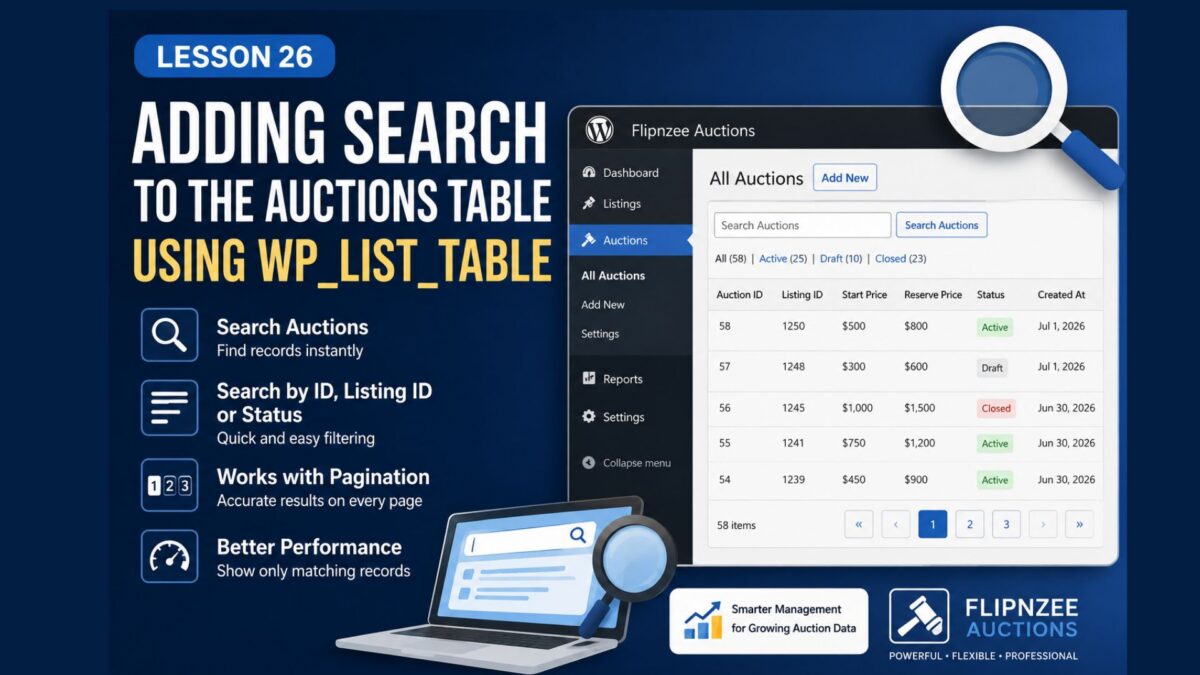
As the number of auctions grows, scrolling through multiple pages becomes inefficient. WordPress solves this problem by providing a built-in search box in WP_List_Table. In this lesson, we’ll integrate that search feature into the Flipnzee Auctions plugin so administrators can quickly locate auctions by ID, Listing ID, or Status.
By the end of this lesson, the Auctions screen will feel much closer to native WordPress admin pages such as Posts, Pages, and Users.
What You’ll Build
After completing this lesson, administrators will be able to:
- Search auctions from the admin table.
- Search by Auction ID.
- Search by Listing ID.
- Search by Status.
- Combine search with pagination.
- Display only matching auction records.
Why Add Search?
Imagine managing hundreds or even thousands of auctions.
Without search, finding Auction #437 would require browsing through many pages.
A search box allows administrators to locate records instantly, improving productivity and making the plugin feel much more professional.
How WordPress Search Works
WP_List_Table already provides a search box.
However, it only displays the search field.
It is the developer’s responsibility to:
- Display the search box.
- Read the search keyword.
- Modify the database query.
- Return only matching results.
Step 1 — Add a Search Box Above the Table
Update the All Auctions admin page.
Before displaying the table, output the search form using the built-in method:
$table->search_box(
    'Search Auctions',
    'flipnzee-search'
);
This automatically creates a familiar WordPress search field.
Step 2 — Read the Search Keyword
Retrieve the search term safely using:
sanitize_text_field()wp_unslash()
If no search keyword is provided, continue displaying all auctions.
Step 3 — Update the Auction Manager
Modify the query that retrieves auctions.
If a search term exists, search multiple columns such as:
- Auction ID
- Listing ID
- Status
using SQL conditions.
Step 4 — Count Matching Results
Pagination should work with search.
Instead of counting every auction, count only the matching auctions.
This ensures the page numbers remain accurate.
Step 5 — Preserve Search During Pagination
When moving from Page 1 to Page 2, the search keyword should remain in the URL.
Otherwise, WordPress would forget the search and display every auction again.
Step 6 — Test the Feature
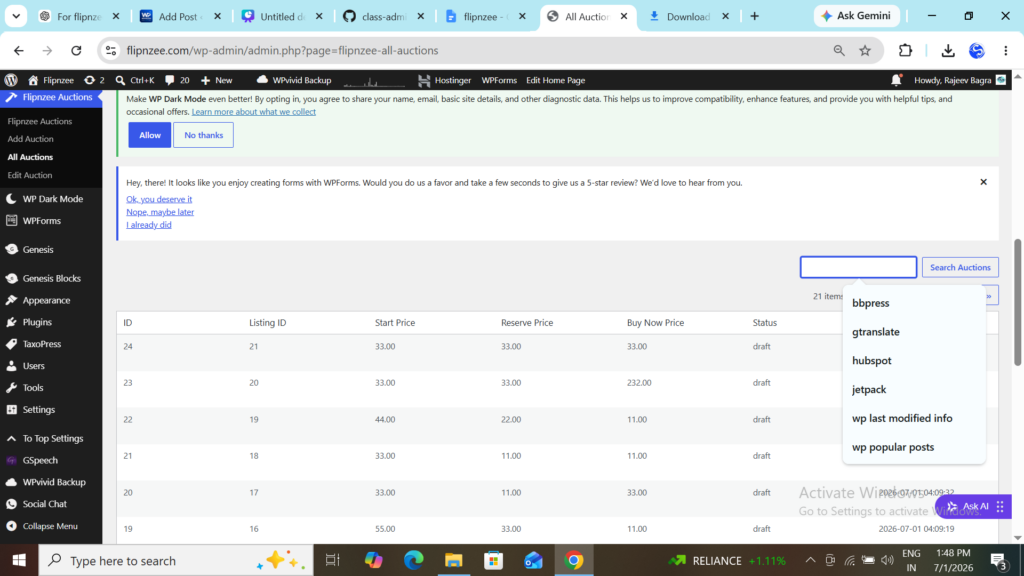
Create several auctions with different:
- Listing IDs
- Prices
- Status values
Then verify:
- Searching by Listing ID returns the correct auction.
- Searching by Status works.
- Pagination still functions correctly.
- No PHP warnings appear.
Example Workflow
Suppose your table contains:
| Auction ID | Listing ID | Status |
|---|---|---|
| 1 | 101 | Draft |
| 2 | 215 | Active |
| 3 | 330 | Closed |
| 4 | 450 | Active |
Searching for:
215
returns only Auction #2.
Searching for:
Active
returns Auctions #2 and #4.
Tips
- Always sanitize search input before using it.
- Use
$wpdb->prepare()when building SQL queries. - Ensure pagination and search work together.
- Test searches that return zero results.
- Keep the search lightweight for better performance.
What We Learned
In this lesson, you learned how to:
- Add a search box to a
WP_List_Table. - Capture user search input securely.
- Search auction records using SQL.
- Combine search with pagination.
- Build a more professional WordPress administration interface.
Next Lesson
In Lesson 27, we’ll make the Auctions table even more user-friendly by adding sortable columns, allowing administrators to sort auctions by:
- Auction ID
- Listing ID
- Start Price
- Reserve Price
- Buy Now Price
- Status
- Creation Date
This will make managing large numbers of auctions much faster and more intuitive.