
Lesson 26 Implementation — Adding a Search Box to the Auctions Table (Step-by-Step)

Plugin: Flipnzee Auctions
Implementation Stage: Lesson 26
Difficulty: Intermediate
Prerequisites: Lessons 1–25 completed
Introduction
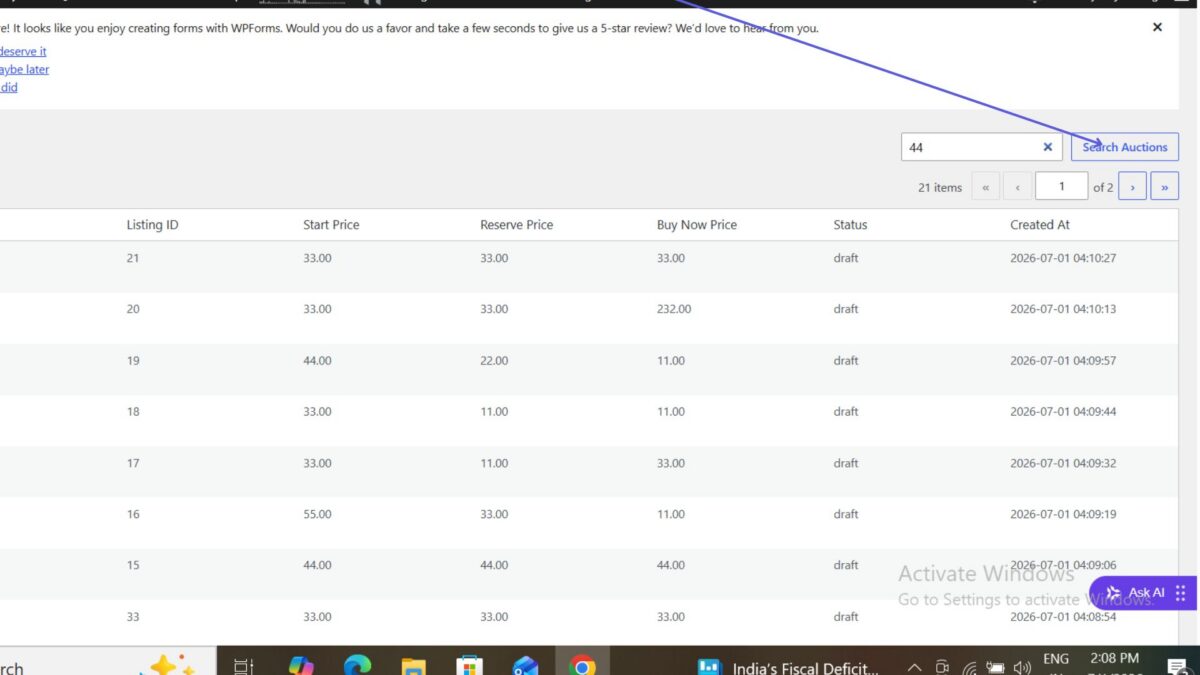
In Lesson 26, we improved the usability of the All Auctions page by adding a search box to the auctions table. WordPress’ WP_List_Table class includes a built-in search box method, allowing administrators to quickly search records without creating a custom user interface.
During implementation, we also encountered and resolved a PHP syntax error that prevented the plugin from activating. This demonstrates why validating PHP files after every change is an important part of plugin development.
Objective
By the end of this implementation, the plugin will:
- Display a professional search box above the auctions table.
- Continue supporting pagination.
- Prepare the plugin for full search functionality in the next implementation step.
Step 1 — Open the Admin Page File
Open:
admin/class-admin.php
Locate the following method:
public function all_auctions_page() {
This method is responsible for displaying the All Auctions page inside the WordPress admin area.
Step 2 — Wrap the Table Inside a Form
Replace the existing table output with a GET form:
<form method="get">

	<input
		type="hidden"
		name="page"
		value="flipnzee-all-auctions"
	>

	<?php

	$table->search_box(
		'Search Auctions',
		'flipnzee-search'
	);

	$table->display();

	?>

</form>
Using a GET form allows WordPress to send the search term as part of the page URL.
Step 3 — Display Success Messages
Before displaying the table, retrieve the message parameter:
$message = isset( $_GET['message'] )
	? sanitize_text_field(
		wp_unslash( $_GET['message'] )
	)
	: '';
Display the success notice:
<?php if ( 'deleted' === $message ) : ?>

<div class="notice notice-success is-dismissible">
	<p>Auction deleted successfully.</p>
</div>

<?php endif; ?>
This keeps the interface consistent with earlier lessons where auctions could be added, edited, or deleted.
Step 4 — Keep the Search Box Inside the Method
One mistake encountered during implementation was accidentally placing:
$message = ...
outside the all_auctions_page() method.
Doing so resulted in the following PHP parse error:
PHP Parse error:
syntax error,
unexpected variable "$message",
expecting "function" or "const"
The fix was simply moving the code back inside the method.
Step 5 — Validate the PHP File
Before uploading the updated plugin, validate the modified file.
From the project root:
php -l admin/class-admin.php
or from inside the admin folder:
php -l class-admin.php
Expected output:
No syntax errors detected in class-admin.php
Step 6 — Test the Plugin
After uploading the updated plugin:
- Activate the plugin.
- Navigate to:
Flipnzee Auctions → All Auctions
You should now see:
- A search box above the auctions table.
- Pagination continuing to work.
- Existing auctions displaying normally.
At this stage, the search box is visible but not yet filtering results. That functionality will be added in the next implementation.
Troubleshooting
During this implementation, the following issue occurred:
Problem
The plugin could not be activated because of a PHP syntax error.
Cause
The $message variable and notice code had been placed outside the all_auctions_page() method.
Solution
Move the code back inside the method and validate the file using:
php -l
before uploading the plugin again.
Result
At the end of this implementation:
- ✅ Search box added
- ✅ Pagination still functional
- ✅ Plugin activates correctly
- ✅ Admin interface looks more professional
- ✅ Foundation prepared for database search in the next implementation
Source Code
At the beginning of this article, you can download the plugin source code before implementing Lesson 26.
At the end of this article, you can download the updated source code after completing Lesson 26 and compare the changes with your own implementation.
Next: In the next implementation article, we’ll connect the search box to the database query so administrators can search auctions by ID, Listing ID, or Status while keeping pagination fully functional.