
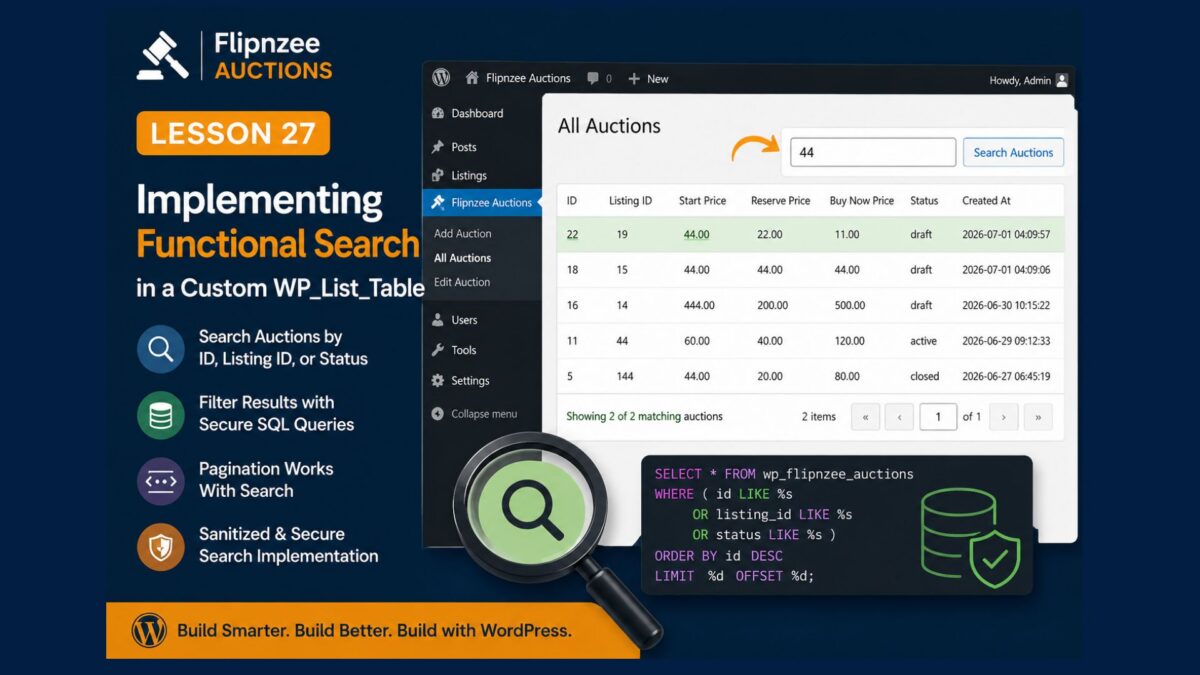
Lesson 27 — Implementing Functional Search in a Custom WP_List_Table

Series: Building the Flipnzee Auctions WordPress Plugin
Lesson: 27
Difficulty: Intermediate
Introduction
In Lesson 26, we successfully added a professional search box above the auctions table. Although the interface looked complete, typing a search term did not actually filter the records.
In this lesson, we’ll connect the search box to the database so administrators can search auctions directly from the WordPress dashboard. This brings our custom WP_List_Table much closer to the functionality of WordPress’ built-in administration screens.
What You’ll Learn
By the end of this lesson, you’ll know how to:
- Read search keywords submitted by
WP_List_Table - Pass search terms to your database query
- Filter auction records using SQL
- Keep pagination working while searching
- Display only matching auctions
Why Search Matters
Imagine managing hundreds or even thousands of auctions.
Without search, finding Auction ID 357 or Listing ID 8421 would require scrolling through multiple pages.
A search box allows administrators to instantly locate records, improving productivity and making the plugin feel much more professional.
How WordPress Search Works
When you click the Search button, WordPress automatically sends the search keyword as a GET parameter named:
s
For example:
admin.php?page=flipnzee-all-auctions&s=44
Your plugin simply needs to:
- Read
$_REQUEST['s'] - Pass it to the database
- Display matching records
Step 1 — Read the Search Term
Inside the table class, retrieve the search keyword submitted by WordPress.
Example:
$search = isset( $_REQUEST['s'] )
	? sanitize_text_field(
		wp_unslash( $_REQUEST['s'] )
	)
	: '';
Always sanitize user input before using it.
Step 2 — Pass the Search Term
Modify the call to retrieve auctions.
Instead of:
Flipnzee_Auction_Manager::get_all_auctions(
	$per_page,
	$offset
);
pass the search term as well:
Flipnzee_Auction_Manager::get_all_auctions(
	$per_page,
	$offset,
	$search
);
Step 3 — Update the SQL Query
Inside the Auction Manager, check whether a search keyword exists.
If it does, filter the results.
Example SQL:
WHERE
	id LIKE ?
	OR listing_id LIKE ?
	OR status LIKE ?
This allows administrators to search by:
- Auction ID
- Listing ID
- Auction Status
Step 4 — Keep Pagination Working
Searching should not disable pagination.
Instead of counting every auction:
SELECT COUNT(*)
count only the matching records.
This keeps the page numbers accurate.
Step 5 — Test the Feature
Create several auctions.
Then try searches like:
44
draft
21
The table should immediately display only the matching auctions.
Security Considerations
Never place raw user input directly into SQL queries.
Always use:
sanitize_text_field()wp_unslash()$wpdb->prepare()$wpdb->esc_like()
These functions protect your plugin against SQL injection attacks.
Common Mistakes
Many developers accidentally:
- Forget to sanitize the search term
- Build SQL using string concatenation
- Break pagination after filtering
- Ignore empty search values
Avoiding these mistakes results in a more secure and reliable plugin.
Expected Result
After completing this lesson:
- ✅ Search box filters auctions
- ✅ Pagination still works
- ✅ Database queries remain secure
- ✅ Administrators can quickly find auction records
- ✅ The Auctions page behaves much more like WordPress core admin tables
Conclusion
Adding a search box was only the first step. Connecting it to the database transforms it into a practical tool for managing real auction data.
With searchable, paginated listings now in place, the Flipnzee Auctions plugin continues to evolve from a learning project into a production-ready WordPress plugin.
Lesson 27 Implementation — Adding Functional Search to the Flipnzee Auctions Table
In the Next Lesson
We’ll further enhance the Auctions table by allowing administrators to sort auctions by clicking the table headers, such as:
- Auction ID
- Listing ID
- Start Price
- Status
- Created Date
This is another feature users expect from professional WordPress plugins and will make navigating large auction datasets even easier.