
Lesson 78: Building Payment Status Management for Auction Transactions in the Flipnzee Plugin

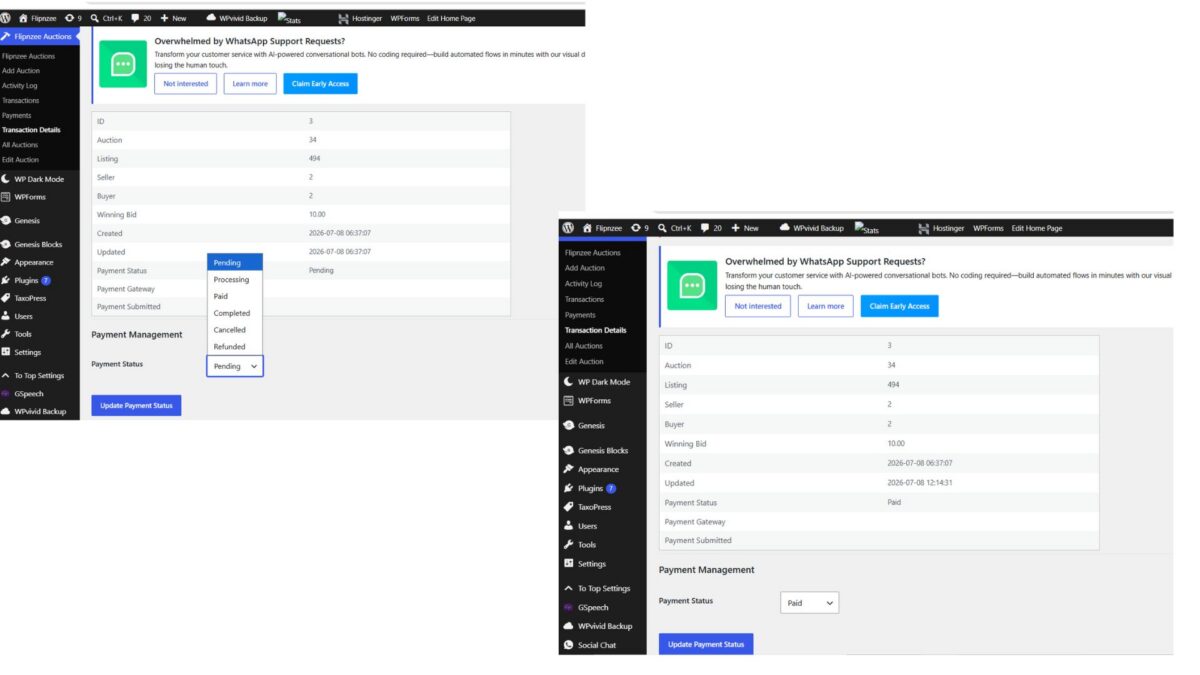
In the previous lesson, we built the Transaction Details page to display complete information about a transaction. While administrators could view payment information, there was no way to manage the payment lifecycle from the WordPress dashboard.
In this lesson, we implemented a complete Payment Status Management system. Administrators can now update the payment status directly from the Transaction Details page, with all changes securely stored in the database.
What We Built
The Transaction Details page now includes a dedicated Payment Management section that allows administrators to:
- View the current payment status
- Select a new payment status
- Save the updated status
- Automatically update the transaction timestamp
- Reload the page showing the updated information
Supported payment statuses include:
- Pending
- Processing
- Paid
- Completed
- Cancelled
- Refunded
Step 1: Creating the Payment Management Section
Below the transaction information table, a new section was added.
<h2><?php esc_html_e( 'Payment Management', 'flipnzee-auctions' ); ?></h2>

<form method="post" action="<?php echo esc_url( admin_url( 'admin-post.php' ) ); ?>">
This form submits data securely using WordPress’ admin-post handler.
Step 2: Adding WordPress Security
To protect the form against CSRF attacks, a nonce field was added.
wp_nonce_field(
    'flipnzee_update_payment_status',
    'flipnzee_payment_nonce'
);
Every request is now verified before any database update occurs.
Step 3: Passing Required Hidden Values
Hidden fields tell WordPress which handler to execute and which transaction should be updated.
<input
    type="hidden"
    name="action"
    value="flipnzee_update_transaction_status">

<input
    type="hidden"
    name="transaction_id"
    value="<?php echo absint( $transaction->id ); ?>">
Step 4: Building the Payment Status Dropdown
Administrators can now select from predefined payment states.
<select name="payment_status">

<option value="pending">Pending</option>
<option value="processing">Processing</option>
<option value="paid">Paid</option>
<option value="completed">Completed</option>
<option value="cancelled">Cancelled</option>
<option value="refunded">Refunded</option>

</select>
The currently saved status is automatically selected.
Step 5: Adding the Update Button
A standard WordPress button submits the form.
submit_button(
    __( 'Update Payment Status', 'flipnzee-auctions' )
);
Step 6: Registering the Form Handler
Inside the constructor, we registered the admin action.
add_action(
    'admin_post_flipnzee_update_transaction_status',
    array( $this, 'update_payment_status' )
);
This tells WordPress which method should process the form submission.
Step 7: Creating update_payment_status()
A new method was added to process updates.
public function update_payment_status() {

    check_admin_referer(
        'flipnzee_update_payment_status',
        'flipnzee_payment_nonce'
    );

}
The method validates the request before making any database changes.
Step 8: Sanitizing User Input
Incoming values are sanitized before use.
$transaction_id = absint(
    $_POST['transaction_id']
);

$payment_status = sanitize_text_field(
    wp_unslash(
        $_POST['payment_status']
    )
);
Step 9: Updating the Database
The transaction record is updated using the WordPress database API.
$wpdb->update(

    $wpdb->prefix . 'flipnzee_transactions',

    array(

        'payment_status' => $payment_status,

        'updated_at' => current_time( 'mysql' ),

    ),

    array(

        'id' => $transaction_id,

    )

);
Step 10: Redirecting Back to the Transaction
After saving, the administrator is redirected back to the same transaction.
wp_safe_redirect(

    admin_url(

        'admin.php?page=flipnzee-transaction-details&transaction_id='
        . $transaction_id

    )

);

exit;
Problems We Encountered
During implementation we discovered several issues.
PHP Parse Errors
Some HTML blocks were accidentally inserted outside PHP, producing syntax errors.
These were corrected by carefully closing and reopening PHP tags where required.
Missing Transaction ID
Initially the transaction details page displayed:
Transaction not found.
The redirect URL was missing the transaction ID.
Adding:
transaction_id=
to the redirect resolved the issue.
Handler Verification
To confirm the form reached the correct handler, a temporary debug message was added.
die( 'Payment status handler reached.' );
After confirming the handler worked, the debug statement was removed.
Database Verification
Using phpMyAdmin we confirmed that updates correctly modified:
- payment_status
- updated_at
while leaving the remaining transaction information unchanged.
Testing Performed
The new payment workflow was tested thoroughly.
✔ Opened Transaction Details page
✔ Changed status from Pending to Completed
✔ Saved successfully
✔ Database updated correctly
✔ Timestamp refreshed automatically
✔ Page redirected back to the same transaction
✔ Updated value displayed correctly
✔ Multiple status changes tested successfully
Final Result
The Flipnzee Auctions plugin now includes a functional payment management system directly inside the WordPress administration panel.
Administrators can securely update payment statuses without editing the database manually, providing a much smoother workflow for managing completed auction transactions.
This feature also lays the groundwork for future integrations with payment gateways and escrow services, where payment states can eventually be synchronized automatically instead of being updated manually.
Source Code Summary
Register Admin Action
add_action(
    'admin_post_flipnzee_update_transaction_status',
    array( $this, 'update_payment_status' )
);
Nonce
wp_nonce_field(
    'flipnzee_update_payment_status',
    'flipnzee_payment_nonce'
);
Update Query
$wpdb->update(

    $wpdb->prefix . 'flipnzee_transactions',

    array(

        'payment_status' => $payment_status,

        'updated_at' => current_time( 'mysql' ),

    ),

    array(

        'id' => $transaction_id,

    )

);
Redirect
wp_safe_redirect(

    admin_url(
        'admin.php?page=flipnzee-transaction-details&transaction_id='
        . $transaction_id
    )

);

exit;
Download Source Code
Download the starting version of the plugin before the lesson:
Download the completed version after this lesson:
What We Learned
- Creating secure admin forms using
admin-post.php - Protecting form submissions with WordPress nonces
- Sanitizing and validating administrator input
- Updating custom database tables using
$wpdb->update() - Redirecting users safely after processing forms
- Debugging form handlers and URL parameters
- Verifying database changes using phpMyAdmin
- Building a maintainable payment workflow for future escrow and payment gateway integration