
Implementation Lesson 36: Automatically Close Expired Auctions in Flipnzee Auctions

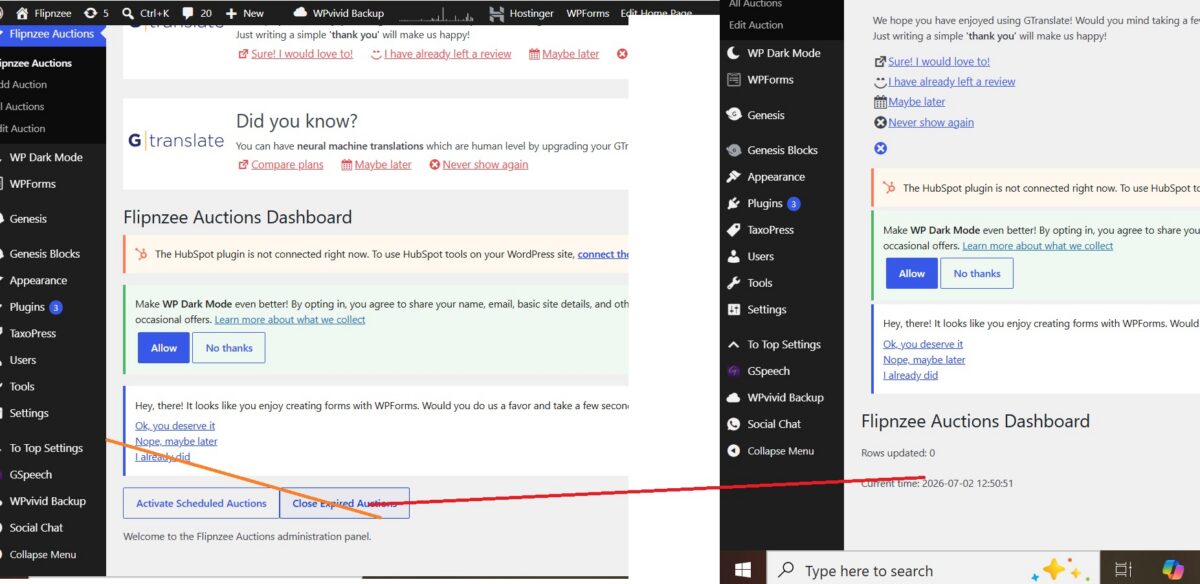
In the previous lesson, we added the ability to manually activate scheduled auctions. In this lesson, we build another important piece of auction lifecycle management by implementing the ability to automatically close auctions once their end time has passed.
Although the feature is currently triggered manually from the dashboard for testing purposes, the underlying logic is exactly the same as what will later be executed automatically by WordPress Cron.
What We Will Build
At the end of this lesson, the plugin will be able to:
- Detect auctions whose end time has already passed.
- Change their status from Active to Closed.
- Execute the update using a single SQL query.
- Allow administrators to manually trigger the check from the Dashboard.
- Protect the action using WordPress nonces.
Starting Point
Download the plugin completed in the previous lesson.
↓ Download Plugin (After Lesson 35)
Step 1: Create the Auction Closing Method
Open:
includes/class-auction-manager.php
Add a new static method.
public static function close_expired_auctions() {

	global $wpdb;

	$table = $wpdb->prefix . 'flipnzee_auctions';

	$current_time = current_time( 'mysql' );

	$wpdb->query(
		$wpdb->prepare(
			"UPDATE {$table}
			SET status = %s
			WHERE status = %s
			AND auction_end IS NOT NULL
			AND auction_end <= %s",
			'closed',
			'active',
			$current_time
		)
	);
}
Instead of loading every auction into PHP, this query updates every expired auction directly inside MySQL, making it fast even for large numbers of auctions.
Step 2: Add a Dashboard Button
Open:
admin/class-admin.php
Inside the dashboard form, add another submit button.
submit_button(
	'Close Expired Auctions',
	'secondary',
	'flipnzee_close_now',
	false
);
The dashboard now contains two management tools:
- Activate Scheduled Auctions
- Close Expired Auctions
Step 3: Process the Button Submission
Still inside the dashboard page, add another POST handler.
if ( isset( $_POST['flipnzee_close_now'] ) ) {

	check_admin_referer(
		'flipnzee_activate_now',
		'flipnzee_activate_nonce'
	);

	Flipnzee_Auction_Manager::close_expired_auctions();

	?>

	<div class="notice notice-success is-dismissible">
		<p>Expired auctions checked successfully.</p>
	</div>

	<?php
}
When the administrator clicks the button, the plugin securely executes the closing routine.
Step 4: Protect the Form
The dashboard form already contained a nonce from the previous lesson.
wp_nonce_field(
	'flipnzee_activate_now',
	'flipnzee_activate_nonce'
);
Since both dashboard buttons belong to the same form, the same nonce can safely protect both actions.
Step 5: Test the Feature
Create an auction that:
- has status Active
- has an auction end time in the past
Click:
Close Expired Auctions
The auction should immediately change its status to:
closed
Debugging During Development
During implementation, we temporarily added debugging statements such as:
wp_die();
and
Rows updated: X
These simple debugging techniques helped verify several important points:
- the dashboard button was submitting correctly
- nonce verification succeeded
- the function was being executed
- the SQL query was running
- the number of updated rows matched expectations
After confirming everything worked, the temporary debugging code was removed from the final implementation.
Why Use a Single SQL UPDATE?
Instead of writing code like this:
foreach ($auctions as $auction) {

    if (...) {

        update_database();

    }

}
we execute one SQL statement.
Advantages include:
- Faster execution
- Less PHP memory usage
- Fewer database operations
- Better scalability
This is a common optimization technique in professional WordPress plugin development.
What We Learned
In this lesson we learned how to:
- update multiple database records using SQL
- automatically detect expired auctions
- change auction status programmatically
- execute administrative actions from the dashboard
- secure form submissions using nonces
- debug SQL updates using temporary diagnostic output
Final Result
The Flipnzee Auctions plugin can now manage both ends of an auction lifecycle:
- Lesson 35: Activate scheduled auctions.
- Lesson 36: Close expired auctions.
Together, these features lay the foundation for fully automated auction scheduling in future lessons using WordPress Cron.
Download Source Code
Download the starting version of the plugin before the lesson:
Download the completed version after this lesson:
What’s Next?
In Lesson 37, we’ll begin moving these manual processes toward full automation by integrating them with WordPress’s scheduling system, reducing the need for administrators to manually trigger auction state changes.