
Lesson 59: Building an Activity Log Viewer in the WordPress Admin Dashboard

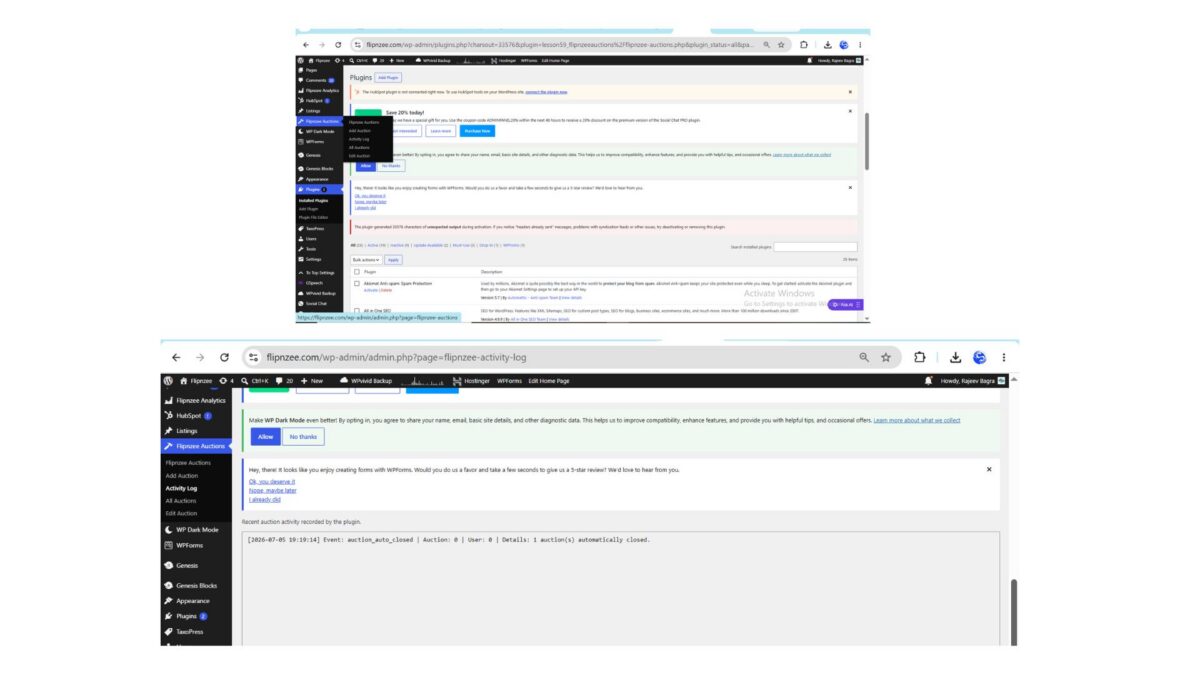
During the previous lesson, the Flipnzee Auctions plugin gained the ability to record important events such as automatically closing expired auctions. While the log file was successfully written to the server, administrators still needed to open the file manually through the hosting control panel to view it.
In this lesson, the plugin was enhanced with a dedicated Activity Log page inside the WordPress admin dashboard, allowing administrators to view recent activity directly from WordPress.
What We Wanted to Achieve
Instead of navigating to:
wp-content/uploads/flipnzee-logs/activity.log
using a file manager, the goal was to provide an easy-to-access interface under the plugin’s own admin menu.
The desired workflow became:
Flipnzee Auctions
    ├── Dashboard
    ├── Add Auction
    ├── Activity Log
    ├── All Auctions
    └── Edit Auction
Selecting Activity Log would display the contents of the log file inside the WordPress dashboard.
Step 1 – Create a New Admin Page Class
A new file was created:
admin/class-admin-activity-log.php
This class is responsible for:
- locating the activity log file
- reading its contents
- displaying the information inside the WordPress admin area
Separating this functionality into its own class keeps the plugin modular and easier to maintain.
Step 2 – Register the New Class
The new class file was loaded inside the main plugin file.
A conditional require_once statement was added so the class is only included when the file exists.
This follows the same loading pattern used throughout the plugin.
Step 3 – Add a New Submenu
A new submenu was registered inside the existing Flipnzee Auctions menu.
Administrators can now access the log from:
Flipnzee Auctions
→ Activity Log
No additional permissions were required because the page already uses the existing administrator capability.
Step 4 – Create the Page Callback
Inside the admin class, a new callback method was added.
Its only responsibility is to call the renderer from the Activity Log class.
Keeping the controller small makes future maintenance much easier.
Step 5 – Display the Log File
The Activity Log page checks whether the following file exists:
wp-content/uploads/flipnzee-logs/activity.log
If found, the contents are displayed inside a large read-only text area.
If the file does not yet exist, a friendly message is shown instead.
Step 6 – Test the Feature
An auction was allowed to expire automatically.
The maintenance task successfully recorded:
Event: auction_auto_closed
along with the number of auctions processed.
Opening the Activity Log page immediately displayed the newly written entry.
This confirmed that:
- the scheduled maintenance worked
- logging worked
- the admin page successfully read the log file
A Real Debugging Lesson
During implementation, the plugin initially failed to activate.
The server reported:
PHP Parse error:
unexpected token "public"
The problem turned out to be a missing closing brace (}) inside the register_menu() method.
Because the method never ended, PHP interpreted the next function declaration as being inside another function.
After inserting the missing brace:
}
the plugin activated normally.
This was an excellent reminder that many “fatal plugin errors” are caused by simple structural mistakes.
Verifying Syntax Before Uploading
Before uploading the updated plugin, syntax was checked locally using PHP’s built-in linter:
php -l admin/class-admin.php
The result:
No syntax errors detected
Performing this quick validation can save significant debugging time.
Final Result
The plugin now includes a fully integrated Activity Log viewer inside WordPress.
Administrators no longer need to browse server folders or download log files manually.
Recent auction activity is available directly from the dashboard with a single click.
Download Source Code
Download the starting version of the plugin before the lesson:
Download the completed version after this lesson:
What We Learned
In this lesson we learned how to:
- create a dedicated WordPress admin page
- organize admin functionality into separate classes
- register submenu pages
- display server-generated log files
- safely include new PHP classes
- diagnose plugin activation failures
- use PHP’s syntax checker before deployment
- integrate logging with an administrator-friendly interface
Tips
- Keep logging logic separate from display logic.
- Always validate PHP syntax before uploading a plugin update.
- Read server error logs whenever a plugin fails to activate.
- Organize admin pages into dedicated classes instead of placing all code in one file.
- Simple logging features become invaluable when troubleshooting production websites.
Outcome: The Flipnzee Auctions plugin now provides a built-in Activity Log page that lets administrators monitor important auction events directly from the WordPress dashboard, making debugging and maintenance much more convenient.