
Lesson 65 Implementation: Adding Transaction Status Management to Flipnzee Auctions

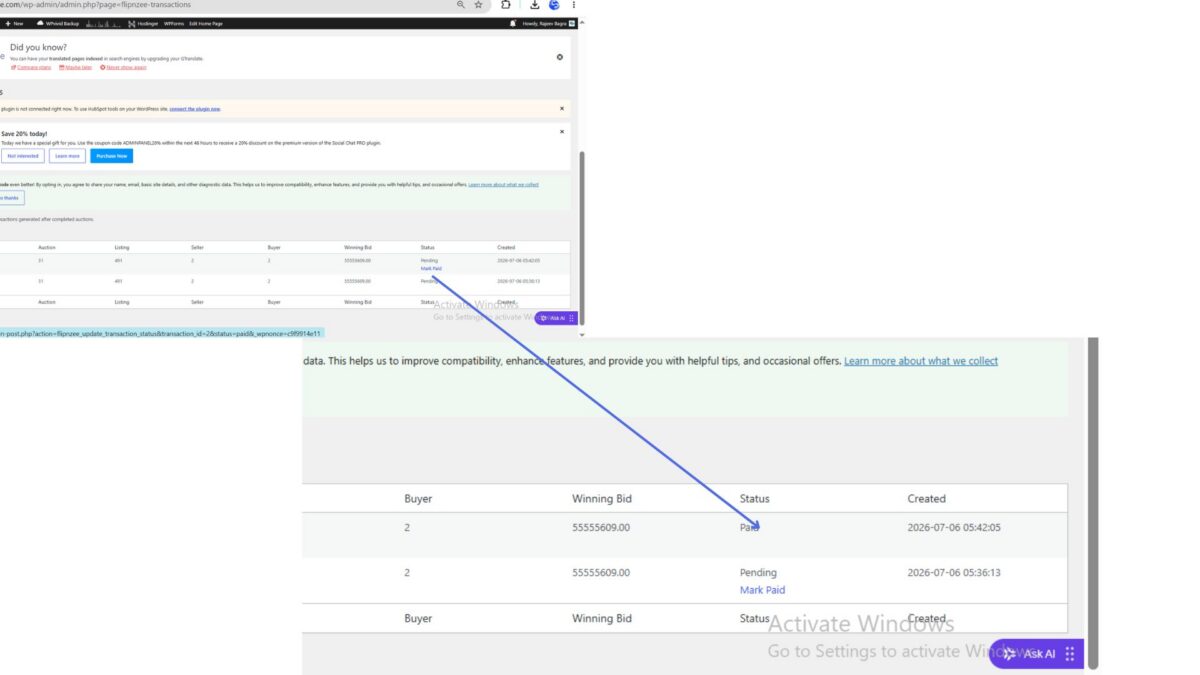
After building the Transactions dashboard in the previous lesson, the next improvement was to make the transactions interactive. Instead of simply displaying transaction records, administrators should be able to manage the progress of each transaction as the auction moves through its post-sale lifecycle.
In this lesson, we implemented the foundation for transaction status management, allowing administrators to update transaction statuses securely from the WordPress admin area while recording every status change in the activity log.
Objective
The goal of this lesson was to transform the Transactions page from a read-only report into the beginning of a transaction management system.
Instead of every transaction remaining permanently in a Pending state, administrators can now move transactions through different stages.
Initial Workflow
Before this lesson, every completed auction produced a transaction like this:
| Transaction | Status |
|---|---|
| #1 | Pending |
| #2 | Pending |
Although transactions were stored correctly, there was no mechanism to update their progress.
Step 1 — Extend the Transaction Manager
The first task was adding a reusable method responsible for updating transaction status.
File modified:
includes/class-transaction-manager.php
Method added:
/**
 * Update a transaction status.
 *
 * @param int    $transaction_id Transaction ID.
 * @param string $status         New status.
 * @return bool
 */
public static function update_status(
	$transaction_id,
	$status
) {

	global $wpdb;

	$table = $wpdb->prefix . 'flipnzee_transactions';

	$updated = $wpdb->update(
		$table,
		array(
			'status' => sanitize_text_field( $status ),
		),
		array(
			'id' => absint( $transaction_id ),
		),
		array(
			'%s',
		),
		array(
			'%d',
		)
	);

	if ( class_exists( 'Flipnzee_Activity_Log' ) ) {

		Flipnzee_Activity_Log::log(
			'transaction_status_updated',
			0,
			get_current_user_id(),
			sprintf(
				'Transaction #%d marked as %s.',
				$transaction_id,
				$status
			)
		);
	}

	return false !== $updated;
}
This method centralizes all transaction status updates in one location.
Step 2 — Register an Admin Action
To process status changes securely, a new WordPress admin action was registered.
File modified:
flipnzee-auctions.php
Code added:
add_action(
	'admin_post_flipnzee_update_transaction_status',
	array(
		'Flipnzee_Transaction_Manager',
		'handle_status_update',
	)
);
This allows WordPress to execute a custom handler whenever an administrator clicks a transaction action link.
Step 3 — Handle Status Updates Securely
Next, a dedicated handler method was implemented.
public static function handle_status_update() {

	if ( ! current_user_can( 'manage_options' ) ) {
		wp_die( 'Permission denied.' );
	}

	check_admin_referer(
		'flipnzee_update_transaction'
	);

	$transaction_id = isset( $_GET['transaction_id'] )
		? absint( $_GET['transaction_id'] )
		: 0;

	$status = isset( $_GET['status'] )
		? sanitize_text_field(
			wp_unslash( $_GET['status'] )
		)
		: '';

	if ( $transaction_id && $status ) {

		self::update_status(
			$transaction_id,
			$status
		);
	}

	wp_safe_redirect(
		admin_url(
			'admin.php?page=flipnzee-transactions'
		)
	);

	exit;
}
The handler performs several important tasks:
- verifies administrator permissions,
- validates the WordPress nonce,
- sanitizes user input,
- updates the transaction,
- redirects back to the Transactions page.
Step 4 — Add Status Action Links
The Transactions table was enhanced by creating a custom renderer for the Status column.
File modified:
admin/class-transactions-table.php
Method added:
public function column_status( $item ) {

	$status = esc_html( ucfirst( $item['status'] ) );

	$actions = array();

	if ( 'pending' === $item['status'] ) {

		$url = wp_nonce_url(
			admin_url(
				'admin-post.php?action=flipnzee_update_transaction_status'
				. '&transaction_id=' . $item['id']
				. '&status=paid'
			),
			'flipnzee_update_transaction'
		);

		$actions['paid'] =
			'<a href="' . esc_url( $url ) . '">Mark Paid</a>';

	} elseif ( 'paid' === $item['status'] ) {

		$url = wp_nonce_url(
			admin_url(
				'admin-post.php?action=flipnzee_update_transaction_status'
				. '&transaction_id=' . $item['id']
				. '&status=completed'
			),
			'flipnzee_update_transaction'
		);

		$actions['completed'] =
			'<a href="' . esc_url( $url ) . '">Mark Completed</a>';
	}

	return sprintf(
		'%1$s %2$s',
		$status,
		$this->row_actions( $actions )
	);
}
This introduces workflow-oriented actions directly into the Transactions page.
Step 5 — Testing the Workflow
After uploading the updated plugin, several scenarios were tested.
Successful observations included:
- Transaction status changed from Pending to Paid.
- The database updated correctly.
- The Activity Log recorded the status change.
- Administrators were redirected back to the Transactions page after the update.
This confirmed that the backend workflow was functioning as intended.
Challenges Encountered
During implementation, several issues arose that provided valuable learning opportunities.
Duplicate Methods
While extending the Transaction Manager, a duplicate update_status() method was accidentally created, resulting in a fatal PHP error. Removing the duplicate resolved the issue and reinforced the importance of keeping classes organized.
PHP Syntax Errors
While adding new methods, braces were temporarily misplaced, causing syntax errors. Incremental syntax checking with:
php -l includes/class-transaction-manager.php
helped identify and correct these mistakes before deployment.
Transactions Table Rendering
The custom Transactions table successfully displayed transaction data and action links. Status updates from Pending to Paid worked correctly, and the database reflected the changes. However, the “Mark Completed” action did not appear after a transaction entered the Paid state.
This did not affect the underlying transaction workflow or status updates, but highlighted a rendering issue within the current WP_List_Table implementation. Since the core transaction management functionality was already operational, further refinement of the table interface was deferred to a future lesson focused on polishing the admin experience.
Lessons Learned
This lesson demonstrated several important WordPress development practices:
- Separate business logic from user interface rendering.
- Protect administrative actions with nonces.
- Verify user capabilities before processing requests.
- Centralize database updates inside dedicated manager classes.
- Record important business events in an activity log.
- Test functionality incrementally after every major change.
Download Source Code
Download the starting version of the plugin before the lesson:
Download the completed version after this lesson:
Final Outcome
By the end of Lesson 65, the Flipnzee Auctions plugin evolved beyond simply storing transactions. Administrators can now begin managing the transaction lifecycle by updating statuses securely through the WordPress admin interface. Although some interface refinements remain for future lessons, the underlying architecture for transaction status management is now in place.
This implementation provides a solid foundation for the next phase of development, where transaction status changes will be connected to buyer and seller notifications, escrow integration, payment workflows, and ownership transfer processes, bringing the plugin closer to supporting real-world online auctions on Flipnzee.com.