
Lesson 43: Implementing Dynamic Auction Status Badges in the Flipnzee Auctions Plugin

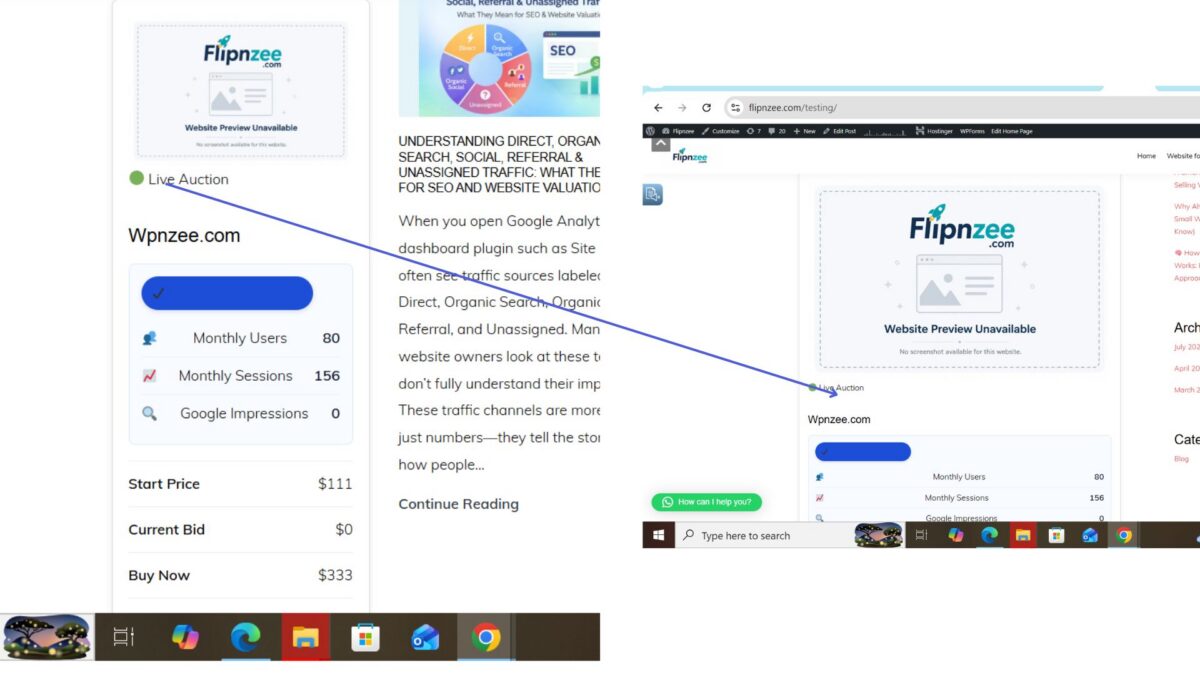
In the previous lesson, we designed the concept of dynamic auction status badges to provide visitors with a quick visual indication of an auction’s current state. In this lesson, we implemented that functionality in the Flipnzee Auctions plugin and integrated it into the frontend auction cards.
Instead of requiring visitors to interpret countdown timers or auction dates, the plugin now displays a clear, color-coded status badge that updates automatically based on the auction’s current status.
Why Auction Status Badges Matter
When visitors browse multiple auctions, they should be able to identify their status instantly.
A simple badge helps answer questions like:
- Is this auction currently active?
- Has it already ended?
- Is it scheduled to begin later?
- Has it been cancelled?
Providing this information visually improves usability and creates a more professional marketplace experience.
Badge States
The plugin now supports displaying badges for various auction states, including:
- 🟢 Active
- 🔴 Auction Ended
- 🟡 Scheduled
- ⚪ Draft
- ⚫ Cancelled (for future use)
Each badge uses a distinct color and label, making the auction status immediately understandable.
Implementing the Badge
The auction card template was updated to output a badge based on the auction’s status.
Instead of hardcoding text, the badge is generated dynamically using the auction record stored in the database.
This keeps the display synchronized with the auction’s actual state.
Styling the Badge
Custom CSS was added to improve the appearance of the badges.
The styling includes:
- rounded corners
- background color
- readable text color
- padding
- spacing from surrounding elements
The result is a compact status indicator that integrates naturally into the auction card design.
Improving the User Experience
Visitors no longer need to calculate whether an auction has ended by reading dates and times.
The badge communicates the auction status immediately.
This small enhancement significantly improves the browsing experience, particularly when multiple auctions are displayed on the same page.
Testing the Feature
After implementing the badges, different auction records were tested to verify that:
- Active auctions displayed the correct badge.
- Ended auctions showed an “Auction Ended” badge.
- Badge styling remained consistent across listings.
- The status updated correctly based on the auction data.
Challenges During Development
While implementing this lesson, development naturally expanded into improving the auction management workflow.
This led to the beginning of an Edit Auction feature, allowing administrators to modify auction details from the WordPress dashboard. During this process, several unexpected issues arose—particularly with updating auction start and end dates—which required extensive debugging.
One important takeaway was that implementing a feature is only part of development; carefully tracing data from the form, through WordPress, and into the database is equally important when diagnosing unexpected behavior.
What I Learned
This lesson reinforced several practical WordPress development concepts:
- Displaying dynamic frontend content
- Using database values to control the user interface
- Writing reusable conditional logic
- Improving user experience through visual indicators
- Enhancing plugin design with simple CSS styling
Tips for Plugin Developers
- Use colors consistently throughout your plugin.
- Display important information visually whenever possible.
- Keep frontend status indicators synchronized with backend data.
- Small UI improvements often have a significant impact on usability.
- Test every possible status to ensure the correct badge is displayed.
Final Thoughts
Dynamic auction status badges are a small feature that greatly improves the overall professionalism of an auction website. Rather than relying solely on dates or countdown timers, visitors receive an immediate visual cue about each auction’s current state.
Download Source Code
Download the starting version of the plugin before the lesson:
Download the completed version after this lesson: