
Lesson 47: Showing the Highest Bidder and Bid Status

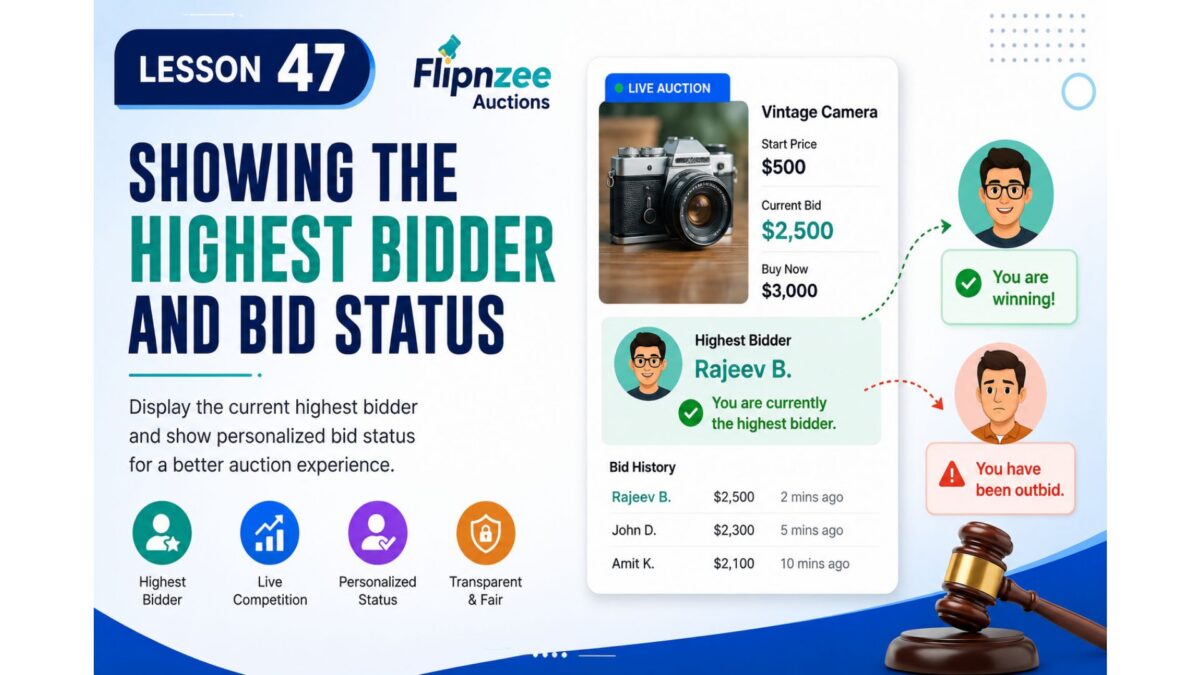
Now that our auction system records bids, validates minimum bid increments, and displays bid history, it’s time to improve the user experience.
One of the first things bidders want to know after placing a bid is:
- Am I currently winning?
- Who is the highest bidder?
- Has someone outbid me?
In this lesson, we’ll enhance Flipnzee Auctions by displaying the current highest bidder and showing personalized bid status messages.
Why Is This Important?
Imagine placing a bid and seeing only this:
Current Bid: $2,500
You have no idea whether:
- you are winning,
- someone else has already outbid you,
- or you are still the highest bidder.
Professional auction platforms always provide this information.
What We’ll Build
After this lesson, the auction page will display something like:
Current Bid
$2,500

Highest Bidder
Rajeev B.

✔ You are currently the highest bidder.
Or, if another user submits a higher bid:
Current Bid
$2,700

Highest Bidder
John D.

⚠ You have been outbid.
Step 1: Identify the Highest Bid
Since our bids are already stored in the database, we’ll retrieve the latest highest bid for the auction.
Conceptually:
SELECT *
FROM wp_flipnzee_bids
WHERE auction_id = ?
ORDER BY bid_amount DESC
LIMIT 1;
Step 2: Retrieve the Bidder
Once the highest bid is known, we’ll obtain the bidder’s WordPress user information.
Example:
$user = get_userdata( $highest_bid->bidder_id );
This allows us to display:
- Display Name
- Username
- Or an anonymized version
Step 3: Display the Highest Bidder
The auction details will gain a new row.
Example:
Current Bid      $2,500
Highest Bidder   Rajeev B.
Buy Now          $3,000
This immediately makes the auction more engaging.
Step 4: Detect the Logged-in User
If the visitor is logged in, we can compare:
Current User ID

vs

Highest Bidder ID
If they match:
✔ You are currently the highest bidder.
Otherwise:
⚠ You have been outbid.
Step 5: Improve Privacy
Some auction websites display full names.
Others show only initials.
For example:
Instead of:
Rajeev Bagra
display:
Rajeev B.
or
R*** B***
This balances transparency with user privacy.
Step 6: Handle Auctions Without Bids
When no bids exist, the page should gracefully display:
Highest Bidder

No bids yet.
instead of leaving the section blank.
Expected Result
Before:
Current Bid
$2,500

Bid History
...
After:
Current Bid
$2,500

Highest Bidder
Rajeev B.

✔ You are currently the highest bidder.

Bid History
...
What We’ll Learn
In this lesson you’ll learn how to:
- Query the highest bid from the database.
- Retrieve WordPress user information.
- Compare bidder IDs.
- Display personalized auction messages.
- Improve auction transparency.
- Handle edge cases where no bids exist.
Why This Matters
Displaying the highest bidder transforms the auction from a simple list of numbers into a live, competitive experience. Visitors immediately understand who is leading, and bidders receive instant feedback about whether they are winning or have been outbid.
These small usability improvements make the plugin feel much closer to a production-ready auction platform.
Assignment
Before moving to Lesson 48, try to:
- Display the current highest bidder.
- Show “You are currently the highest bidder” when appropriate.
- Show “You have been outbid” when another user places a higher bid.
- Display “No bids yet” when an auction has received no bids.
In the next lesson, we’ll build on this by introducing automatic auction closing, so auctions can end on schedule and no longer accept bids after their closing time.