
Lesson 49: Display Professional Success and Error Messages After Bid Submission

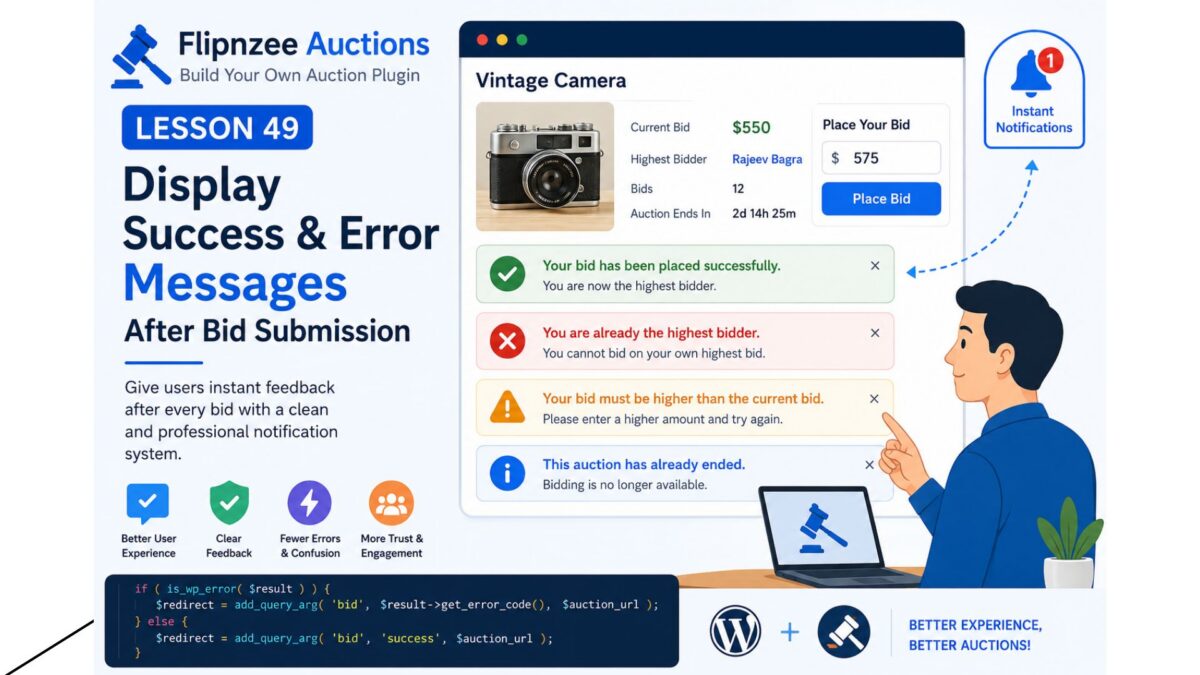
In the previous lesson, we prevented users from bidding on their own highest bid using server-side validation. Although the validation worked correctly, users received no explanation when their bid was rejected.
In this lesson, we’ll build a simple notification system that displays clear success and error messages after every bid submission.
This greatly improves the user experience and makes our auction plugin feel much more professional.
Why User Feedback Matters
Imagine clicking Place Bid and nothing appears to happen.
Questions immediately arise:
- Was my bid accepted?
- Was there an error?
- Should I click again?
- Did the auction end?
Professional websites always inform users about the result of their actions.
The Solution
We’ll use a simple three-step approach:
- Detect whether the bid succeeded or failed.
- Redirect back to the auction page with a status parameter.
- Display a colored notification at the top of the auction.
Example User Experience
Successful Bid
✅ Your bid has been placed successfully.
Already Highest Bidder
❌ You are already the highest bidder.
Bid Too Low
❌ Your bid must be higher than the current bid.
Auction Closed
❌ This auction has already ended.
Login Required
❌ Please log in before placing a bid.
Step 1: Return Meaningful Error Codes
Our bid manager already returns:
return new WP_Error(
    'already_highest_bidder',
    __( 'You are already the highest bidder.', 'flipnzee-auctions' )
);
We’ll use these error codes to determine which message should be shown after the redirect.
Step 2: Redirect With a Status
Instead of silently redirecting back to the auction page, we’ll append a query parameter.
For example:
?bid=success
or
?bid=already_highest_bidder
or
?bid=too_low
These parameters tell the frontend exactly what happened.
Step 3: Read the Status
When the auction page loads, we’ll check:
$_GET['bid']
Depending on its value, we’ll display the appropriate notification.
Step 4: Style the Notification
Instead of plain text, we’ll create attractive notice boxes.
Examples:
Green success box
✅ Your bid has been placed successfully.
Red error box
❌ You are already the highest bidder.
Yellow warning box
⚠ Auction has ended.
Benefits
Implementing a notification system provides several advantages:
- Better user experience
- Immediate feedback after bidding
- Fewer accidental duplicate submissions
- Easier troubleshooting
- More professional interface
- Consistent behavior across all bid scenarios
Real-World Examples
Many popular platforms provide similar feedback after user actions.
For example:
- eBay displays confirmation when a bid is accepted.
- WooCommerce shows notices after adding items to the cart.
- WordPress displays success and error notices after saving settings.
Users have come to expect this behavior, making it an essential feature for any interactive application.
What You’ll Learn Next
In Lesson 50, we’ll implement an Auction Winner system.
When an auction ends, the plugin will automatically determine the highest bidder and mark them as the winner. This lays the foundation for future features such as winner notifications, payment processing, and auction completion workflows.