
Lesson 74 Implementation: Displaying Professional Manual Payment Instructions on the Payment Page

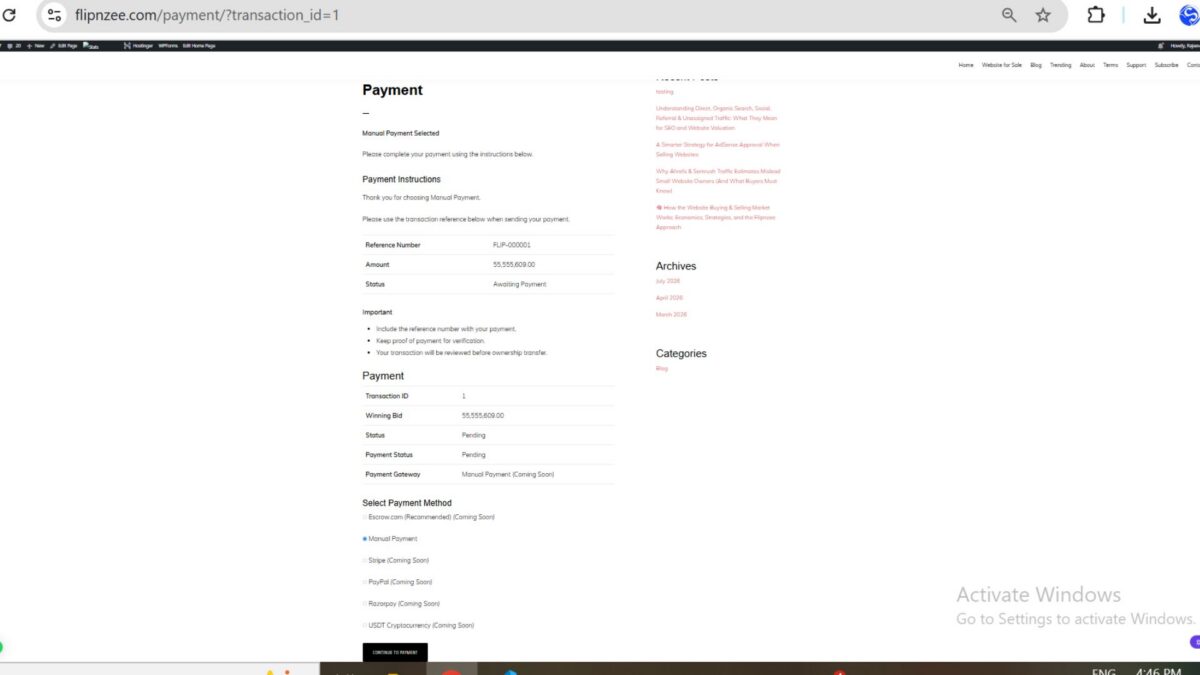
After completing the payment gateway selection workflow in the previous lessons, the next improvement was making the payment page more informative for buyers who choose Manual Payment.
Previously, selecting Manual Payment only displayed a simple confirmation message. In this lesson, the payment page was enhanced to show a professional payment instruction section containing a unique payment reference, payment amount, current status, and important guidance for the buyer.
What We Built
The payment page now displays a dedicated Payment Instructions section whenever the buyer selects Manual Payment.
The section includes:
- Unique payment reference number
- Winning bid amount
- Current payment status
- Important payment instructions
- Existing transaction details remain visible below
This provides buyers with the information they need before sending payment.
Step 1 – Detect Manual Payment Selection
After validating the form submission and selected gateway, the payment page checks which payment method the buyer selected.
switch ( $selected_gateway ) {

    case 'manual':

        // Display manual payment instructions.

        break;

    default:

        // Unsupported gateway.

        break;
}
This structure prepares the plugin for adding more gateways like Escrow.com, Stripe, PayPal and USDT in future lessons.
Step 2 – Create the Manual Payment Instruction Section
Inside the Manual Payment case, a dedicated container was added.
<div class="flipnzee-manual-payment">

    <h3>Payment Instructions</h3>

    <p>
        Thank you for choosing Manual Payment.
    </p>

    <p>
        Please use the transaction reference below when sending your payment.
    </p>

</div>
This creates a clear visual separation between payment instructions and transaction information.
Step 3 – Generate a Unique Payment Reference
Instead of using only the transaction ID, a formatted payment reference was generated.
<?php

echo esc_html(

    'FLIP-' . str_pad(

        $transaction->id,

        6,

        '0',

        STR_PAD_LEFT

    )

);

?>
Example:
FLIP-000001
Using a formatted reference looks much more professional and is easier for buyers to include in payment notes.
Step 4 – Display Important Payment Information
A table was created to display the essential payment information.
<table class="widefat striped">

<tr>

    <th>Reference Number</th>

    <td>

        <?php

        echo esc_html(
            'FLIP-' . str_pad(
                $transaction->id,
                6,
                '0',
                STR_PAD_LEFT
            )
        );

        ?>

    </td>

</tr>

<tr>

    <th>Amount</th>

    <td>

        <?php

        echo esc_html(
            number_format_i18n(
                $transaction->winning_bid,
                2
            )
        );

        ?>

    </td>

</tr>

<tr>

    <th>Status</th>

    <td>

        Awaiting Payment

    </td>

</tr>

</table>
This gives buyers an organized summary before making payment.
Step 5 – Add Important Buyer Instructions
An instruction list was added below the payment summary.
<h4>Important</h4>

<ul>

    <li>
        Include the reference number with your payment.
    </li>

    <li>
        Keep proof of payment for verification.
    </li>

    <li>
        Your transaction will be reviewed before ownership transfer.
    </li>

</ul>
These reminders help reduce payment mistakes and prepare buyers for the verification process.
Final Result
After selecting Manual Payment, buyers now see:
- Professional payment instruction heading
- Payment reference number
- Winning amount
- Awaiting payment status
- Important payment reminders
- Original transaction details below
The payment page now feels much closer to a production-ready marketplace instead of a placeholder page.
What I Learned
This lesson demonstrated that payment pages should do much more than simply display transaction details. Buyers need clear instructions, a recognizable payment reference, and confirmation of the amount and status before making payment.
Generating a formatted reference number and presenting information in a structured table significantly improves usability and prepares the payment workflow for future enhancements.
Download Source Code
Download the starting version of the plugin before the lesson:
Download the completed version after this lesson:
What’s Next?
In Lesson 75, we will build the Payment Proof Upload feature, allowing buyers to submit proof of payment after completing a manual transfer. This will move the Flipnzee payment workflow one step closer to a complete marketplace transaction process.