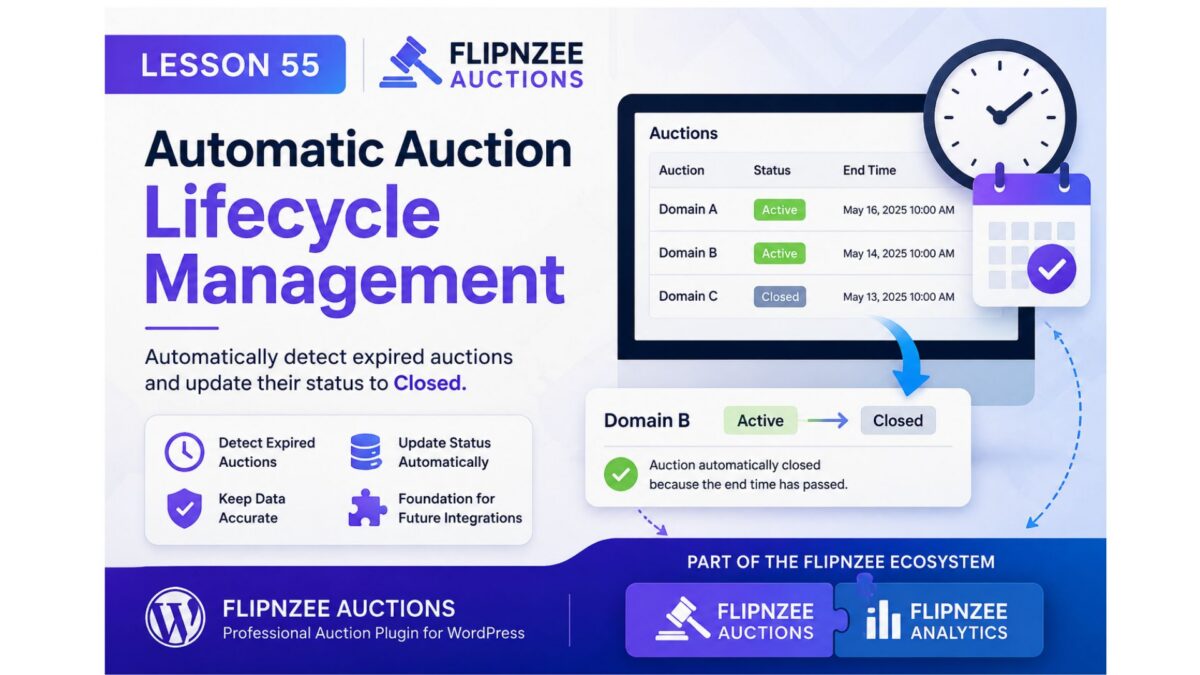
Lesson 55 – Automatic Auction Lifecycle Management


Why This Lesson?

In the previous lesson, we improved how closed auctions are displayed to visitors. However, there is still an important aspect of a professional auction system that happens behind the scenes: managing the auction lifecycle.

An auction doesn’t simply display different information after its end timeβ€”it progresses through defined states such as Active, Closed, and Sold. Keeping these states accurate ensures the rest of the plugin behaves consistently.

This lesson introduces automatic lifecycle management by allowing the plugin to recognize when an active auction has expired and update its status accordingly.

Although this feature is simple, it lays the foundation for future capabilities such as scheduled processing, winner notifications, payment workflows, and analytics integration.


Why It Matters

Every professional application has a clear business lifecycle.

For Flipnzee Auctions, that lifecycle includes:

Draft
   ↓
Published
   ↓
Active
   ↓
Closed
   ↓
Sold (future)

Instead of relying on administrators to manually update statuses, the plugin should keep auction records synchronized with real-world events.


Learning Objectives

By completing this lesson, you will learn how to:

  • Separate business logic from presentation.
  • Automatically manage auction states.
  • Write reusable methods that can be called throughout the plugin.
  • Keep the database synchronized with auction expiry.
  • Prepare the plugin for future automation features.

What We’ll Build

We’ll introduce a dedicated method inside the Auction Manager that:

  • Finds auctions that are still marked as Active.
  • Checks whether their end date and time have passed.
  • Updates only those auctions to Closed.

The method will be reusable and can later be called by scheduled tasks or other parts of the plugin.


Why This Fits the Flipnzee Ecosystem

Although Flipnzee Auctions and Flipnzee Analytics are separate plugins, they are designed to complement one another as part of the Flipnzee Platform.

Maintaining an accurate auction status benefits not only the Auctions plugin but also provides reliable events that other Flipnzee plugins can use.

For example, future integrations could respond when an auction closes by:

  • Refreshing marketplace statistics.
  • Updating auction dashboards.
  • Recording historical trends.
  • Triggering winner notifications.
  • Calculating conversion metrics.

By keeping the auction lifecycle accurate, we create a stronger foundation for the entire Flipnzee ecosystem.


Scope of This Lesson

To keep the lesson focused, we will only:

  • Detect expired active auctions.
  • Update their status to Closed.
  • Keep the implementation reusable.

We will not introduce background scheduling or email notifications yet. Those topics will be covered in future lessons.


Expected Behaviour

AuctionCurrent StatusEnd TimeResult
Domain AActiveTomorrowRemains Active
Domain BActiveYesterdayAutomatically Closed
Domain CClosedYesterdayNo Change

Only auctions that are both Active and Expired will be updated.


Files Expected to Change

The implementation should require only a small number of changes, primarily within:

  • includes/class-auction-manager.php
  • One location where auctions are retrieved before being displayed.

No database schema changes or user interface redesigns are expected.


Looking Ahead

This lesson begins the Auction Lifecycle series.

Future lessons can build upon it with features such as:

  • WP-Cron automation.
  • Winner and seller notifications.
  • Auction archive pages.
  • Marketplace statistics.
  • Integration hooks for other Flipnzee plugins.
Lesson 54: Handling Manually Closed Auctions Correctly in Flipnzee Auctions

While developing the Flipnzee Auctions plugin, an interesting edge case was discovered. Auctions that were manually marked as Closed from the admin dashboard continued to display a live countdown timer on the frontend. Although bidding was no longer possible, visitors still saw that the auction had many days remaining.

In this lesson, the auction display was updated so that manually closed auctions are presented consistently throughout the website.


The Problem

Initially, the auction countdown relied only on the auction end date.

The logic was similar to this:

$current_time >= strtotime( $auction['auction_end'] )

This worked perfectly when an auction naturally expired, but it ignored the auction status stored in the database.

As a result:

  • the auction card displayed a red Auction Ended badge,
  • the bidding form was disabled,
  • yet the countdown still showed something like:
Auction Ends In

41d 2h 53m

This created conflicting information for visitors.


Understanding the Cause

Each auction stores a status in the database.

Typical values include:

  • draft
  • active
  • closed

When an administrator manually closes an auction, the status changes to:

closed

However, the auction end date remains unchanged because the scheduled end date is still stored for historical purposes.

Therefore, relying only on the end date was not enough.


Updating the Auction Logic

The auction is now considered closed if either of the following conditions is true:

  • the auction status is closed, or
  • the scheduled end date has already passed.

The logic now looks like this:

$auction_closed =
(
    'closed' === $auction['status']
)
||
(
    current_time( 'timestamp' ) >=
    strtotime( $auction['auction_end'] )
);

This allows the plugin to distinguish between an auction that is still active and one that has been manually closed.


Improving the Frontend Display

Previously, every auction displayed the countdown row.

Auction Ends In
Loading...

This has now been replaced with conditional output.

For manually closed auctions the visitor now sees:

Auction Status
Auction Ended

For active auctions the countdown remains unchanged.

Auction Ends In
12d 05h 18m

This makes the interface much clearer.


Preserving Winner Information

During implementation another issue was discovered.

While testing, the code responsible for retrieving the winning bid had accidentally been commented out.

Because of that:

  • the Winner section disappeared,
  • the plugin incorrectly displayed “No bids were placed.” even when several bids existed.

Restoring the following code resolved the problem:

$winning_bid = Flipnzee_Bid_Manager::get_winning_bid(
    $auction['id']
);

After restoring it:

  • Winner information appeared correctly.
  • Winning bid amount was displayed.
  • Bid history continued to work.
  • Closed auctions correctly showed their final results.

Final Behaviour

The auction system now behaves consistently.

Active Auction

  • Live countdown displayed
  • Bidding enabled
  • Highest bidder shown
  • Bid history available

Naturally Expired Auction

  • Auction Ended shown
  • Winner displayed
  • Winning bid displayed
  • No further bids accepted

Manually Closed Auction

  • Auction Status β†’ Auction Ended
  • Winner displayed (if bids exist)
  • Winning bid displayed
  • Bid history preserved
  • No misleading countdown shown

Lessons Learned

This implementation highlighted an important development principle.

A date alone should not always determine the state of an application. When a dedicated status field exists in the database, both the status and the timestamp should be considered before deciding how information is presented to users.

Handling these edge cases makes the auction system more reliable and provides a better experience for both buyers and sellers.


Download Source Code

Download the starting version of the plugin before the lesson:

Download the completed version after this lesson:


Conclusion

With this improvement, Flipnzee Auctions now correctly handles manually closed auctions while preserving auction history, winner information, and bid history. Visitors receive clear and accurate information regardless of whether an auction ended naturally or was closed early by an administrator, making the plugin more robust and professional.

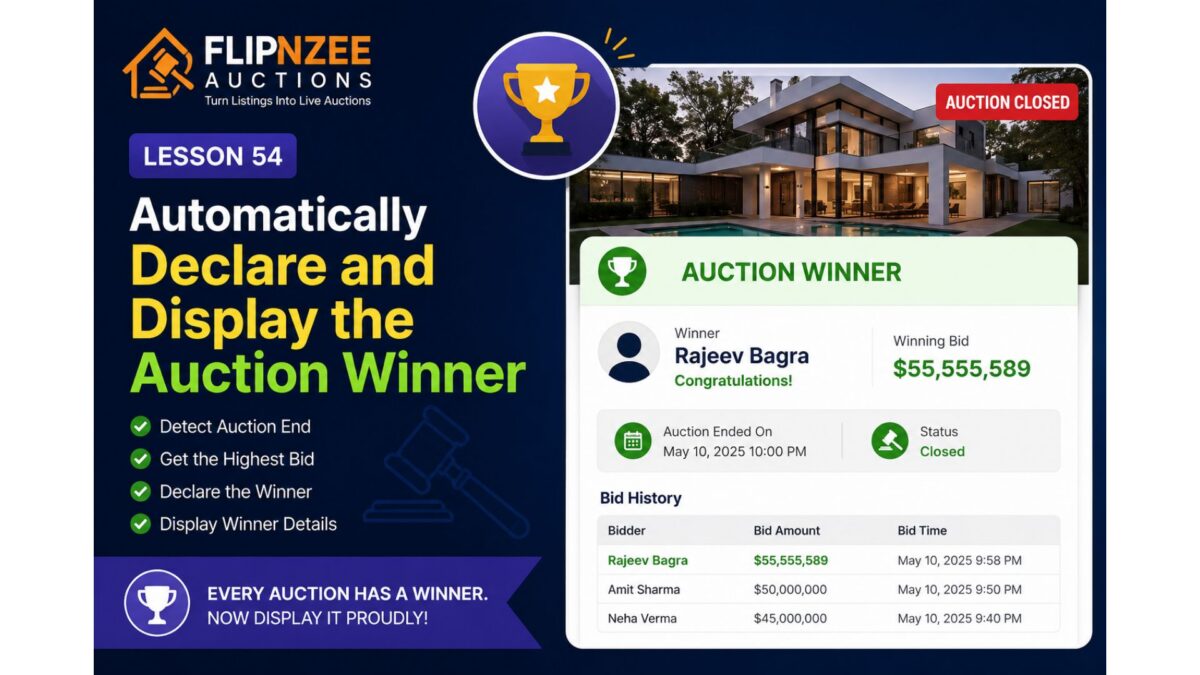
Lesson 54: Automatically Declare and Display the Auction Winner


So far, the Flipnzee Auctions plugin can:

  • Create auctions
  • Prevent duplicate auctions
  • Accept bids
  • Track the highest bidder
  • Display bid history
  • Prevent bid sniping
  • Automatically close expired auctions

However, one important question still remains unanswered:

Who actually won the auction?

Although the highest bidder is already stored in the bids table, the plugin does not yet officially declare a winner once the auction ends.

In this lesson, we’ll introduce winner determination and display the auction winner on the frontend.


What You’ll Build

By the end of this lesson, the plugin will automatically:

  • Detect that an auction has ended.
  • Retrieve the highest bid.
  • Declare that bidder as the winner.
  • Display the winner prominently.
  • Display the final winning bid.
  • Replace the bidding interface with a winner announcement.

Why This Matters

Every successful auction should end with a clear result.

Visitors should immediately know:

  • Who won?
  • What was the winning bid?
  • Is the auction still active?
  • Has the property been sold?

Professional auction platforms always display this information after an auction concludes.


Current Behaviour

Currently, a closed auction only shows:

Auction Closed

No further bids are accepted.

Although useful, it doesn’t tell visitors the outcome.


Desired Behaviour

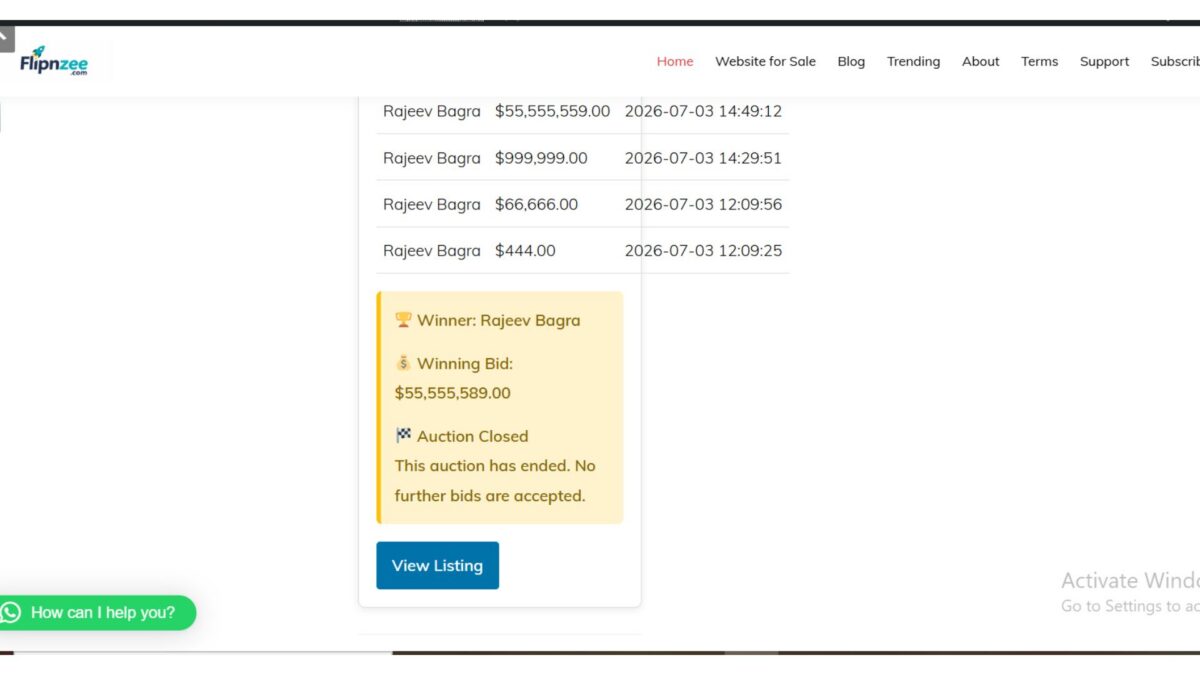
Once the auction ends, visitors should see something like:

πŸ† Auction Winner

Winner:
Rajeev Bagra

Winning Bid:
$55,555,589

Status:
Auction Closed

The bid history should remain visible below the winner announcement.


Implementation Plan

During this lesson we’ll:

Step 1

Determine whether the auction has ended.


Step 2

Retrieve the highest bidder from the bids table.


Step 3

Display the winner section above the bid history.


Step 4

Highlight the winning amount.


Step 5

Show a congratulatory message.

Example:

πŸ† Congratulations!

Rajeev Bagra won this auction with a bid of
$55,555,589.

User Experience

Before the auction ends:

  • Live countdown
  • Bid form
  • Highest bidder
  • Bid history

↓

After the auction ends:

  • πŸ† Winner
  • Winning bid
  • Auction Closed badge
  • Bid history
  • No bid form

This creates a clear transition from an active auction to a completed sale.


What You’ll Learn

In this lesson, you’ll learn how to:

  • Reuse existing database queries efficiently.
  • Display conditional content based on auction status.
  • Present auction results in a user-friendly way.
  • Improve the overall completion flow of an online auction.

Final Thoughts

An auction isn’t complete until a winner is announced. By automatically displaying the winning bidder and final selling price, the Flipnzee Auctions plugin will provide visitors with a satisfying conclusion to every auction while laying the groundwork for future enhancements such as winner notifications, payment processing, sold badges, and auction archives.


Next Lesson

Lesson 55: Notify the Winning Bidder and Administrator After Auction Completion

We’ll build on this by automatically sending email notifications to the winner and the site administrator when an auction concludes, making the auction workflow even more complete.

Lesson 53 Implementation: Prevent Duplicate Auctions by Enforcing One Auction Per Listing


As the Flipnzee Auctions plugin matured, an important database design issue became apparent. During testing, it was possible to create multiple auction records for the same listing. While acceptable during development, this behaviour could lead to incorrect auction displays, duplicated auction cards, and confusion when retrieving bid history.

In this lesson, we improved the auction creation process by enforcing a simple but important rule:

One listing can have only one auction.

Instead of creating duplicate auction records, the plugin now updates the existing auction whenever the administrator attempts to create another auction for the same listing.


The Problem

Originally, every time an auction was created, a new database record was inserted.

For example:

Listing ID 491

Auction #25
Auction #26
Auction #27
Auction #31

Although only one auction should exist for the listing, several records accumulated during development.

This caused problems such as:

  • Multiple auction cards appearing.
  • Incorrect auction selected by frontend queries.
  • Bid history associated with different auction IDs.
  • Difficult database maintenance.

Step 1: Check Whether an Auction Already Exists

Inside:

includes/class-auction-manager.php

Locate:

public static function create_auction()

Immediately after defining the database table, retrieve any existing auction for the current listing.

$existing_auction = $wpdb->get_var(
	$wpdb->prepare(
		"SELECT id
		FROM {$table}
		WHERE listing_id = %d
		LIMIT 1",
		$listing_id
	)
);

If an auction already exists, the plugin now knows its auction ID before attempting to insert another record.


Step 2: Update Instead of Insert

Previously, the function always continued directly to:

$wpdb->insert(

Instead, we added:

if ( $existing_auction ) {

	self::update_auction(
		$existing_auction,
		$listing_id,
		$start_price,
		$reserve_price,
		$buy_now_price,
		'active',
		$auction_start,
		$auction_end
	);

	return $existing_auction;
}

This means:

  • Existing auction found β†’ update it.
  • No auction found β†’ create a brand-new auction.

Step 3: Keep Existing Insert Logic

If no auction exists, the original insert code continues to run unchanged.

$result = $wpdb->insert(
	$table,
	array(
		'listing_id'    => $listing_id,
		'start_price'   => $start_price,
		'reserve_price' => $reserve_price,
		'buy_now_price' => $buy_now_price,
		'status'        => 'active',
		'auction_start' => $auction_start,
		'auction_end'   => $auction_end,
	),
	array(
		'%d',
		'%f',
		'%f',
		'%f',
		'%s',
		'%s',
		'%s',
	)
);

No further changes were required.


Why Return the Existing Auction ID?

The create_auction() method was originally designed to return the auction ID.

Returning:

true

would change the method’s behaviour and could break other parts of the plugin.

Instead, after successfully updating an existing auction, we return:

return $existing_auction;

This preserves the original method contract and keeps the plugin consistent.


Testing

To verify the implementation:

  1. Edit an existing listing.
  2. Create (or recreate) its auction.
  3. Save the auction.
  4. Check the Auctions table.

Expected behaviour:

  • No new auction record is created.
  • The existing auction is updated.
  • The auction ID remains unchanged.
  • Auction dates and prices are refreshed successfully.

Testing confirmed that the plugin now updates the existing auction instead of creating duplicates.


Development Observation

While testing, previously created development records remained in the database.

For example:

Listing ID 491

Auction #25 (closed)
Auction #26 (closed)
Auction #27 (closed)
Auction #31 (active)

These historical records were created before this lesson was implemented.

Because Lesson 53 prevents future duplicate creation, a clean database (or removal of old development records) ensures that each listing has only one associated auction going forward.


What We Learned

This lesson demonstrated an important database design principle:

Prevent duplicate data instead of fixing it later.

By checking for an existing auction before inserting a new one, the plugin now enforces a one-to-one relationship between listings and auctions. This keeps the database cleaner, simplifies frontend queries, and ensures that auction history and bid data remain associated with the correct auction record.

Download Source Code

Download the starting version of the plugin before the lesson:

Download the completed version after this lesson:


Final Thoughts

Although the implementation itself was straightforward, it significantly improved the overall architecture of the Flipnzee Auctions plugin. Preventing duplicate auctions not only reduces database clutter but also lays a stronger foundation for future features such as auction archives, winner announcements, relisting, and auction history. From this point onward, each listing is managed through a single auction record, making the system more reliable and easier to maintain.

Lesson 53: Prevent Duplicate Auctions by Enforcing One Auction Per Listing

When developing the Flipnzee Auctions plugin, a valuable architectural issue emerged during testing. Because the same listing was used repeatedly, multiple auction records were created for a single listing. Although this was acceptable during development, it exposed an important design flaw.

A marketplace listing should normally have only one auction associated with it. If multiple auction records exist for the same listing, the frontend may display an older auction instead of the latest one, leading to incorrect bid history, current bid values, and auction status.

In this lesson, the plugin will be improved to enforce a one-listing-one-auction relationship, ensuring cleaner data and more predictable behaviour.


What Problem Are We Solving?

During testing, several auction records existed for the same listing:

Listing ID 491

β”œβ”€β”€ Auction #25
β”œβ”€β”€ Auction #26
β”œβ”€β”€ Auction #27
β”œβ”€β”€ Auction #30
└── Auction #31

Although Auction #31 contained the latest bids, the frontend displayed Auction #25 because it appeared first in the query results.

The correct design should always be:

Listing ID 491
        β”‚
        β–Ό
     Auction #31

One listing should always reference one auction.


Objectives

By the end of this lesson, the plugin will:

  • Prevent multiple auction records for the same listing.
  • Detect when an auction already exists.
  • Update the existing auction instead of creating another.
  • Keep auction history clean.
  • Ensure the frontend always displays the correct auction.

Implementation Plan

The implementation will include the following improvements:

Step 1

Check whether an auction already exists for the selected listing before inserting a new record.


Step 2

If an auction already exists:

  • Update its prices.
  • Update auction dates.
  • Update reserve price.
  • Update Buy Now price.
  • Preserve the same auction ID.

Step 3

Only create a new auction if no auction exists for that listing.


Step 4

Display an admin notice such as:

An auction already exists for this listing. The existing auction has been updated instead of creating a duplicate.

This makes the behaviour clear to administrators.


Step 5

Verify that frontend shortcodes always display the latest auction because only one auction record exists.


Expected Benefits

After completing this lesson:

  • Cleaner database structure.
  • No duplicate auctions.
  • Correct bid history.
  • Correct highest bidder.
  • Correct current bid.
  • Easier maintenance.
  • Better user experience.

What You Will Learn

This lesson introduces an important database design principle:

Enforce data integrity at the application level rather than relying on users to avoid mistakes.

Instead of allowing duplicate auction records and trying to handle them later, the plugin will proactively prevent them from being created.

This small architectural improvement will make the Flipnzee Auctions plugin significantly more reliable as development continues.


Coming Up Next

In the next implementation lesson, we will modify the auction creation logic so that every listing can have only one associated auction, automatically updating the existing auction whenever the administrator edits its settings instead of creating duplicate records.

Lesson 51 Implementation: Automatically Closing Expired Auctions

One of the most important responsibilities of an auction platform is ensuring that bidding stops exactly when the auction ends. In earlier lessons, our Flipnzee Auctions plugin allowed users to place bids while the auction was active. However, there was still one significant issueβ€”an auction could technically remain active in the database even after its scheduled end time.

In this lesson, we solved that problem by automatically closing expired auctions during the bid validation process.


The Problem

Imagine an auction scheduled to end at 15:00 UTC.

If nobody manually changes its status, the auction could continue showing as Active, allowing visitors to attempt placing bids after the deadline.

This creates several problems:

  • Bids may be accepted after the auction has ended.
  • Auction status becomes inaccurate.
  • Administrators must manually close every auction.
  • Buyers lose confidence in the auction system.

We wanted the plugin to handle this automatically.


Our Approach

Whenever a user submits a bid, the plugin now performs one additional check before accepting it:

  1. Retrieve the auction’s end time.
  2. Compare it with the current UTC time.
  3. If the auction has expired:
    • Update its status to closed.
    • Reject the bid immediately.

This ensures that expired auctions are automatically closed the first time someone interacts with them after the deadline.


Step 1: Compare the Current Time

We used PHP’s gmdate() function to generate the current UTC time and compared it with the stored auction end time.

if (
    strtotime( gmdate( 'Y-m-d H:i:s' ) ) >=
    strtotime( $auction->auction_end )
) {

Using UTC prevents issues caused by different server time zones.


Step 2: Update the Auction Status

If the auction has expired, we update the auction record in the database.

$wpdb->update(
    $auction_table,
    array(
        'status' => 'closed',
    ),
    array(
        'id' => $auction_id,
    ),
    array(
        '%s',
    ),
    array(
        '%d',
    )
);

This permanently marks the auction as closed.


Step 3: Reject the Bid

After closing the auction, the function immediately returns false.

return false;

This prevents any further processing and ensures no late bids are accepted.


Complete Code

The new logic added to place_bid() looks like this:

if (
    strtotime( gmdate( 'Y-m-d H:i:s' ) ) >=
    strtotime( $auction->auction_end )
) {

    $wpdb->update(
        $auction_table,
        array(
            'status' => 'closed',
        ),
        array(
            'id' => $auction_id,
        ),
        array(
            '%s',
        ),
        array(
            '%d',
        )
    );

    return false;
}

Why This Design Works

Instead of relying on scheduled cron jobs or manual administration, the auction closes itself naturally whenever someone attempts to interact with it after its end time.

This approach is:

  • Simple
  • Reliable
  • Lightweight
  • Easy to maintain

It also avoids unnecessary background processes for smaller websites.


Current Limitation

While the auction now closes automatically, our frontend currently hides closed auctions from visitors.

This means that once an auction expires, its page no longer displays any auction information.

Although this successfully prevents further bidding, it isn’t the best user experience because visitors cannot see:

  • the winning bidder,
  • the final bid,
  • or the auction history.

We’ll address this in the next lesson.


What We Learned

In this lesson, we enhanced the bidding system by introducing automatic auction closure.

Specifically, we learned how to:

  • compare UTC timestamps using gmdate() and strtotime(),
  • update database records using $wpdb->update(),
  • automatically change an auction’s status,
  • prevent late bids,
  • and improve the reliability of the auction workflow.


Next Lesson

In Lesson 52, we’ll improve the user experience by displaying completed auctions instead of hiding them. Visitors will still be able to view the final auction details, including the winning bidder, winning amount, bid history, and a clear “Auction Closed” status, while the bidding form will be disabled.

Lesson 52 Implementation: Continue Displaying Closed Auctions with a Clear “Auction Ended” Status

In the previous lesson, the Flipnzee Auctions plugin stopped displaying auctions immediately after they were closed. While that prevented further bidding, it also removed the auction from public view, making it impossible for visitors to see the final auction result.

In this lesson, the plugin was improved so that closed auctions remain visible. Instead of disappearing, they now display an “Auction Ended” status and prevent any further bids from being placed.


Why This Change Was Needed

Previously, once an auction status became closed, the frontend shortcode only retrieved active auctions.

This caused several problems:

  • Visitors could no longer view completed auctions.
  • Final bid information disappeared.
  • Buyers could not see that an auction had successfully concluded.
  • There was no indication that bidding had ended.

A completed auction is still valuable information, so it should remain publicly visible.


Step 1: Update the Auction Query

Open:

includes/class-auction-manager.php

Locate the method:

public static function get_active_auctions()

Replace the query with:

public static function get_active_auctions() {

	global $wpdb;

	$table = $wpdb->prefix . 'flipnzee_auctions';

	return $wpdb->get_results(
		"SELECT *
		FROM {$table}
		WHERE status IN ('active', 'closed')
		ORDER BY auction_end ASC",
		ARRAY_A
	);
}

Instead of returning only active auctions, the method now also retrieves closed auctions.


Step 2: Detect Whether an Auction Has Ended

Inside:

includes/class-shortcodes.php

After loading the auction information, determine its current state:

$current_time = current_time( 'timestamp' );
$end_time     = strtotime( $auction['auction_end'] );

if ( $end_time <= $current_time ) {

	$status       = 'ended';
	$status_label = 'πŸ”΄ Auction Ended';

} elseif ( ( $end_time - $current_time ) <= DAY_IN_SECONDS ) {

	$status       = 'ending';
	$status_label = '🟑 Ending Soon';

} else {

	$status       = 'live';
	$status_label = '🟒 Live Auction';

}

This allows the auction card to dynamically display whether the auction is live, ending soon, or has already ended.


Step 3: Display the Auction Status Badge

Above the auction title, output the status label:

<div class="flipnzee-auction-status <?php echo esc_attr( $status ); ?>">
	<?php echo esc_html( $status_label ); ?>
</div>

Visitors can now instantly recognise the auction state.


Step 4: Prevent Further Bidding

Hide the bidding form after the auction has ended.

Example:

<?php if ( $status !== 'ended' ) : ?>

	<!-- Bid form -->

<?php else : ?>

	<div class="flipnzee-auction-closed">
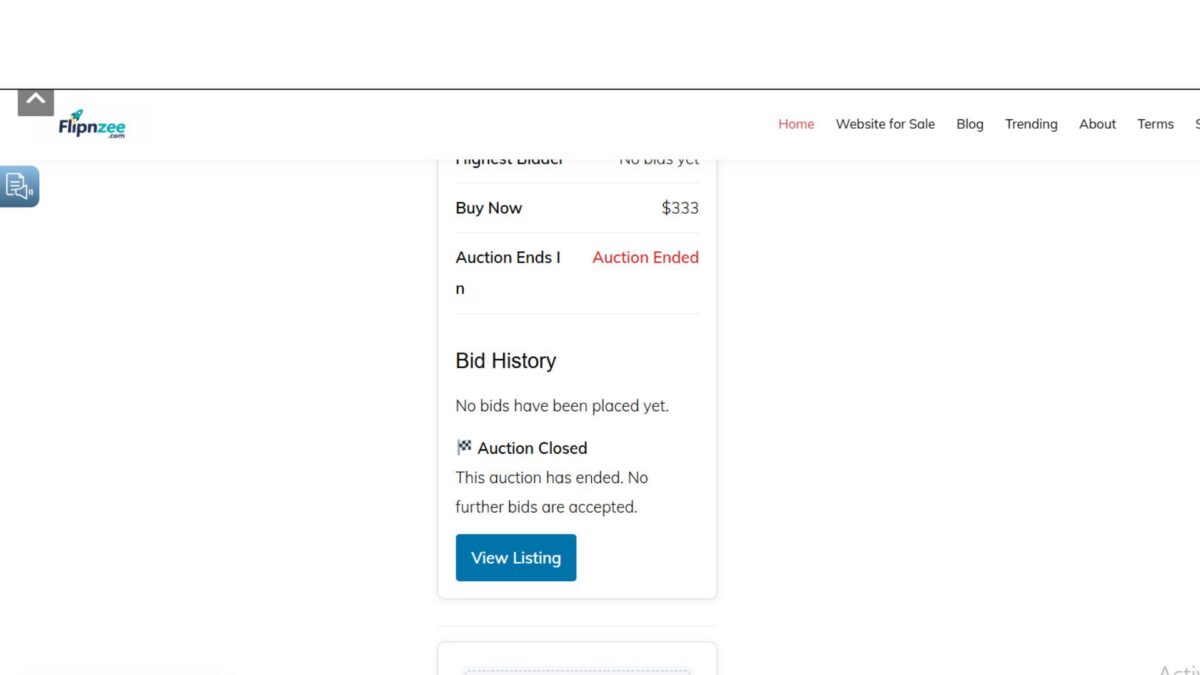
		<strong>🏁 Auction Closed</strong><br>
		This auction has ended. No further bids are accepted.
	</div>

<?php endif; ?>

This ensures the auction remains visible while preventing additional bids.


Step 5: Style the Closed Auction Notice

In:

assets/css/frontend.css

Add:

.flipnzee-auction-closed {
	background: #fff5f5;
	border: 1px solid #e74c3c;
	color: #b71c1c;
	padding: 12px;
	margin-top: 15px;
	border-radius: 6px;
	font-size: 14px;
}

The notice clearly communicates that bidding has finished.


Testing

The implementation was tested by viewing a closed auction.

Expected behaviour:

  • The auction card remained visible.
  • The status badge changed to Auction Ended.
  • The bid form disappeared.
  • Visitors were informed that no further bids would be accepted.

During testing, it was also observed that historical test auctions remained visible because multiple auction records had been created for the same listing during development. This highlighted an architectural improvement that would be addressed in the next lesson.

Download Source Code

Download the completed version after this lesson:


What Was Learned

This lesson improved the user experience by ensuring that completed auctions remain publicly visible instead of disappearing. Visitors can continue viewing the listing, the auction status, and historical information, while the system correctly prevents any new bids after the auction has ended.

The implementation also revealed the importance of maintaining a single auction record per listing, which would become the focus of the next lesson to simplify auction management and avoid duplicate auction histories.

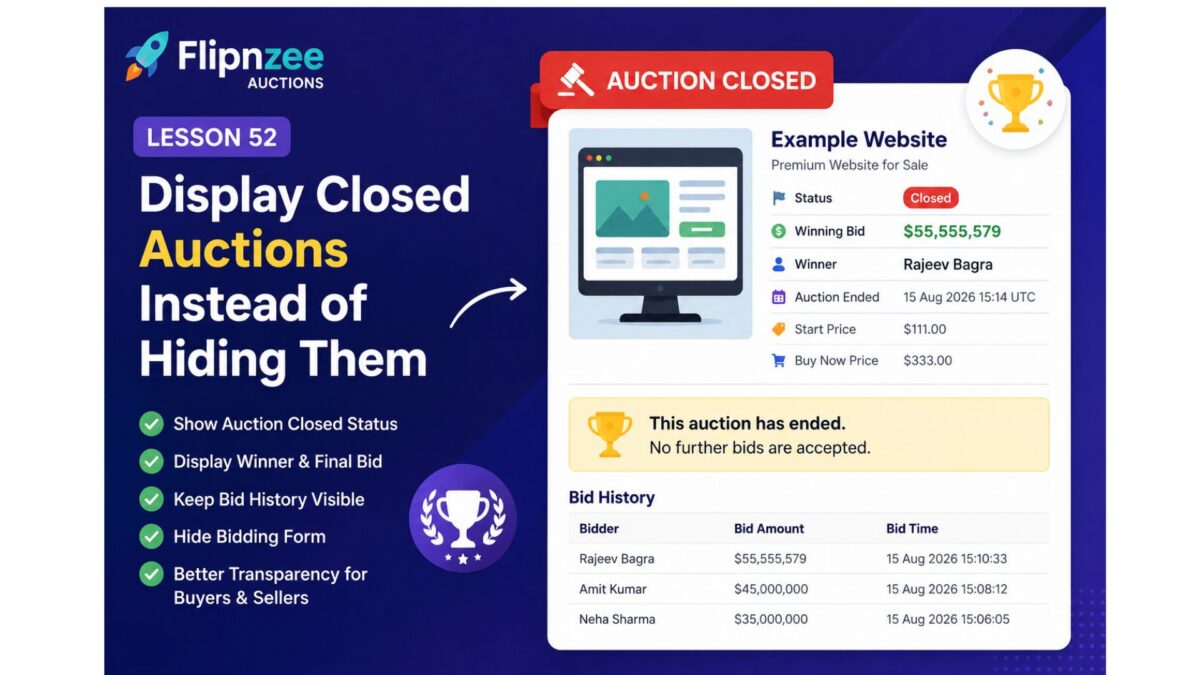
Lesson 52: Display Closed Auctions Instead of Hiding Them

In the previous lesson, we introduced automatic auction closure based on the auction end time. While that prevented late bids, it also exposed an important usability issueβ€”once an auction was marked as closed, the entire auction disappeared from the frontend.

In this lesson, we’ll improve the user experience by displaying completed auctions instead of hiding them. Visitors will still be able to see the auction results, while bidding will be disabled.


What You’ll Learn

By the end of this lesson, you’ll be able to:

  • Display both active and closed auctions.
  • Show an Auction Closed status message.
  • Continue displaying the final bid amount.
  • Display the winning bidder.
  • Keep the complete bid history visible.
  • Disable the bid form once the auction has ended.
  • Improve transparency and trust for buyers and sellers.

Why This Matters

Imagine visiting an auction page only to discover that it has completely disappeared after the auction ended.

Questions immediately arise:

  • Who won?
  • What was the final bid?
  • Was the auction successful?
  • Is the page broken?

Professional auction platforms never hide completed auctions. Instead, they preserve the auction page as a permanent record.

Examples include:

  • eBay
  • Heritage Auctions
  • Sotheby’s
  • Copart

Visitors can still review the auction outcome even though bidding has ended.


Current Behaviour

At present, our shortcode behaves roughly like this:

if ( $auction['status'] !== 'active' ) {
    return '';
}

As soon as the auction status changes to closed, nothing is displayed.


Desired Behaviour

Instead of hiding the auction, we’ll show something like this:

Status
Closed

Winning Bid
$55,555,579

Winner
Rajeev Bagra

Auction Ended
15 Aug 2026 15:14 UTC

πŸ† This auction has ended.
No further bids are accepted.

The bid history will remain visible.

Only the bidding form will disappear.


Implementation Plan

During this lesson we’ll:

Step 1

Remove the logic that hides closed auctions.


Step 2

Display an “Auction Closed” badge whenever the auction status is closed.


Step 3

Continue showing:

  • Start Price
  • Current Bid
  • Highest Bidder
  • Buy Now Price
  • Auction End Time
  • Bid History

Step 4

Hide only:

  • Bid input field
  • Place Bid button

Step 5

Display a friendly message:

🏁 This auction has ended. No further bids are accepted.


Benefits

After completing this lesson, Flipnzee Auctions will provide a much more professional experience.

Visitors will be able to:

  • Verify who won the auction.
  • See the final selling price.
  • Review the complete bid history.
  • Trust that auctions are permanently recorded.
  • Understand immediately that bidding has ended.

What We’ll Build

By the end of this lesson, every completed auction page will resemble a real-world auction result page instead of disappearing completely.

This lays the foundation for future enhancements such as:

  • πŸ† Winner badges
  • πŸŽ‰ Sold ribbons
  • Seller notifications
  • Winner email notifications
  • Auction archives
  • Recently Sold listings
  • Searchable auction history

Next Lesson

Lesson 53: Highlight the Winning Bidder and Final Selling Price for Closed Auctions

In the next lesson, we’ll enhance the completed auction page by prominently displaying the winner and the final sale price with improved styling, making the auction results more visually appealing and easier to understand.

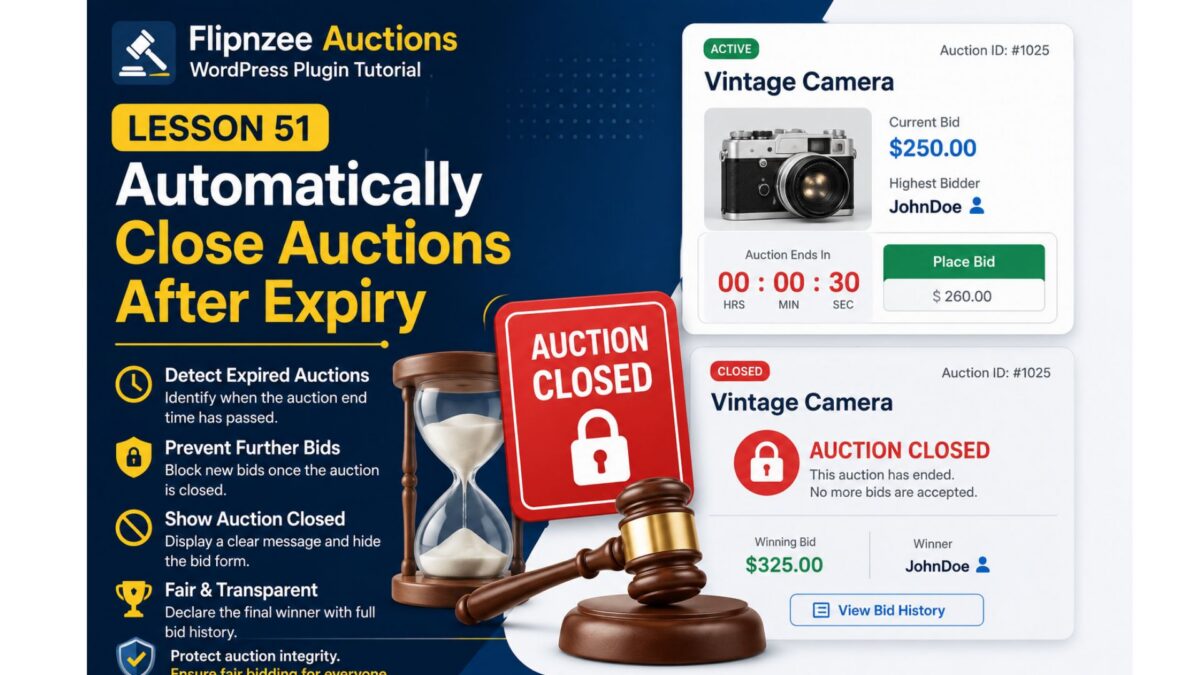
Lesson 51: Automatically Close Auctions After Expiry

I would revise Lesson 51 rather than discard it. The feature you implemented is still useful, but the title and objective should reflect what it actually does.

Revised Lesson 51

Lesson 51: Automatically Close Auctions After the End Time

What This Lesson Covers

In this lesson, we’ll make the auction system automatically recognize when an auction has reached its end time.

Instead of requiring an administrator to manually close auctions, the plugin will automatically update the auction status to closed whenever a visitor interacts with the auction after its scheduled end.

This prevents late bids from being accepted and ensures auctions finish at the correct time.


What We Implement

βœ” Compare the current UTC time with the auction end time.

βœ” Automatically change the auction status from active to closed.

βœ” Prevent any future bids from being accepted.

βœ” Keep the auction data intact for later display.


Why This Matters

Without automatic closure:

  • Auctions could remain active indefinitely.
  • Users might continue placing bids after the deadline.
  • Administrators would have to close every auction manually.

With this improvement:

  • Auctions close themselves automatically.
  • The database always reflects the correct status.
  • The bidding system becomes much more reliable.

What We Did

Inside the bid validation process, we checked whether the auction had already expired.

If the current UTC time is greater than or equal to the auction end time, we immediately update the auction status.

Example:

if ( strtotime( gmdate( 'Y-m-d H:i:s' ) ) >= strtotime( $auction->auction_end ) ) {

    $wpdb->update(
        $auction_table,
        array(
            'status' => 'closed',
        ),
        array(
            'id' => $auction_id,
        ),
        array(
            '%s',
        ),
        array(
            '%d',
        )
    );

    return false;
}

What Happens Now

If a visitor attempts to place a bid after the auction has ended:

  1. The plugin checks the auction end time.
  2. The auction status is automatically updated to closed.
  3. The bid is rejected.
  4. Future visitors will also see the auction as closed.

Current Limitation

At this stage, a closed auction is no longer displayed by the frontend shortcode.

While this successfully prevents further bidding, it also hides the auction from visitors.

We’ll improve this behavior in the next lesson.


Next Lesson

Lesson 52: Display Closed Auctions with Winner Information

Instead of hiding completed auctions, we’ll:

  • Display an Auction Closed badge.
  • Show the winning bidder.
  • Display the winning bid.
  • Keep the bid history visible.
  • Hide only the bidding form.
  • Create a permanent auction record for visitors.

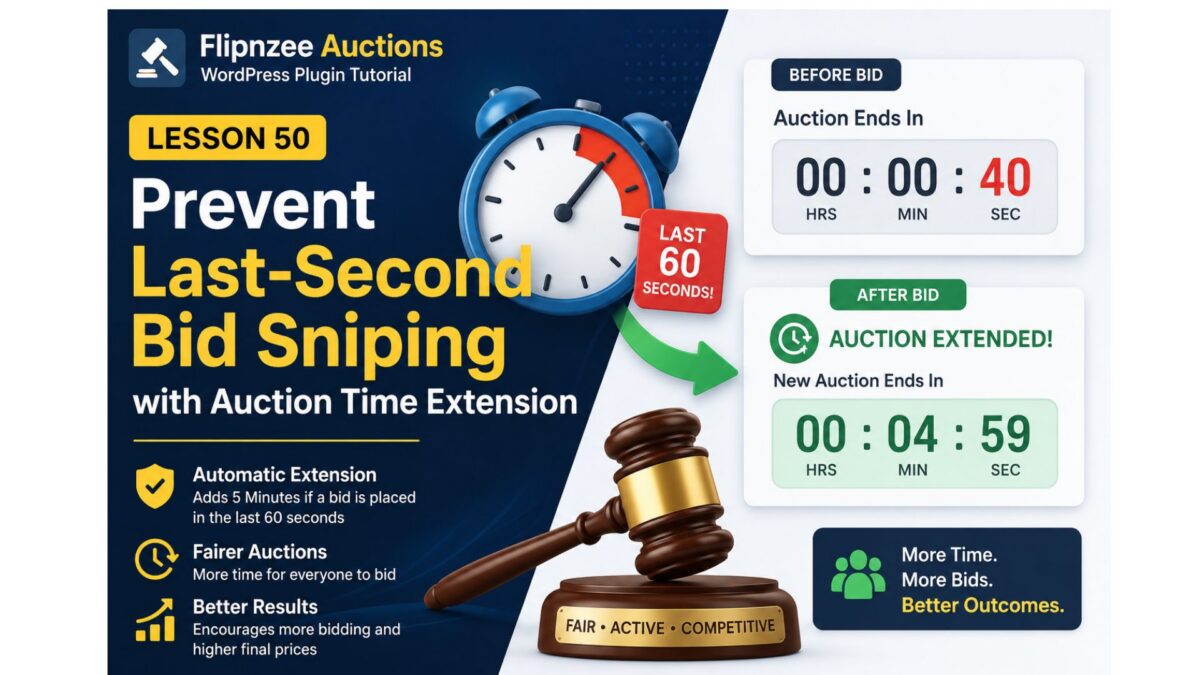
Lesson 50 Implementation: Prevent Last-Second Bid Sniping with Automatic Auction Time Extension

One of the biggest frustrations in online auctions is bid snipingβ€”when someone waits until the final few seconds before placing a bid, leaving other bidders with no opportunity to respond. Many professional auction platforms solve this by automatically extending the auction if a bid is received near the end.

In this lesson, we implemented the same feature in the Flipnzee Auctions plugin. Whenever a valid bid is placed during the final 60 seconds of an auction, the auction end time is automatically extended by five minutes.


What We Built

The auction system now:

  • Detects every successful bid.
  • Checks how much time remains before the auction ends.
  • If 60 seconds or less remain:
    • Extends the auction by five minutes.
    • Updates the auction end time in the database.
  • Otherwise, the auction continues normally.

This gives every interested bidder a fair opportunity to respond.


Step 1: Locate the Bid Processing Method

Open:

includes/class-bid-manager.php

Locate:

public static function place_bid(

This method already:

  • validates bids,
  • inserts the bid into the database,
  • updates the auction’s current highest bid.

Step 2: Keep the Existing Current Bid Update

After a successful bid, the plugin already updates the auction table.

$wpdb->update(
    $auction_table,
    array(
        'current_bid' => $bid_amount,
    ),
    array(
        'id' => $auction_id,
    ),
    array(
        '%f',
    ),
    array(
        '%d',
    )
);

Immediately after this block, we inserted the anti-sniping logic.


Step 3: Retrieve the Auction End Time

First, fetch the current auction end time.

$auction = $wpdb->get_row(
    $wpdb->prepare(
        "SELECT auction_end
        FROM {$auction_table}
        WHERE id = %d",
        $auction_id
    )
);

This retrieves the existing end time directly from the database.


Step 4: Calculate Remaining Time

Convert the auction end time into a Unix timestamp.

$end_time = strtotime(
    $auction->auction_end
);

$current_time = current_time(
    'timestamp'
);

$seconds_left =
    $end_time - $current_time;

Using timestamps makes it easy to compare dates mathematically.


Step 5: Detect Last-Minute Bids

Only extend the auction if less than one minute remains.

if ( $seconds_left <= 60 ) {

    // Extend auction
}

This prevents unnecessary extensions while protecting against last-second sniping.


Step 6: Extend the Auction

Add five minutes to the existing end time.

$new_end = date(
    'Y-m-d H:i:s',
    $end_time + ( 5 * 60 )
);

Notice that:

5 Γ— 60 = 300 seconds

The new end time is generated in MySQL datetime format.


Step 7: Save the New Auction End Time

Update the auction record.

$wpdb->update(
    $auction_table,
    array(
        'auction_end' => $new_end,
    ),
    array(
        'id' => $auction_id,
    ),
    array(
        '%s',
    ),
    array(
        '%d',
    )
);

The countdown timer will now use this updated value.


Complete Anti-Sniping Code

/*
 * Anti-sniping:
 * Extend auction by 5 minutes if
 * less than 60 seconds remain.
 */
$auction = $wpdb->get_row(
    $wpdb->prepare(
        "SELECT auction_end
        FROM {$auction_table}
        WHERE id = %d",
        $auction_id
    )
);

if ( $auction ) {

    $end_time = strtotime(
        $auction->auction_end
    );

    $current_time = current_time(
        'timestamp'
    );

    $seconds_left =
        $end_time - $current_time;

    if ( $seconds_left <= 60 ) {

        $new_end = date(
            'Y-m-d H:i:s',
            $end_time + ( 5 * 60 )
        );

        $wpdb->update(
            $auction_table,
            array(
                'auction_end' => $new_end,
            ),
            array(
                'id' => $auction_id,
            ),
            array(
                '%s',
            ),
            array(
                '%d',
            )
        );
    }
}

Why This Feature Matters

Many professional auction websites use automatic auction extensions because they:

  • Prevent unfair last-second bidding.
  • Give genuine buyers time to react.
  • Encourage competitive bidding.
  • Increase seller confidence.
  • Often lead to higher final selling prices.

Instead of rewarding the fastest click during the final seconds, the auction rewards the highest genuine bidder.


Testing

Although this lesson was successfully implemented, testing was intentionally postponed.

Because auction end times depend on server time and WordPress timezone settings, it is more practical to verify the feature during a real auction approaching its end. When a bid is placed within the final 60 seconds, the auction end time should automatically increase by five minutes.

Download Source Code

Download the starting version of the plugin before the lesson:

Download the completed version after this lesson:


What We Learned

In this lesson we learned how to:

  • Improve auction fairness with anti-sniping logic.
  • Work with Unix timestamps in PHP.
  • Calculate remaining auction time.
  • Update MySQL datetime values.
  • Extend auction durations dynamically.
  • Build a feature commonly found in commercial auction platforms.

Final Thoughts

A simple five-minute extension can significantly improve the fairness and competitiveness of an online auction. By adding anti-sniping protection, Flipnzee Auctions now behaves much more like established auction marketplaces, ensuring that every bidder has a reasonable opportunity to respond before an auction closes.