
Lesson 30 Implementation: Adding Bulk Delete Functionality to the Flipnzee Auctions Plugin

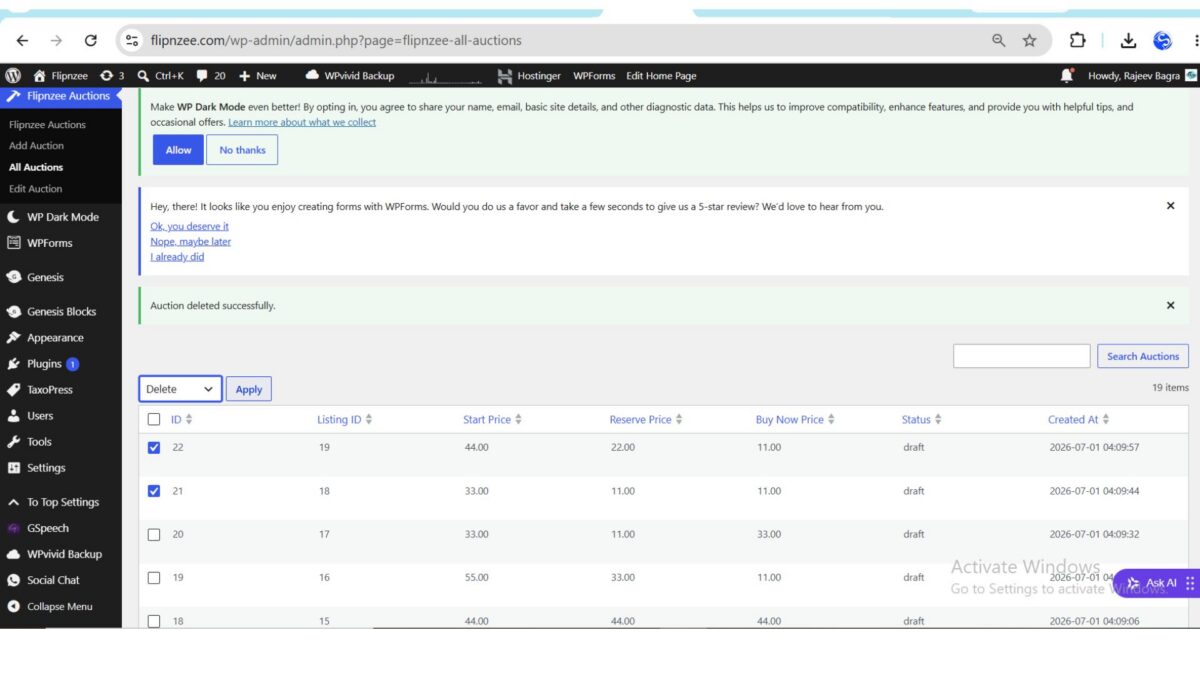
In Lesson 29, we added checkboxes and a Bulk Actions dropdown to the auction management table. Although the interface looked complete, selecting auctions and clicking Apply did not actually perform any action.
In this implementation, we’ll connect the user interface to the database so administrators can securely delete multiple auction records with a single click.
Step 1: Create a Method to Delete Multiple Auctions
The first task was to create a reusable method responsible for deleting multiple auction records from the database.
Inside includes/class-auction-manager.php, a new method named delete_multiple_auctions() was added.
public static function delete_multiple_auctions( $auction_ids ) {

	global $wpdb;

	$table = $wpdb->prefix . 'flipnzee_auctions';

	foreach ( $auction_ids as $auction_id ) {

		$wpdb->delete(
			$table,
			array(
				'id' => absint( $auction_id ),
			),
			array( '%d' )
		);
	}
}
Each submitted auction ID is sanitized using absint() before being passed to $wpdb->delete(), ensuring only valid numeric IDs are processed.
Step 2: Register a Bulk Action Processor
Next, the plugin needed a way to detect when an administrator clicks the Apply button.
Inside the constructor of admin/class-admin.php, a new action hook was registered.
add_action(
	'admin_init',
	array( $this, 'process_bulk_actions' )
);
The admin_init hook executes during every admin request, making it an ideal place to process submitted bulk actions before the page is rendered.
Step 3: Create the Bulk Action Handler
A new method named process_bulk_actions() was then added to the admin class.
The method performs several validation checks before deleting any records.
It verifies:
- The current user has permission to manage auctions.
- A bulk action has actually been submitted.
- The selected action is Delete.
- At least one auction has been selected.
If any of these conditions fail, the method immediately exits without making changes.
Step 4: Protect the Request with a WordPress Nonce
Security is an essential part of WordPress plugin development.
A nonce field was added to the bulk action form.
wp_nonce_field(
	'flipnzee_bulk_delete',
	'flipnzee_bulk_nonce'
);
This hidden field generates a unique security token that WordPress can later verify.
Step 5: Verify the Nonce
Inside process_bulk_actions(), the submitted nonce is validated before processing any deletion.
if (
	! isset( $_POST['flipnzee_bulk_nonce'] ) ||
	! wp_verify_nonce(
		sanitize_text_field(
			wp_unslash( $_POST['flipnzee_bulk_nonce'] )
		),
		'flipnzee_bulk_delete'
	)
) {
	return;
}
This prevents Cross-Site Request Forgery (CSRF) attacks by ensuring the request originated from the plugin’s own administration page.
Step 6: Retrieve the Selected Auction IDs
The selected auction IDs are submitted as an array.
Each value is sanitized before use.
$auction_ids = array_map(
	'absint',
	wp_unslash( $_POST['auction_ids'] )
);
Using array_map() ensures every submitted value becomes a valid integer.
Step 7: Delete the Selected Auctions
After validation, the manager method is called.
Flipnzee_Auction_Manager::delete_multiple_auctions(
	$auction_ids
);
This loops through every selected auction and removes it from the custom database table.
Step 8: Redirect Back to the Auction List
After completing the deletion, the administrator is redirected back to the auction listing page.
wp_safe_redirect(
	admin_url(
		'admin.php?page=flipnzee-all-auctions&message=deleted'
	)
);

exit;
Using wp_safe_redirect() prevents accidental duplicate submissions if the page is refreshed.
Step 9: Display a Success Message
The existing success notification on the All Auctions page automatically detects the message=deleted query parameter and displays a confirmation message.
Auction deleted successfully.
This provides immediate feedback that the operation completed successfully.
Step 10: Test the Feature
After rebuilding and uploading the plugin, the feature was tested by:
- Selecting multiple auctions.
- Choosing Delete from the Bulk Actions dropdown.
- Clicking Apply.
- Confirming that the selected auctions disappeared.
- Verifying that the success message appeared.
The implementation worked exactly as expected.
Final Result
The auction management screen now supports professional bulk operations similar to WordPress core.
Administrators can:
- Select one or many auctions.
- Delete multiple records with a single action.
- Receive immediate confirmation after deletion.
- Benefit from WordPress nonce protection against unauthorized requests.
Combined with pagination, searching, sorting, and row actions implemented in previous lessons, the auction management screen now offers a polished administrative experience.
What We Learned
By completing this implementation, we learned how to:
- Create reusable database methods for bulk operations.
- Process submitted bulk actions in the WordPress admin area.
- Register custom admin hooks.
- Secure forms using WordPress nonces.
- Sanitize arrays of submitted IDs.
- Delete multiple database records safely.
- Redirect after processing to prevent duplicate submissions.
- Display success notifications following bulk operations.
With bulk deletion complete, the Flipnzee Auctions plugin now includes one of the most commonly used productivity features found in professional WordPress plugins.
Download Source Code
Download the starting version of the plugin before the lesson:
Download the completed version after this lesson: