
Creating Custom Admin Menus in WordPress

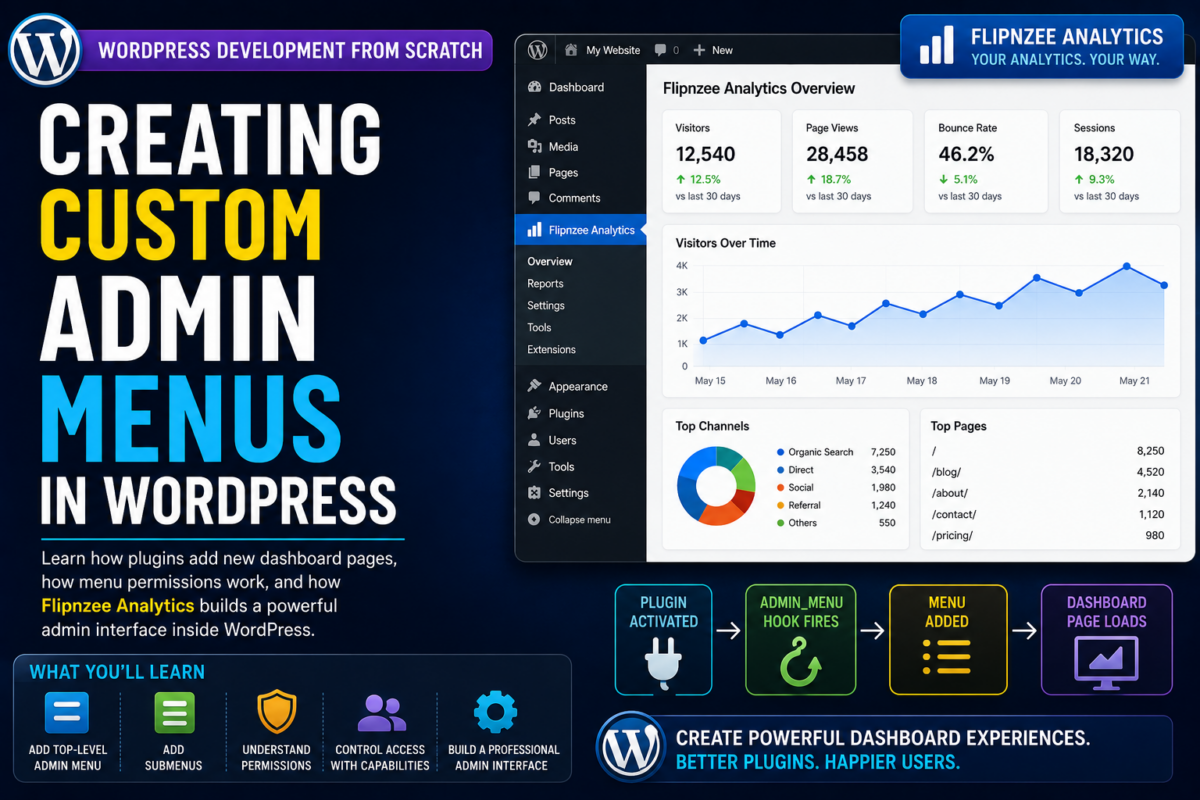
Series: WordPress Development From Scratch
Level: Beginner to Intermediate
Project Reference: Flipnzee Analytics
Introduction
One of the most powerful features of WordPress plugins is the ability to create custom pages inside the WordPress dashboard.
Have you ever installed a plugin and noticed a new menu item appear in the admin sidebar?
Examples include:
- WooCommerce
- Yoast SEO
- Elementor
- MonsterInsights
- Flipnzee Analytics
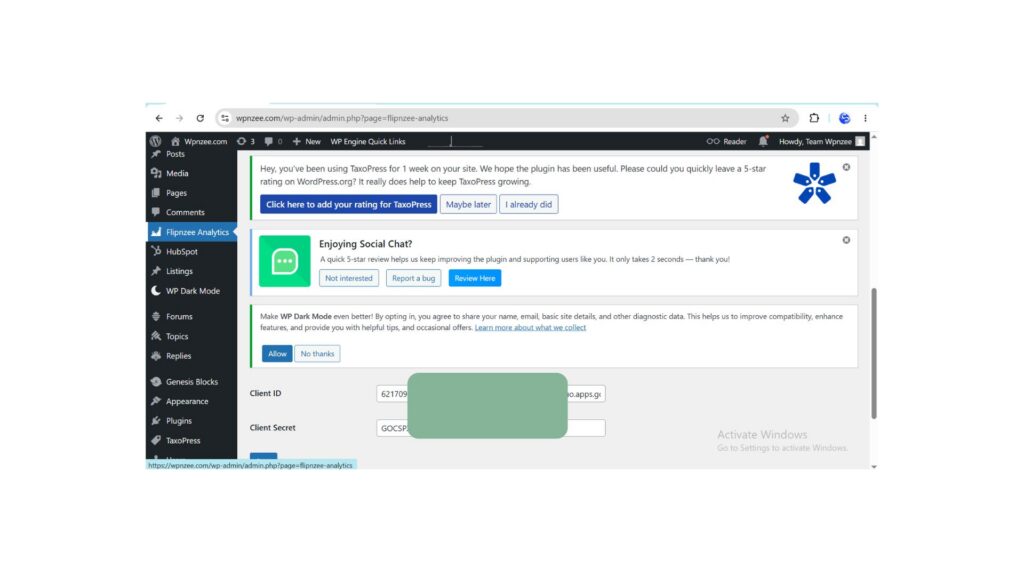
These plugins create custom admin menus that allow users to configure settings, view reports, and manage plugin features.
In this tutorial you’ll learn:
- How WordPress admin menus work
- How plugins create dashboard pages
- The purpose of menu permissions
- Creating top-level menus
- Creating submenu pages
- Best practices for admin interfaces
- How the Flipnzee Analytics plugin creates its dashboard
By the end, you’ll be able to add professional dashboard pages to your own plugins.
What Is an Admin Menu?
An admin menu is a navigation item inside the WordPress dashboard.
Examples:
Dashboard
Posts
Media
Pages
Comments
Appearance
Plugins
Users
Tools
Settings
Plugins can add their own entries:
Dashboard
Posts
Media
Pages
Flipnzee Analytics
Clicking the menu opens a custom admin page.
Why Create Admin Menus?
Many plugins need a place to:
- Store settings
- Display reports
- Configure APIs
- Show analytics
- Manage users
- Run maintenance tools
Without admin menus, users would have no easy way to interact with the plugin.
How WordPress Creates Menus
WordPress uses the:
admin_menu
hook.
Example:
add_action(
    'admin_menu',
    'wpnzee_admin_menu'
);
This tells WordPress:
“Run my function when admin menus are being built.”
Creating Your First Admin Menu
Example:
function wpnzee_admin_menu() {

    add_menu_page(
        'WPNzee Dashboard',
        'WPNzee Dashboard',
        'manage_options',
        'wpnzee-dashboard',
        'wpnzee_dashboard_page'
    );

}

add_action(
    'admin_menu',
    'wpnzee_admin_menu'
);
Understanding add_menu_page()
The function:
add_menu_page()
creates a top-level menu.
Example:
add_menu_page(
    'WPNzee Dashboard',
    'WPNzee Dashboard',
    'manage_options',
    'wpnzee-dashboard',
    'wpnzee_dashboard_page'
);
Let’s examine each parameter.
Page Title
'WPNzee Dashboard'
Displayed in the browser title.
Menu Title
'WPNzee Dashboard'
Displayed in the sidebar.
Capability
'manage_options'
Determines who can access the page.
Menu Slug
'wpnzee-dashboard'
Unique page identifier.
Callback Function
'wpnzee_dashboard_page'
Function that displays page content.
Creating the Dashboard Page
Now create the callback:
function wpnzee_dashboard_page() {

    echo '<div class="wrap">';

    echo '<h1>WPNzee Dashboard</h1>';

    echo '<p>Welcome to your first plugin dashboard.</p>';

    echo '</div>';

}
After activation, you’ll see a new menu inside the WordPress dashboard.
Understanding User Permissions
One of the most important concepts in WordPress administration is permissions.
Example:
'manage_options'
Only administrators can access pages using this capability.
Common Capabilities
| Capability | Access |
|---|---|
| manage_options | Administrators |
| edit_posts | Authors and above |
| publish_posts | Editors and above |
| activate_plugins | Administrators |
| edit_pages | Editors and above |
Choosing the correct capability is important for security.
Adding a Custom Icon
You can assign an icon:
add_menu_page(
    'WPNzee Dashboard',
    'WPNzee Dashboard',
    'manage_options',
    'wpnzee-dashboard',
    'wpnzee_dashboard_page',
    'dashicons-chart-line'
);
WordPress includes hundreds of Dashicons.
Examples:
dashicons-chart-line
dashicons-admin-generic
dashicons-analytics
dashicons-admin-tools
dashicons-chart-pie
Creating Submenus
Professional plugins usually contain multiple pages.
Example:
Flipnzee Analytics
├── Dashboard
├── Reports
├── Settings
WordPress provides:
add_submenu_page()
Example Submenu
add_submenu_page(
    'wpnzee-dashboard',
    'Reports',
    'Reports',
    'manage_options',
    'wpnzee-reports',
    'wpnzee_reports_page'
);
This creates a Reports page beneath the main menu.
Creating the Reports Page
Example:
function wpnzee_reports_page() {

    echo '<div class="wrap">';

    echo '<h1>Reports</h1>';

    echo '<p>Analytics reports appear here.</p>';

    echo '</div>';

}
Organizing Menu Code
As plugins grow, menu code should move into a dedicated file.
Example:
admin
├── menu.php
├── settings-page.php
└── reports-page.php
Then load it:
require_once plugin_dir_path(__FILE__) . 'admin/menu.php';
This keeps the plugin organized.
Real Example: Flipnzee Analytics
The Flipnzee Analytics plugin uses custom admin pages to manage:
- Google Analytics connections
- Property configuration
- Reports
- Dashboard widgets
- Search Console integration
Instead of placing everything inside Settings, it provides a dedicated interface designed specifically for analytics management.
This creates a better user experience.
Typical Flow of an Admin Menu
Plugin Activated
          ↓
admin_menu Hook Fires
          ↓
add_menu_page()
          ↓
Menu Appears in Sidebar
          ↓
User Clicks Menu
          ↓
Callback Function Executes
          ↓
Dashboard Page Loads
Understanding this flow makes admin development much easier.
Common Beginner Mistakes
Using Duplicate Slugs
Bad:
'settings'
Good:
'wpnzee-settings'
Always use unique prefixes.
Incorrect Permissions
Avoid:
'read'
for administrative pages.
Choose capabilities carefully.
Mixing Logic and Presentation
Keep:
Menu Registration
separate from:
Page Rendering
This improves maintainability.
Creating Too Many Top-Level Menus
Bad:
Dashboard
Posts
Pages
Plugin A
Plugin B
Plugin C
Plugin D
Use submenus whenever possible.
What You’ve Learned

In this tutorial you learned:
✓ What admin menus are
✓ How plugins create dashboard pages
✓ How add_menu_page() works
✓ How add_submenu_page() works
✓ How permissions control access
✓ How menu callbacks work
✓ How Flipnzee Analytics organizes its admin interface
✓ Best practices for scalable dashboard development
Key Takeaway
Admin menus are the foundation of plugin user interfaces.
They provide a professional way for users to interact with plugin settings, reports, and tools.
Most successful WordPress plugins rely heavily on custom admin pages, making this an essential skill for every plugin developer.
Next Lesson
In the next tutorial we’ll explore:
Building a Professional Settings Page Using the WordPress Settings API
You’ll learn how plugins save settings securely, how WordPress stores configuration data, and how the Flipnzee Analytics plugin manages API credentials, analytics settings, and user preferences using professional WordPress development practices.