
Lesson 64: Build a Transaction Management Dashboard in WordPress Admin

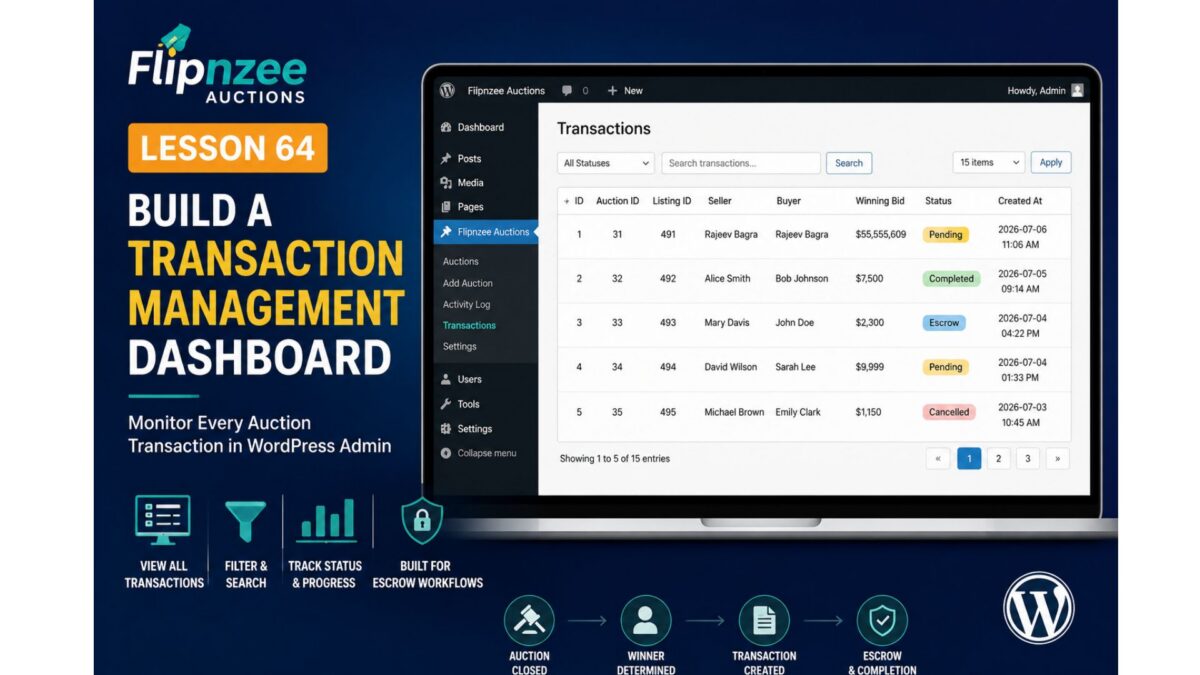
Objective
Create a dedicated Transactions page in the WordPress admin where administrators can monitor every completed auction transaction.
This will become the operational dashboard before adding escrow integration.
What We Will Build
A new admin menu:
Flipnzee Auctions
├── Auctions
├── Add Auction
├── Activity Log
├── Transactions   ← NEW
The page will display something like:
| ID | Auction | Listing | Seller | Buyer | Winning Bid | Status | Created |
|---|---|---|---|---|---|---|---|
| 1 | 31 | 491 | Rajeev | Rajeev | $55,555,609 | Pending | Today |
Why This Lesson Matters
Right now:
- Auctions close automatically ✅
- Winner is determined ✅
- Transaction is created ✅
But administrators cannot actually see or manage transactions.
A transaction dashboard is the natural bridge before adding:
- Escrow integration
- Payment processing
- Buyer/Seller confirmation
- Domain transfer workflow
- Status updates
Files We’ll Modify
New
admin/class-transactions-table.php
A WordPress list table for transactions.
New
admin/class-admin-transactions.php
Renders the Transactions page.
Modify
admin/class-admin.php
Register the new submenu.
Reuse
includes/class-transaction-manager.php
Read transaction data from the database.
Features
1. Transactions Table
Display:
- Transaction ID
- Auction ID
- Listing ID
- Seller
- Buyer
- Winning Bid
- Status
- Created Date
2. Pagination
Support large numbers of transactions.
3. Search
Search by:
- Auction ID
- Listing ID
- Buyer
- Seller
4. Status Filter
Dropdown:
All
Pending
Escrow
Completed
Cancelled
Refunded
5. Sorting
Allow sorting by:
- Date
- Winning Bid
- Status
6. Future Ready
We’ll design the table so adding action buttons later is easy:
View
Mark Escrow Received
Mark Completed
Cancel
Those buttons won’t do anything yet—they’ll be implemented in later lessons.
What We’ll Learn
During this lesson you’ll practice:
- Creating another
WP_List_Table - Reading custom database tables
- Pagination
- Searching
- Sorting
- Filtering
- Secure admin pages
- Preparing for escrow workflows
Expected Result
The admin will have a professional Transactions dashboard similar to WordPress Posts or Users.
Example:
-------------------------------------------------------------
 Transactions

 ID   Auction  Buyer      Seller     Winning Bid     Status
-------------------------------------------------------------
 1      31     Rajeev     Rajeev      $55,555,609    Pending
 2      32     Alice      Bob         $7,500         Completed
 3      33     John       Mary        $2,300         Escrow
-------------------------------------------------------------
Why This Is the Right Next Step
This lesson doesn’t just add another admin screen—it creates the control center for everything that happens after an auction ends. Once this dashboard exists, integrating an escrow provider becomes much simpler because every transaction will have a visible lifecycle (Pending → Escrow → Completed).
After Lesson 64, we’ll be in an excellent position to begin the escrow integration itself, keeping your focus on making Flipnzee.com ready to host real auctions.