
Lesson 103: Building the Transfer Management Administration Dashboard

In the previous lesson, we introduced the Transfer Management system by creating the transfer database, transfer manager class, and automatically generating transfer records after successful transactions. However, administrators still cannot manage transfers through the WordPress dashboard.
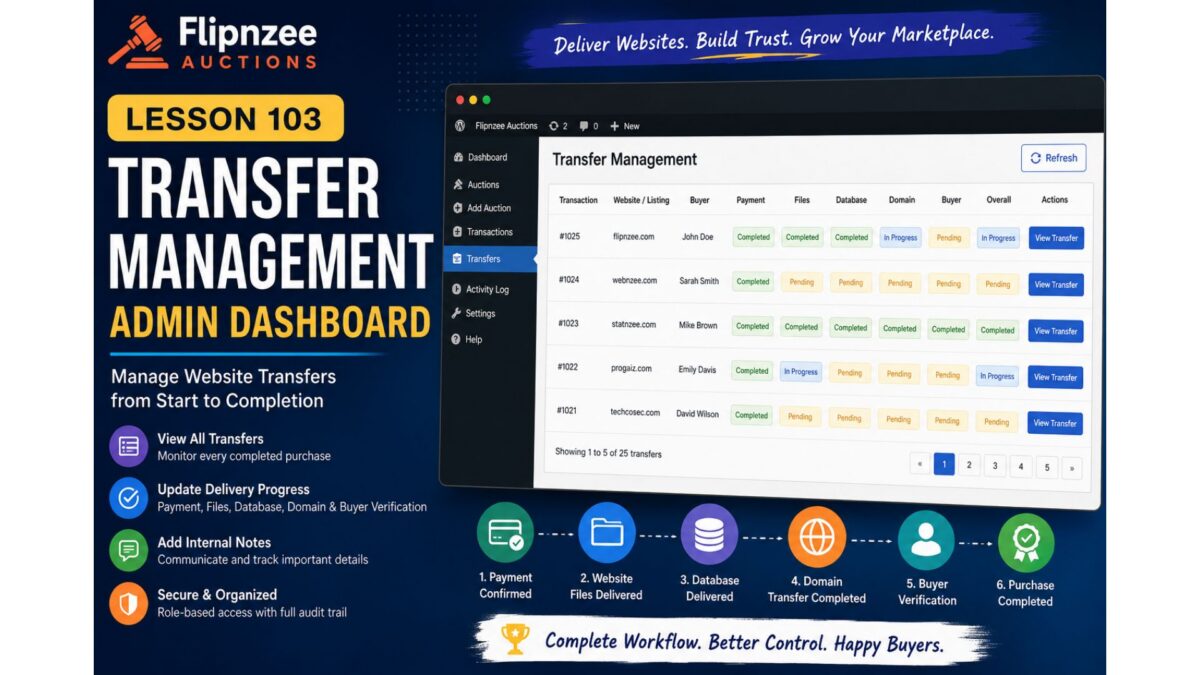
In this lesson, we will transform the placeholder Transfer Management page into a fully functional administration panel where administrators can monitor every website transfer, update delivery progress, communicate internally, and track completed purchases.
This lesson marks the beginning of the operational side of Flipnzee Auctions, moving beyond auctions and payments into the real business process of delivering digital assets to buyers.
Objectives
By the end of this lesson we will:
- Build a Transfer Management dashboard
- Display all active transfers
- Show buyer and auction information
- Display current transfer progress
- Add transfer status badges
- View transfer details
- Add administrator notes
- Update transfer progress
- Automatically refresh transfer completion
- Improve overall admin workflow
Why This Feature Matters
Unlike physical products, selling a website requires several manual steps:
- Payment confirmation
- Website files delivery
- Database delivery
- Domain transfer
- DNS verification
- Buyer confirmation
Without proper tracking, administrators can easily lose track of which purchases are waiting for which stage.
The Transfer Dashboard becomes the operational center for managing these deliveries.
New Admin Menu
The existing menu
Flipnzee Auctions

Dashboard
Auctions
Transactions
Transfers
will now have a fully functional Transfers page.
Transfer List Table
Instead of displaying a placeholder message, the page will show a table similar to:
| Transaction | Website | Buyer | Payment | Files | Database | Domain | Buyer | Overall |
|---|
Each row represents one completed purchase.
Status Badges
Every stage will display colored badges.
Examples:
Green
Completed
Yellow
Pending
Blue
In Progress
Red (future)
Problem
This allows administrators to understand the transfer state at a glance.
View Transfer Button
Each row will contain:
View Transfer
which opens a detailed transfer screen.
Transfer Details Page
The detail page will display:
Purchase Information
- Transaction ID
- Auction
- Listing
- Purchase price
- Buyer
Delivery Progress
- Payment
- Website files
- Database
- Domain
- Buyer verification
Internal Notes
Administrators can leave notes such as:
Domain unlock completed.

Waiting for buyer authorization code.
These notes remain private.
Update Transfer Status
Administrators will be able to update each stage using dropdowns.
Example:
Payment
Completed
Files
Completed
Database
Pending
Domain
In Progress
Buyer
Pending
Save Changes
A Save button will update the database using the Transfer Manager methods created in Lesson 102.
Automatic Completion Detection
Whenever every stage becomes Completed, the plugin will automatically recognize that the transfer is finished.
Future lessons will use this event to:
- send emails
- archive transfers
- update statistics
- generate reports
Security
All updates will include:
- nonce verification
- capability checks
- input sanitization
- prepared SQL statements
This keeps transfer data secure.
User Experience Improvements
The dashboard will provide administrators with:
- faster delivery tracking
- cleaner workflow
- centralized management
- fewer manual database edits
- better visibility into active purchases
Files Expected to Change
Primary files:
admin/class-admin-transfer.php
includes/class-transfer-manager.php
flipnzee-auctions.php
Possibly:
assets/css/admin.css
for status badge styling.
Development Roadmap
At the end of Lesson 103, Flipnzee Auctions will include:
- ✅ Auctions
- ✅ Bidding
- ✅ Winner determination
- ✅ Transactions
- ✅ Buyer dashboard
- ✅ Purchase details
- ✅ Transfer records
- ✅ Transfer management dashboard
This completes another major operational module of the plugin and lays the groundwork for future enhancements such as email notifications, automated reminders, document uploads, and buyer-admin communication during the website transfer process.
In the next implementation lesson, we will replace the current placeholder Transfers page with a complete management interface, connect it to the Transfer Manager, and enable administrators to manage every stage of a website transfer directly from the WordPress dashboard.